Rescuing a server
This guide walks you through the required steps for accessing a server in rescue mode.
When you boot a server into rescue mode, you can then access its boot disk to fix a corrupted file system, reset access credentials, or perform other emergency recovery tasks.
Prerequisites
You can boot a server into rescue mode by using the Cleura Cloud Management Panel. If you prefer to work with the OpenStack CLI, make sure you enable it first.
Initiating the rescue
Using the left-hand side navigation pane, bring into view the server you are interested in.


Click the icon at the right-hand side of the server row. From the drop-down menu, select Rescue Server.
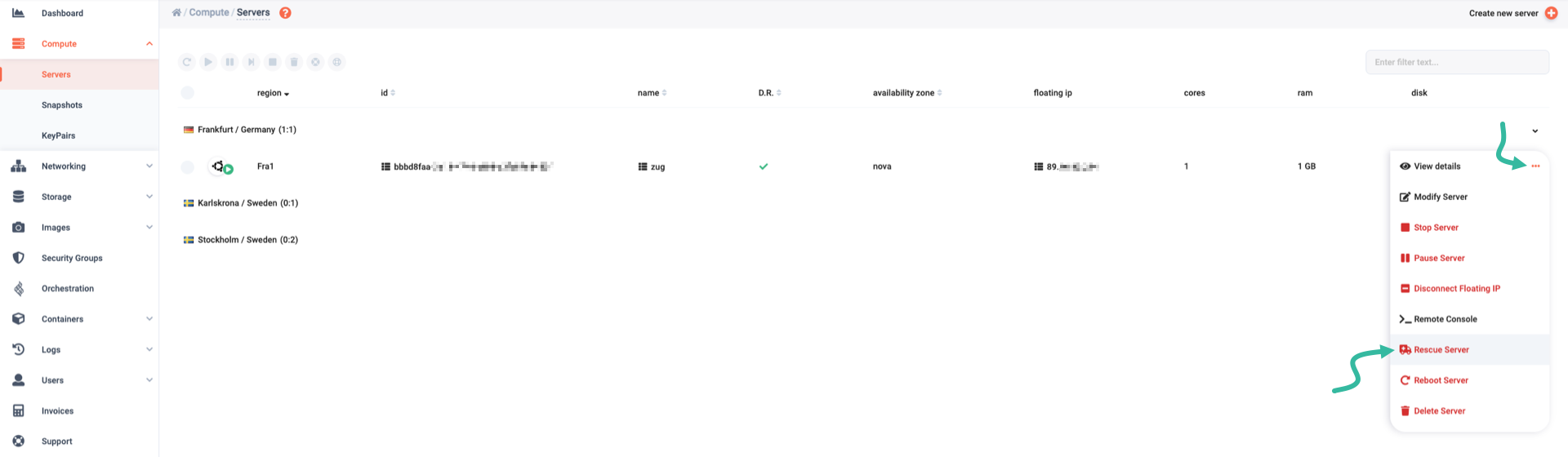
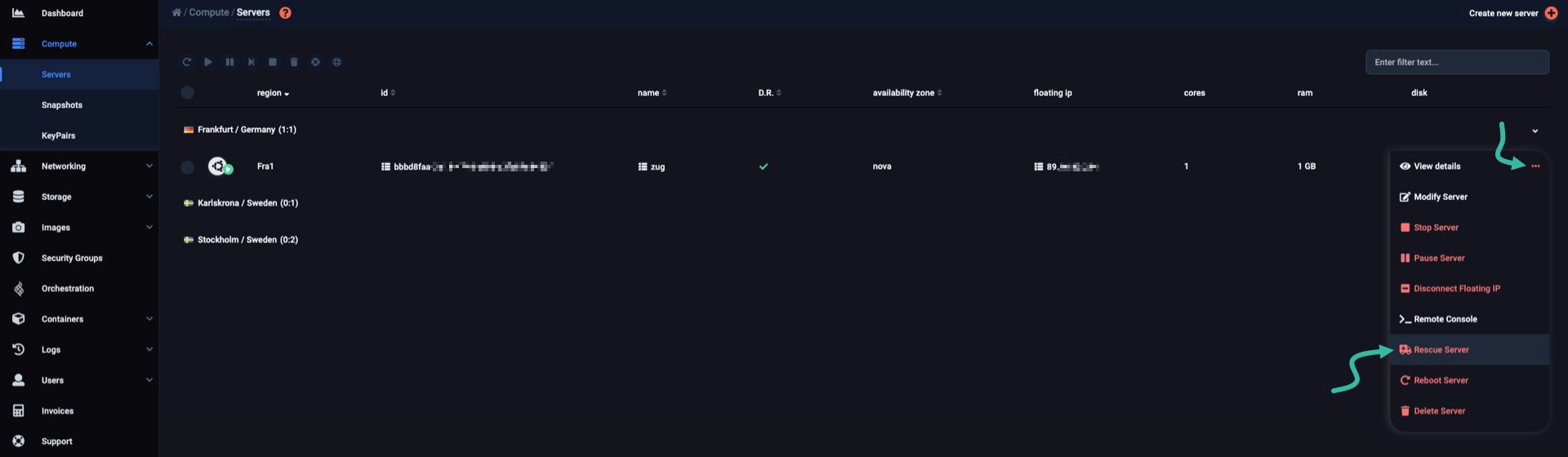
The rescue dialog window appears. Leave the default option, Use System Rescue Image, selected. Click the Rescue button to proceed.
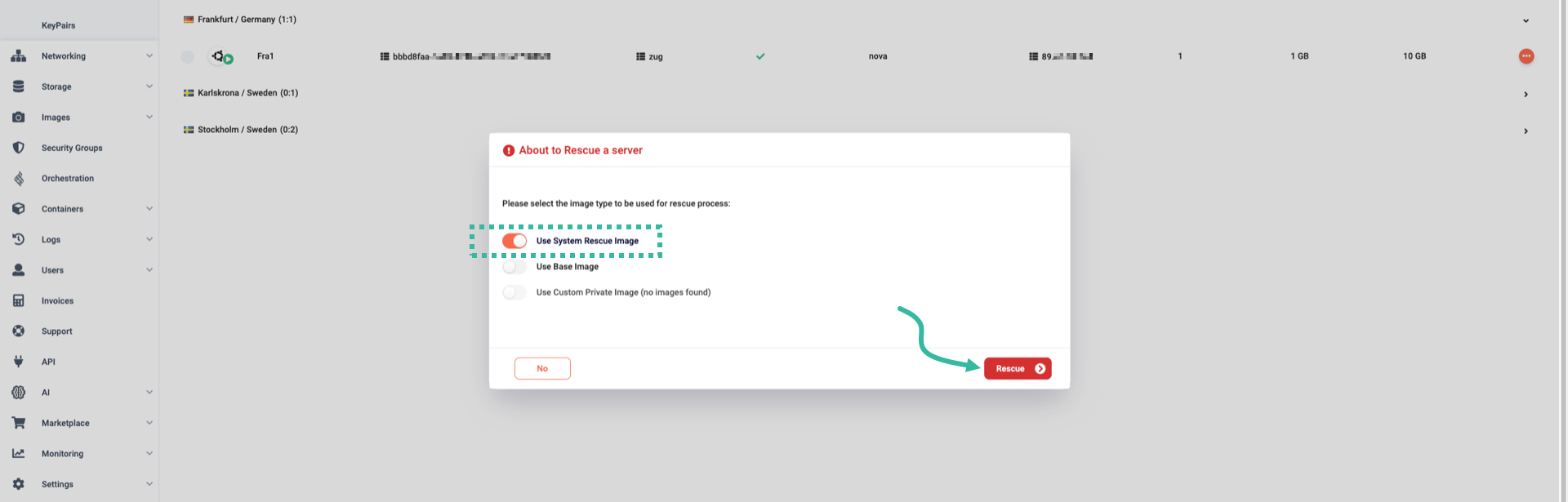

The server starts rebooting into rescue mode. When it finishes booting, its status icon has an exclamation mark.


First, get the id of the server you want to inspect.
For example, use openstack like so:
$ openstack server show -c id <server_of_interest_name>
+-------+--------------------------------------+
| Field | Value                                |
+-------+--------------------------------------+
| id    | c9fb10a0-4de9-11f1-8eb0-c319c95cc812 |
+-------+--------------------------------------+
Then, find the id of a system rescue image:
$ openstack image list --tag system-rescue
+--------------------------------------+---------------+--------+
| ID                                   | Name          | Status |
+--------------------------------------+---------------+--------+
| bdf8030f-aa9d-44ba-afb9-bb1597ff1b2e | system-rescue | active |
+--------------------------------------+---------------+--------+
To boot the server of interest using the system rescue image, use the following command, substituting the correct id for the system-rescue image in your Cleura Cloud region:
openstack server rescue \
  --image bdf8030f-aa9d-44ba-afb9-bb1597ff1b2e \
  <server_id>
For as long as the server is in rescue mode, the server’s OS-EXT-STS:vm_state and status fields are set to rescued and RESCUE, respectively:
$ openstack server show -c OS-EXT-STS:vm_state -c status <server_id>
+---------------------+---------+
| Field               | Value   |
+---------------------+---------+
| OS-EXT-STS:vm_state | rescued |
| status              | RESCUE  |
+---------------------+---------+
Accessing the server in rescue mode
You can now access the remote console of your server, as you would with any other active server.
Please refer to the System Rescue documentation for details on the available tools and features bundled with System Rescue.
Bringing the server back to normal mode
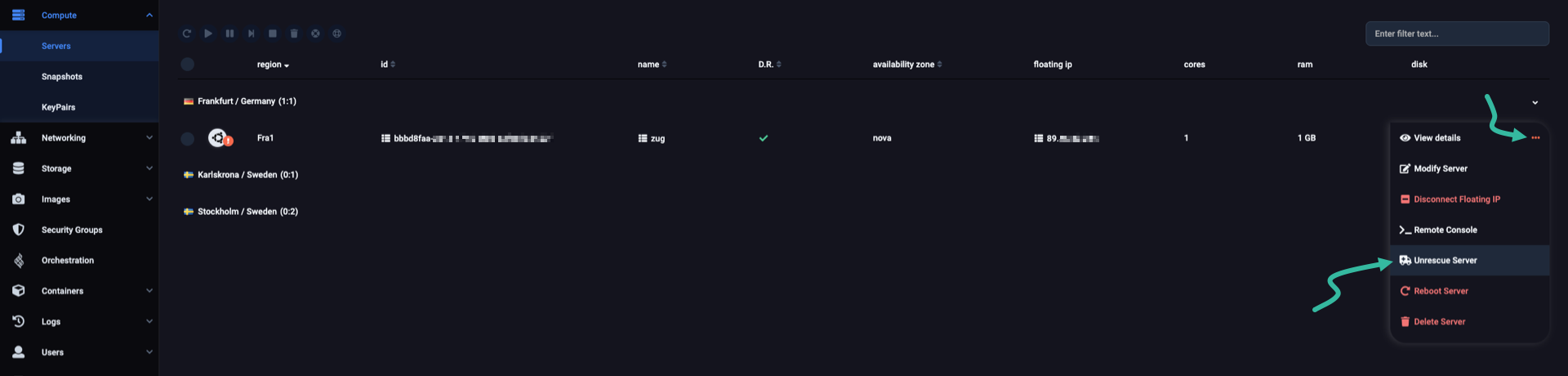
Click the icon at the right-hand side of the server-in-rescue-mode row. From the drop-down menu that appears, select Unrescue Server.
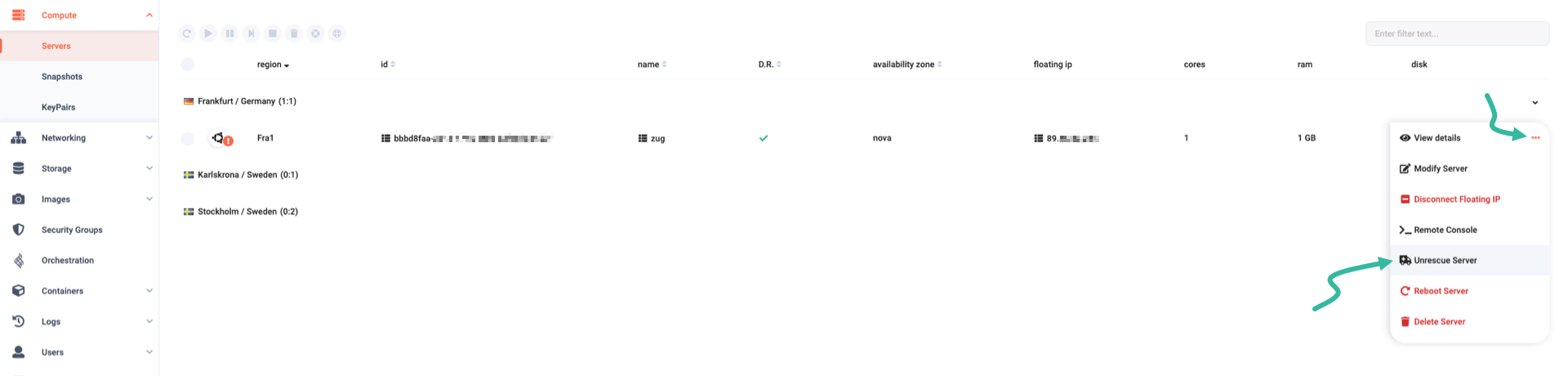
Send the unrescue sub-command to the server, like so:
$ openstack server unrescue <server_id>
In a few seconds, the server finishes rebooting into normal mode.