Resizing a server
This guide shows how to change the number of CPU cores and the amount of memory your server has; essentially, you do this by changing the server’s flavor.
Resize (or Server resize) is the ability to change the flavor of a server, thus allowing it to upscale or downscale according to user needs. A resize operation is a two-step process for the user:
- Initiate the resize.
- Either confirm (verify) success and release the old server, or declare a revert to release the new server and restart the old one.
Prerequisites
You need to have a server you can resize. Additionally, if you prefer to use the OpenStack CLI, make sure you enable it first.
Listing available flavors
Navigate to the server list.


Find the server you want to resize in the list. At the right-hand side of its row, click the icon. In the drop-down menu, click Modify Server.
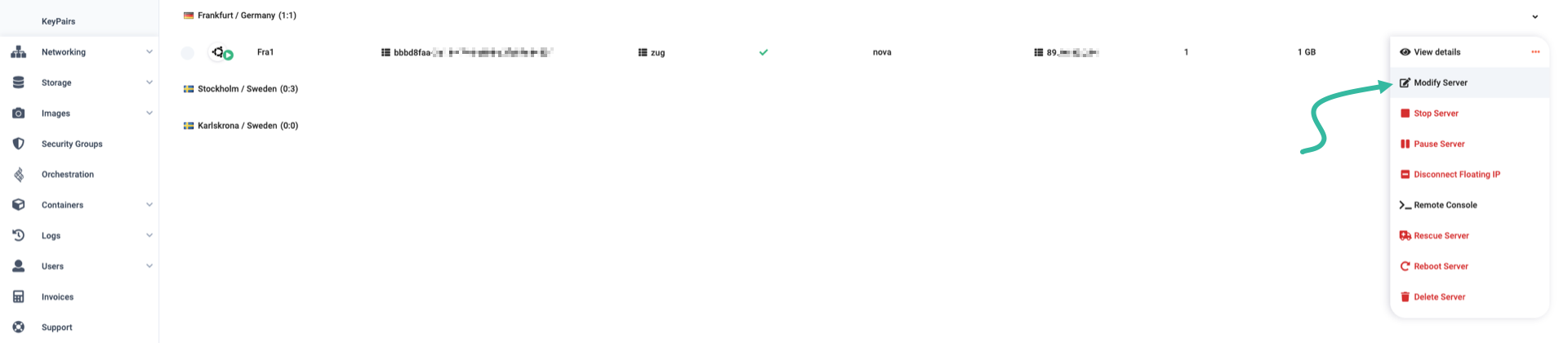

Near the top of the options panel, find the Flavor section. See the server’s current flavor. Expand the dropdown menu to get all available flavors.


To list all available flavors, you may run openstack flavor list.
That returns a very long unsorted list, though, so instead we recommend the following command:
openstack flavor list -c Name -f value | grep '[0-9]c[0-9]' | sort -V
The output is a simple, clean list, sorted by compute type, number of cores, and then memory.
b.1c1gb
b.1c2gb
b.1c4gb
b.2c2gb
b.2c4gb
b.2c8gb
b.2c16gb
b.4c4gb
...
Initiating the resize
Choose a new flavor that you want your server to use instead.
A resize is only possible with flavors using the same prefix letter. Most commonly, you will have a
b.flavor, so you will select anotherb.flavor.
Once you select a new flavor, the Resize button appears.


Click on it to start the resize.
While the resize is ongoing, you see a spinning circle and the message “Resize is in progress”.


To start the resize, use the following command:
openstack server resize --flavor <new_flavor> <server_id>
While the resize is ongoing, the server should have OS-EXT-STS:task_state set to resize_migrating, and status set to RESIZE.
openstack server show -c OS-EXT-STS:task_state -c OS-EXT-STS:vm_state -c status <server_id>
+-----------------------+------------------+
| Field                 | Value            |
+-----------------------+------------------+
| OS-EXT-STS:task_state | resize_migrating |
| OS-EXT-STS:vm_state   | active           |
| status                | RESIZE           |
+-----------------------+------------------+
You may proceed with the next step once your server status is VERIFY_RESIZE.
+-----------------------+---------------+
| Field                 | Value         |
+-----------------------+---------------+
| OS-EXT-STS:task_state | None          |
| OS-EXT-STS:vm_state   | resized       |
| status                | VERIFY_RESIZE |
+-----------------------+---------------+
The resize process might take a minute or more. Cleura Cloud will now make a restore point in case the resize process fails. It would then restore your server to the state it was in before the resize.
Confirming the resize
Your server is now using the new flavor you selected earlier, and you need to make sure it is still working as intended.
Once you are certain your server is working as intended, confirm the resize. If you do not, your server will automatically confirm the resize after 24 hours.
This is done by clicking the Confirm button.


If your server is not working as intended, or you simply regret the resize, instead click Cancel.
This is done by using the following command:
openstack server resize confirm <server_id>
Alternatively, if your server is not working as intended, revert the resize with the following command:
openstack server resize revert <server_id>
This concludes the process of resizing a server in Cleura Cloud.