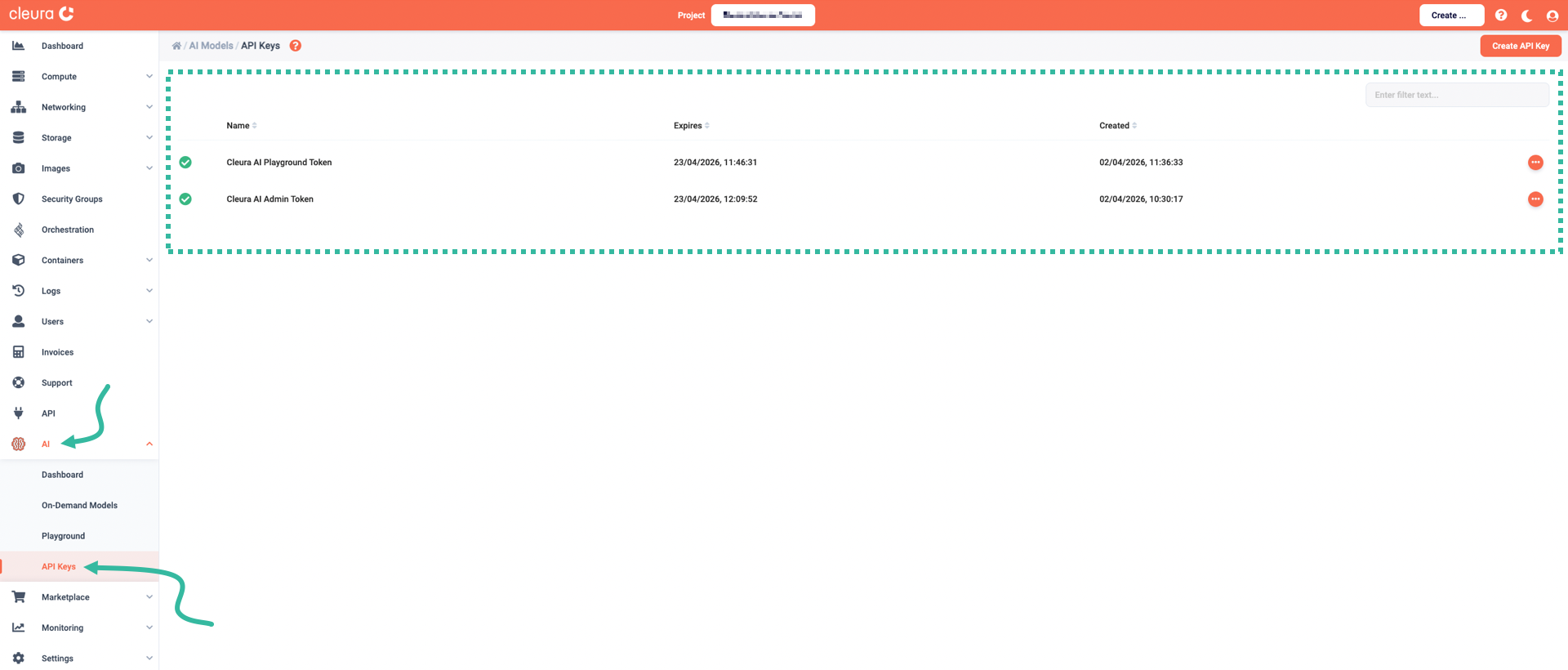
Managing API keys
Invite-only access
Access to Cleura AI services is currently invite-only.
Whether you want to integrate a specific set of Cleura AI LLMs into your application or web site, or access the models via a third party application you prefer, you first have to create an API key.
Creating an API key
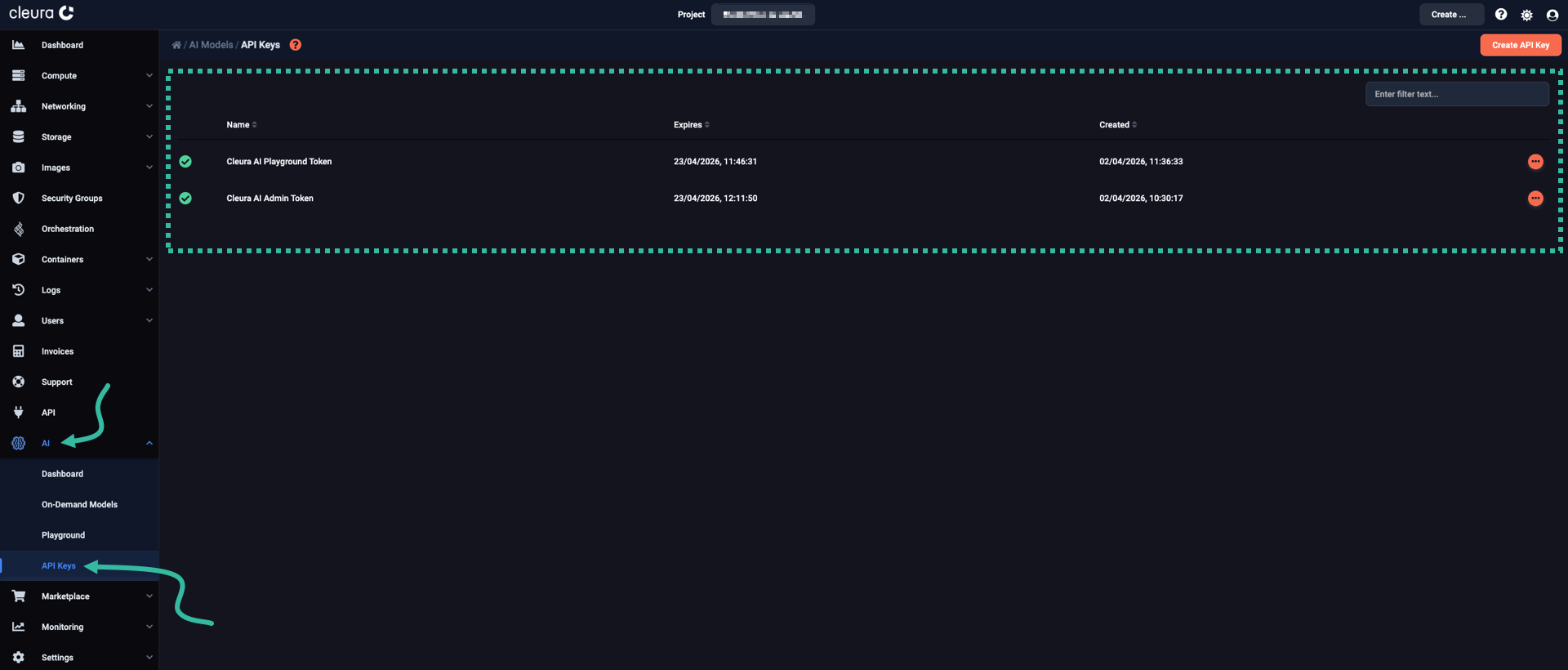
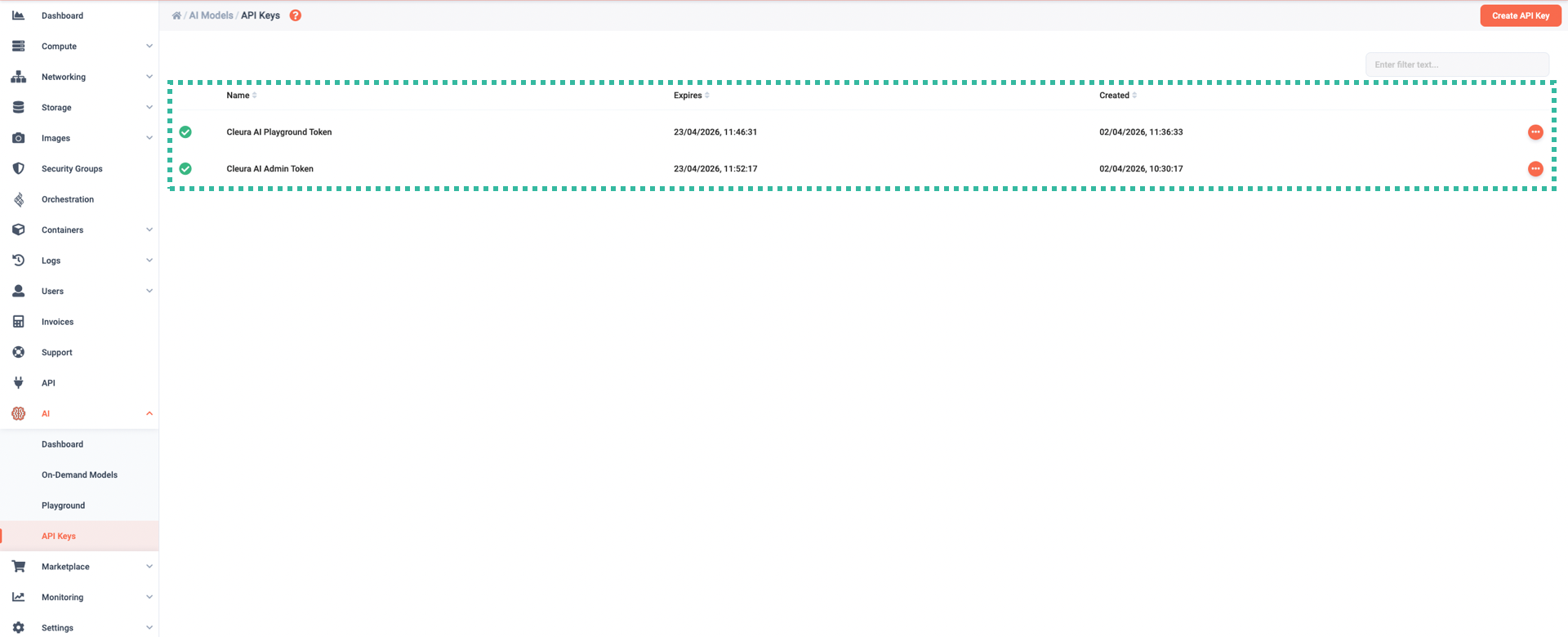
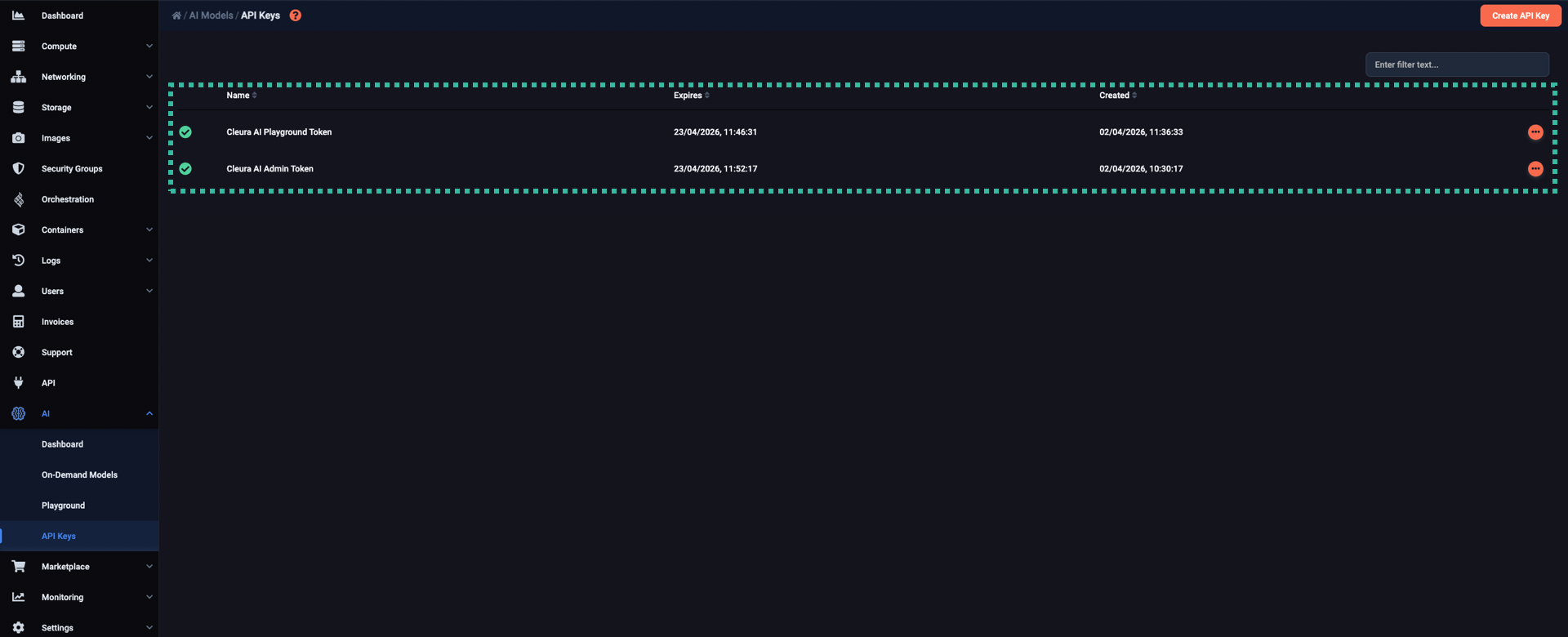
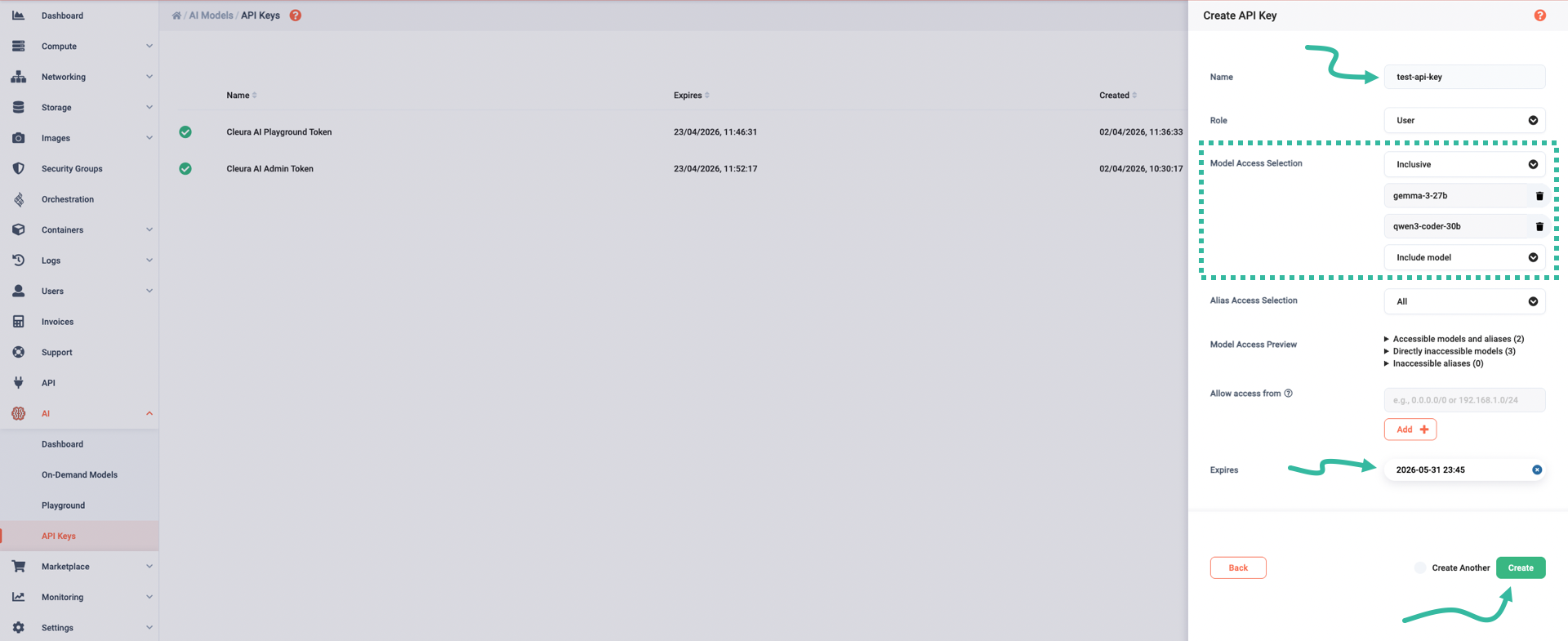
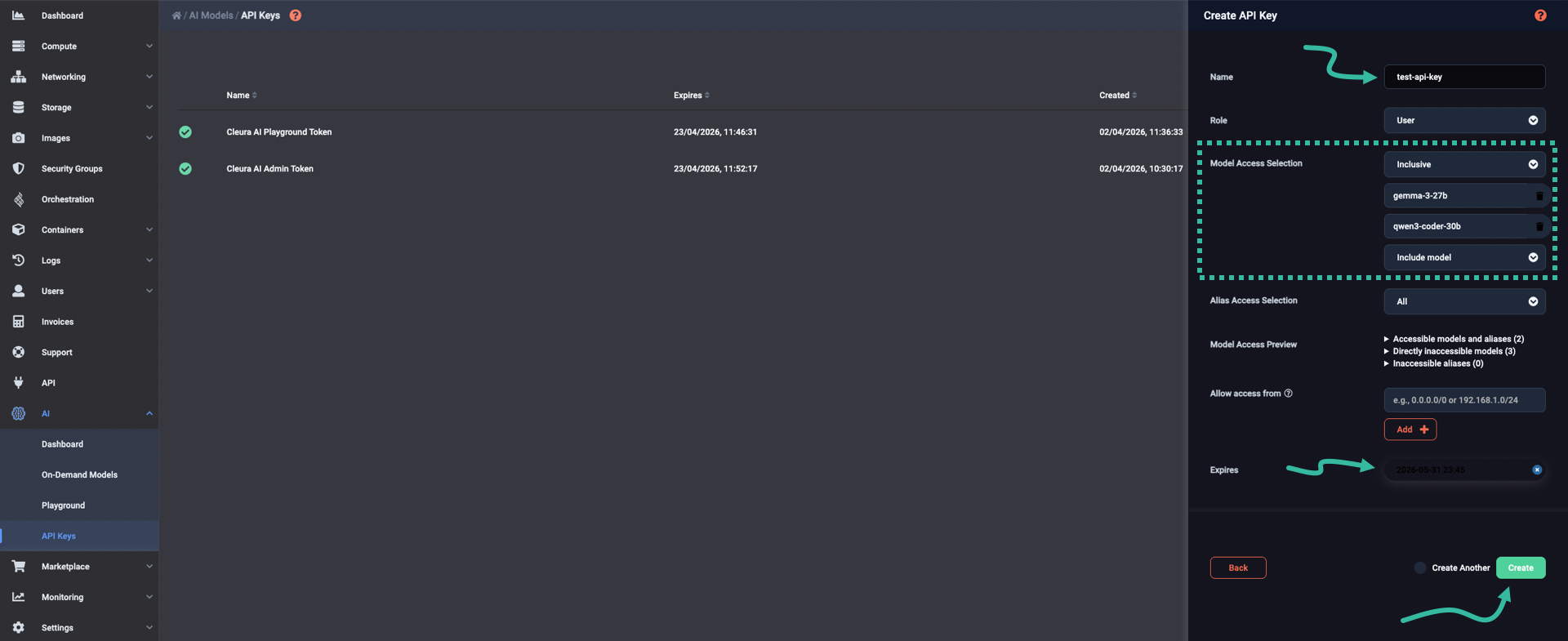
Expand the AI section and select API Keys. On the main pane, all existing API keys appear. To create a new one, click the Create API Key button.
A new pane slides over. There, enter a Name for the new API key. Using the Model Access Selection_ drop-down menu, you may have the new key pertain to all available Cleura AI models (All), to specific models only (Inclusive), or to all but a few models (Exclusive*).
You may also use the Allow access from section, to allow access to the models from one or more networks only. Please note that restricting the use of an API key to an IPv4 source network or to a set of IPv4 source networks, blocks using that key via IPv6 altogether. Also, restricting API key access to an IPv6 source network is not possible.
Finally, you can set an expiration date for the API key; beyond that date, access to any model using that key will not be possible.
When you are ready, click the Create button.
A new window titled API Key Created Successfully pops up.
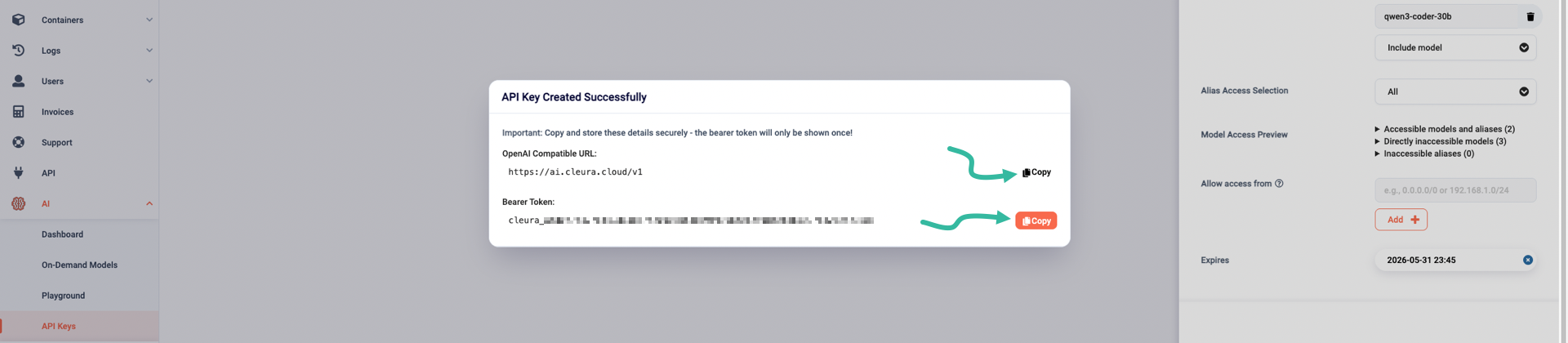
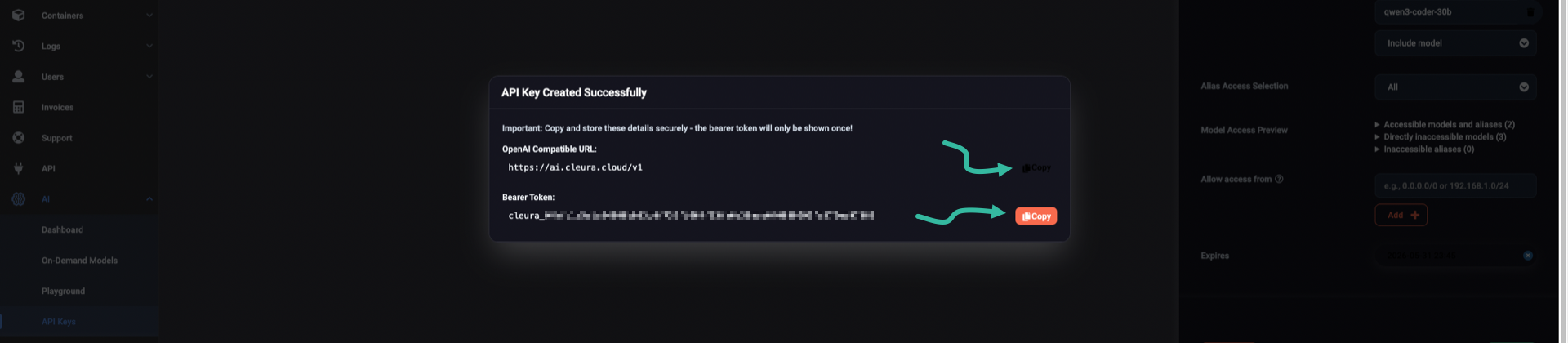
There are two pieces of information on that window that you need to jot down or, better yet, copy to a suitable password manager entry:
- The OpenAI Compatible URL, and
- the Bearer Token.
The bearer token is only displayed once, and as soon as you close the pop-up window you do not get to see the token again.
When you have secured the bearer token, click anywhere on the Cleura Cloud Management Panel but on the pop-up window to close it. You will then see all the API keys, including the one you just created, listed on the main pane.


Deleting API keys
To delete an API key, first go to the API Keys pane of the Cleura Cloud Management Panel. Locate the key you wish to delete, click the icon at the right of its row, and select Delete.
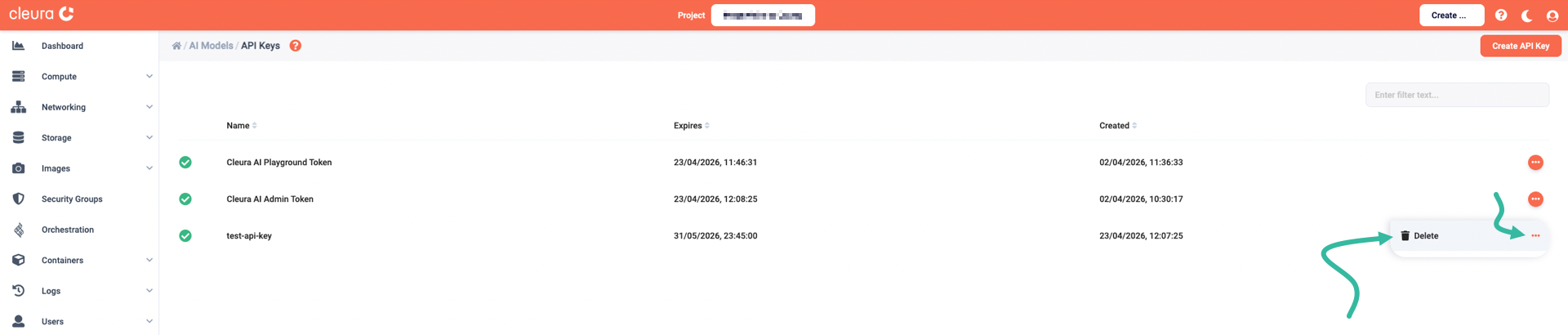
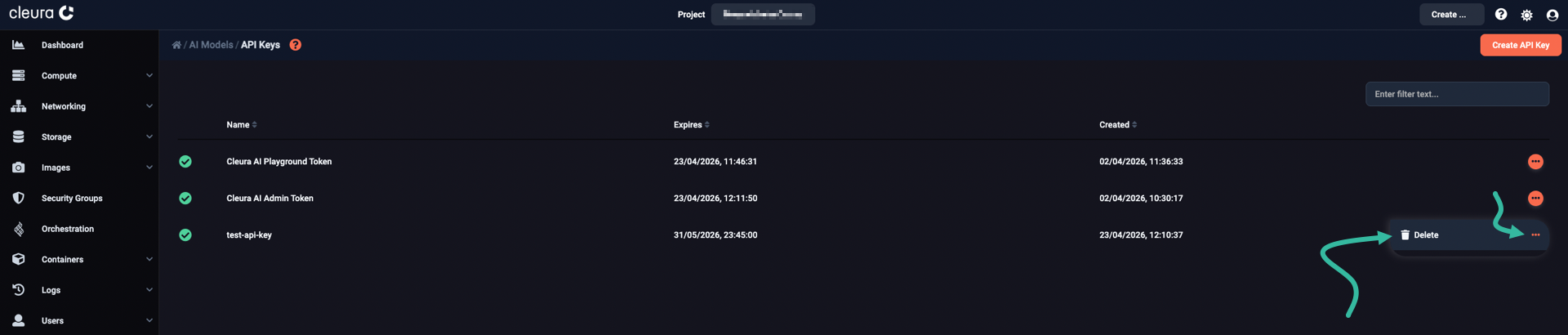
A popup window appears at the top of the page, asking if you really want to delete the key. If you are sure you do not need the key anymore, click the OK button.


This deletes the API key. The list of keys is now shortened by one, and you get a confirmation on a bubble at the bottom of the page.