Using the playground
Invite-only access
Access to Cleura AI services is currently invite-only.
In the Cleura Cloud Management Panel, expand the vertical navigation bar at the left, click on AI, and then choose On-Demand Models.
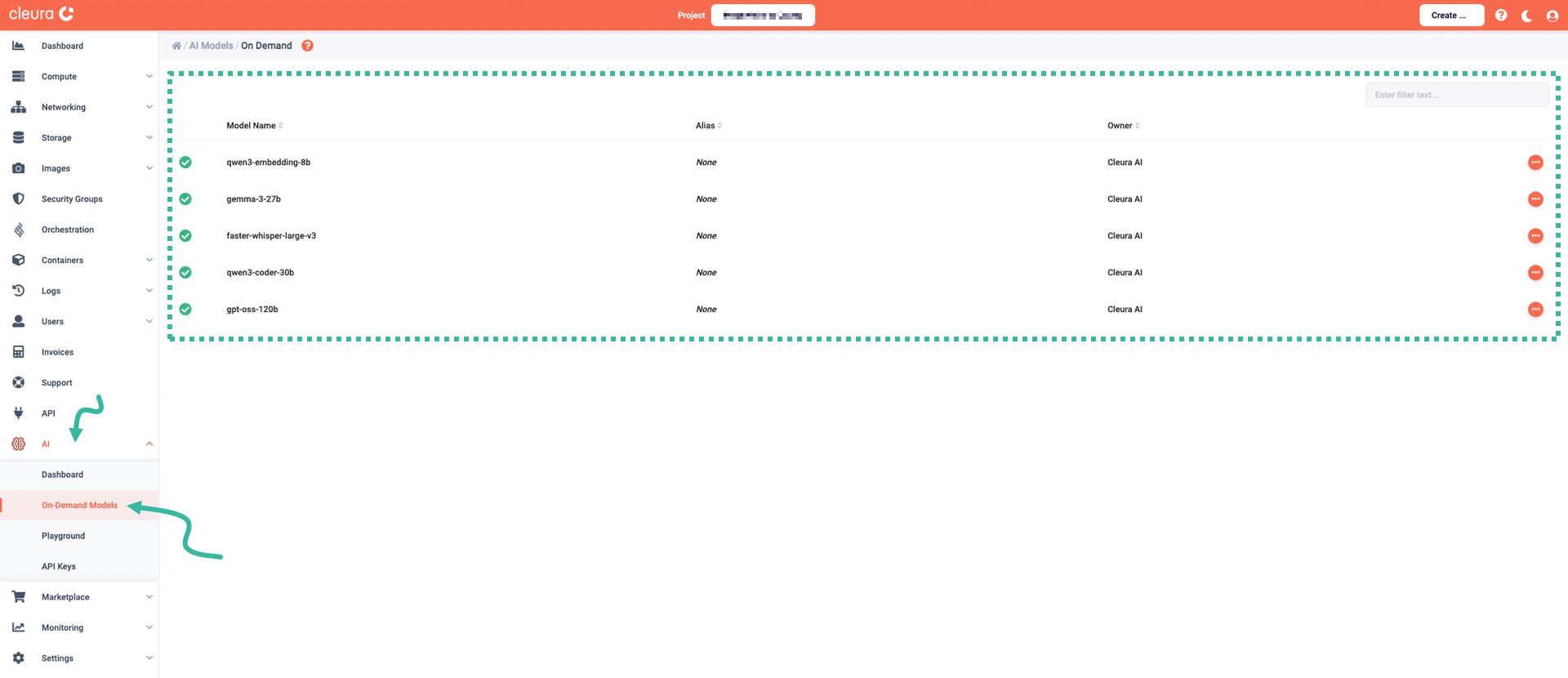
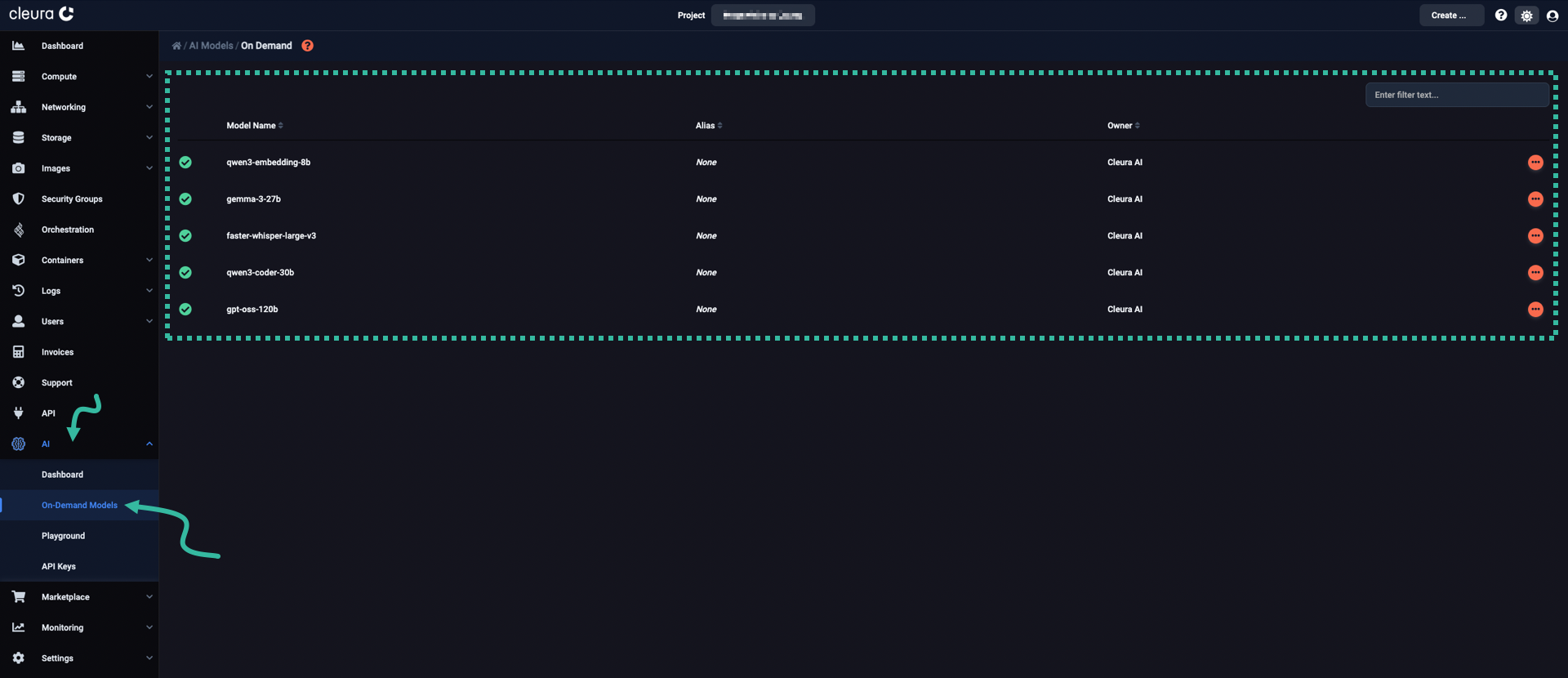
All available LLMs are on the main pane.
Interacting with a model
To start interacting with a specific model, click the icon at the right of its row and select Playground.


The first time you select a model, a pop-up window titled Playground Terms appears.
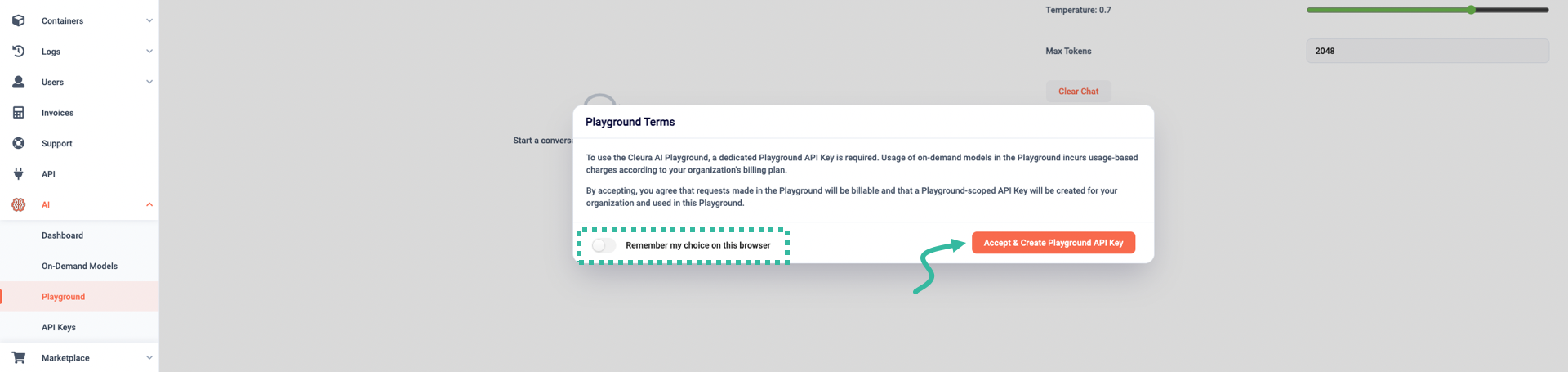
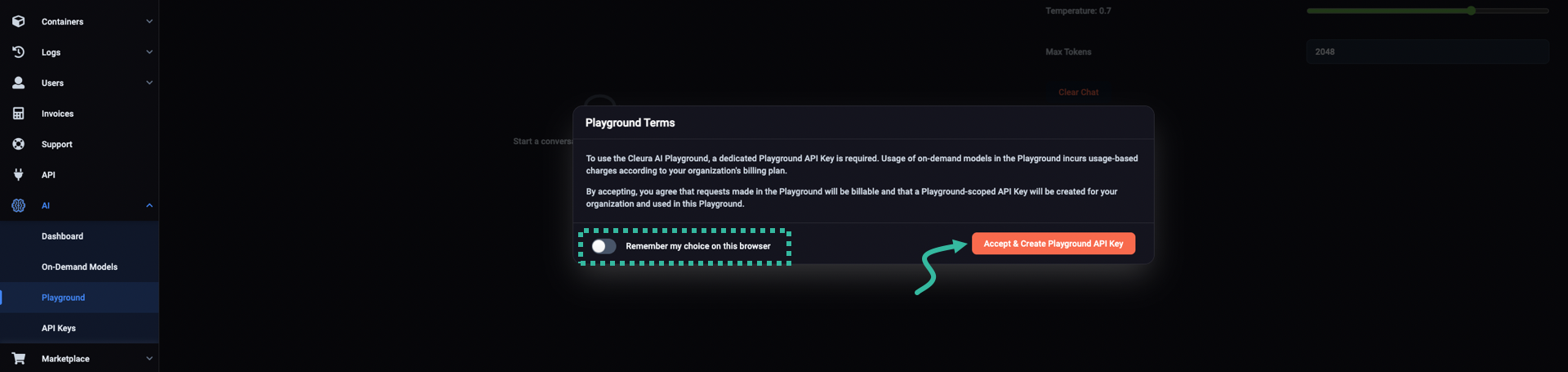
Read the two short paragraphs regarding the terms. Optionally, toggle the Remember my choice on this browser option. Provided you agree with the terms, click the Accept & Create Playground API Key button to proceed.
Interacting with a model
In the Chat Playground main pane, you can freely interact with any of the available models by asking questions.
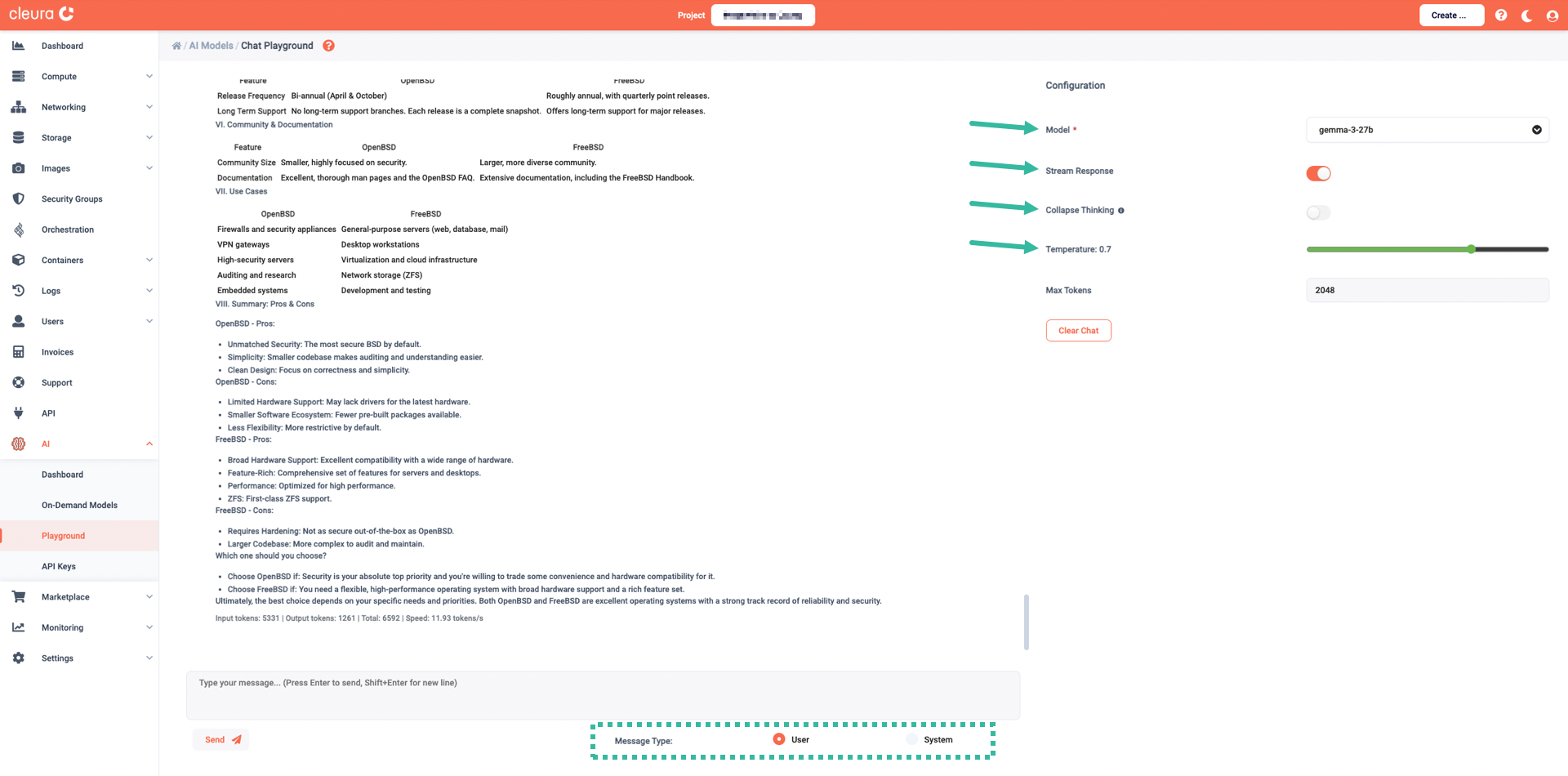
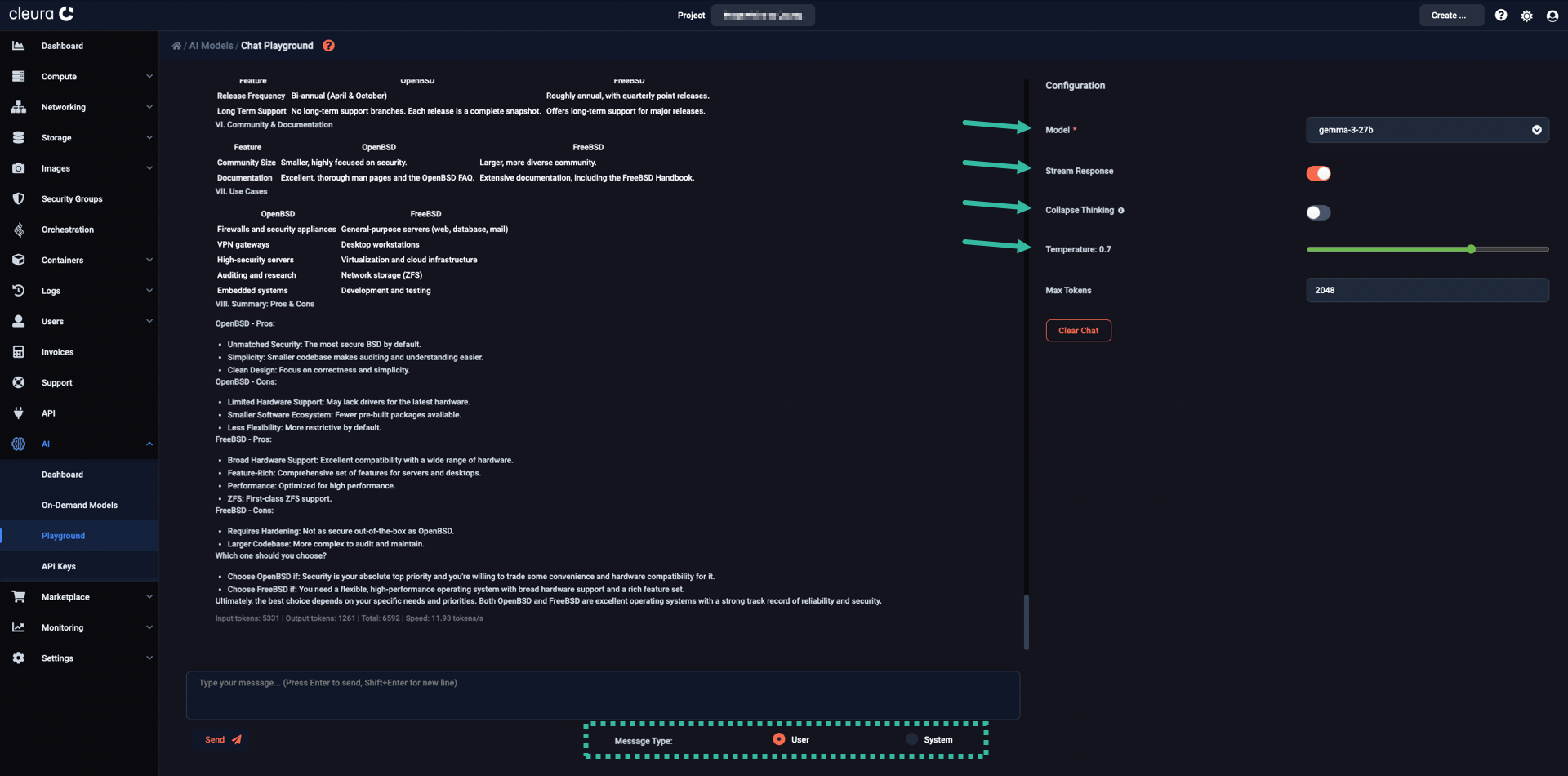
Below the text box where you type-in your questions, you will notice the Message Type parameter. This can be either User (the default) or System:
- When Message Type is set to User, the LLM processes your questions as regular prompts.
- When it is set to System, the LLM adjusts its overall tone to what you’re telling it (“from now on, be brief and dry”, or “from now on, respond as a friendly and patient teacher”).
Please take note of the Configuration area, at the top right-hand side of the pane.
From the drop-down menu in the Menu row, you may choose any of the available models to interact with.
Below, when the Stream Response toggle is enabled, the answers appear gradually, resembling a live conversation with another human. When that toggle is disabled, after a short pause the answers appear all at once.
There is also the Collapse Thinking toggle. When it is disabled, you get to inspect how the model arrives at its answer. This is useful when you wish to debug a prompt, or wish to inspect the model’s step‑by‑step logic. When the toggle is enabled, you get a “cleaner” and easier to read output, which may be desirable when the chain‑of‑thought is long and you only care about the final answer.
Finally, by playing with the Temperature parameter, you influence the creativity of the model while coming up with answers to your questions. The higher the Temperature, the more freewheeling or creative the LLM becomes. On the other hand, the lower the Temperature, the more deterministic or focused the LLM becomes.