Listing and filtering images
You can use either the openstack command-line interface (CLI), or the Cleura Cloud Management Panel, to list available public images in Cleura Cloud.
When creating a server
Images are sorted by their Operating System on the Create a Server menu.
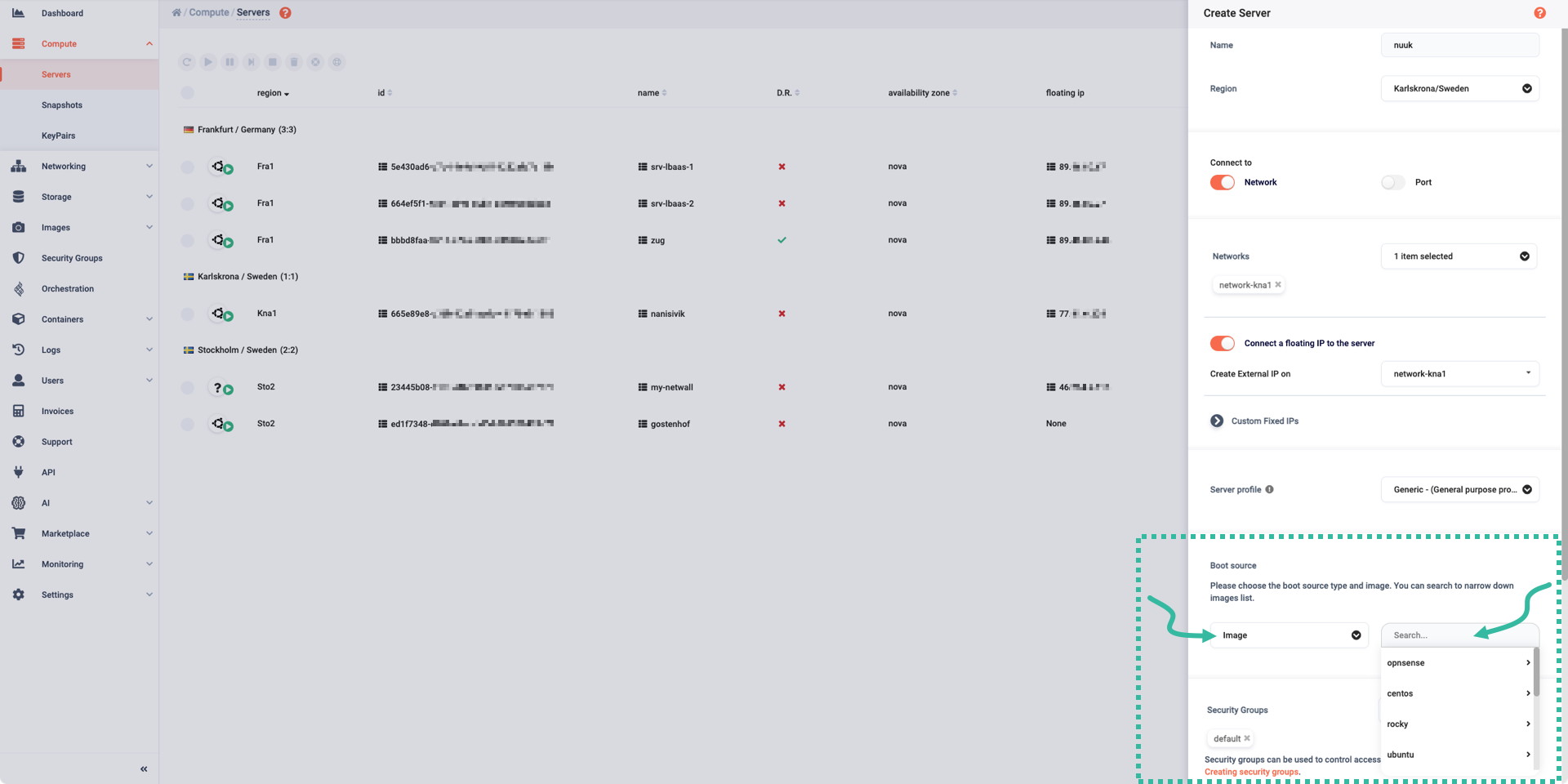
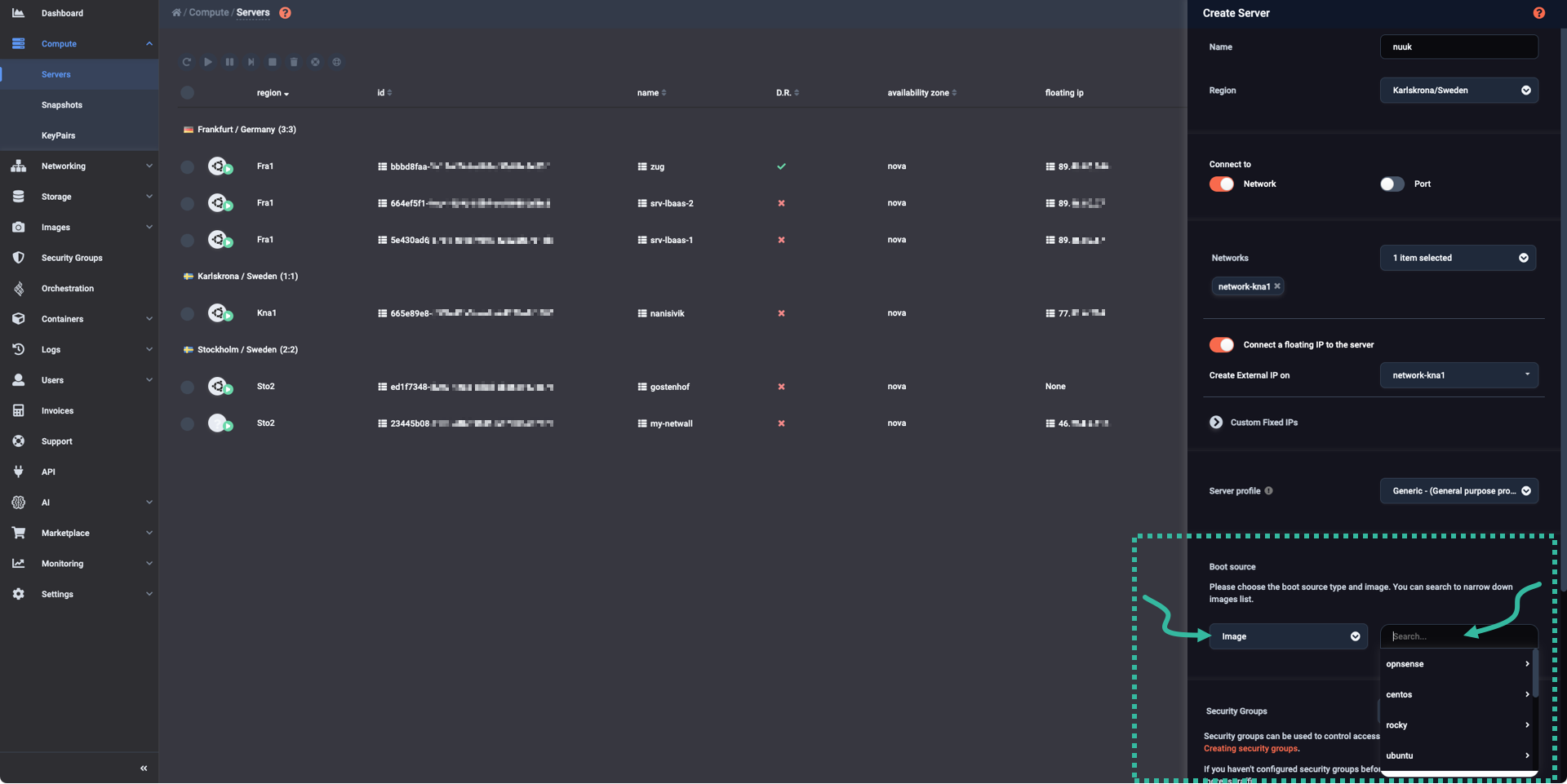
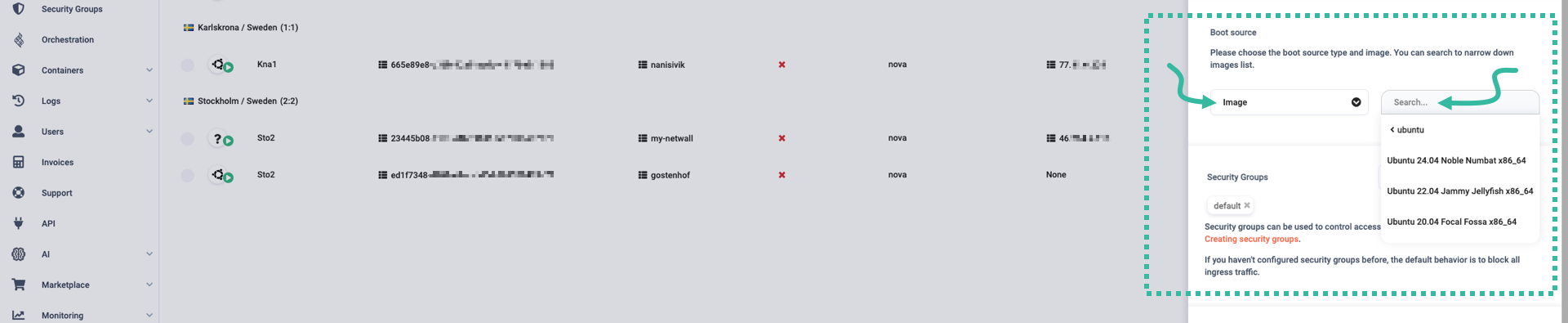
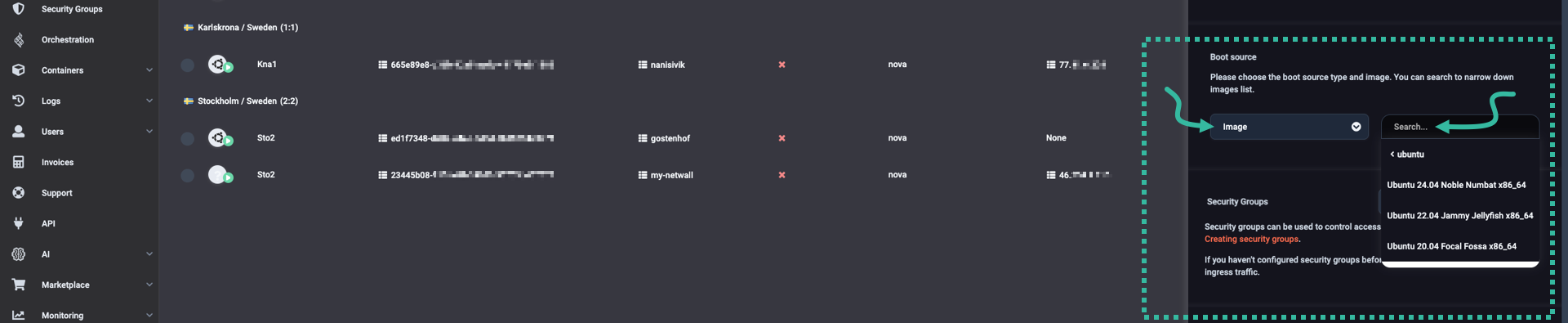
On the Images tab
You can also see the full list of images in the Images → Public Images menu item. On this page you can filter images based on their name, UUID or even tags.
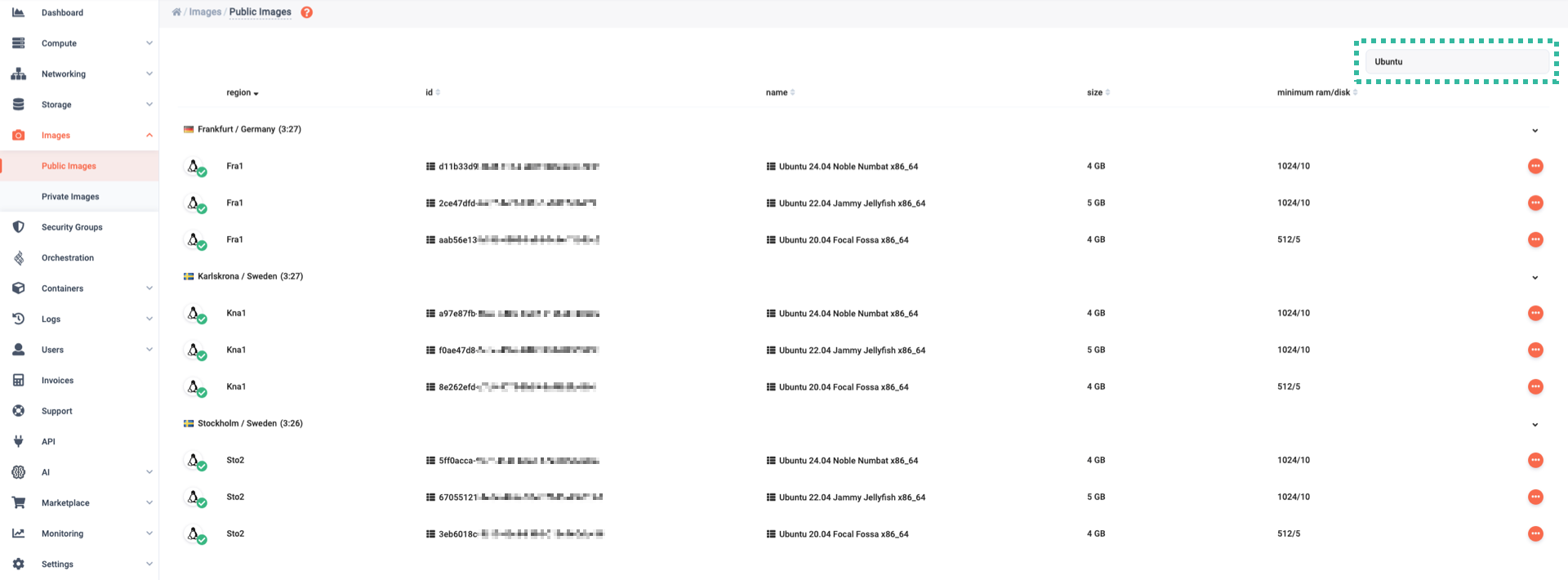
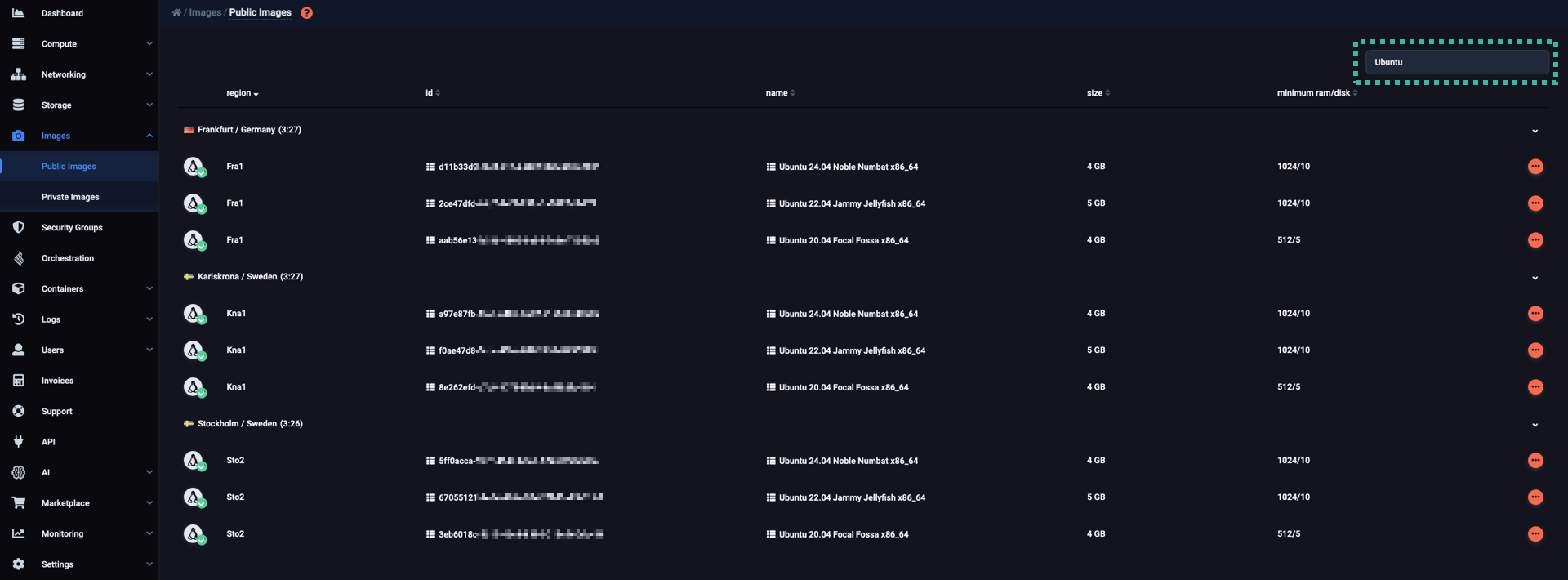
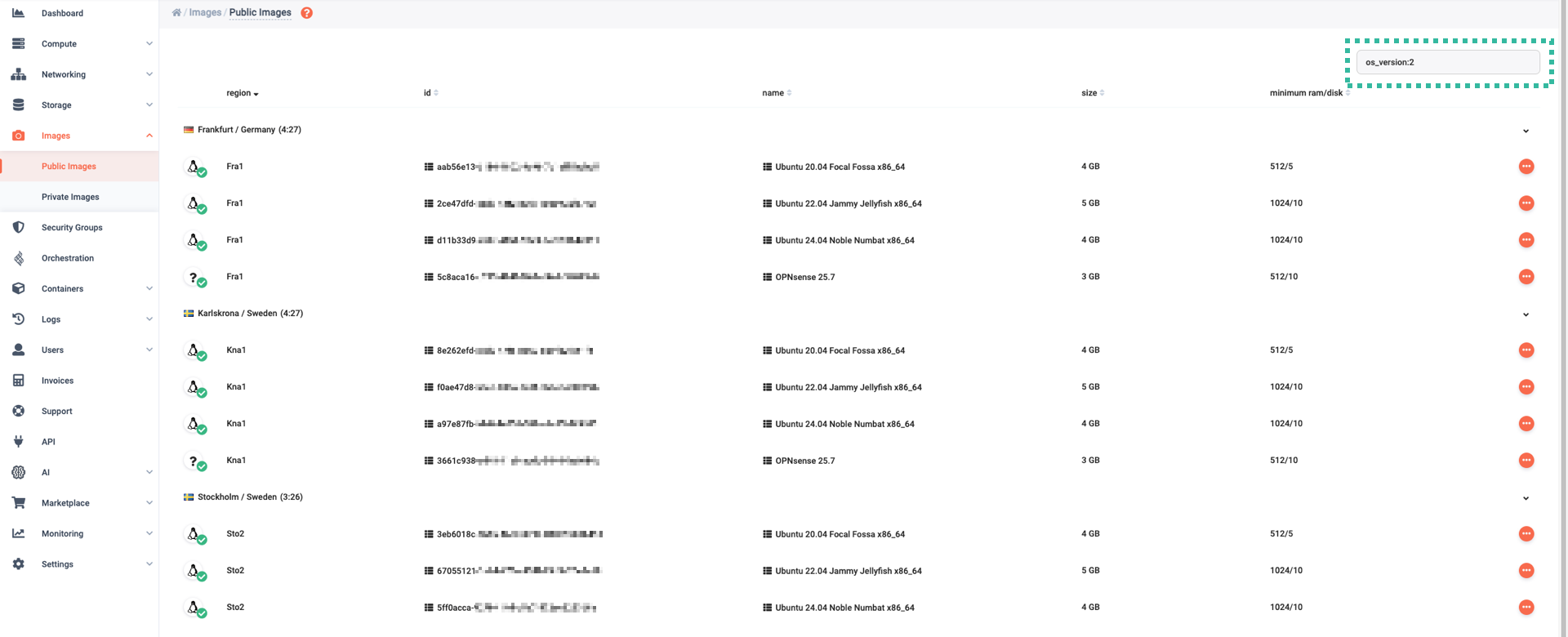
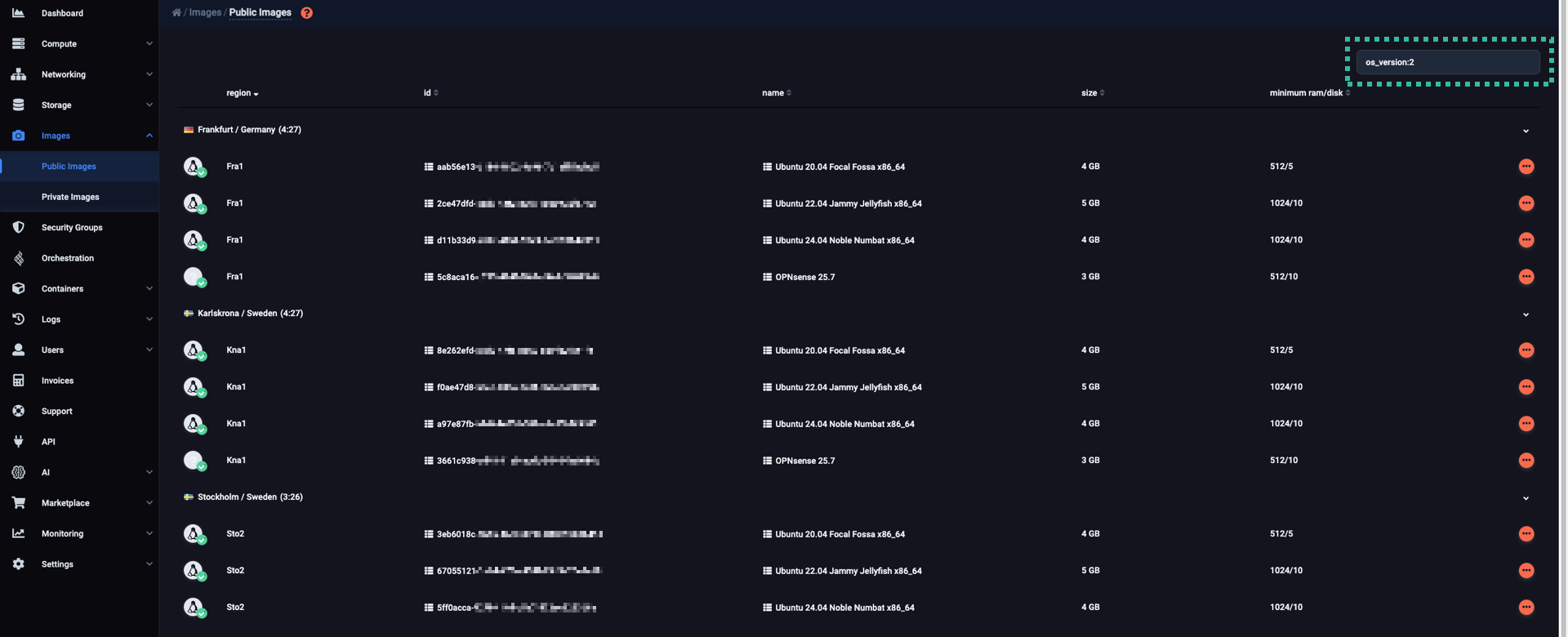
Using the openstack image list command, the CLI gives you several ways of filtering images.
Filter by properties
You can retrieve a filtered list of available images, based on specific image properties:
$ openstack image list \
  --public \
  --status active \
  --property os_distro=ubuntu \
  --property os_version=24.04 \
+--------------------------------------+----------------------------------+--------+
| ID                                   | Name                             | Status |
+--------------------------------------+----------------------------------+--------+
| 292aa350-a066-11f1-848f-bf2fbfa0ab35 | Ubuntu 24.04 Noble Numbat x86_64 | active |
+--------------------------------------+----------------------------------+--------+
As shown in the example, you can specify multiple tags when filtering by properties.
However, you cannot use properties as negated filters.
For example, you cannot use the --property option to list public and active images that are not Ubuntu.
Filter by tag
In order to list images that match a specific tag, you can use the following command:
$ openstack image list \
  --public \
  --status active \
  --tag os:ubuntu \
  --tag os_version:24.04
+--------------------------------------+----------------------------------+--------+
| ID                                   | Name                             | Status |
+--------------------------------------+----------------------------------+--------+
| 292aa350-a066-11f1-848f-bf2fbfa0ab35 | Ubuntu 24.04 Noble Numbat x86_64 | active |
+--------------------------------------+----------------------------------+--------+
Filter by name
Since we aim to make image names consistent, you can also apply filtering based on image names.
For example:
$ openstack image list \
  --public\
  --status active \
  --name "Ubuntu 24.04 Noble Numbat x86_64"
+--------------------------------------+----------------------------------+--------+
| ID                                   | Name                             | Status |
+--------------------------------------+----------------------------------+--------+
| 292aa350-a066-11f1-848f-bf2fbfa0ab35 | Ubuntu 24.04 Noble Numbat x86_64 | active |
+--------------------------------------+----------------------------------+--------+