Accessing via Open WebUI
Invite-only access
Access to Cleura AI services is currently invite-only.
Open WebUI is an open source web dashboard for interacting with LLMs via an OpenAI‑compatible API.
You can have an Open WebUI instance up and running in minutes, by deploying it from the Marketplace.
To proceed, make sure you have an API key readily available.
Adding Cleura AI models
As soon as your Open WebUI instance is ready and you are logged in, click on Select a model, and then on the Manage Connections button.


On the upper right-hand side of the new page that appears, click the icon. A window labeled Add Connection pops up.
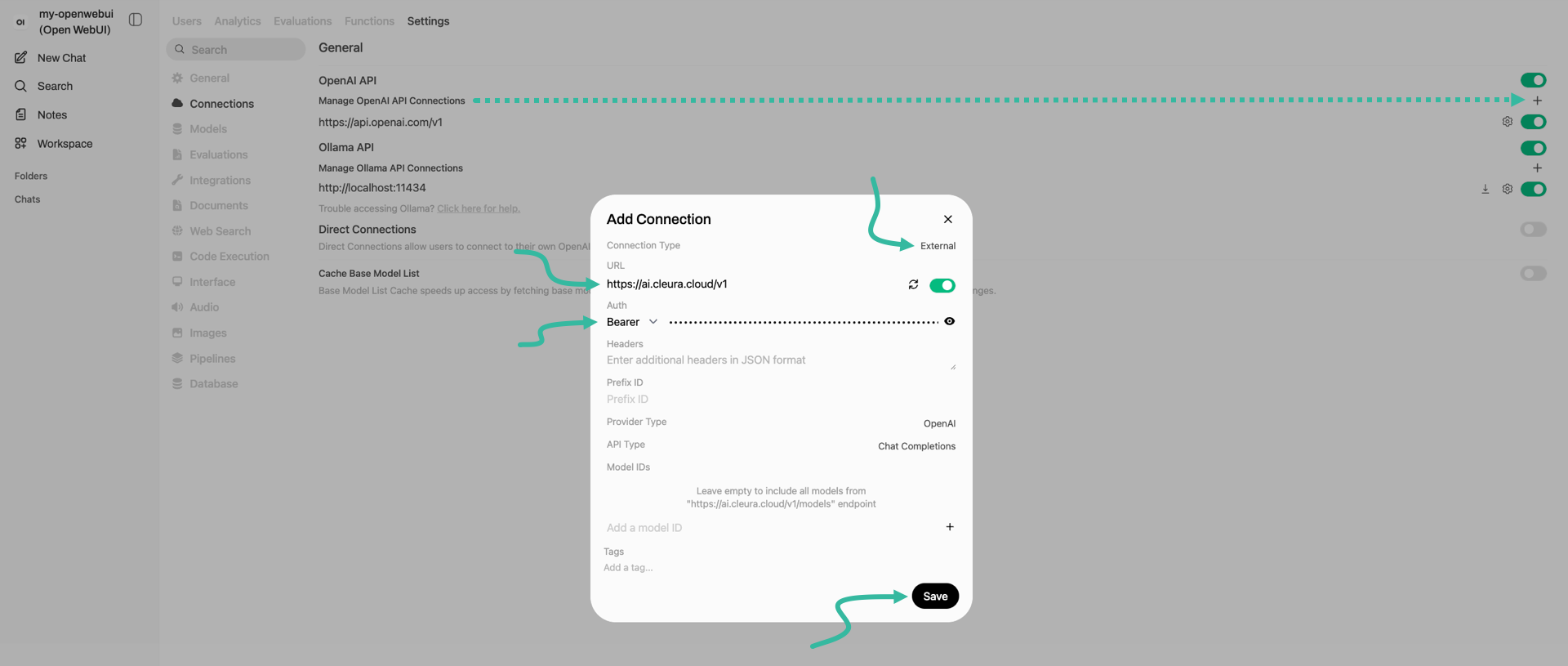
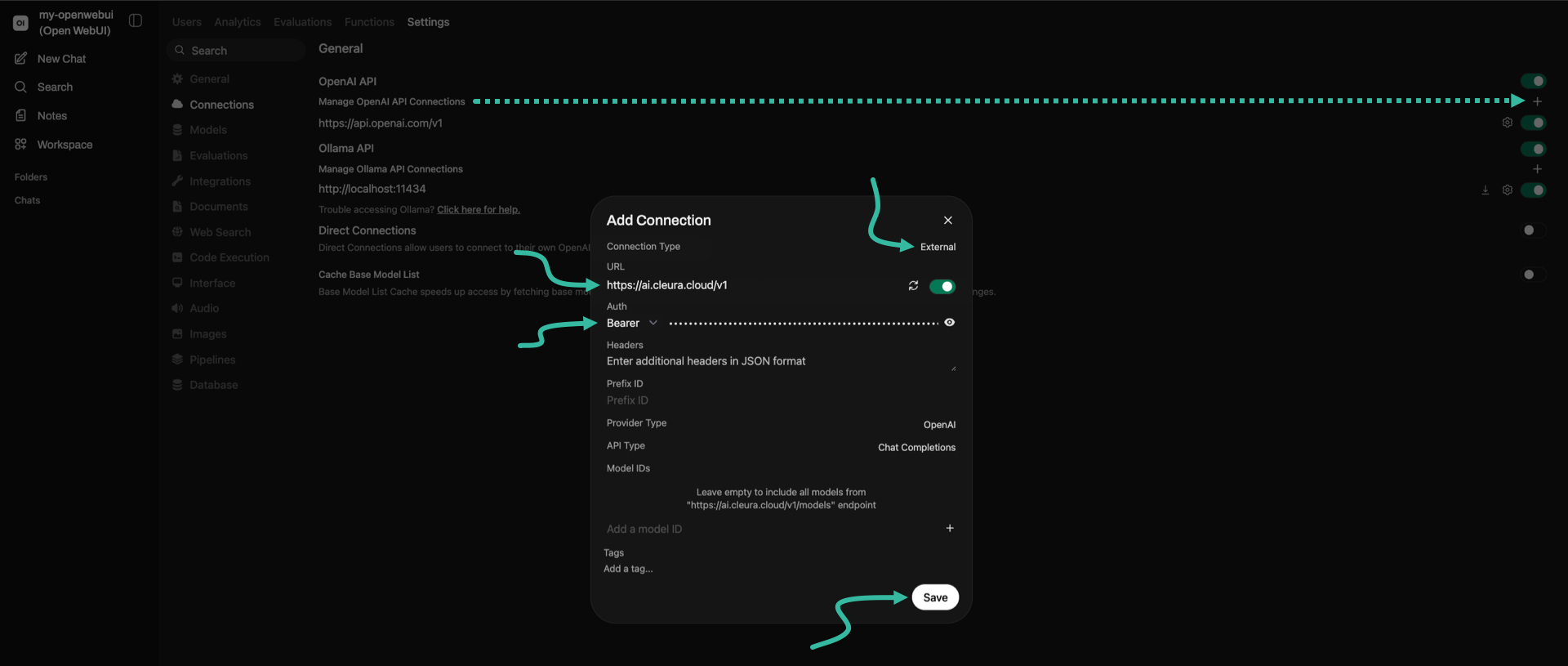
- Set Connection Type to External.
- Set URL to
https://ai.cleura.cloud/v1. - Set Auth to Bearer.
In the text field right of Bearer, paste your API key’s bearer token. Then, click the Save button.
The Add Connection window closes, and below the Manage OpenAI API Connections list you see that https://ai.cleura.cloud/v1 is included.
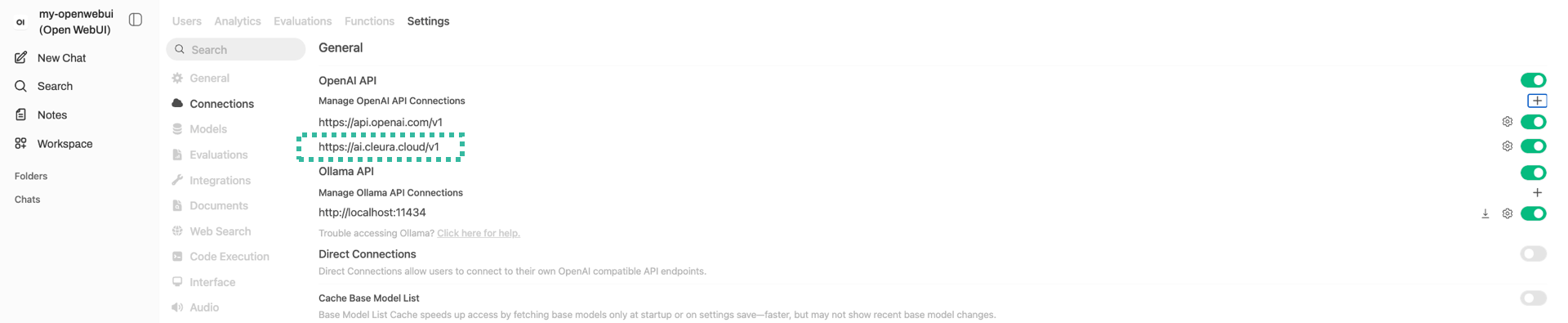
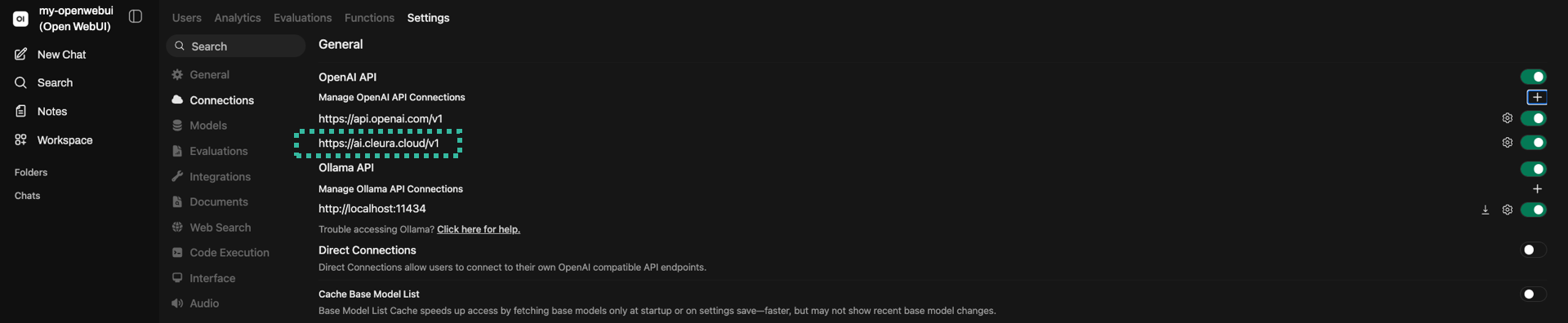
Since you are here, use the toggles to switch off the OpenAI and Ollama API connections. That way, you know you’ll be connecting to the Cleura AI LLMs only.


Interacting with Cleura AI models
Expand the left sidebar and, at the top of it, click on the name of your Open WebUI instance. Right next of the instance name, click the icon and select one of the available Cleura AI models. Then, type in a question and click the icon to query the selected model.
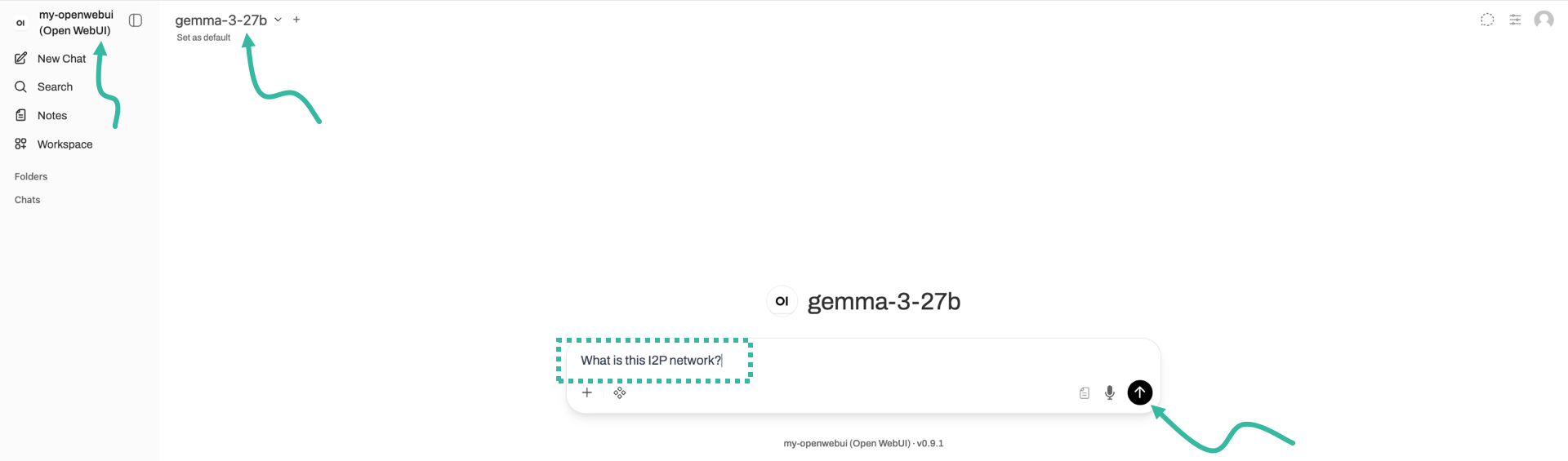
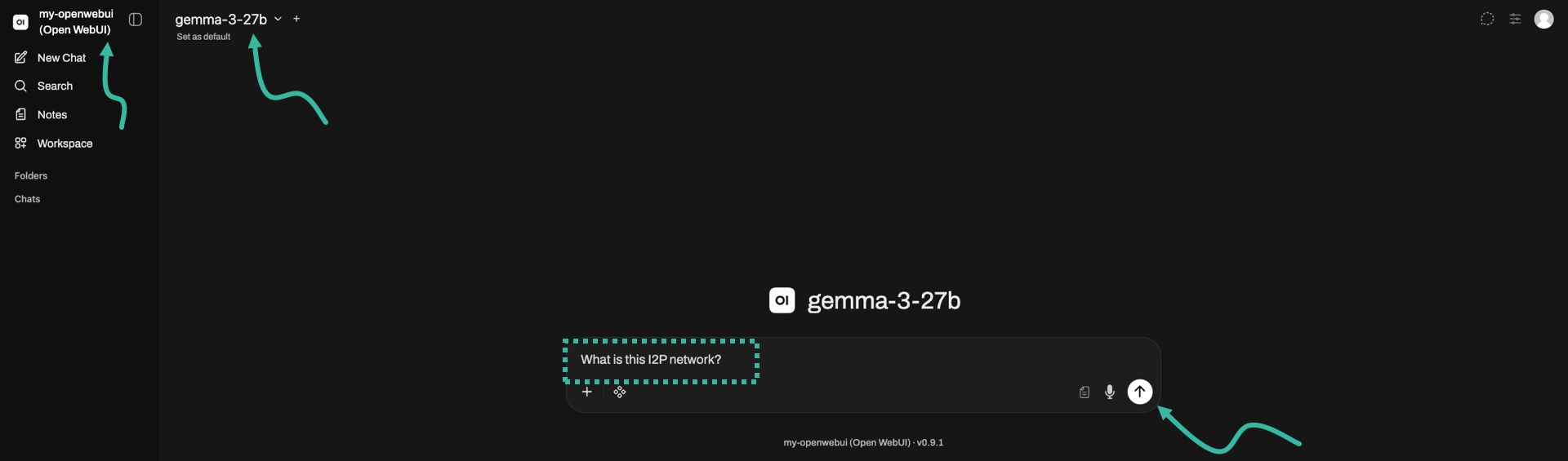
In a bit, you will get an answer back.