Deleting networks
Deleting a network in Cleura Cloud may sound straightforward — and it is. Before deleting a network, though, we almost always need to take a few steps. In what follows, we show, step by step and through specific examples, how we delete networks using either the Cleura Cloud Management Panel or the OpenStack CLI.
Prerequisites
Whether you choose to work from the Cleura Cloud Management Panel or with the OpenStack CLI, you need to have an account in Cleura Cloud. Additionally, to use the OpenStack CLI, make sure to enable it for the region you will be working in.
Selecting a network
Unless you already have the ID or know the name of the network you wish to delete, you may first list all available networks.
Fire up your favorite web browser, navigate to the Cleura Cloud Management Panel start page, and log into your Cleura Cloud account.
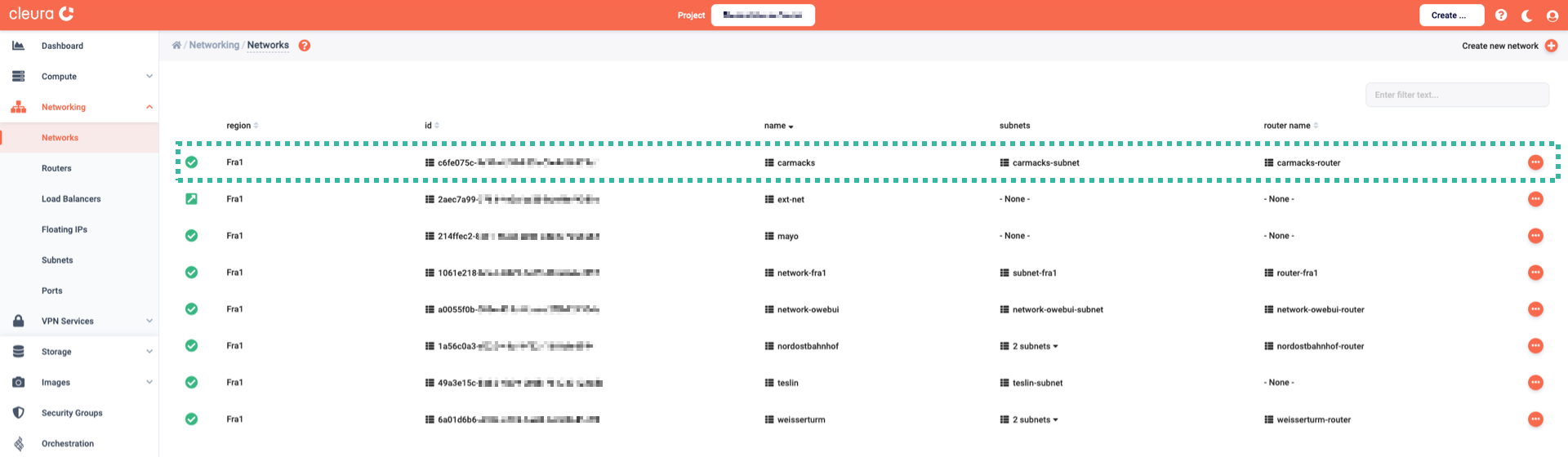
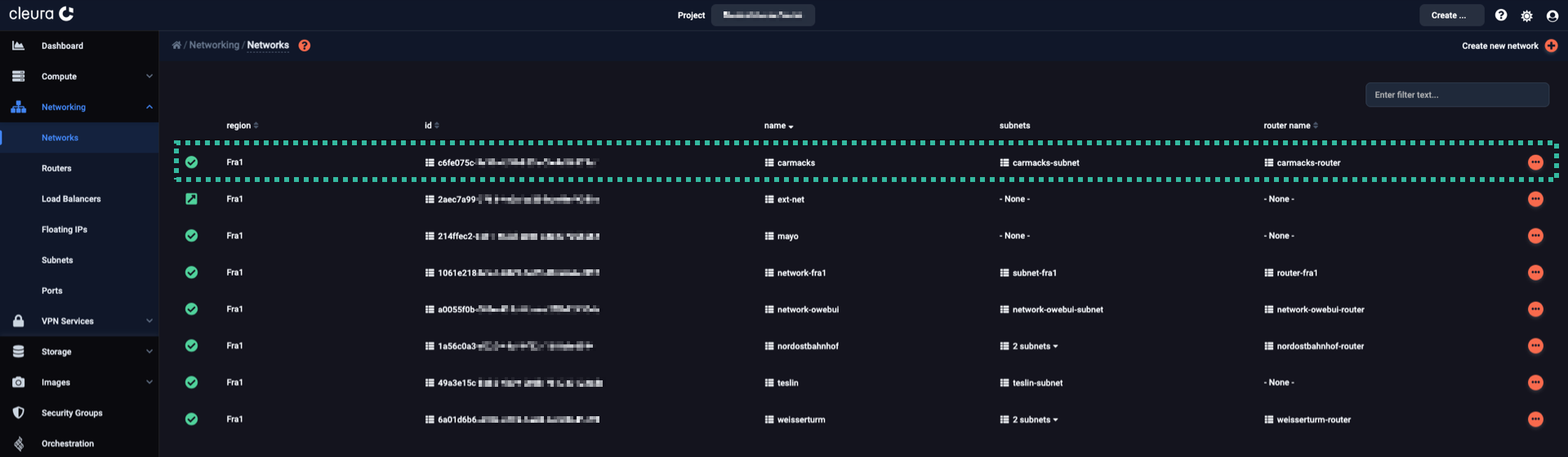
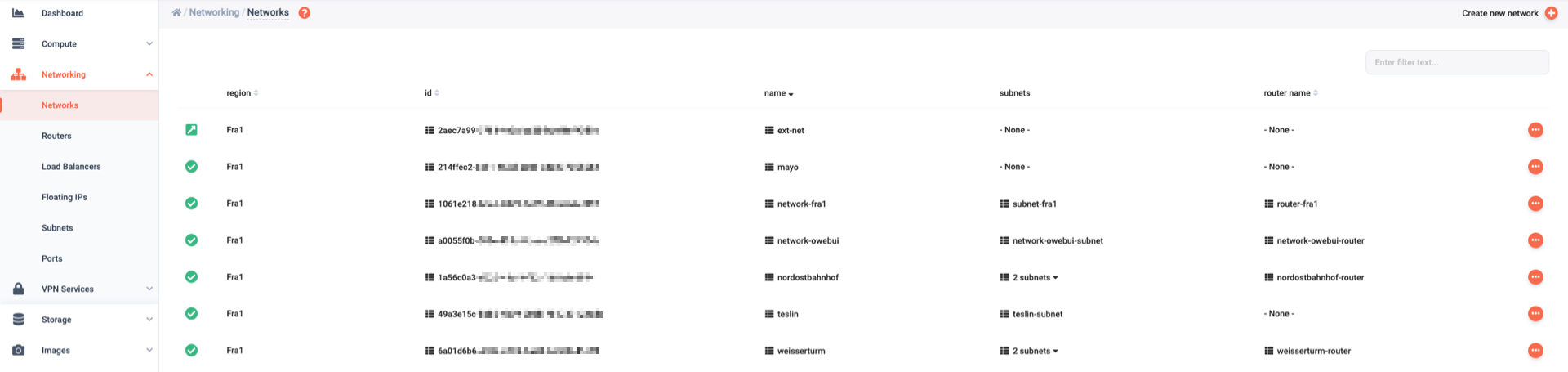
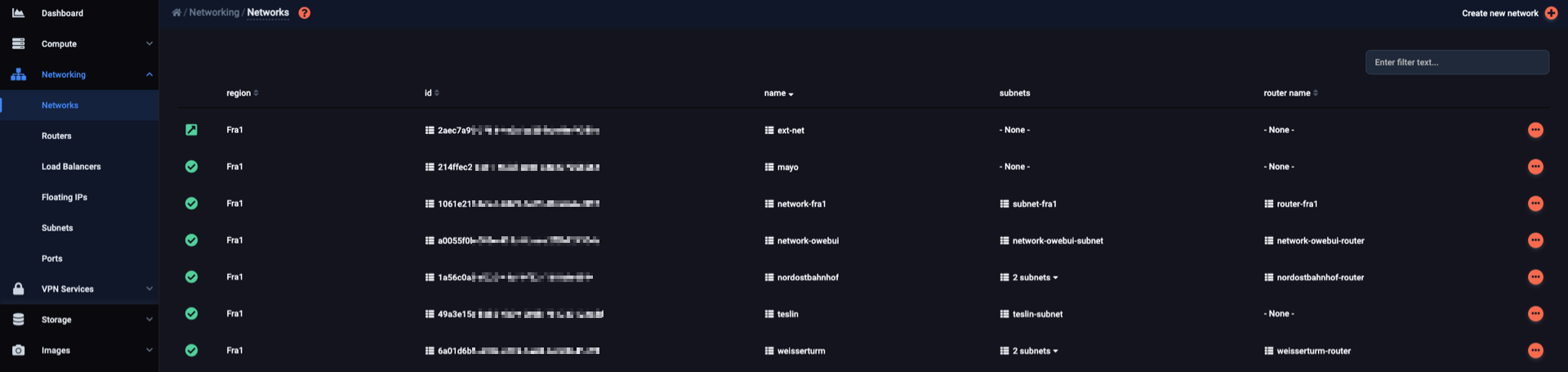
In the vertical pane on the left-hand side of the dashboard, expand the Networking section and click Networks.
In the central pane of the page, you will see all networks in all regions you have access to.
For the purposes of this guide, let us assume you no longer need the carmacks network, so now you want to delete it.
To list all available networks in the region you are currently in, type the following:
$ openstack network list --internal

+--------------------------------------+--------------+--------------------------------------+
| ID                                   | Name         | Subnets                              |
+--------------------------------------+--------------+--------------------------------------+
| 1f94d315-7ca1-4d44-acc1-09c6c650df74 | mayo         |                                      |
| 9b127d2c-01d7-4803-994f-f88292870c1d | teslin       | bd1d0ff2-7270-4a9a-a7ad-fff47e997e7b |
| cb0a298a-bbb6-4ad6-832a-1456dafe45db | carmacks     | 7fa9e5a2-7d5a-466e-b120-7d2bffb99ce5 |
| e0c4ce17-2722-4777-8140-d6c87479e190 | network-kna1 | 421d8fd2-dd7f-4f7c-9a51-42ef4a866dd9 |
+--------------------------------------+--------------+--------------------------------------+
Let us assume you wish to delete the network named carmacks.
Determining component dependencies
If the network to be deleted has a subnet component — and most likely it will have —, you will first have to delete the subnet before deleting the network.
And then, if the subnet is behind a router (figuratively speaking), you must disconnect it from the router before deleting it.
Finally, you can also delete the router.
Let us see what the situation is with carmacks.
For more information on carmacks, click the icon (right-hand side of the network row) and select View details.
Four tabs immediately appear below; Details, Ports, Subnets, and Routers.
On the Details tab, you can see that the carmacks network has a subnet and is behind a router.
You may click on the Subnets and Routers tabs to get more information regarding the network subnet and the router in front of the network.


Automatically deleting networks with all their dependencies
There are cases where you know exactly all subnets in a network beforehand, and also any router in front of the network’s subnets. If, in addition, you know no other resources are depending on the network, its subnets, and any subnet router, you may try automatically deleting the network and all related components in one go.
Select the network to delete, and in the pop-up window that appears, before clicking the Yes, Delete button, make sure you activate the Use cascade delete option.
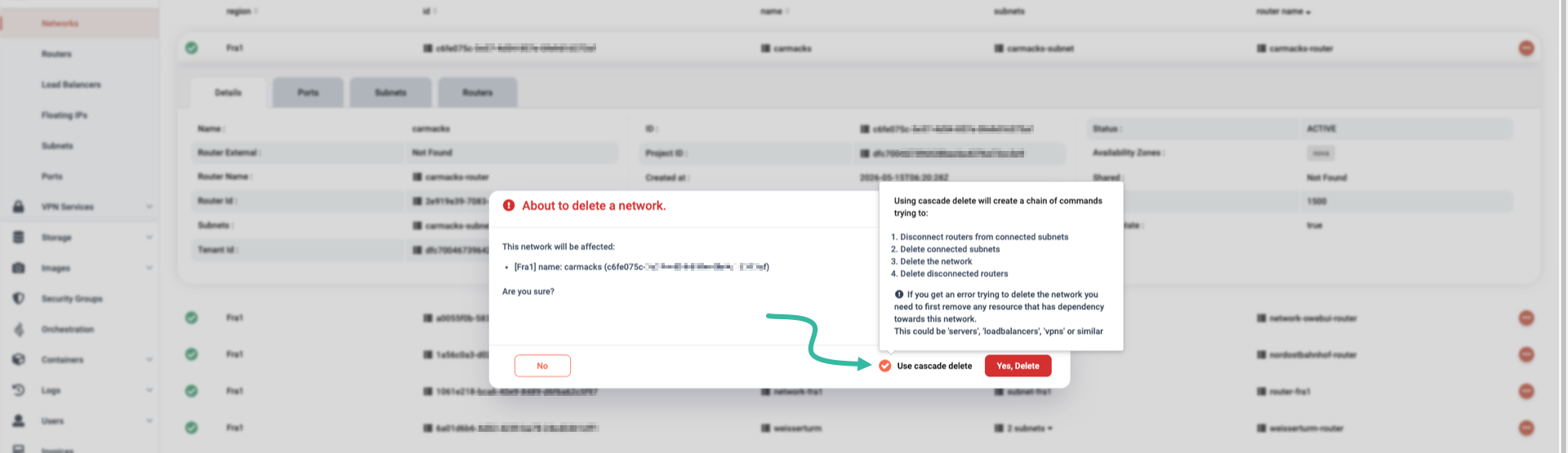
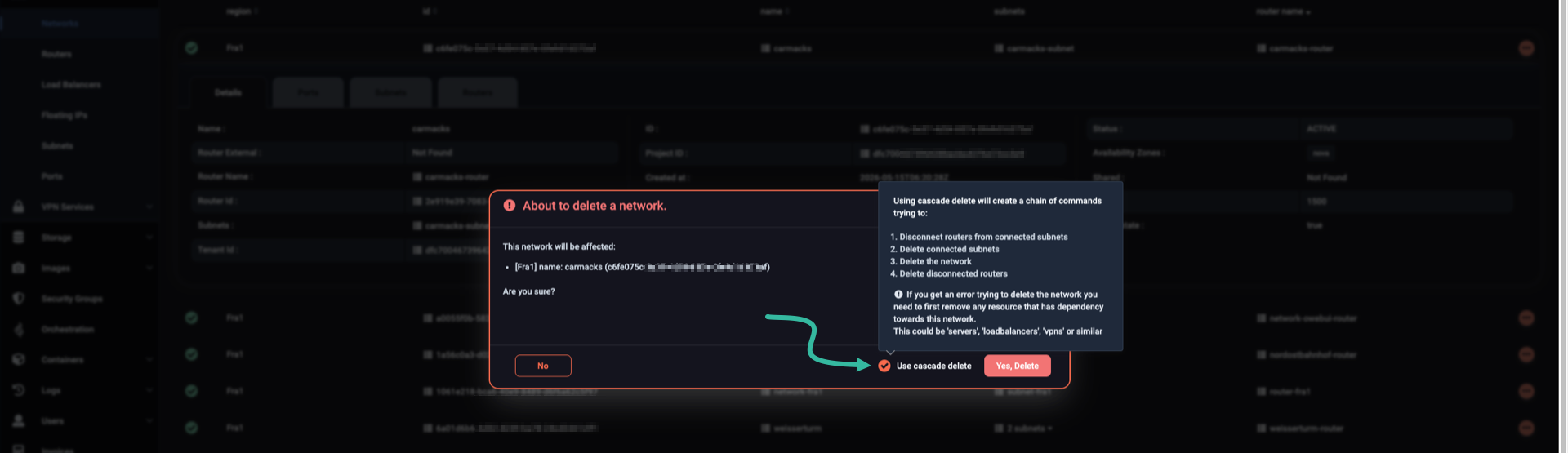
The network and its subnets, including any subnet routers, will be deleted. But if any resource is still using the network, any of its subnets, or any subnet router, the cascading delete will fail. In that case, you will need to do some manual work, like in the examples below.
To quickly check whether network carmacks has a subnet or not, type:
$ openstack network show carmacks -c subnets

+---------+--------------------------------------+
| Field   | Value                                |
+---------+--------------------------------------+
| subnets | 7fa9e5a2-7d5a-466e-b120-7d2bffb99ce5 |
+---------+--------------------------------------+
If the subnets field has a value, as in the example output above, the network has a subnet indeed, and the aforementioned value is the subnet ID.
At this point, it helps to assign the subnet ID to an environment variable, like so:
SUBNET_ID="7fa9e5a2-7d5a-466e-b120-7d2bffb99ce5"
What about a router in front of carmacks? You might try checking the output of this command:
$ openstack network show carmacks

+---------------------------+--------------------------------------+
| Field                     | Value                                |
+---------------------------+--------------------------------------+
| admin_state_up            | UP                                   |
| availability_zone_hints   |                                      |
| availability_zones        | nova                                 |
| created_at                | 2022-12-09T18:52:09Z                 |
| description               |                                      |
| dns_domain                | None                                 |
| id                        | cb0a298a-bbb6-4ad6-832a-1456dafe45db |
| ipv4_address_scope        | None                                 |
| ipv6_address_scope        | None                                 |
| is_default                | None                                 |
| is_vlan_transparent       | None                                 |
| mtu                       | 1500                                 |
| name                      | carmacks                             |
| port_security_enabled     | True                                 |
| project_id                | 94109c764a754e24ac0f6b01aef82359     |
| provider:network_type     | None                                 |
| provider:physical_network | None                                 |
| provider:segmentation_id  | None                                 |
| qos_policy_id             | None                                 |
| revision_number           | 2                                    |
| router:external           | Internal                             |
| segments                  | None                                 |
| shared                    | False                                |
| status                    | ACTIVE                               |
| subnets                   | 7fa9e5a2-7d5a-466e-b120-7d2bffb99ce5 |
| tags                      |                                      |
| tenant_id                 | 94109c764a754e24ac0f6b01aef82359     |
| updated_at                | 2022-12-09T18:55:18Z                 |
+---------------------------+--------------------------------------+
While it usually pays off to use openstack commands with the verb show on various objects, in this case, you don’t get what you’re looking for — which is an indication of the presence or absence of a router in front of carmacks.
In cases like this, try looking at things from a different vantage point.
Try, in particular, to list all routers:
$ openstack router list

+------------------------+-----------------+--------+-------+------------------------+------+
| ID                     | Name            | Status | State | Project                | HA   |
+------------------------+-----------------+--------+-------+------------------------+------+
| 5ac45739-a379-4936-    | router-kna1     | ACTIVE | UP    | 94109c764a754e24ac0f6b | True |
| 8b1b-67d10e017f4d      |                 |        |       | 01aef82359             |      |
| 79ff91ae-91b5-4991-    | carmacks-router | ACTIVE | UP    | 94109c764a754e24ac0f6b | True |
| af61-91e923fac87b      |                 |        |       | 01aef82359             |      |
+------------------------+-----------------+--------+-------+------------------------+------+
The name of the second router says it all, but since it is just a name, it doesn’t hurt to verify the role of this router:
$ openstack router show carmacks-router -c interfaces_info

+-----------------+--------------------------------------------------------------------------------+
| Field           | Value                                                                          |
+-----------------+--------------------------------------------------------------------------------+
| interfaces_info | [{"port_id": "439bc9d5-c8a9-4de1-93b9-b01e69258a56", "ip_address": "10.1.0.1", |
|                 | "subnet_id": "7fa9e5a2-7d5a-466e-b120-7d2bffb99ce5"}]                          |
+-----------------+--------------------------------------------------------------------------------+
Looking at the interfaces_info value, it is easy to see that subnet_id has the value of the variable SUBNET_ID you just instantiated.
In other words, router carmacks-router is indeed in front of network carmacks.
When router names don’t help
Sometimes router names won’t help much. Then, try a more exhaustive search approach:
$ for i in $(openstack router list -f value -c Name); do
    echo Checking router "$i"
    openstack router show "$i" -f json -c interfaces_info | grep "$SUBNET_ID"
done

Checking router carmacks-router
      "subnet_id": "7fa9e5a2-7d5a-466e-b120-7d2bffb99ce5"
Checking router router-kna1
Tearing down networks
Now that you know you’re dealing with a full-blown network and a router, you start by disconnecting the subnet from the router. Then, delete the subnet and the network, and after that, delete the router.
Go to the Subnets tab of the carmacks network, and click the icon (to the left of the icon).


A vertical pane titled Modify Subnet will slide over from the right-hand side of the page. Pay attention to the Router Connections section. You will notice an active connection to the router. Click the icon to deactivate the connection, effectively disconnecting the subnet from the router.
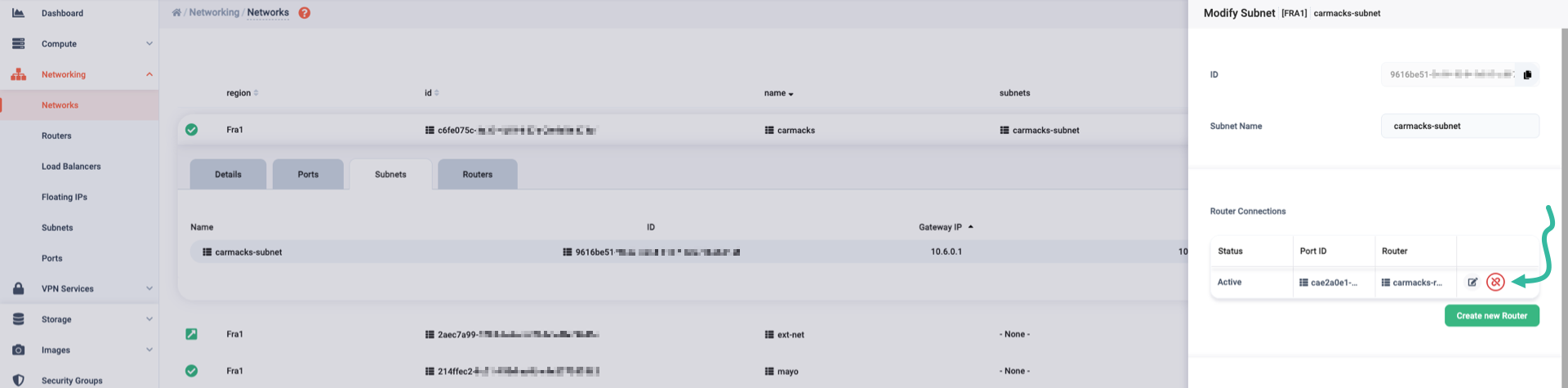
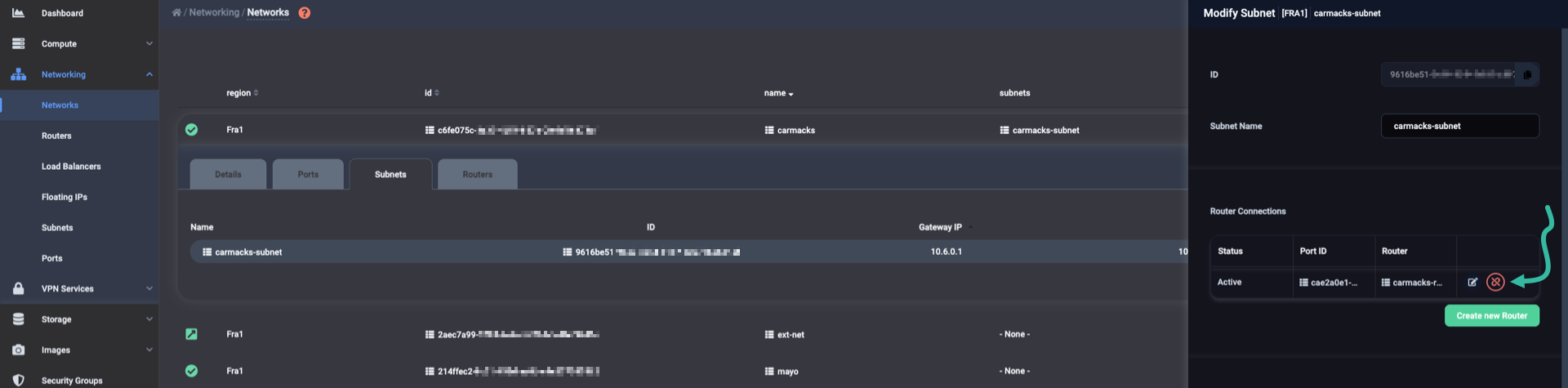
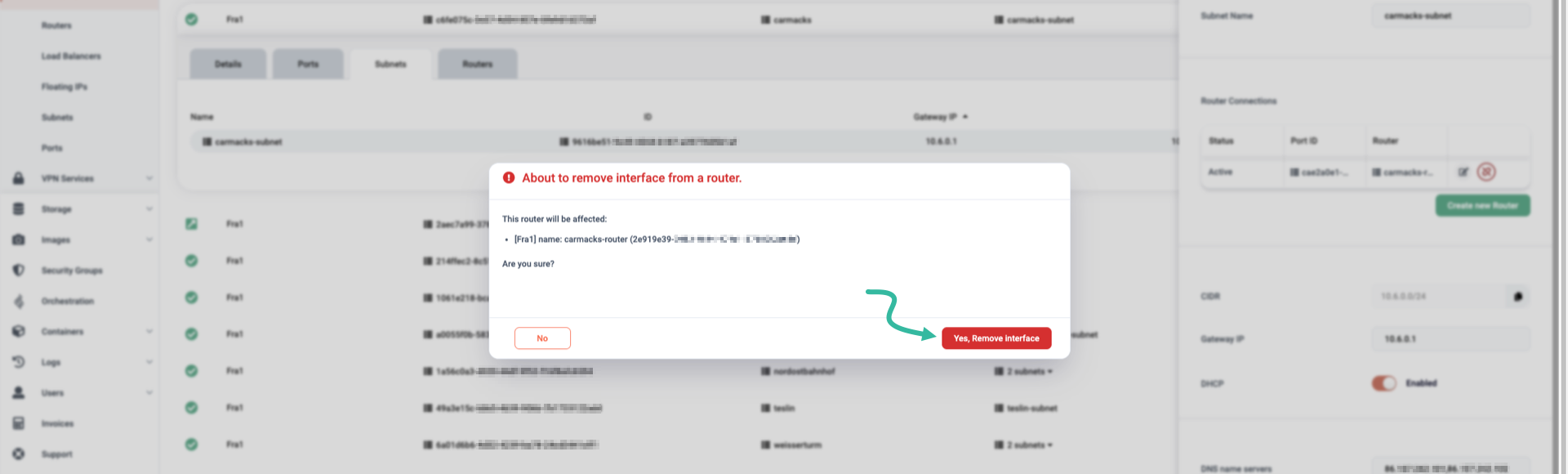
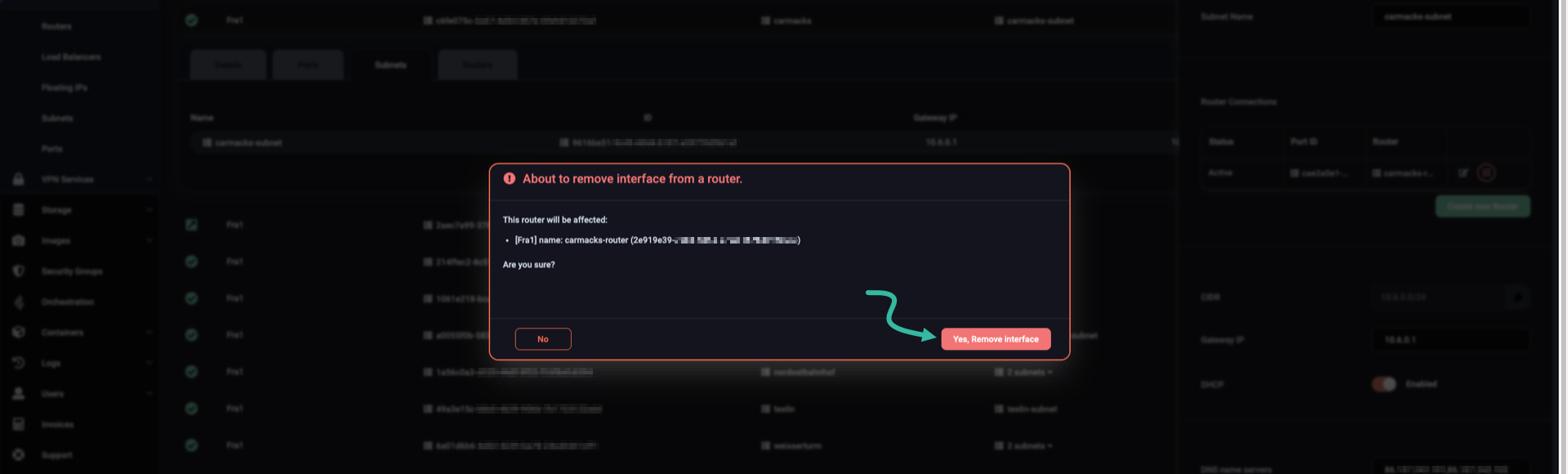
A pop-up window will appear, asking whether you really want to proceed with the disconnection. Just click the Yes, Remove interface button.
After disconnecting the subnet, click the icon to delete it. A pop-up appears, asking for confirmation. Click the Yes, Delete button.
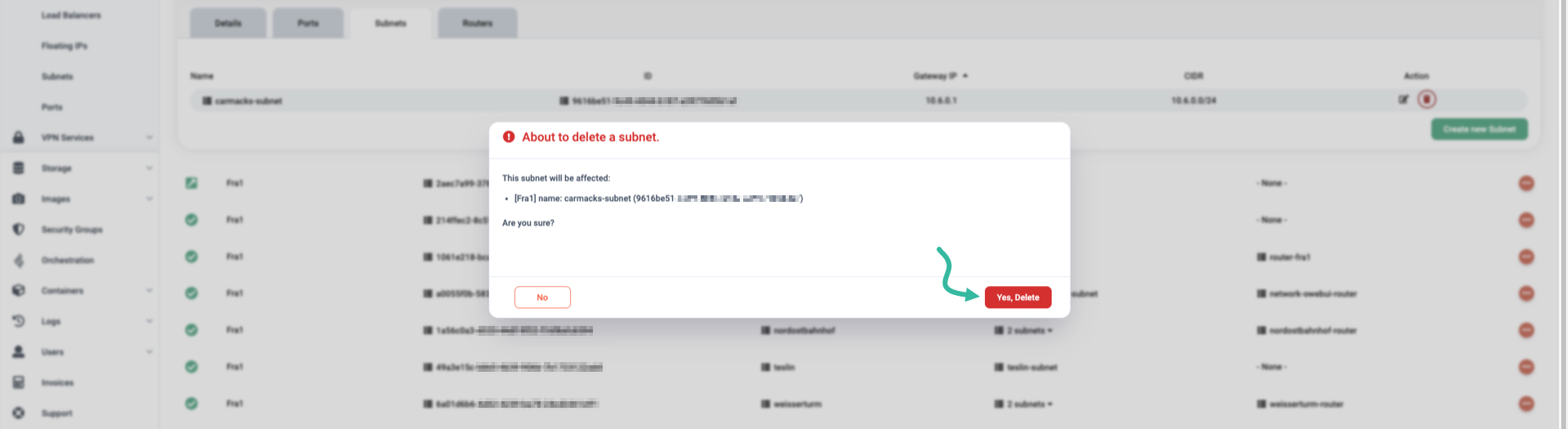
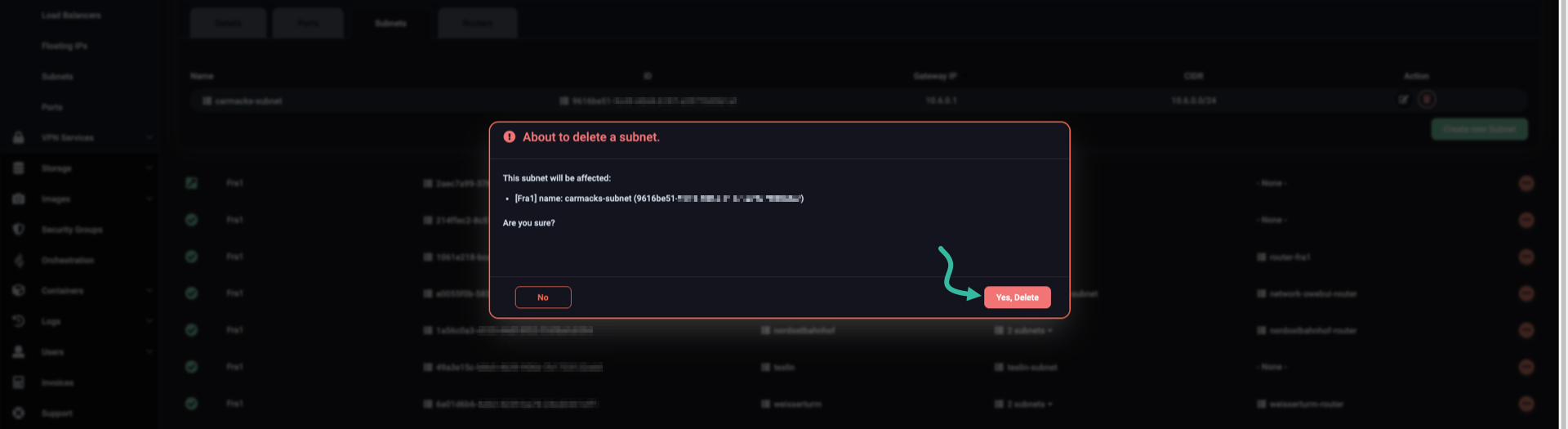
As soon as you delete the subnet, in the Subnets tab you will see the message No subnets found.


You can now delete the network. Click the icon (right-hand side of the network row) and select Delete Network.


Of course, you will need to confirm this action; click the Yes, Delete button.
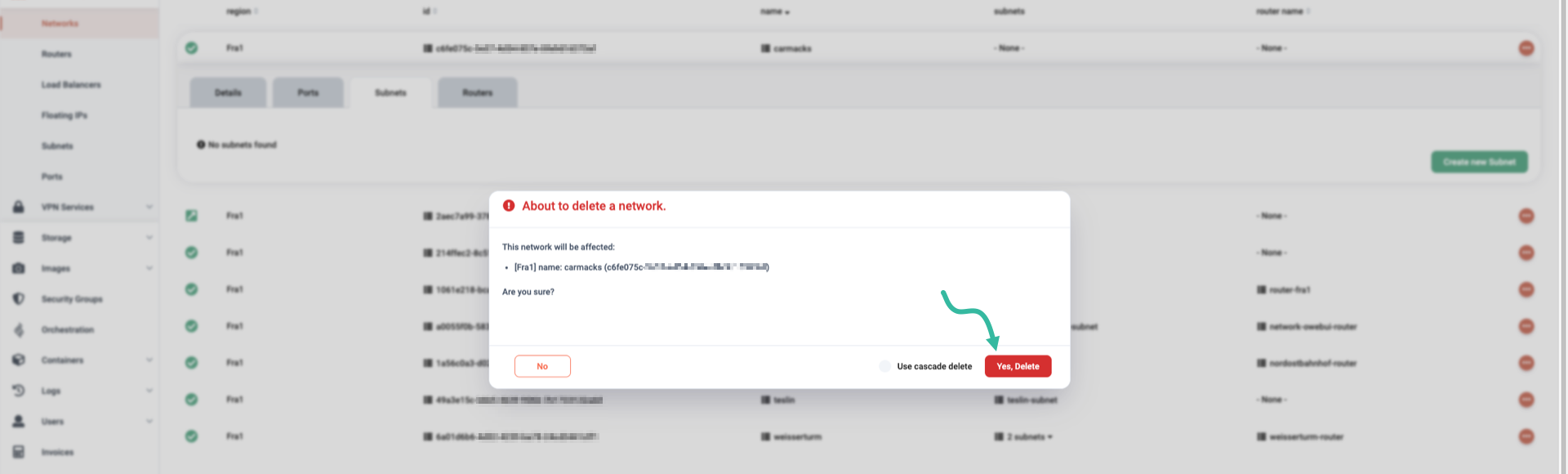
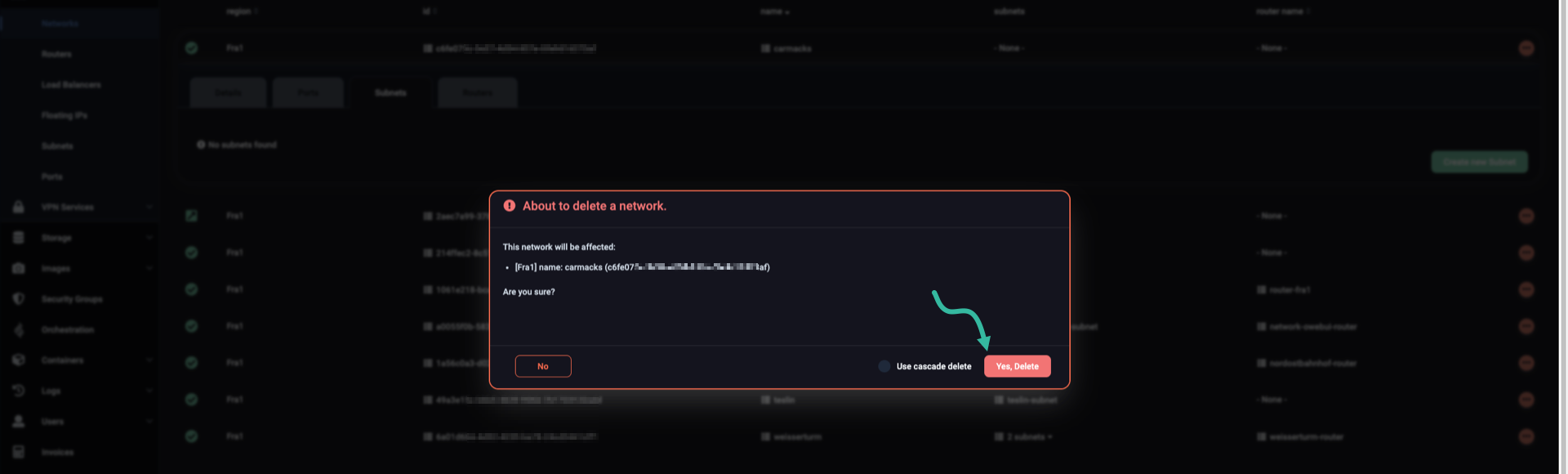
After you delete the network, it will no longer appear in the list of available networks.
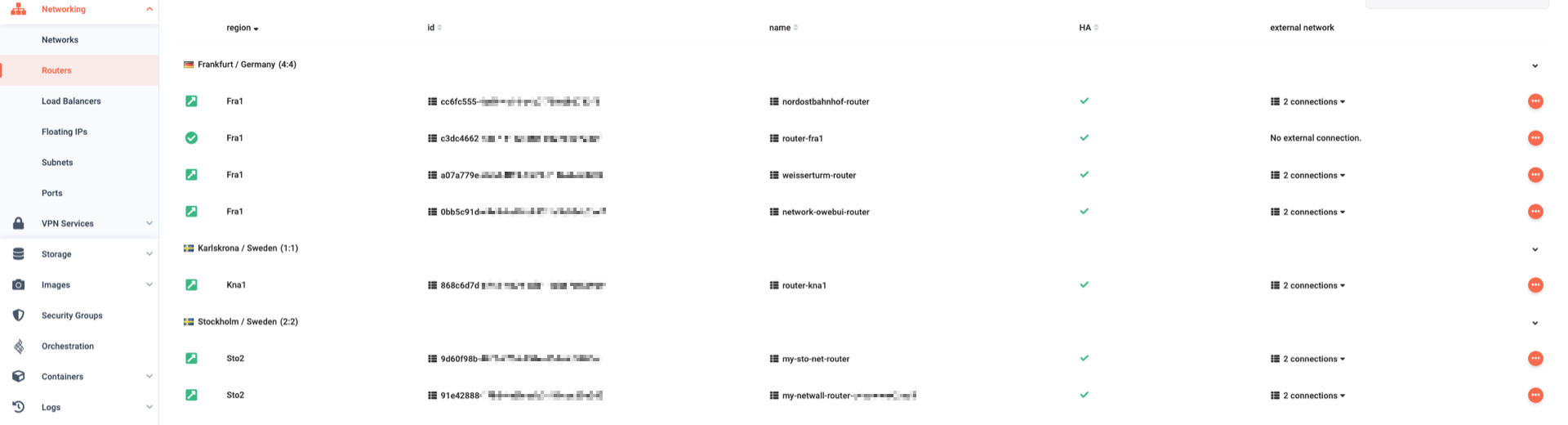
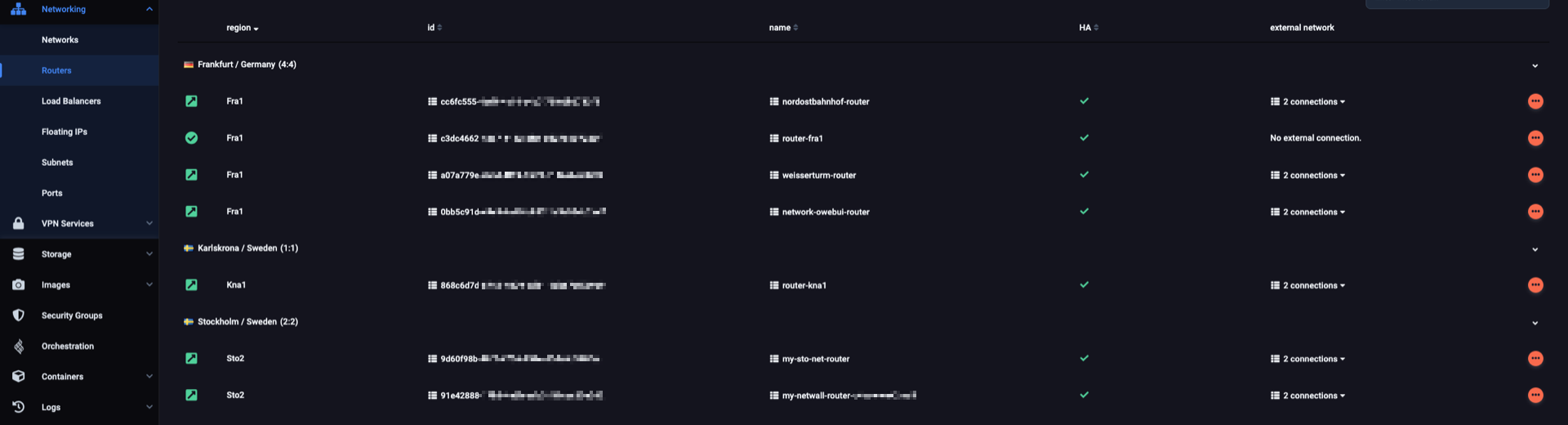
If you no longer need the router, go to the Routers page to delete it. In the vertical pane on the left, expand the Networking section and click on Routers. In the central pane, you will see all routers in all regions you have access to.
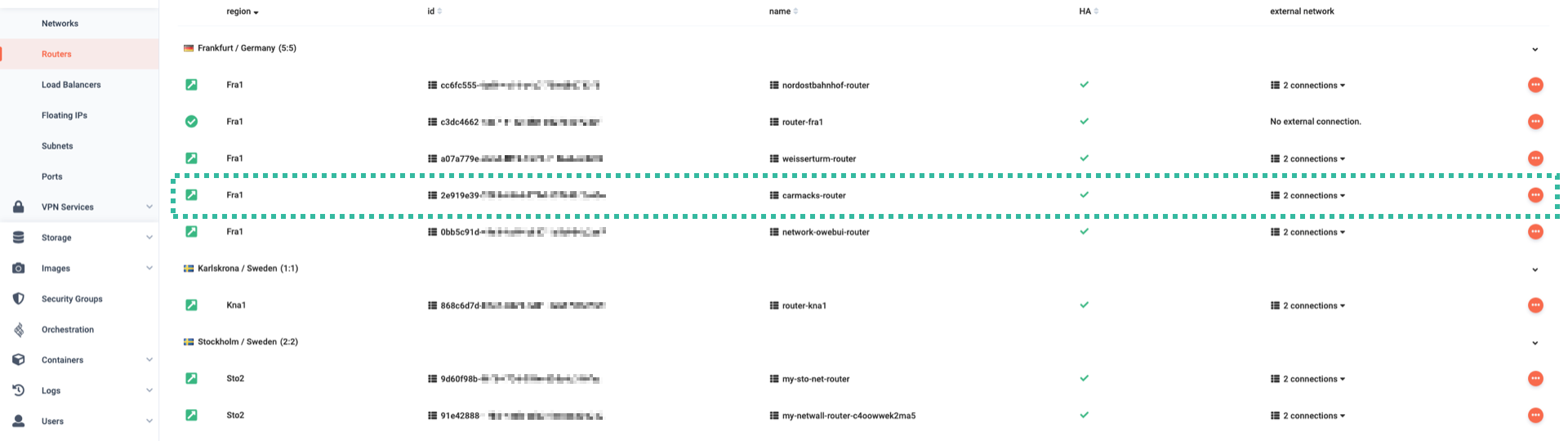
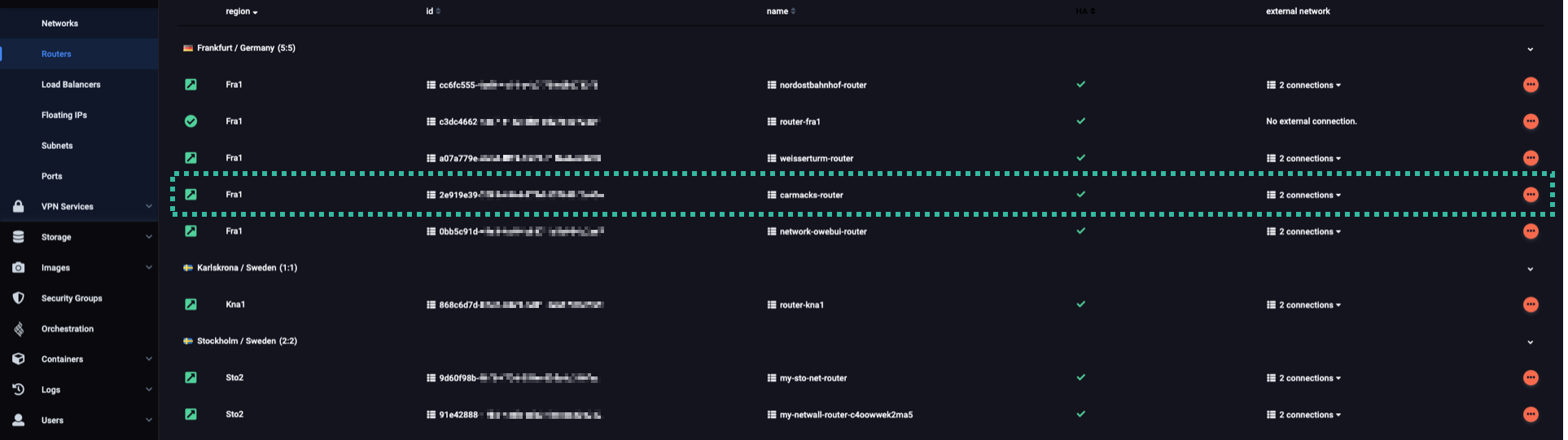
Click the icon of the router you wish to delete and select Delete Router. A pop-up will appear asking for confirmation, so click Yes, Delete.
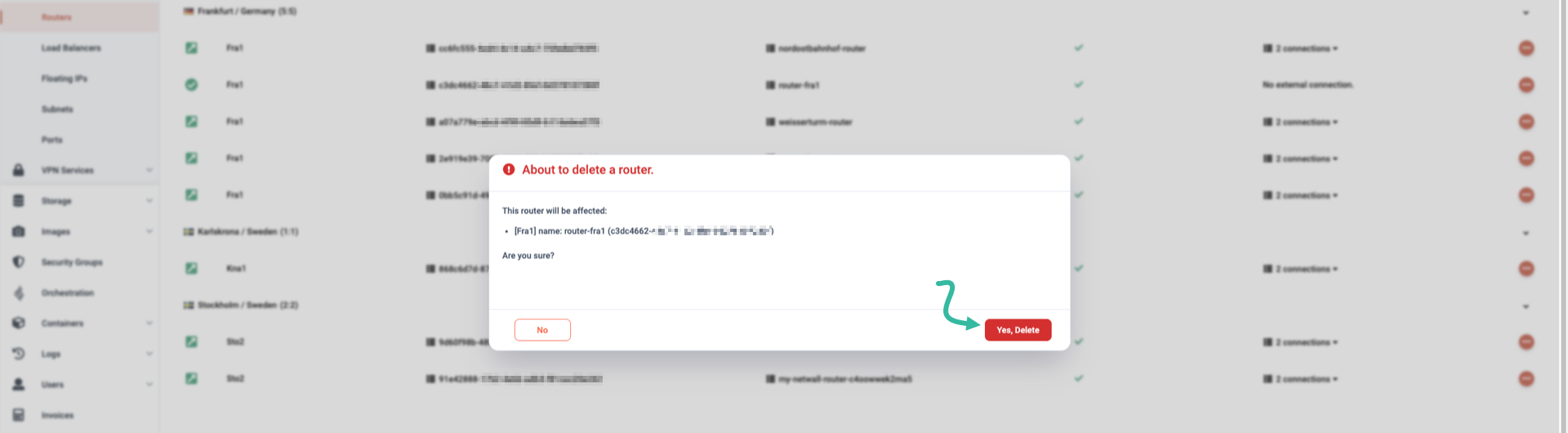
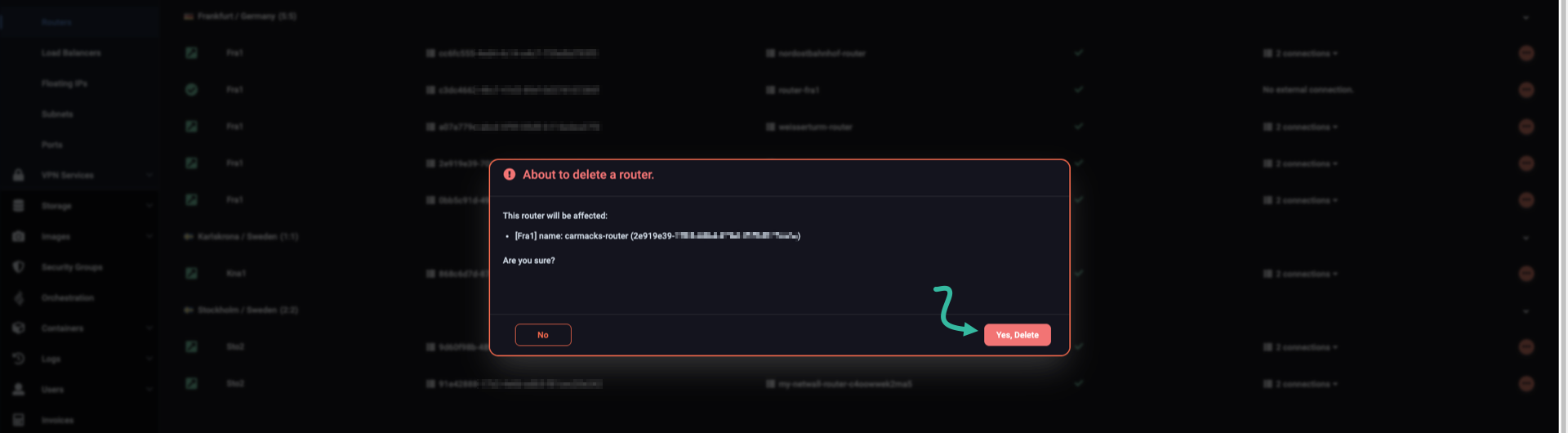
After you delete the router, it will no longer appear in the router list.
First, take a look at all available subnets:
$ openstack subnet list

+-------------------------------+-----------------+--------------------------------+---------------+
| ID                            | Name            | Network                        | Subnet        |
+-------------------------------+-----------------+--------------------------------+---------------+
| 421d8fd2-dd7f-4f7c-9a51-      | subnet-kna1     | e0c4ce17-2722-4777-8140-       | 10.15.20.0/24 |
| 42ef4a866dd9                  |                 | d6c87479e190                   |               |
| 7fa9e5a2-7d5a-466e-b120-      | carmacks-subnet | cb0a298a-bbb6-4ad6-832a-       | 10.1.0.0/24   |
| 7d2bffb99ce5                  |                 | 1456dafe45db                   |               |
| bd1d0ff2-7270-4a9a-a7ad-      | teslin-subnet   | 9b127d2c-01d7-4803-994f-       | 10.254.0.0/24 |
| fff47e997e7b                  |                 | f88292870c1d                   |               |
+-------------------------------+-----------------+--------------------------------+---------------+
As you would expect, the list includes the carmacks-subnet, which you are about to delete.
That’s easier said than done, though:
$ openstack subnet delete $SUBNET_ID

Failed to delete subnet with name or ID '7fa9e5a2-7d5a-466e-b120-7d2bffb99ce5': ConflictException: 409:
Client Error for url: kna1.citycloud.com:9696/v2.0/subnets/7fa9e5a2-7d5a-466e-b120-7d2bffb99ce5,
Unable to complete operation on subnet 7fa9e5a2-7d5a-466e-b120-7d2bffb99ce5:
One or more ports have an IP allocation from this subnet.
1 of 1 subnets failed to delete.
The trick is to first disconnect the subnet from the corresponding router;
you can do that from the router side.
As we discovered a bit earlier, the router we are talking about is carmacks-router:
openstack router remove subnet carmacks-router $SUBNET_ID
If the command above succeeds, you will see no output in your terminal.
Now, an attempt to delete carmacks-subnet should go through with flying colors:
openstack subnet delete $SUBNET_ID
Again, no command output means success, but we suggest you check yourself:
$ openstack subnet list

+--------------------------------+---------------+---------------------------------+---------------+
| ID                             | Name          | Network                         | Subnet        |
+--------------------------------+---------------+---------------------------------+---------------+
| 421d8fd2-dd7f-4f7c-9a51-       | subnet-kna1   | e0c4ce17-2722-4777-8140-        | 10.15.20.0/24 |
| 42ef4a866dd9                   |               | d6c87479e190                    |               |
| bd1d0ff2-7270-4a9a-a7ad-       | teslin-subnet | 9b127d2c-01d7-4803-994f-        | 10.254.0.0/24 |
| fff47e997e7b                   |               | f88292870c1d                    |               |
+--------------------------------+---------------+---------------------------------+---------------+
The subnet carmacks-subnet is not on the list, which is exactly what you wanted.
Next is the carmacks network, which you should be able to delete by now.
First, take a look at all available networks:
$ openstack network list --internal

+--------------------------------------+--------------+--------------------------------------+
| ID                                   | Name         | Subnets                              |
+--------------------------------------+--------------+--------------------------------------+
| 1f94d315-7ca1-4d44-acc1-09c6c650df74 | mayo         |                                      |
| 9b127d2c-01d7-4803-994f-f88292870c1d | teslin       | bd1d0ff2-7270-4a9a-a7ad-fff47e997e7b |
| cb0a298a-bbb6-4ad6-832a-1456dafe45db | carmacks     |                                      |
| e0c4ce17-2722-4777-8140-d6c87479e190 | network-kna1 | 421d8fd2-dd7f-4f7c-9a51-42ef4a866dd9 |
+--------------------------------------+--------------+--------------------------------------+
Network carmacks is on the list, and the Subnets column shows it has no subnets.
That’s expected, so go ahead and delete the network:
openstack network delete carmacks
No command output signals success, but it never hurts to verify yourself:
$ openstack network list --internal

+--------------------------------------+--------------+--------------------------------------+
| ID                                   | Name         | Subnets                              |
+--------------------------------------+--------------+--------------------------------------+
| 1f94d315-7ca1-4d44-acc1-09c6c650df74 | mayo         |                                      |
| 9b127d2c-01d7-4803-994f-f88292870c1d | teslin       | bd1d0ff2-7270-4a9a-a7ad-fff47e997e7b |
| e0c4ce17-2722-4777-8140-d6c87479e190 | network-kna1 | 421d8fd2-dd7f-4f7c-9a51-42ef4a866dd9 |
+--------------------------------------+--------------+--------------------------------------+
Network carmacks is gone, and if you have no use for carmacks-router, go ahead and delete it:
openstack router delete carmacks-router
There is no output on the terminal, and yet the router is gone:
$ openstack router list

+-----------------------------+-------------+--------+-------+------------------------------+------+
| ID                          | Name        | Status | State | Project                      | HA   |
+-----------------------------+-------------+--------+-------+------------------------------+------+
| 5ac45739-a379-4936-8b1b-    | router-kna1 | ACTIVE | UP    | 94109c764a754e24ac0f6b01aef8 | True |
| 67d10e017f4d                |             |        |       | 2359                         |      |
+-----------------------------+-------------+--------+-------+------------------------------+------+
Networks with a subnet but no router
These are faster to delete, for there is no router to disconnect the subnet from.
For our demonstration, we created network teslin, with subnet teslin-subnet and no router in front of it.
In the vertical pane on the left-hand side of the dashboard, expand the Networking section and click Networks.
In the central pane of the page, you will see all networks in all regions you have access to.
Select a network with a subnet and no router — like teslin in our example.
In the network details, it is immediately clear there’s no router in front of it.
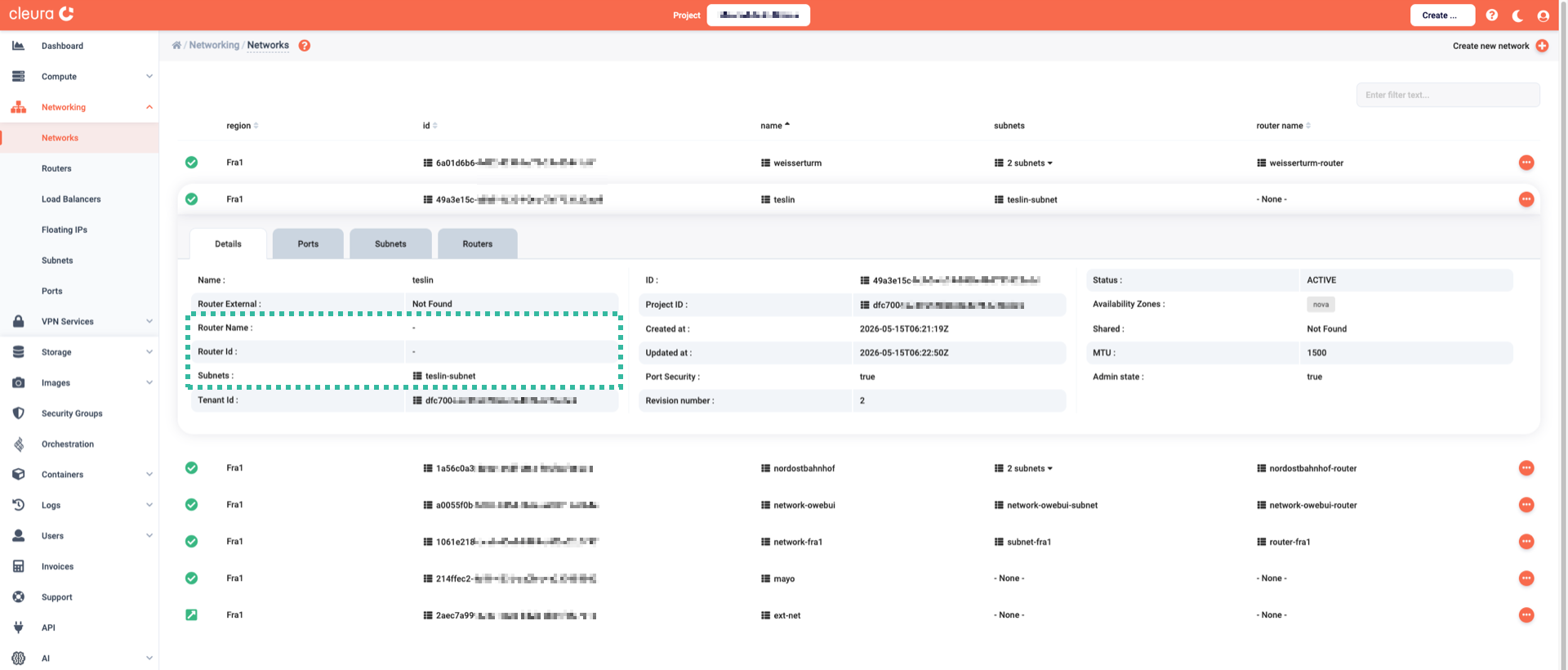
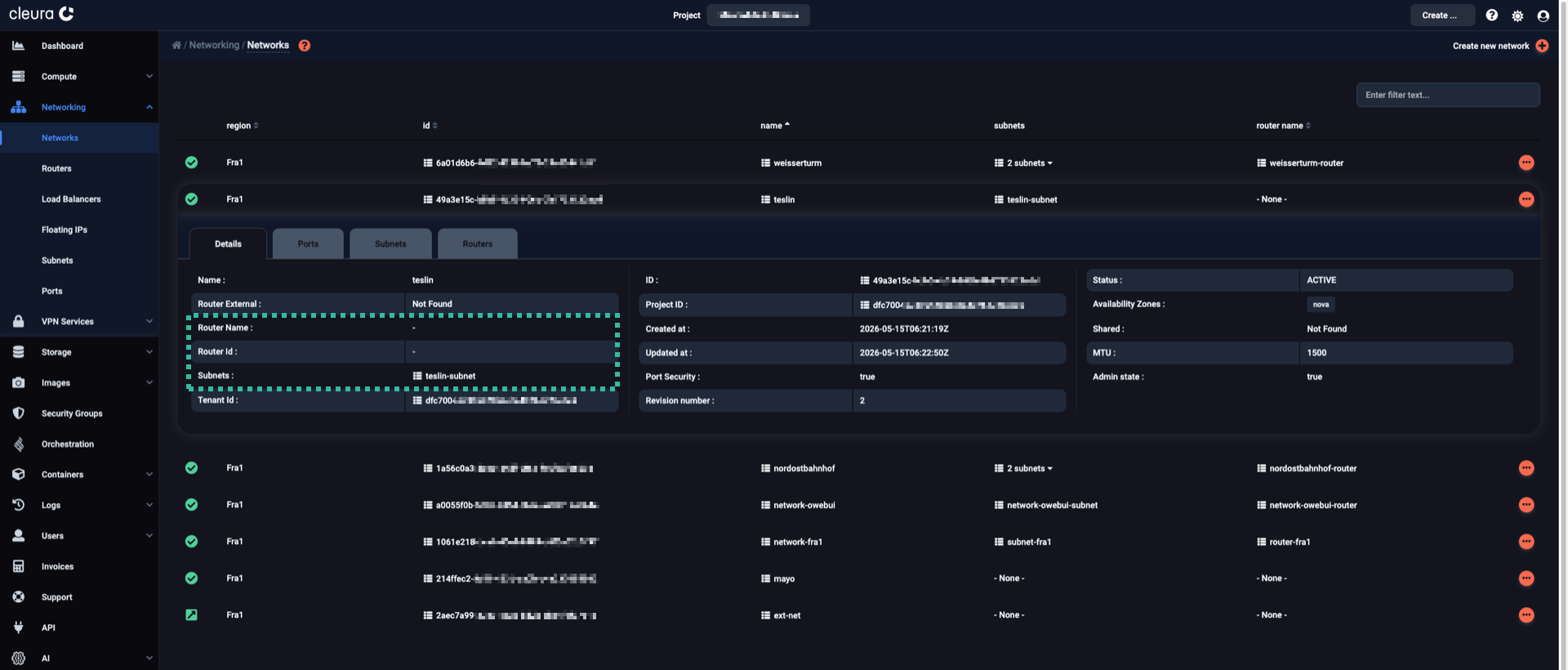
Go to the Subnets tab and click the icon to delete the subnet.


Then, click the icon on the right-hand side of the teslin row, and select Delete Network.


First, let’s look at all available networks…
$ openstack network list --internal

+--------------------------------------+--------------+--------------------------------------+
| ID                                   | Name         | Subnets                              |
+--------------------------------------+--------------+--------------------------------------+
| 1f94d315-7ca1-4d44-acc1-09c6c650df74 | mayo         |                                      |
| 9b127d2c-01d7-4803-994f-f88292870c1d | teslin       | bd1d0ff2-7270-4a9a-a7ad-fff47e997e7b |
| e0c4ce17-2722-4777-8140-d6c87479e190 | network-kna1 | 421d8fd2-dd7f-4f7c-9a51-42ef4a866dd9 |
+--------------------------------------+--------------+--------------------------------------+
…and at all available subnets:
$ openstack subnet list

+--------------------------------+---------------+---------------------------------+---------------+
| ID                             | Name          | Network                         | Subnet        |
+--------------------------------+---------------+---------------------------------+---------------+
| 421d8fd2-dd7f-4f7c-9a51-       | subnet-kna1   | e0c4ce17-2722-4777-8140-        | 10.15.20.0/24 |
| 42ef4a866dd9                   |               | d6c87479e190                    |               |
| bd1d0ff2-7270-4a9a-a7ad-       | teslin-subnet | 9b127d2c-01d7-4803-994f-        | 10.254.0.0/24 |
| fff47e997e7b                   |               | f88292870c1d                    |               |
+--------------------------------+---------------+---------------------------------+---------------+
Since there is nothing to disconnect the teslin-subnet from, you may go ahead and delete the subnet:
openstack subnet delete teslin-subnet
There is no command output. This is expected, but why not check yourself?
$ openstack subnet list

+---------------------------------+-------------+----------------------------------+---------------+
| ID                              | Name        | Network                          | Subnet        |
+---------------------------------+-------------+----------------------------------+---------------+
| 421d8fd2-dd7f-4f7c-9a51-        | subnet-kna1 | e0c4ce17-2722-4777-8140-         | 10.15.20.0/24 |
| 42ef4a866dd9                    |             | d6c87479e190                     |               |
+---------------------------------+-------------+----------------------------------+---------------+
Finally, network teslin can go away with a single command:
openstack network delete teslin
No output means the command succeeded. Take a look yourself:
$ openstack network list --internal

+--------------------------------------+--------------+--------------------------------------+
| ID                                   | Name         | Subnets                              |
+--------------------------------------+--------------+--------------------------------------+
| 1f94d315-7ca1-4d44-acc1-09c6c650df74 | mayo         |                                      |
| e0c4ce17-2722-4777-8140-d6c87479e190 | network-kna1 | 421d8fd2-dd7f-4f7c-9a51-42ef4a866dd9 |
+--------------------------------------+--------------+--------------------------------------+
Networks with no subnet and no router
You can delete networks like these directly, without any preparation.
For our demonstration, we created a network named mayo, with no subnet and no router in front of it.
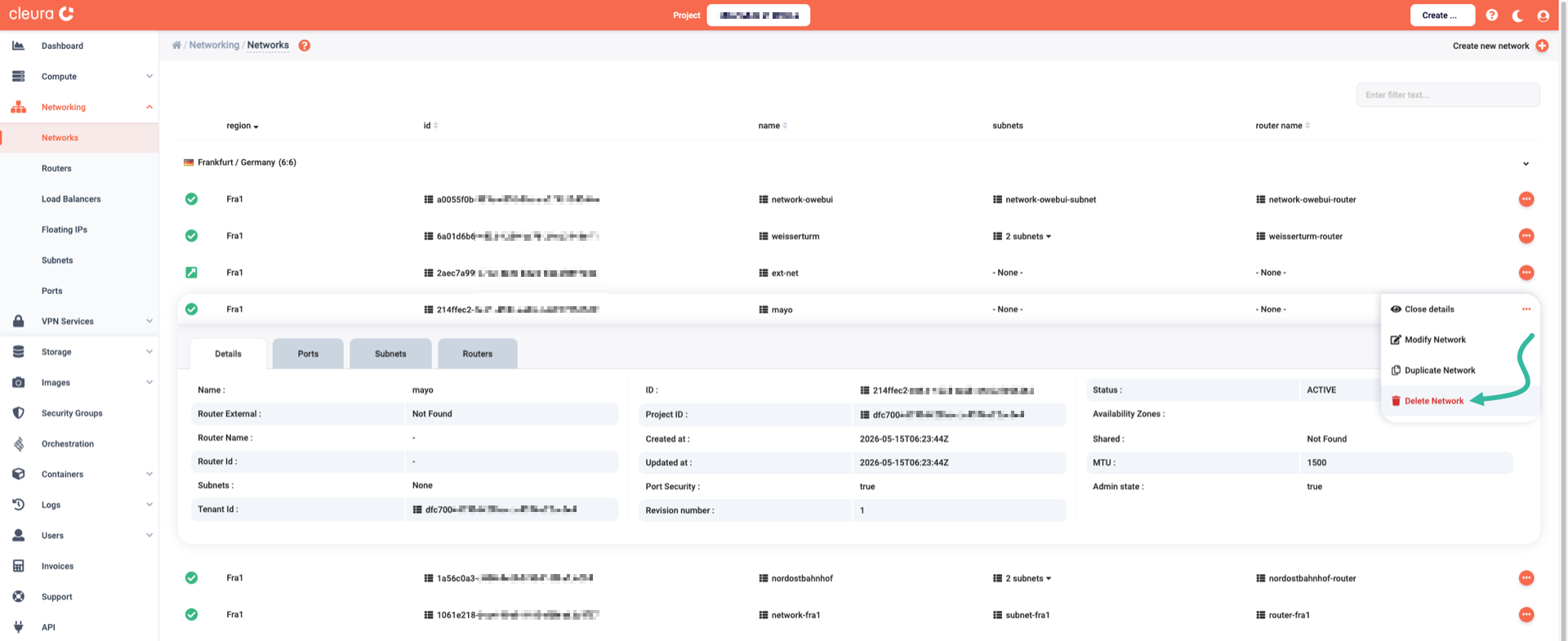
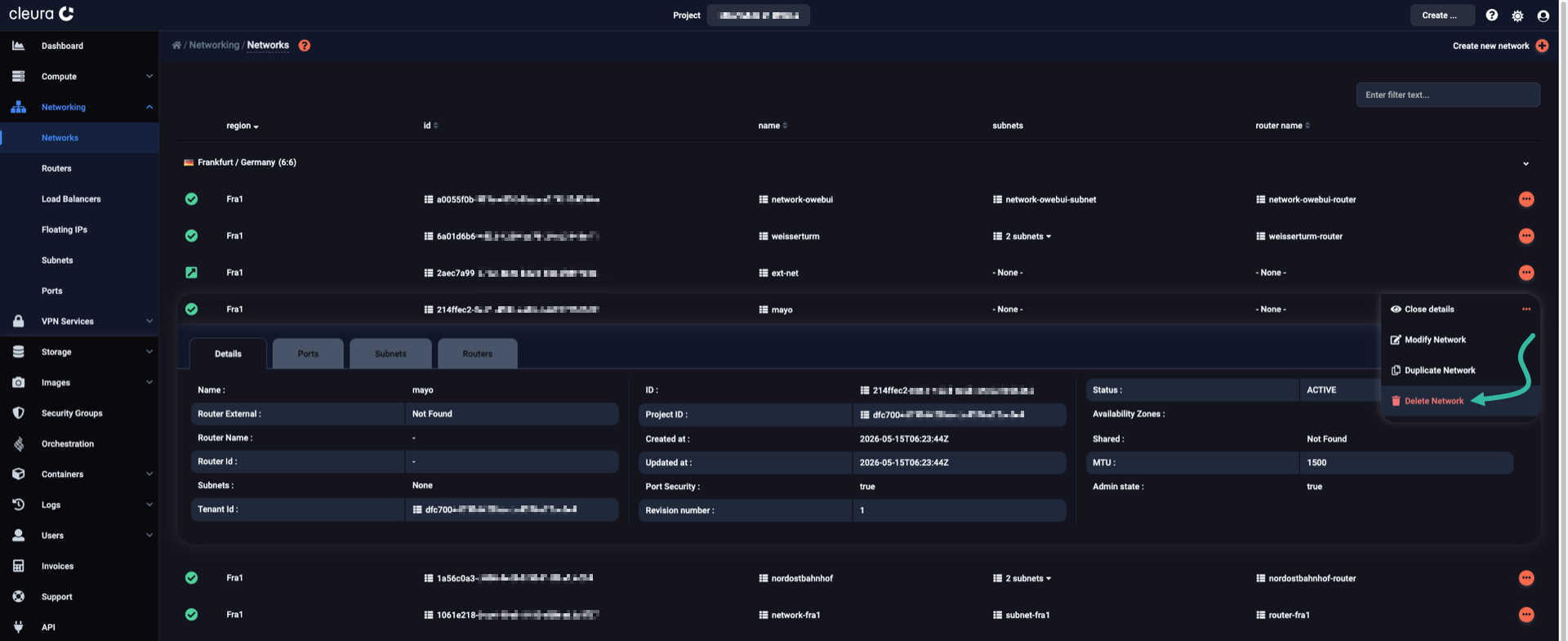
While viewing all available networks, click the :dots-horizontal-circle: icon at the right-hand side of the mayo row and select Delete Network.
Confirm the action, and the network will be gone.
Once more, take a look at all remaining networks:
$ openstack network list --internal

+--------------------------------------+--------------+--------------------------------------+
| ID                                   | Name         | Subnets                              |
+--------------------------------------+--------------+--------------------------------------+
| 1f94d315-7ca1-4d44-acc1-09c6c650df74 | mayo         |                                      |
| e0c4ce17-2722-4777-8140-d6c87479e190 | network-kna1 | 421d8fd2-dd7f-4f7c-9a51-42ef4a866dd9 |
+--------------------------------------+--------------+--------------------------------------+
Since mayo has no subnet, issue a single command to delete it:
openstack network delete mayo
And, yes, it is still a good idea to check yourself:
$ openstack network list --internal

+--------------------------------------+--------------+--------------------------------------+
| ID                                   | Name         | Subnets                              |
+--------------------------------------+--------------+--------------------------------------+
| e0c4ce17-2722-4777-8140-d6c87479e190 | network-kna1 | 421d8fd2-dd7f-4f7c-9a51-42ef4a866dd9 |
+--------------------------------------+--------------+--------------------------------------+
Recap: Of networks and of towns
Depending on a Neutron network’s features, deleting it may require some preparation.
For this guide, we created three networks with different characteristics: carmacks, teslin, and mayo.
Then, either from the Cleura Cloud Management Panel or with the help of OpenStack CLI, we showed how to discover component dependencies and work toward deletion.
Eventually, all three test networks were gone.
We should point out, though, that all three namesake towns in The Yukon are still there.