Managing SSH keypairs
You can use the Cleura Cloud Management Panel or the OpenStack CLI, and by default create Ed25519 keypairs.
Using other key types
Due to an application’s requirements, you might have to generate a keypair that employs older key types, like the ones based on the RSA or the DSA cryptosystem.
In cases like these, use an external tool such as ssh-keygen to create a keypair with the required characteristics.
Then, when instantiating the new keypair, specify the corresponding public key you obtained from the external tool.
Prerequisites
If you prefer to use the OpenStack CLI, please be sure to enable it first.
Creating keypairs
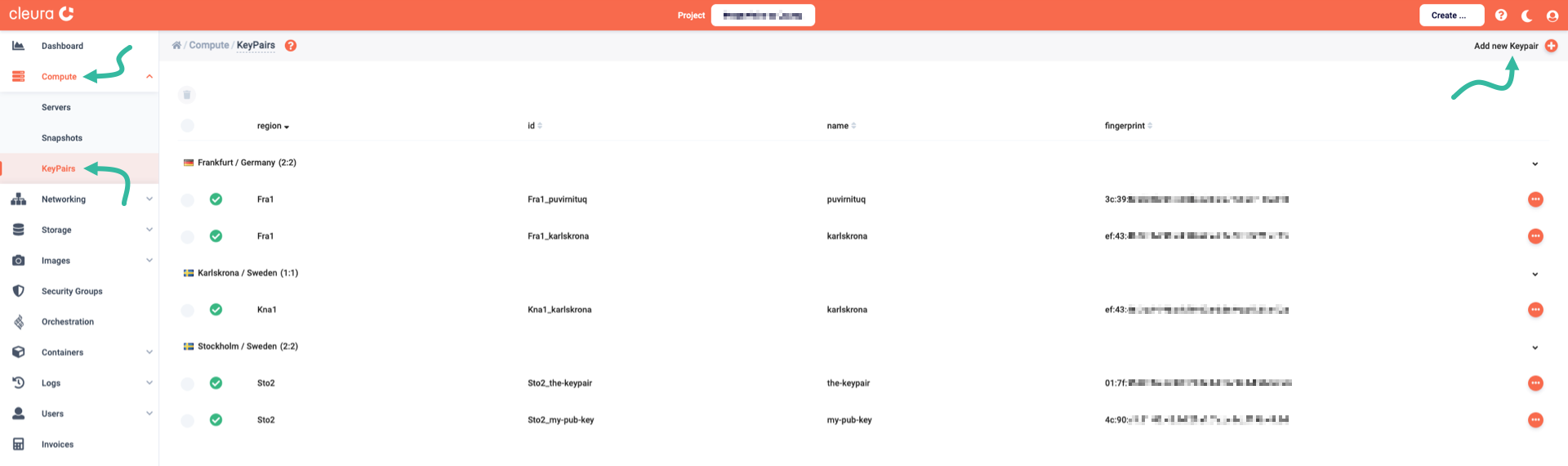
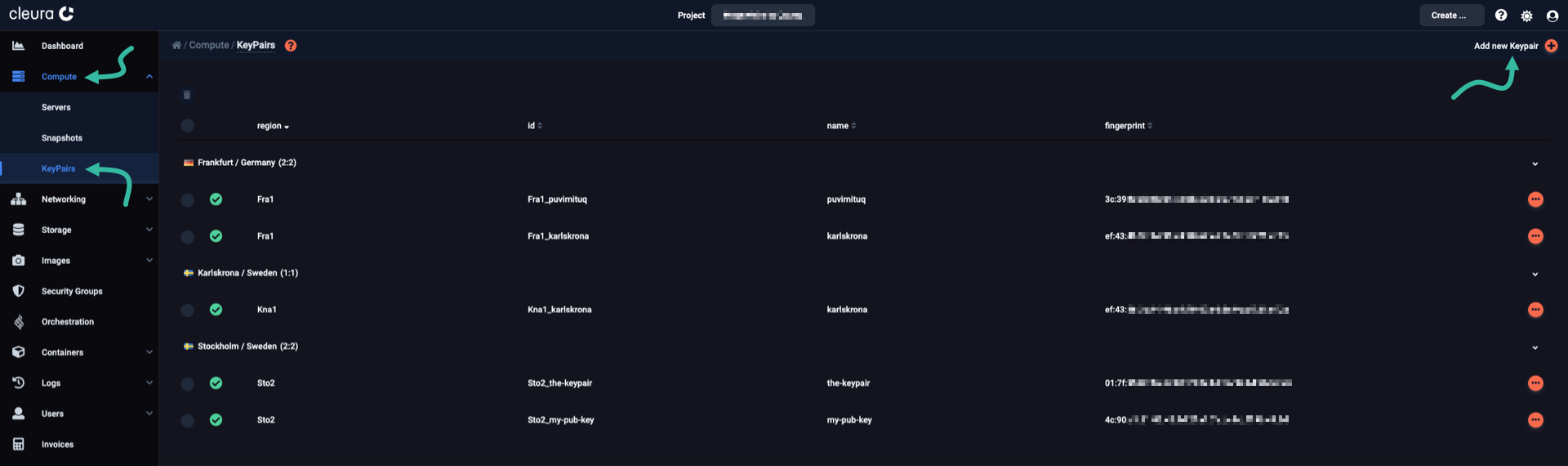
In the left-hand side vertical pane of the Cleura Cloud Management Panel, select Compute and then KeyPairs. All existing keypairs appear in the central pane, named Compute / Keypairs. To create a new one, click the Add new Keypair link in the top-right corner.
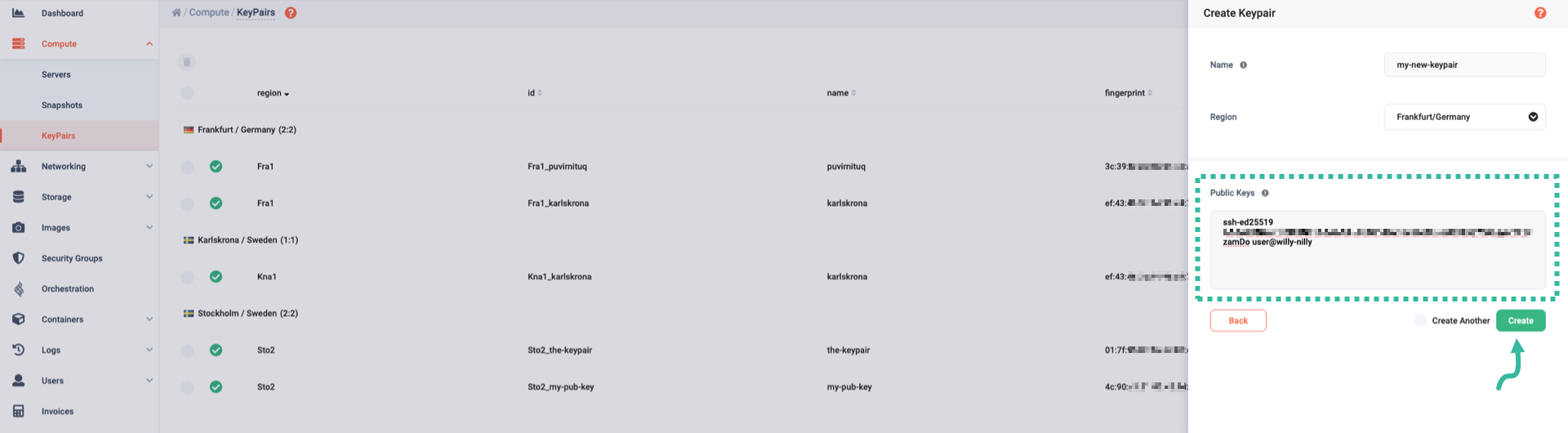
A window titled Create Keypair slides over from the right side of the browser window. Enter a Name for the new keypair, and select a Region for it.
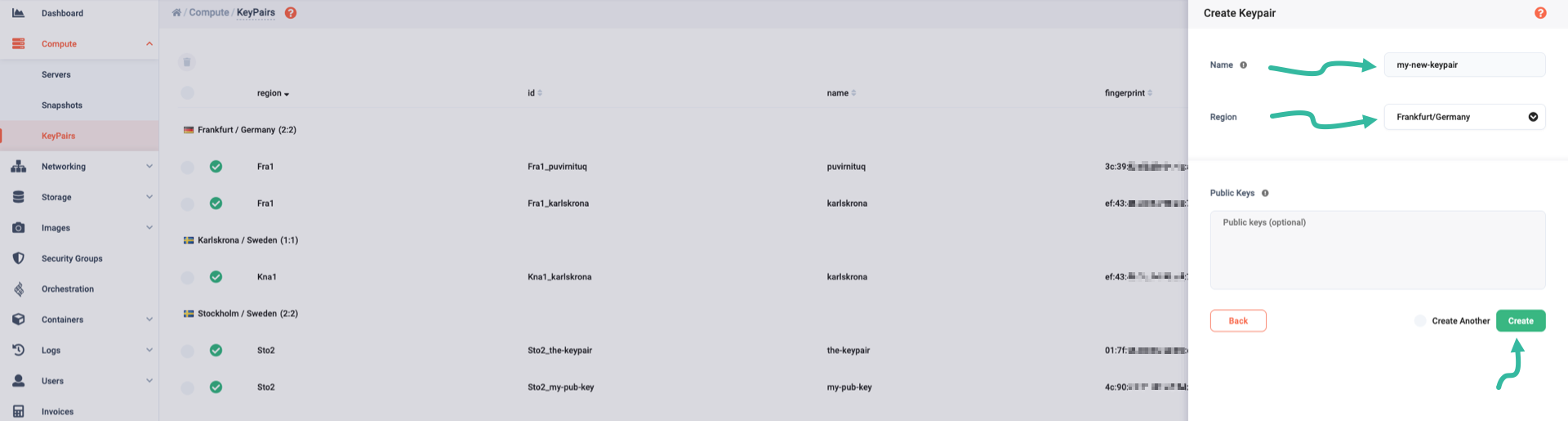
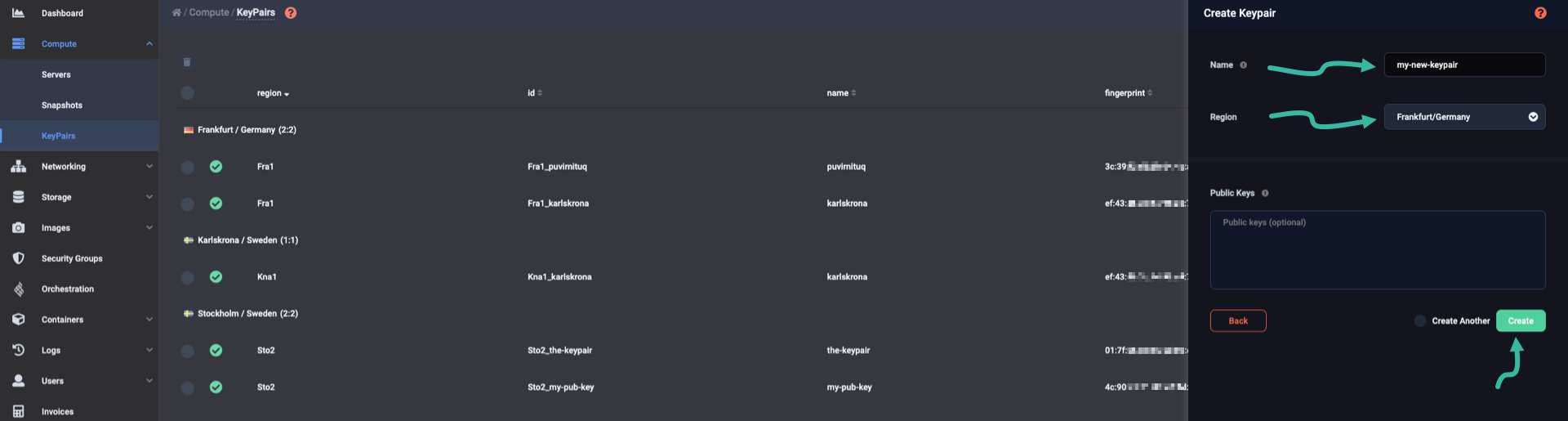
Without pasting anything in the Public Keys text field, you can already instantiate the new keypair by clicking the Create button. Alternatively, you may want to paste one of your public keys in the Public Keys text field.
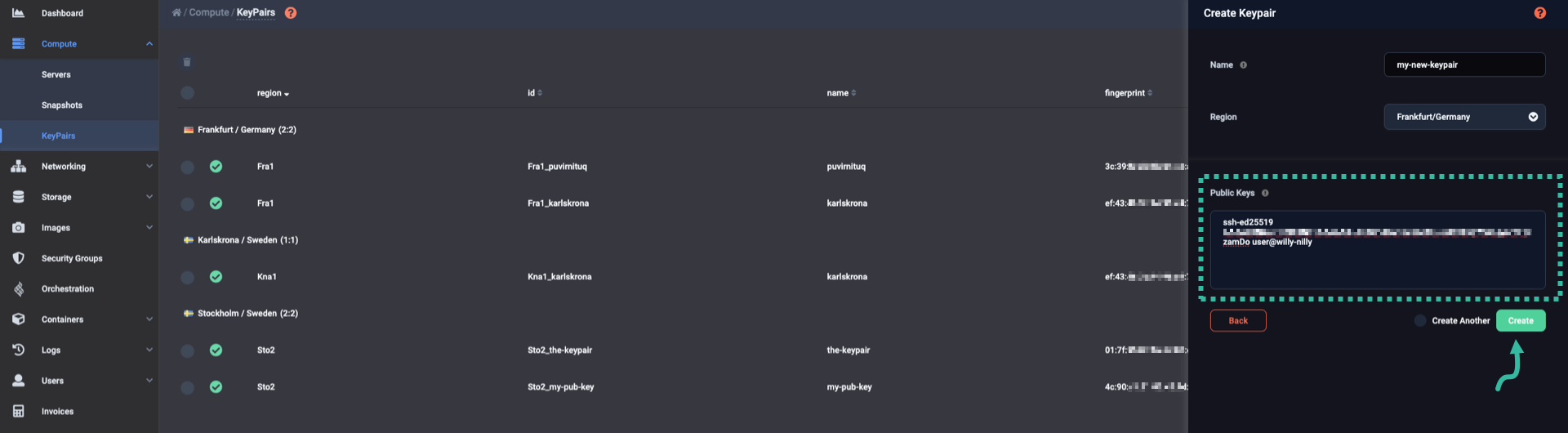
In the example below, we pasted the public key of an Ed25519 keypair into the Public Keys field.
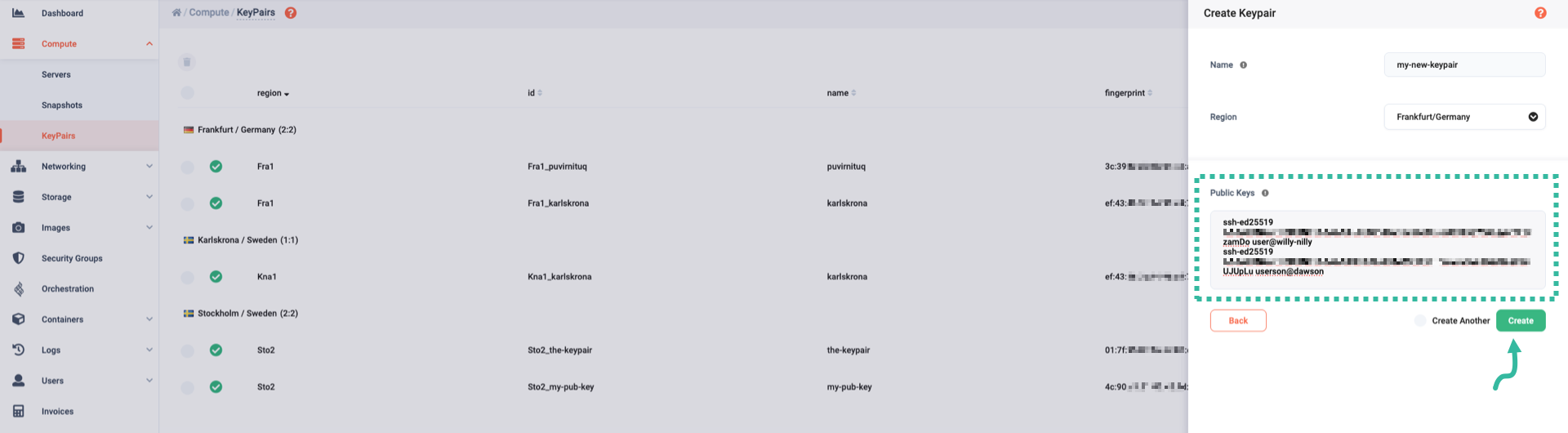
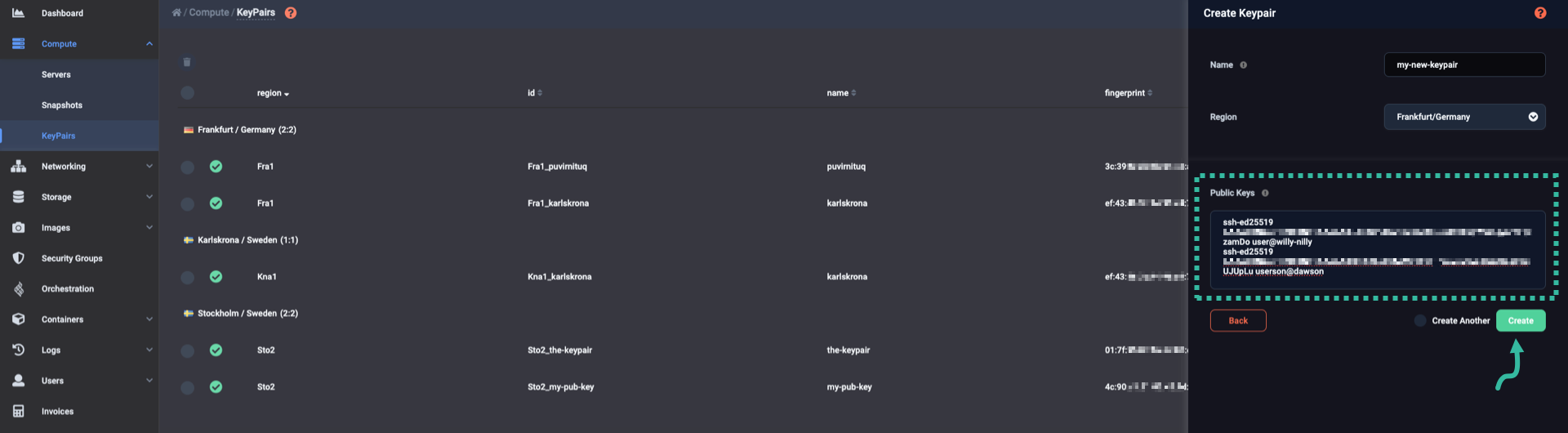
You can paste two or more public keys in the Public Keys field, one per line.
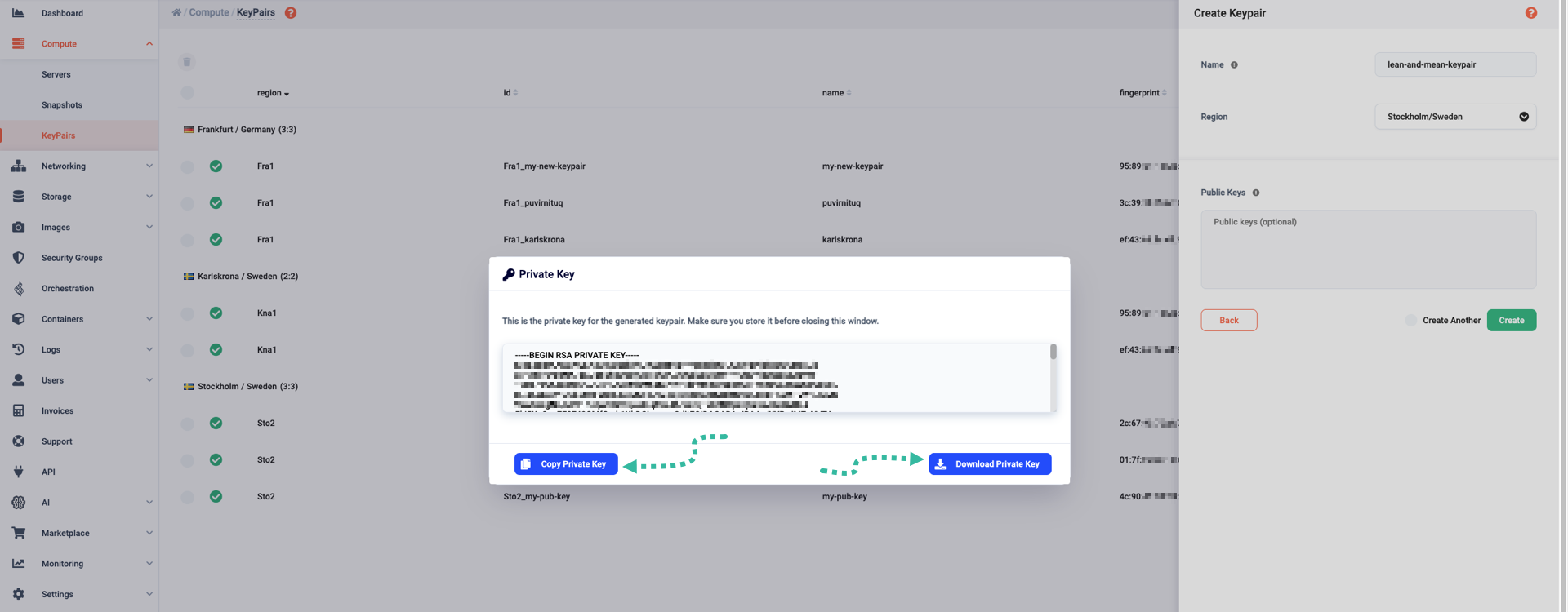
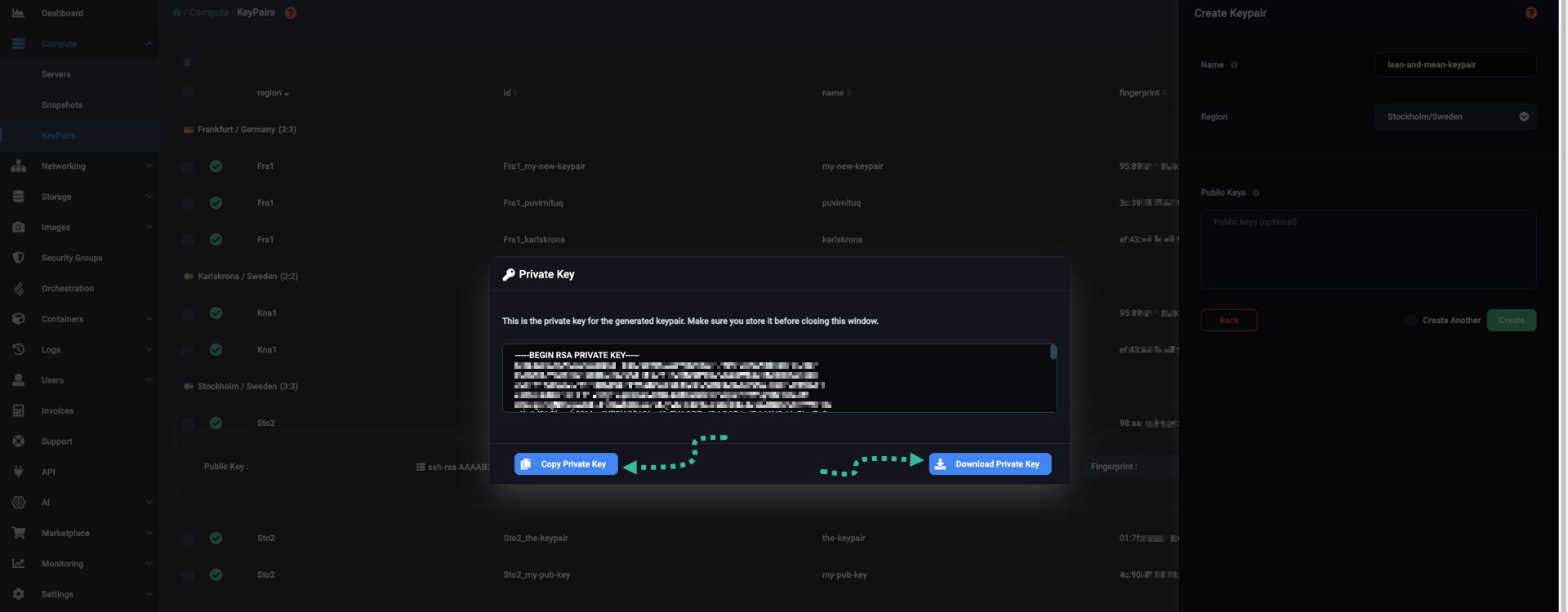
Whenever you choose not to provide a public key, right after creating the new keypair, a window named Private Key pops up. From it, you can either download the private key of the keypair or copy it to the clipboard. In any case, securely store it and make it accessible only to your local user.
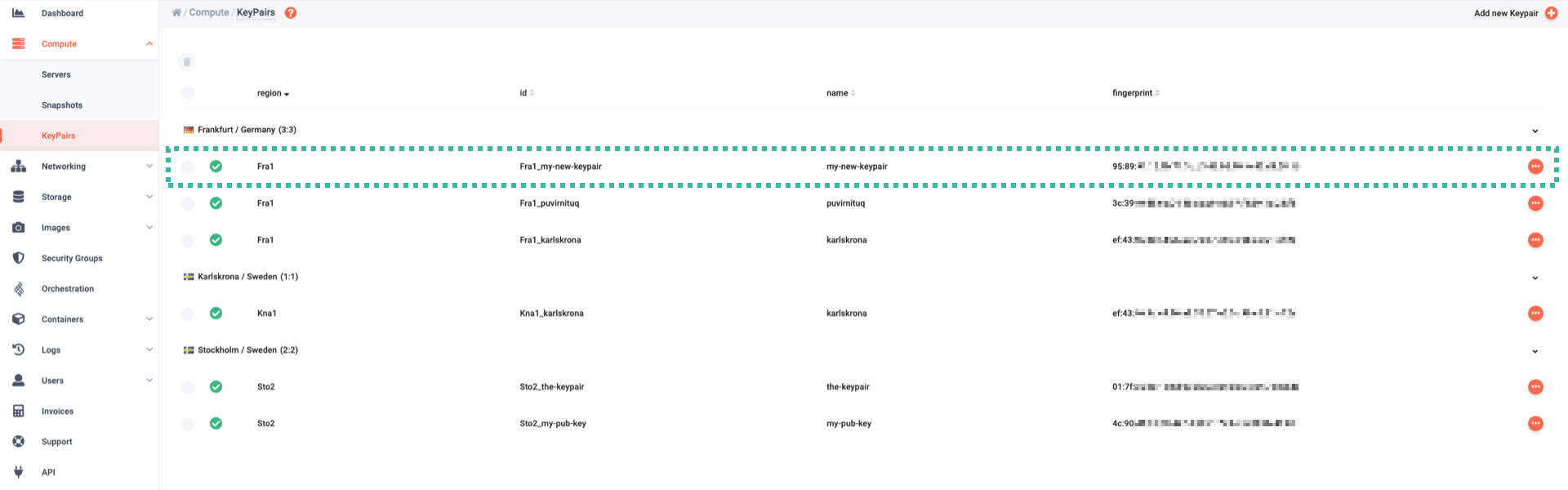
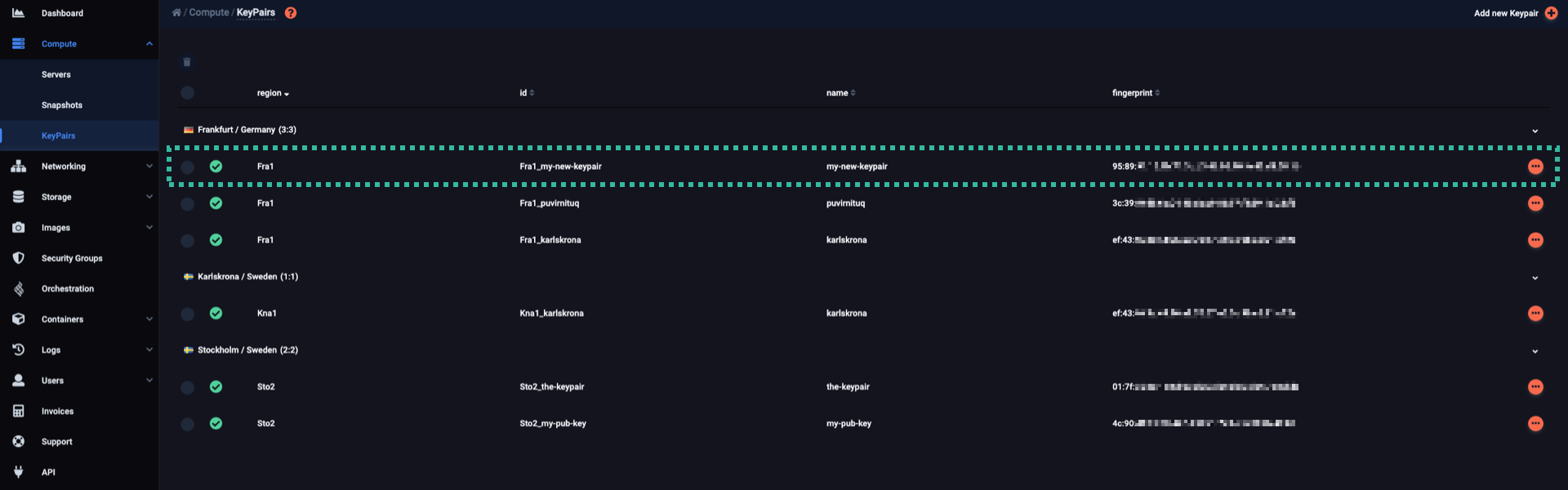
After you create the new keypair, you can see it listed in its region.
The simplest way to create a new keypair is by using the openstack keypair create command, as shown in the example below:
$ openstack keypair create my-new-keypair

-----BEGIN OPENSSH PRIVATE KEY-----
b3Bl........................................................................
........................................................................c2gt
ZWQy........................................................................
........................................................................TXAA
AAEC....
-----END OPENSSH PRIVATE KEY-----
The command output includes the private key of the my-new-keypair keypair.
You may not want the private key displayed on the terminal, so instead of the command above, use something like this:
$ openstack keypair create --private-key my-priv-key my-new-keypair

+-------------+-------------------------------------------------+
| Field       | Value                                           |
+-------------+-------------------------------------------------+
| created_at  | None                                            |
| fingerprint | 3c:90:f1:14:07:50:d4:0e:81:66:03:96:7f:5e:00:2e |
| id          | my-new-keypair                                  |
| is_deleted  | None                                            |
| name        | my-new-keypair                                  |
| type        | ssh                                             |
| user_id     | e507abcdef19d594f84f16ad13f88pqrstuxyz          |
+-------------+-------------------------------------------------+
In that case, in the terminal output, you only see general information regarding my-new-keypair, and the private key is automatically downloaded onto the my-priv-key file:
$ file my-priv-key
my-priv-key: OpenSSH private key
As with any other private key, securely store the one openstack keypair create generates, and make it accessible only to your local user.
You may also create a keypair by specifying a public key of yours, using the --public-key parameter.
Example:
$ openstack keypair create --public-key ~/.ssh/id_ecdsa.pub my-new-keypair

+-------------+-------------------------------------------------+
| Field       | Value                                           |
+-------------+-------------------------------------------------+
| created_at  | None                                            |
| fingerprint | 01:7f:95:8c:16:6d:03:d9:0e:b1:d6:94:b4:7b:bd:de |
| id          | my-new-keypair                                  |
| is_deleted  | None                                            |
| name        | my-new-keypair                                  |
| type        | ssh                                             |
| user_id     | e507abcdef19d594f84f16ad13f88pqrstuxyz          |
+-------------+-------------------------------------------------+
In that case, you cannot download the private key for the my-new-keypair keypair.
Viewing keypair details
To get more details on a specific keypair, go to the Compute / KeyPairs pane, locate the keypair of interest, and click on its row.
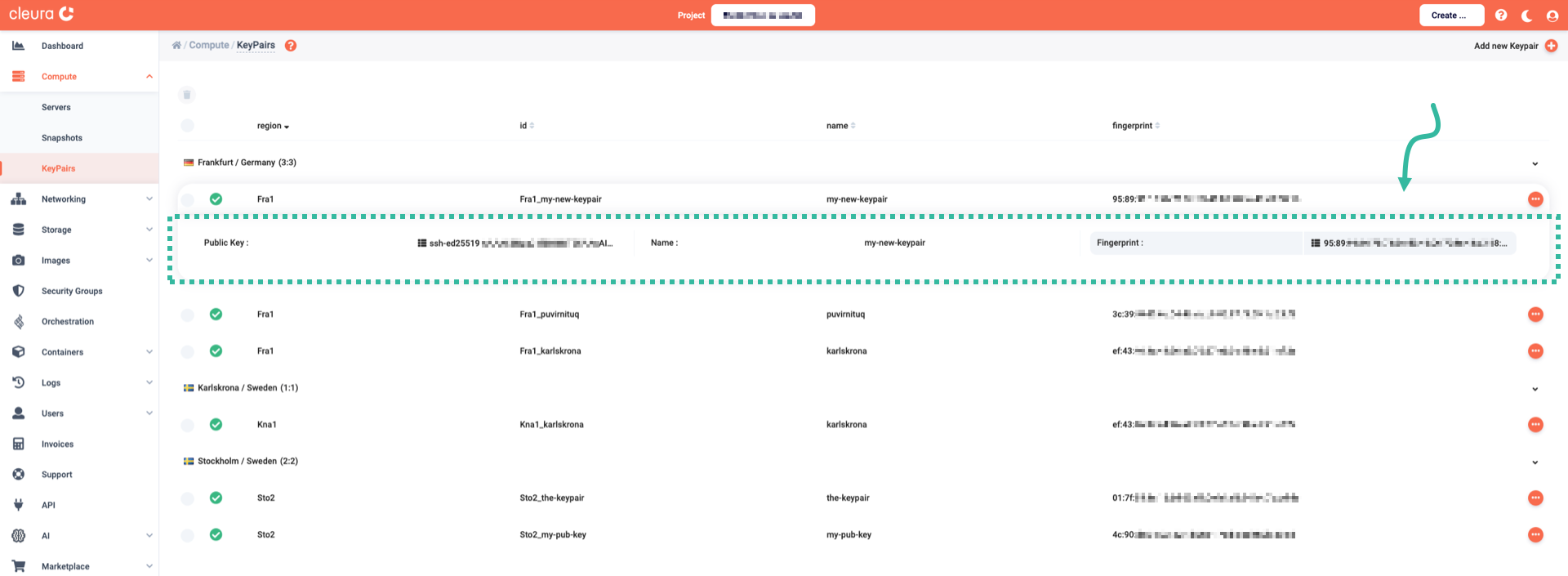
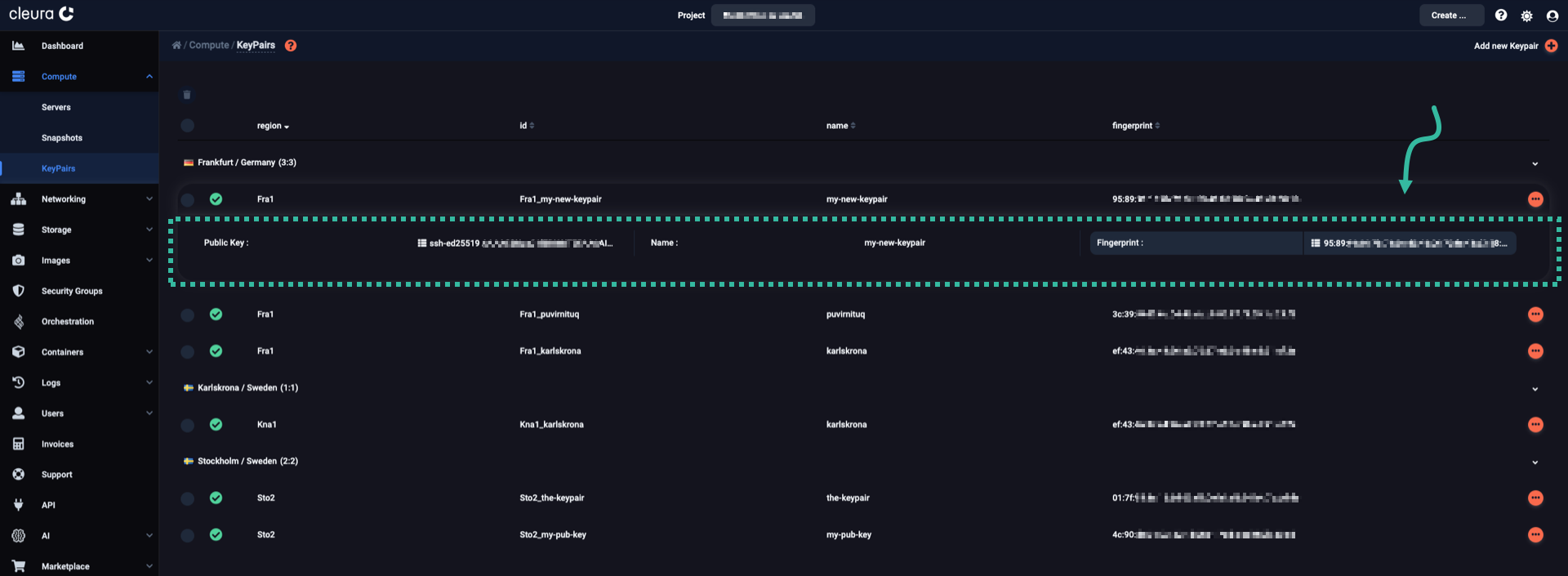
Before viewing information about a specific keypair, you might want to list all keypairs in the region you are working in.
For that, use the openstack keypair list command:
$ openstack keypair list

+----------------+-------------------------------------------------+------+
| Name           | Fingerprint                                     | Type |
+----------------+-------------------------------------------------+------+
| bahnhof        | 7a:97:fa:34:5c:80:55:06:41:bb:e9:77:14:3d:04:fb | ssh  |
| karlskrona     | ef:43:46:3c:44:96:a9:70:67:e6:3c:9b:c5:21:cf:2e | ssh  |
| my-new-keypair | 01:7f:95:8c:16:6d:03:d9:0e:b1:d6:94:b4:7b:bd:de | ssh  |
| puvirnituq     | 3c:39:f0:d5:6b:04:4b:ab:c9:86:97:f3:59:1d:23:f8 | ssh  |
+----------------+-------------------------------------------------+------+
Now, to get detailed information regarding the my-new-keypair keypair, use the openstack keypair show command like so:
$ openstack keypair show my-new-keypair

+-------------+-------------------------------------------------+
| Field       | Value                                           |
+-------------+-------------------------------------------------+
| created_at  | 2026-05-28T17:24:54.000000                      |
| fingerprint | 01:7f:95:8c:16:6d:03:d9:0e:b1:d6:94:b4:7b:bd:de |
| id          | my-new-keypair                                  |
| is_deleted  | False                                           |
| name        | my-new-keypair                                  |
| private_key | None                                            |
| type        | ssh                                             |
| user_id     | e50719d594f84f16ad13f88da540f762                |
+-------------+-------------------------------------------------+
Duplicating keypairs
You may want to use the same SSH key for authentication in multiple Cleura Cloud regions. To do so, you can duplicate your keypairs.
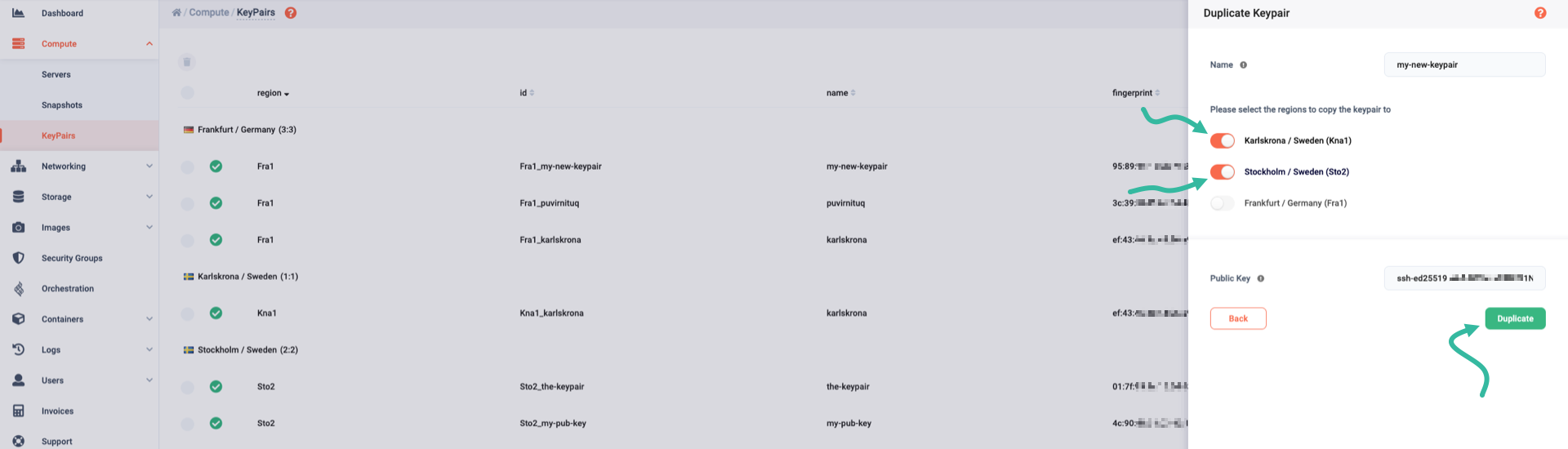
First off, go to the Compute / KeyPairs pane and locate the keypair you wish to duplicate to other regions. Click the icon to the right of the keypair row. From the pop-up menu, select Duplicate Keypair.
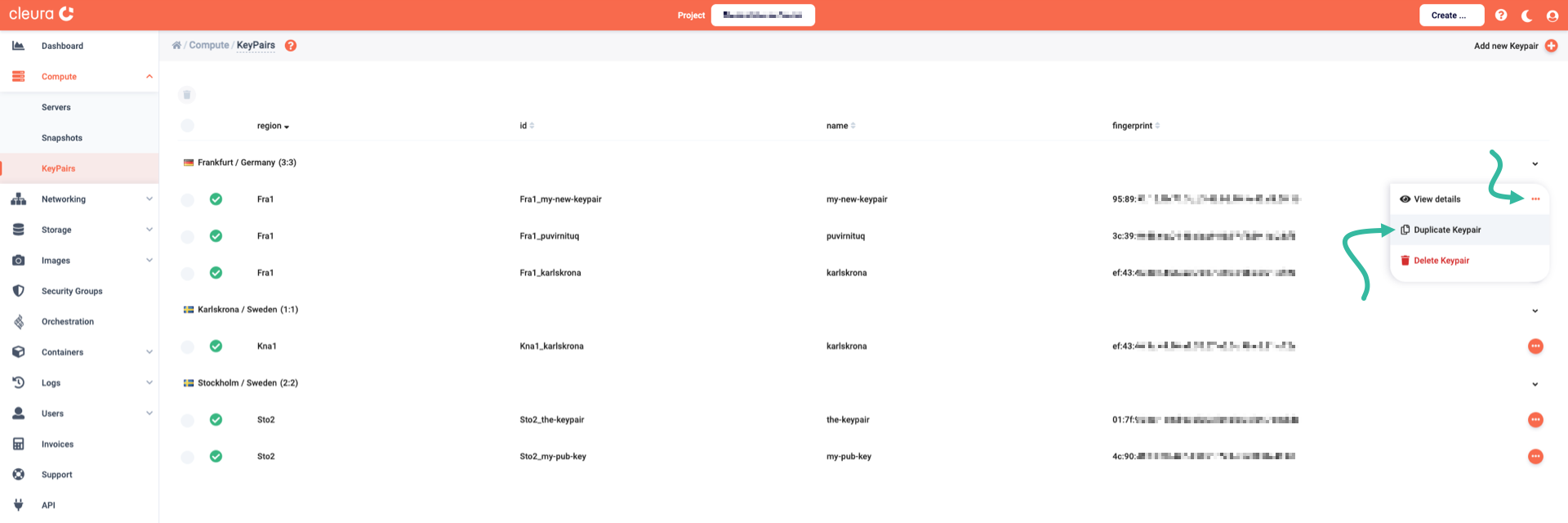
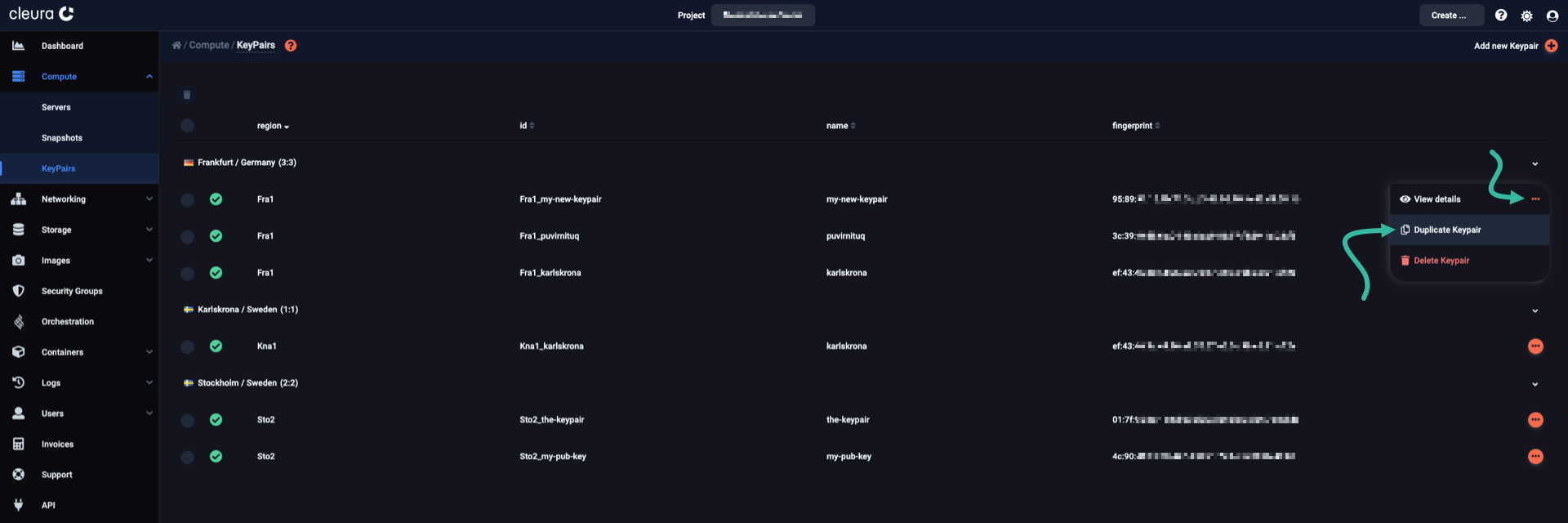
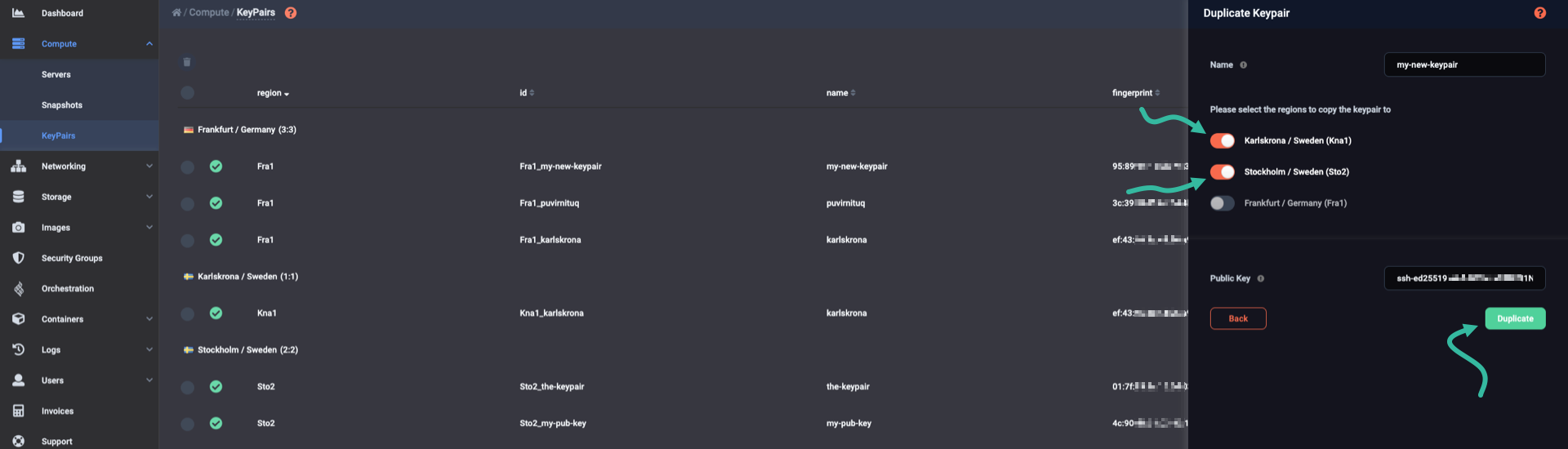
A window named Duplicate Keypair slides over. Use the toggle buttons to indicate the regions you wish to duplicate the keypair to. When you are ready, click the Duplicate button.
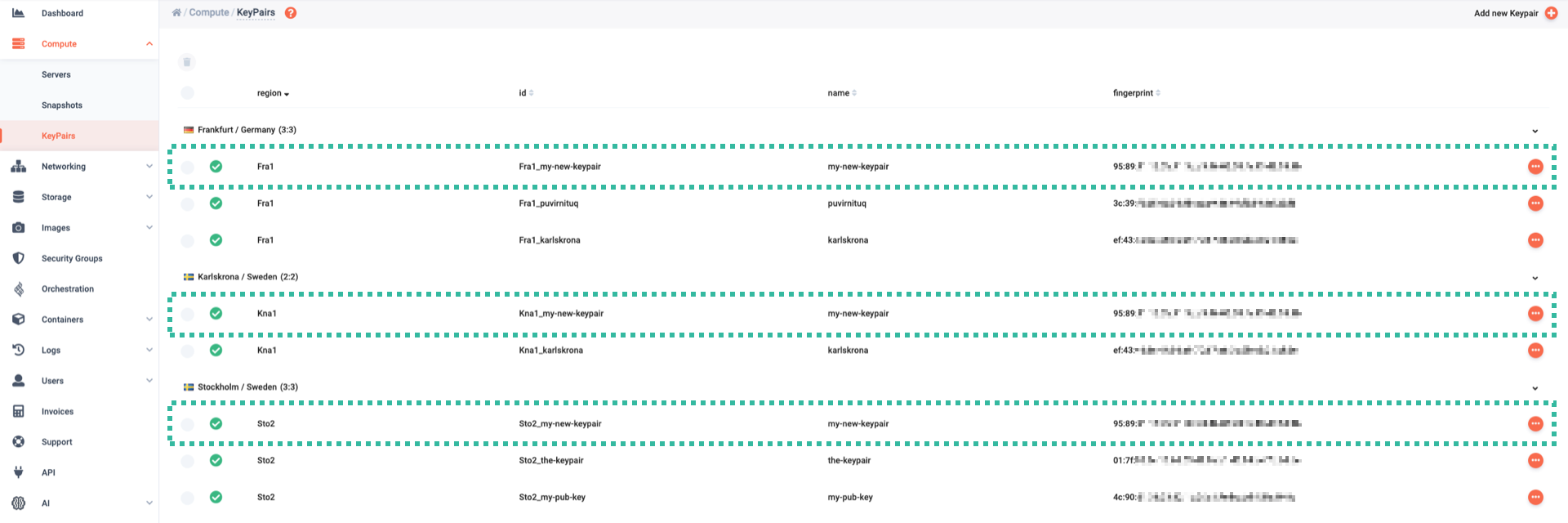
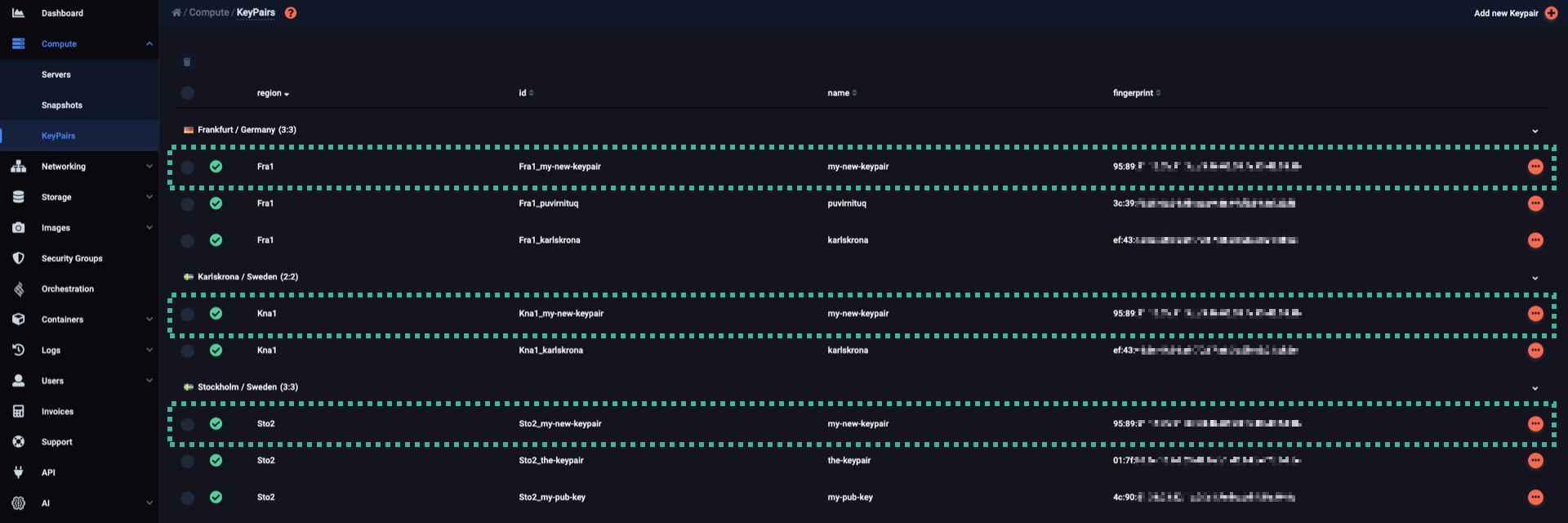
You now see your keypair under each region it is accessible from.
Let’s assume you already have the my-new-keypair keypair in region Fra1, and now you wish to duplicate it (send it over) to region Kna1.
$ openstack keypair show my-new-keypair

+-------------+-------------------------------------------------+
| Field       | Value                                           |
+-------------+-------------------------------------------------+
| created_at  | 2026-05-29T12:43:50.000000                      |
| fingerprint | 01:7f:95:8c:16:6d:03:d9:0e:b1:d6:94:b4:7b:bd:de |
| id          | my-new-keypair                                  |
| is_deleted  | False                                           |
| name        | my-new-keypair                                  |
| private_key | None                                            |
| type        | ssh                                             |
| user_id     | e50719d594f84f16ad13f88da540f762                |
+-------------+-------------------------------------------------+
First, save a copy of my-new-keypair’s public key to a local file (e.g., the-pubkey):
$ openstack keypair show --public-key my-new-keypair > the-pubkey
When the command above is successful, it produces no output.
Next, source your OpenStack credentials for region Kna1.
Finally, create a new keypair named my-new-keypair, indicating the-pubkey file:
$ openstack keypair create --public-key ./the-pubkey my-new-keypair

+-------------+-------------------------------------------------+
| Field       | Value                                           |
+-------------+-------------------------------------------------+
| created_at  | None                                            |
| fingerprint | 01:7f:95:8c:16:6d:03:d9:0e:b1:d6:94:b4:7b:bd:de |
| id          | my-new-keypair                                  |
| is_deleted  | None                                            |
| name        | my-new-keypair                                  |
| type        | ssh                                             |
| user_id     | c096cf99f65a4d22a6954b67d2ec11d7                |
+-------------+-------------------------------------------------+
Notice the keypair fingerprint in both regions: it’s the same.
Deleting keypairs
In the Compute / KeyPairs pane, locate the keypair you wish to delete. At the right of the keypair row, click the icon. From the pop-up menu, select Delete Keypair.
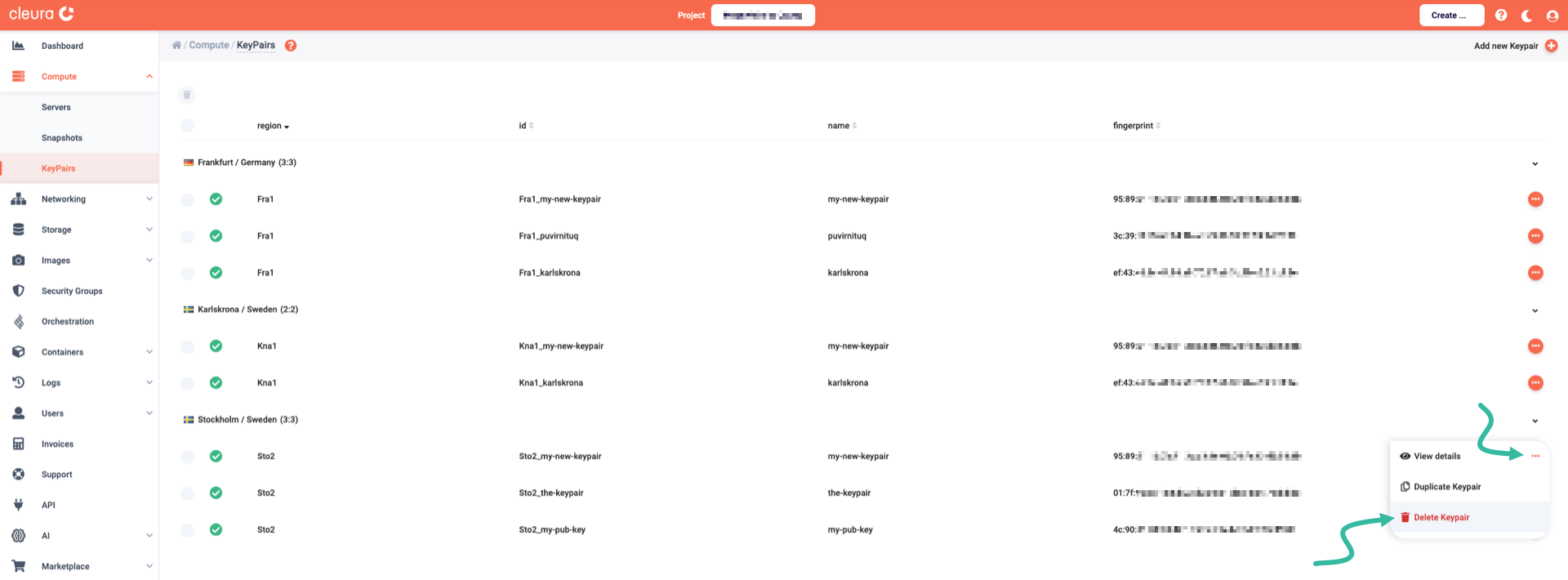
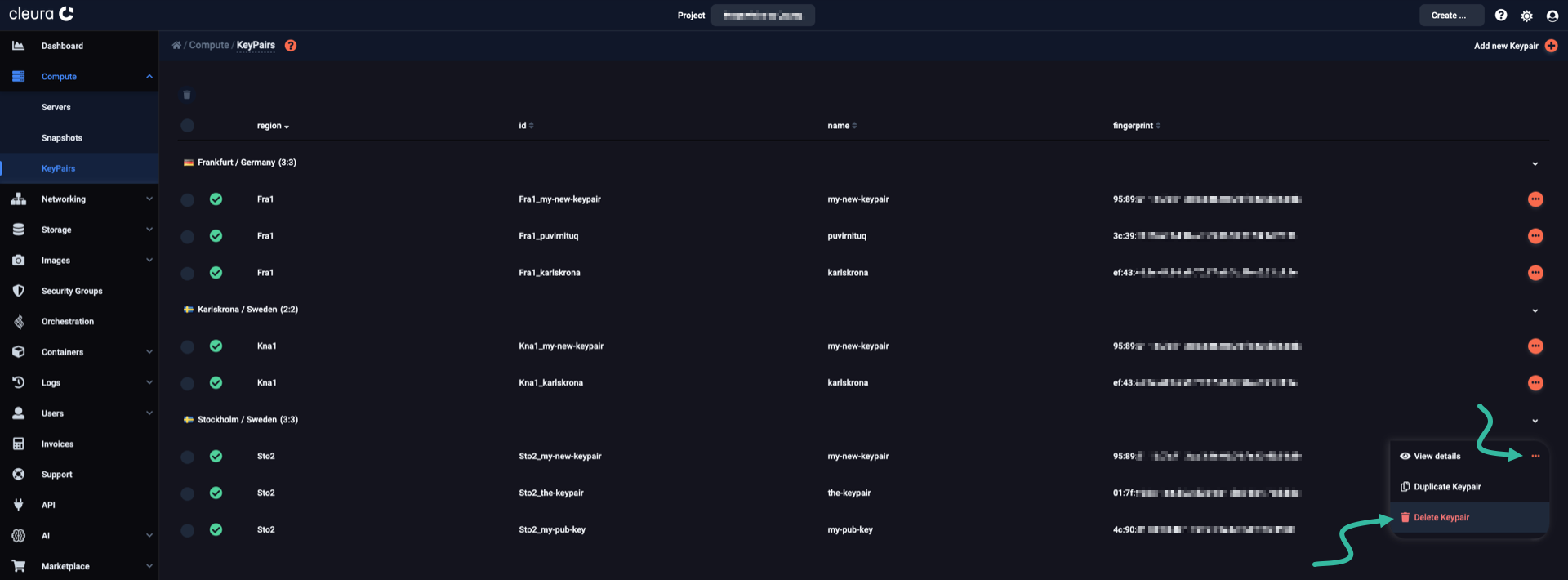
A window appears asking whether you want to delete the keypair. If you are, click the Yes, Delete button.
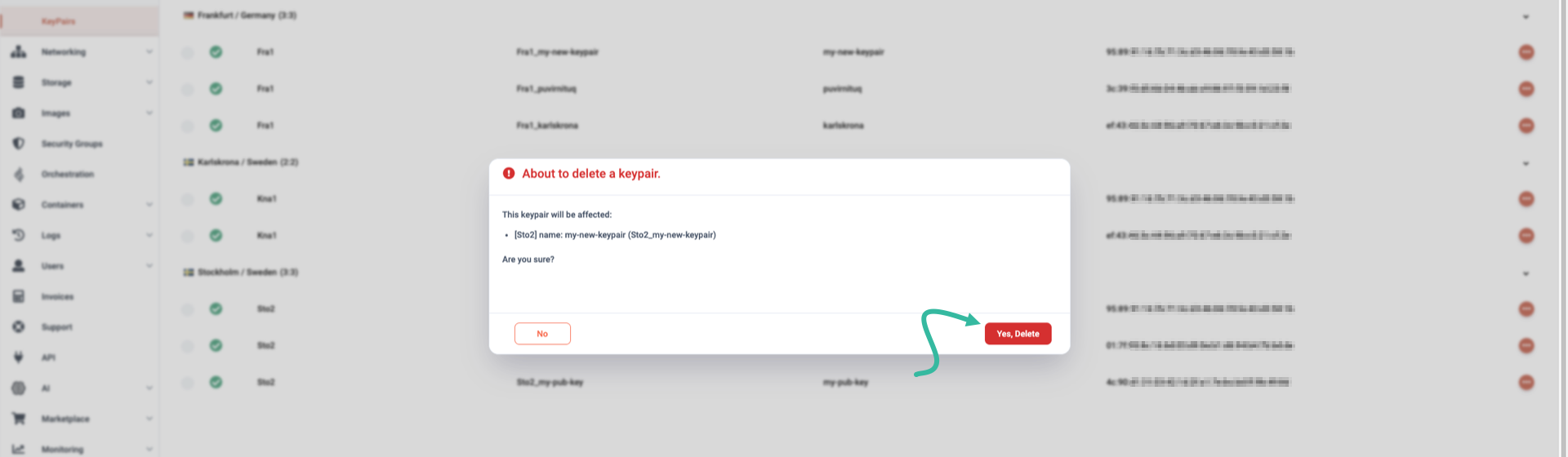
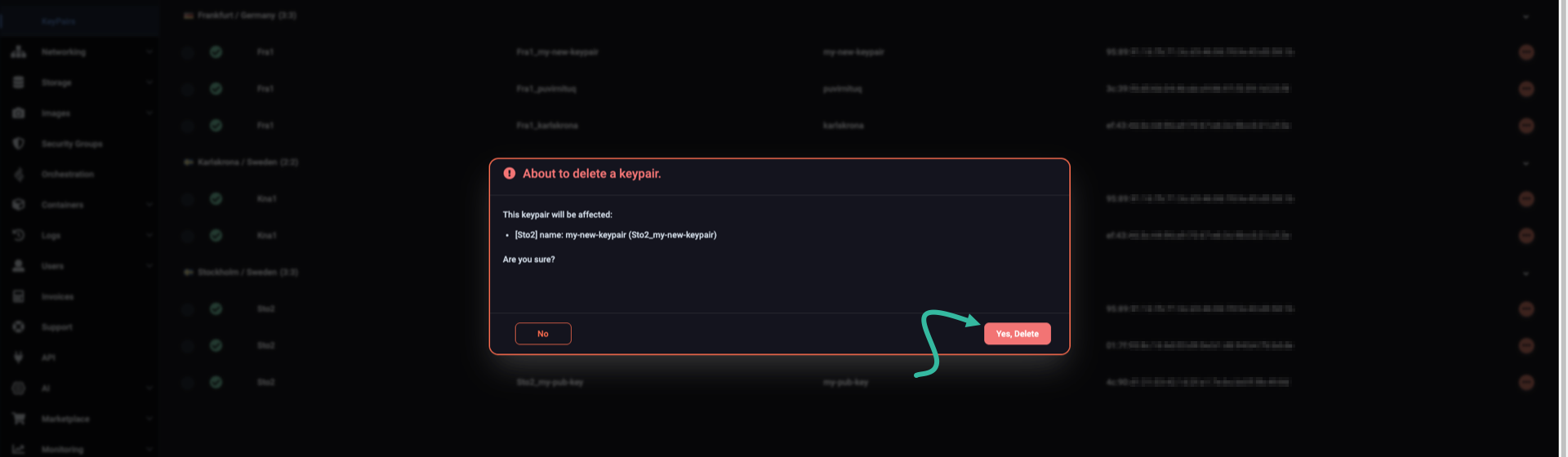
The selected keypair is now deleted. Note that any duplicates in other regions are still available.
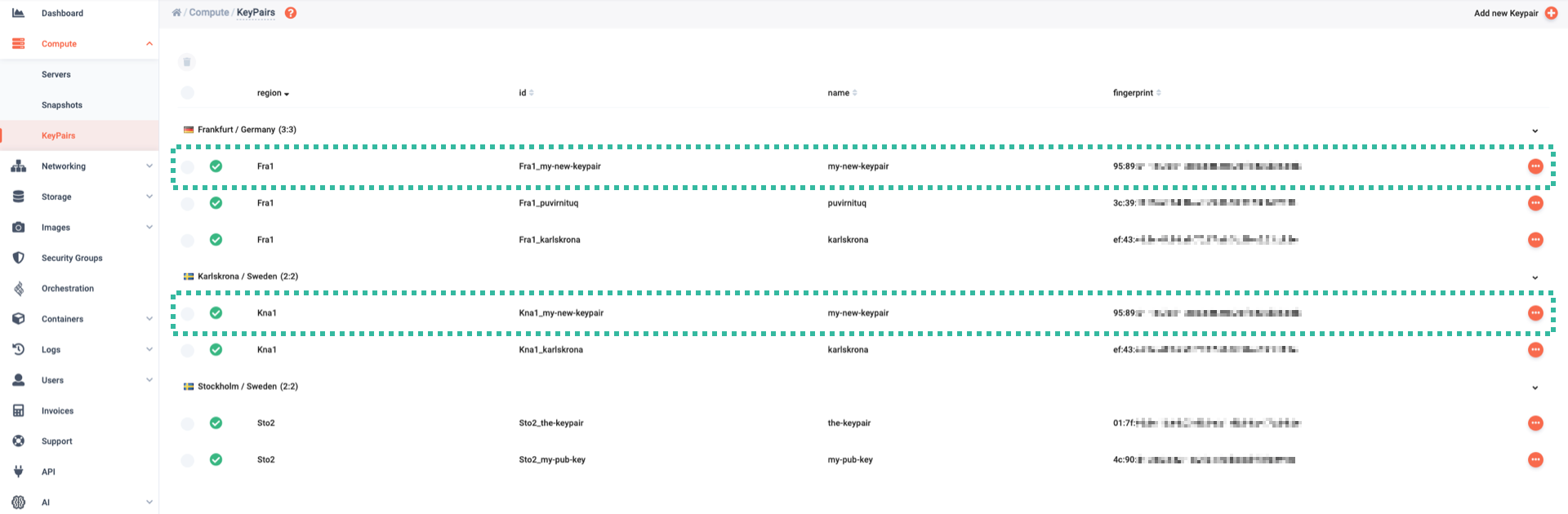
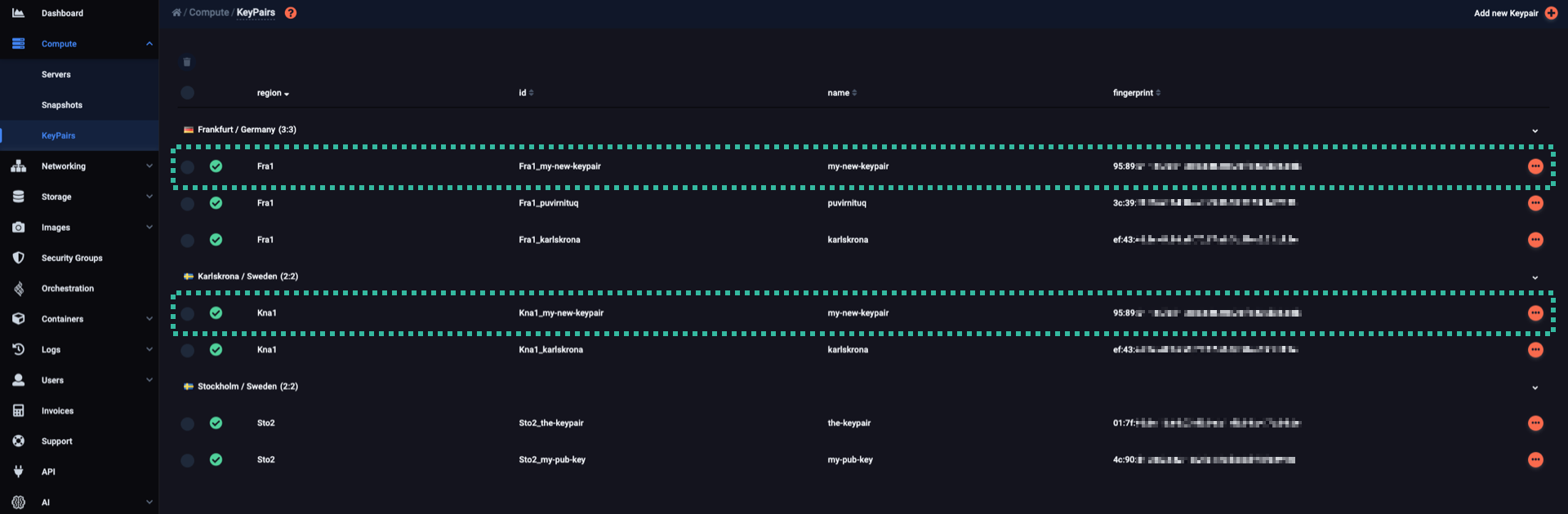
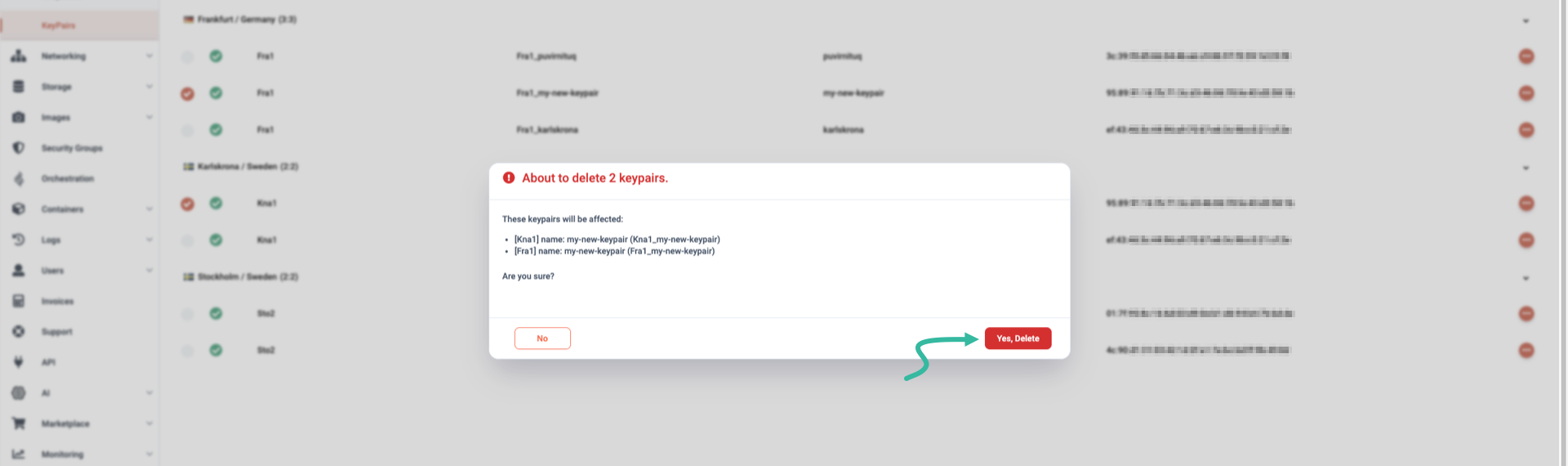
If you want to delete more than one keypair at once, first go to the Compute / KeyPairs pane and select them. Then, click the icon at the top left.
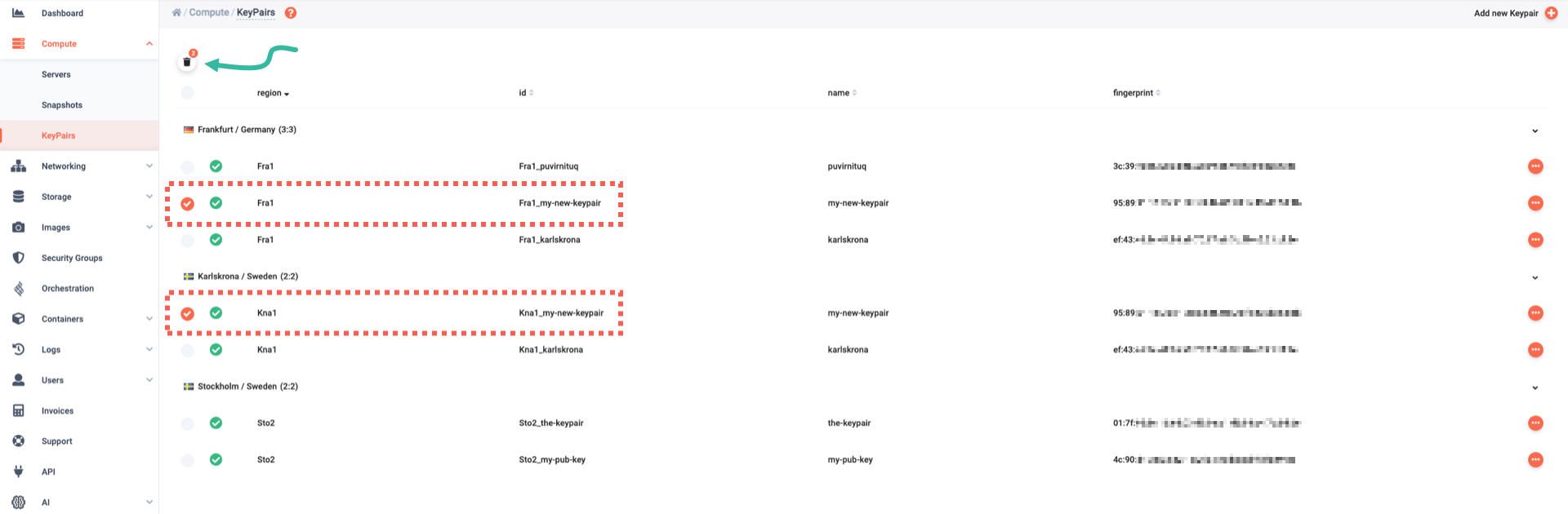
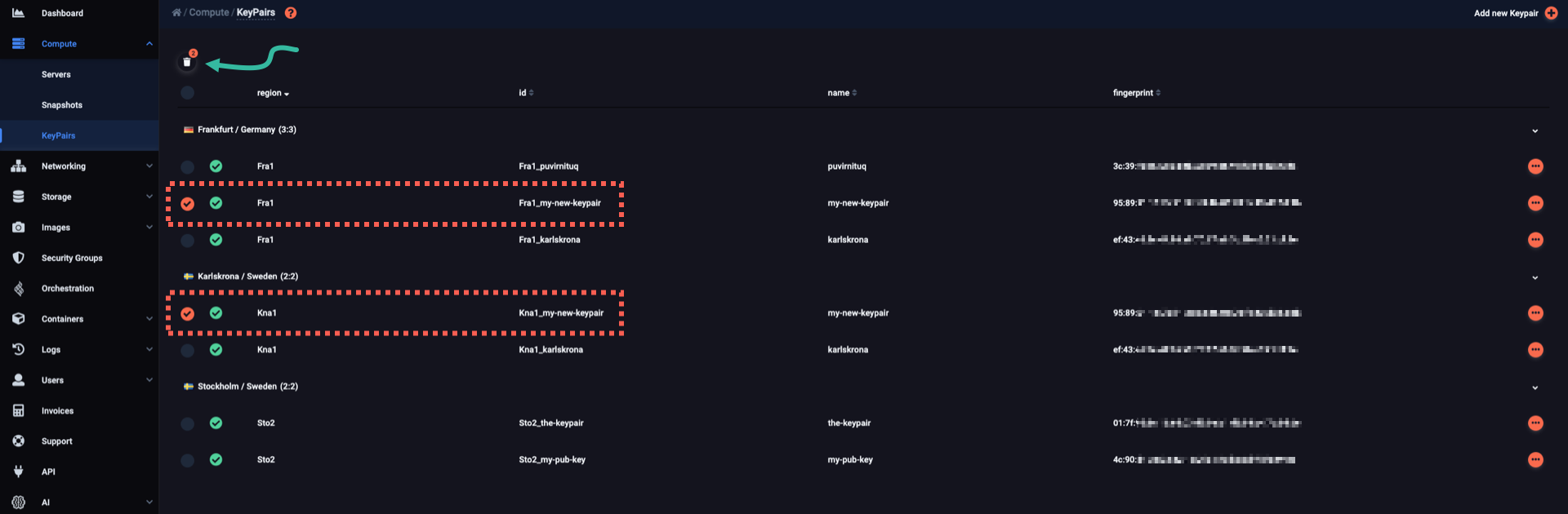
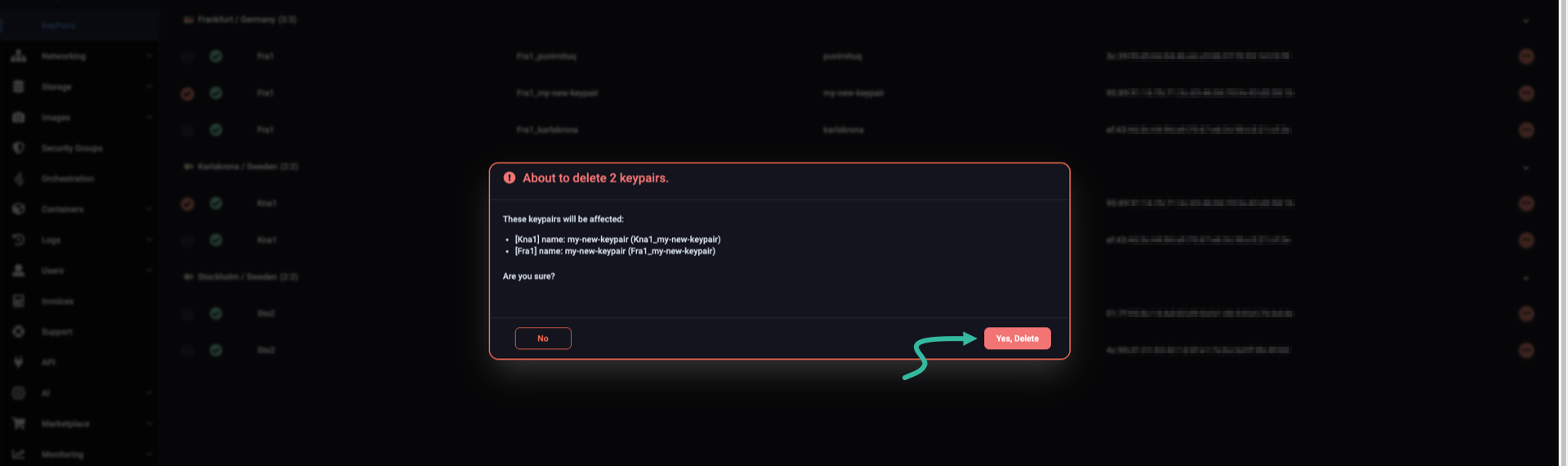
A window appears asking whether you want to delete the selected keypairs. Click the Yes, Delete button to confirm, or the No button if you changed your mind.
To delete a keypair, use the openstack keypair delete command.
For instance, to delete the my-new-keypair keypair, type:
$ openstack keypair delete my-new-keypair
When the command above is successful, it produces no output.