Scheduling volume backups
Using the OpenStack CLI or the Cleura Cloud Management Panel, you can schedule Cinder volume backups with Freezer.
Prerequisites
If you plan to use the OpenStack CLI, enable it first.
Creating a backup job definition
When you work with the Cleura Cloud Management Panel, you do not explicitly create backup job definitions. Instead, you start by creating backup jobs.
To use your backup scheduler, first create a backup job definition.
That is a JSON file –let’s name it my-backup-job.json– with content like the following:
{
  "job_actions": [
    {
      "freezer_action": {
        "action": "backup",
        "mode": "cindernative",
        "backup_name": "my-vol-att-hourly-backup",
        "cindernative_vol_id": "5faf793f-521b-4bfb-b531-72908bab8bf7",
        "cindernative_backup_container": "mutable",
        "incremental": false
      },
      "max_retries": 5,
      "max_retries_interval": 6
    }
  ],
  "job_schedule": {
    "schedule_interval": "1 hours",
    "schedule_start_date": "2026-09-17T00:20:00",
    "schedule_end_date": "2026-10-31T23:20:00"
  },
  "description": "Hourly full backup of my-vol-att, runs 20 minutes after the top of the hour"
}
In the example above, the backup job definition applies to the volume with the ID 5faf793f-521b-4bfb-b531-72908bab8bf7 (my-vol-att).
More specifically, the job starts on 17 September 2026 and stays active through 31 October 2026.
It creates hourly full backups of my-vol-att, 20 minutes after the top of the hour.
Creating a backup job
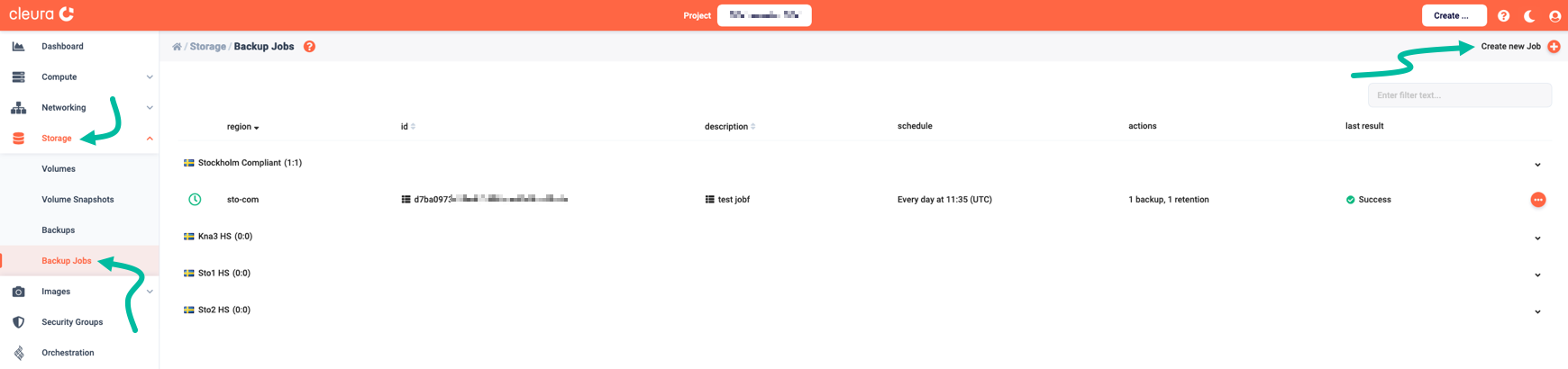
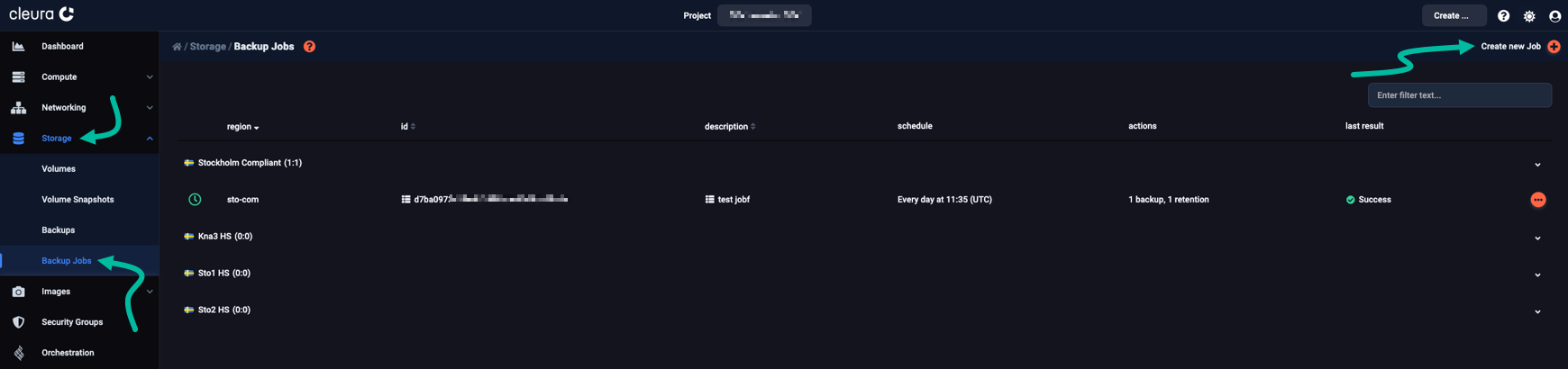
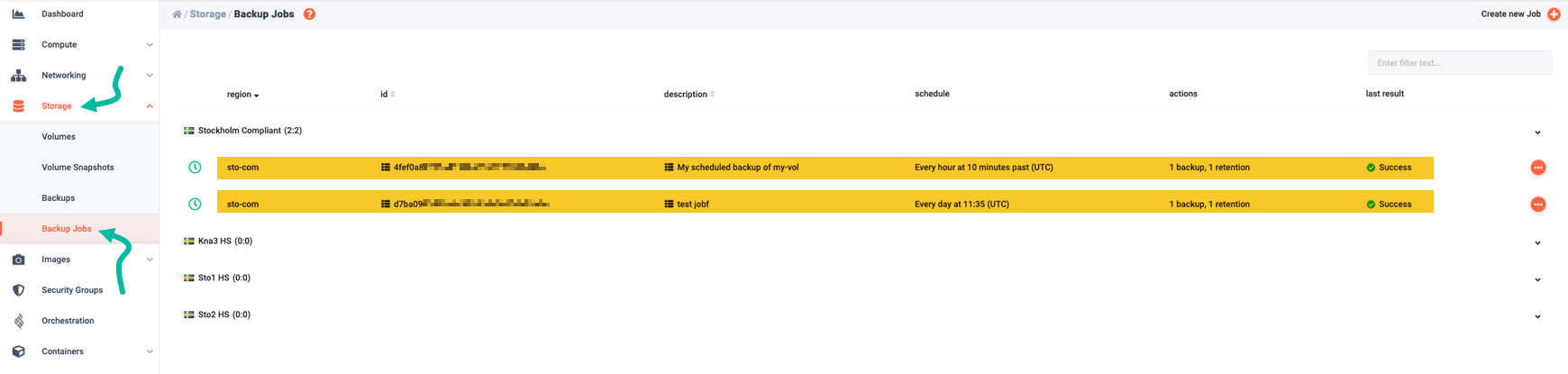
In the Cleura Cloud Management Panel, expand the left-hand side vertical pane and select Storage → Backup Jobs. In the main pane, see all existing backup jobs. To create a new one, click Create new Job at the top right-hand side of the pane.
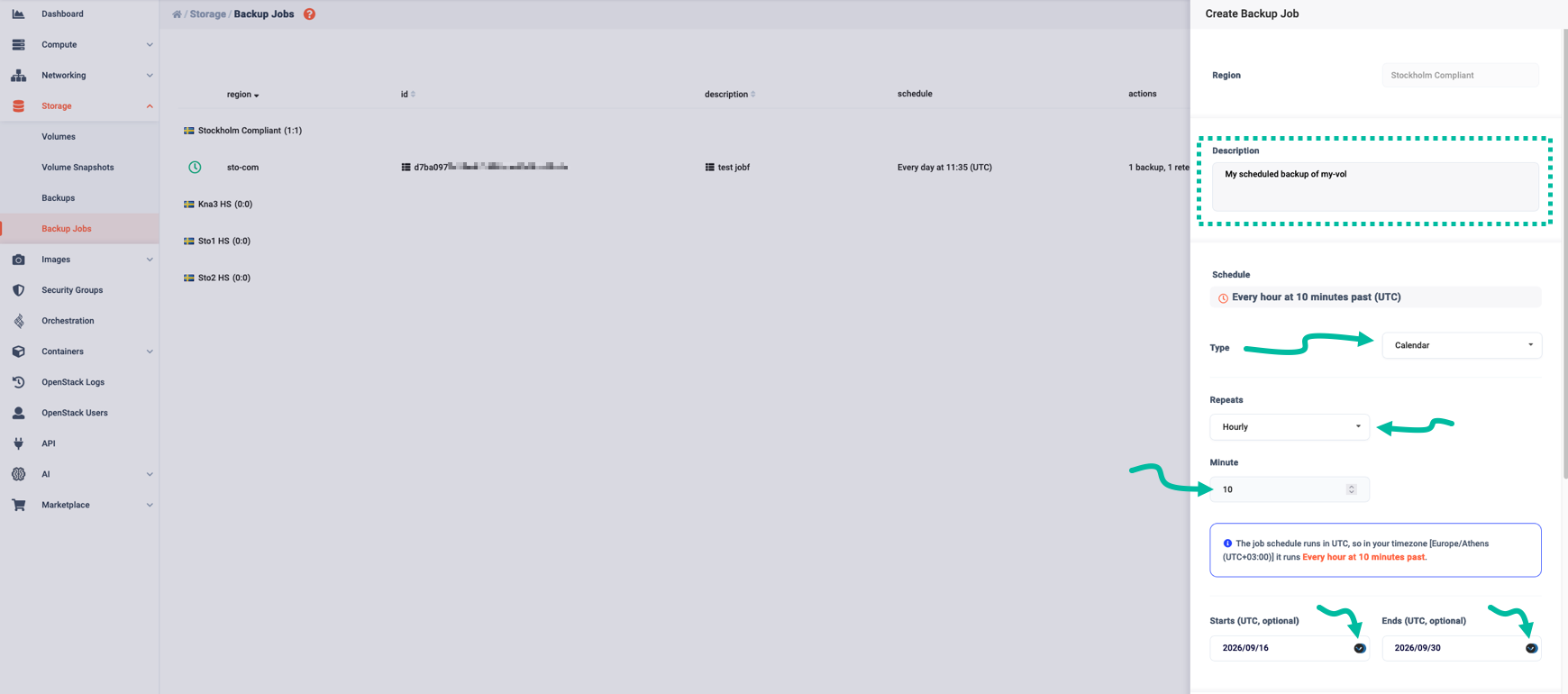
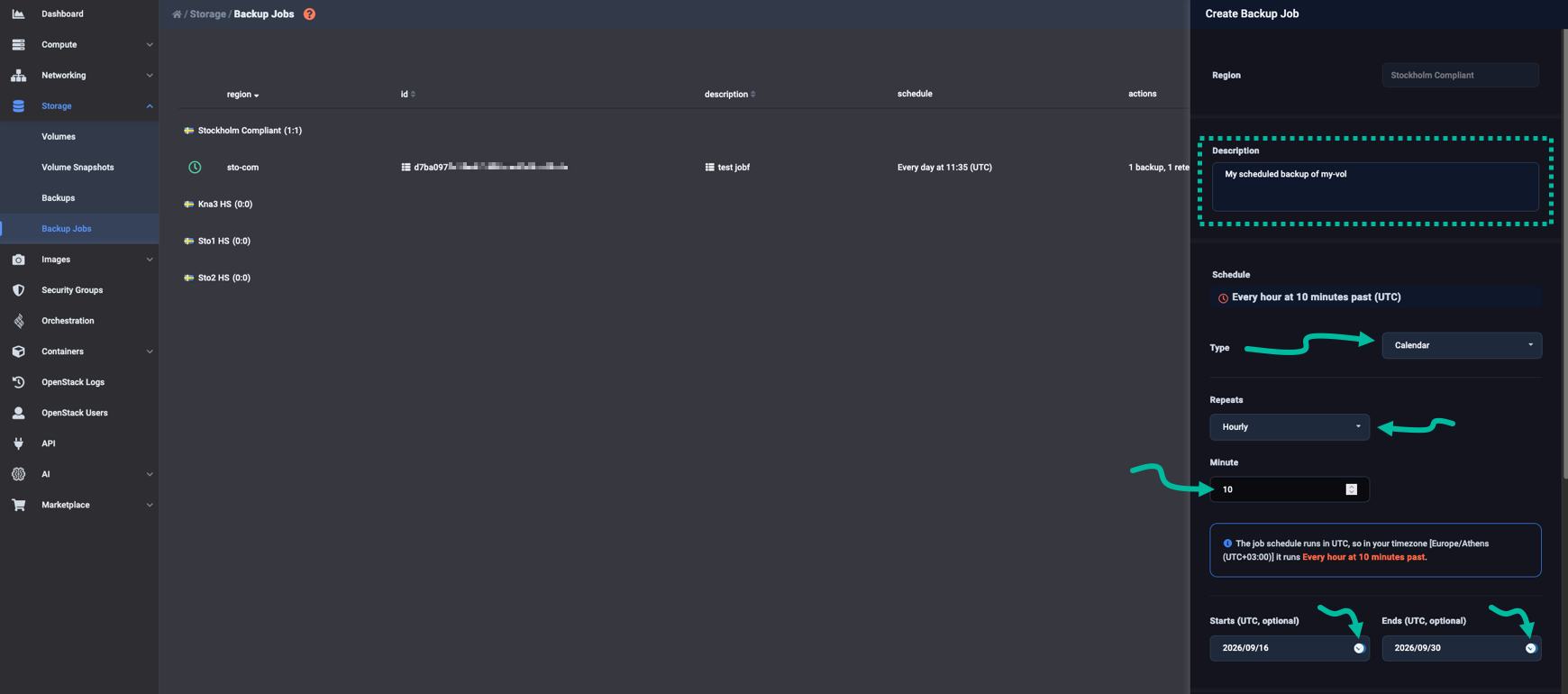
A Create Backup Job vertical pane slides over from the right. In the Description text field, you may want to enter a description regarding the new job. Then, create a schedule for it.
In the example below, we chose a Calendar-based schedule (Type = Calendar), aiming for a job that repeats every hour (Repeats = Hourly). More specifically, that job runs at 10 minutes past the hour, every hour. Finally, the example schedule runs from 16 September 2026 through 30 September 2026.
For a single backup job, you can have one or more Backup actions, and each action backs up a single volume.
Let’s see what that all means with an example where we have only one Backup action.
For that action, we use the Volume drop-down menu and select one volume (my-vol) to back up.
We also choose a mutable backup policy (by setting Backup Policy to Mutable), and opt for non-incremental backups (by leaving the Incremental switch toggled off).
In the Backup name text field below, we enter a name for the action.
For each volume the job backs up, you may optionally choose any one of three available retention actions:
- Keep last. Only the specified number of most recent full backups (and their incrementals) is kept.
- Remove older than. Only backups newer than the specified number of days are kept.
- Remove created before. Only backups newer than the specified date are kept (one-off operation).
Retention actions delete backups
Any Retention action leads to volume backup deletions. More specifically, a retention action
- deletes backups according to the specified retention strategy, and
- takes into account full backups no matter which job created them in the first place.
Keep in mind, though, that a retention action does not delete manually created backups.
In our example, the retention action dictates that only 7 full backups of my-vol are kept (Retention type = Keep last).
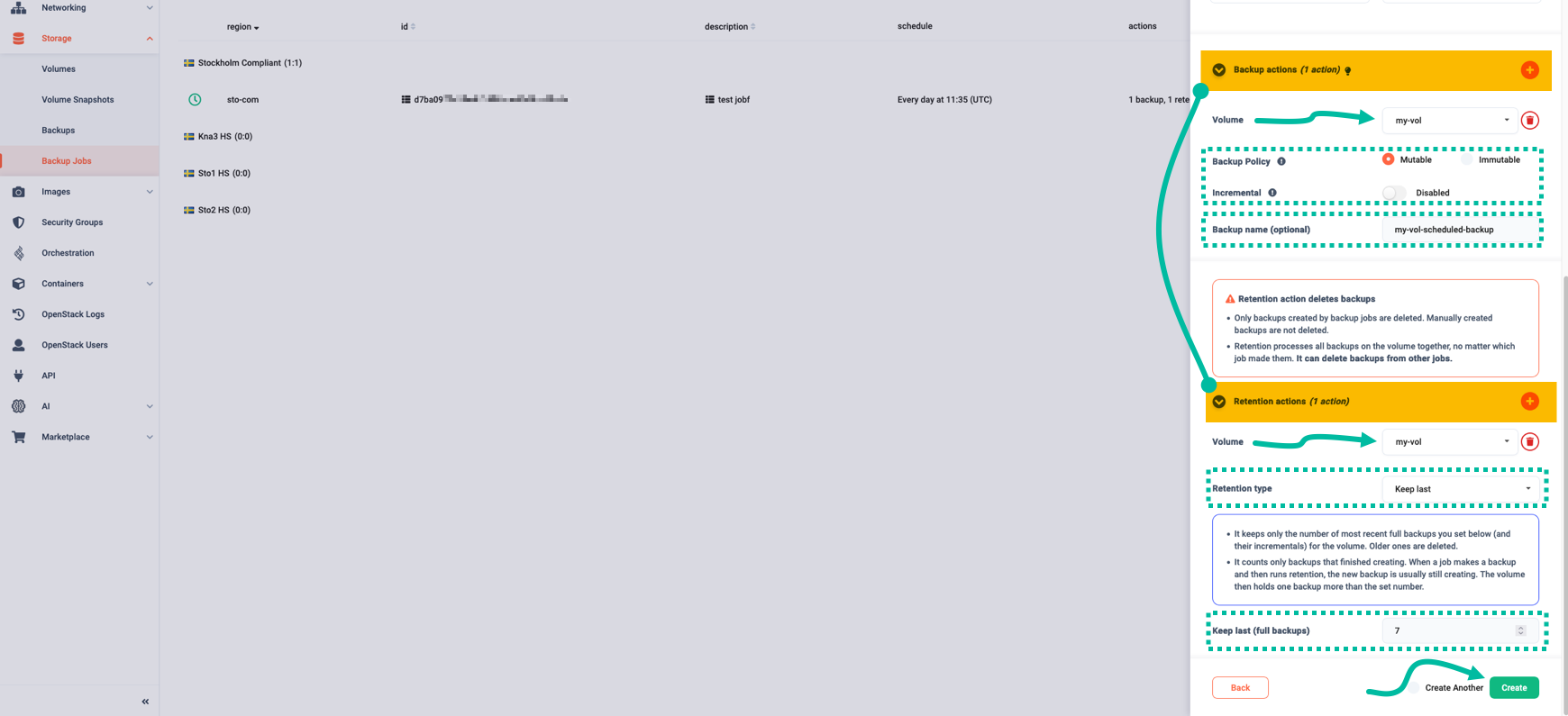
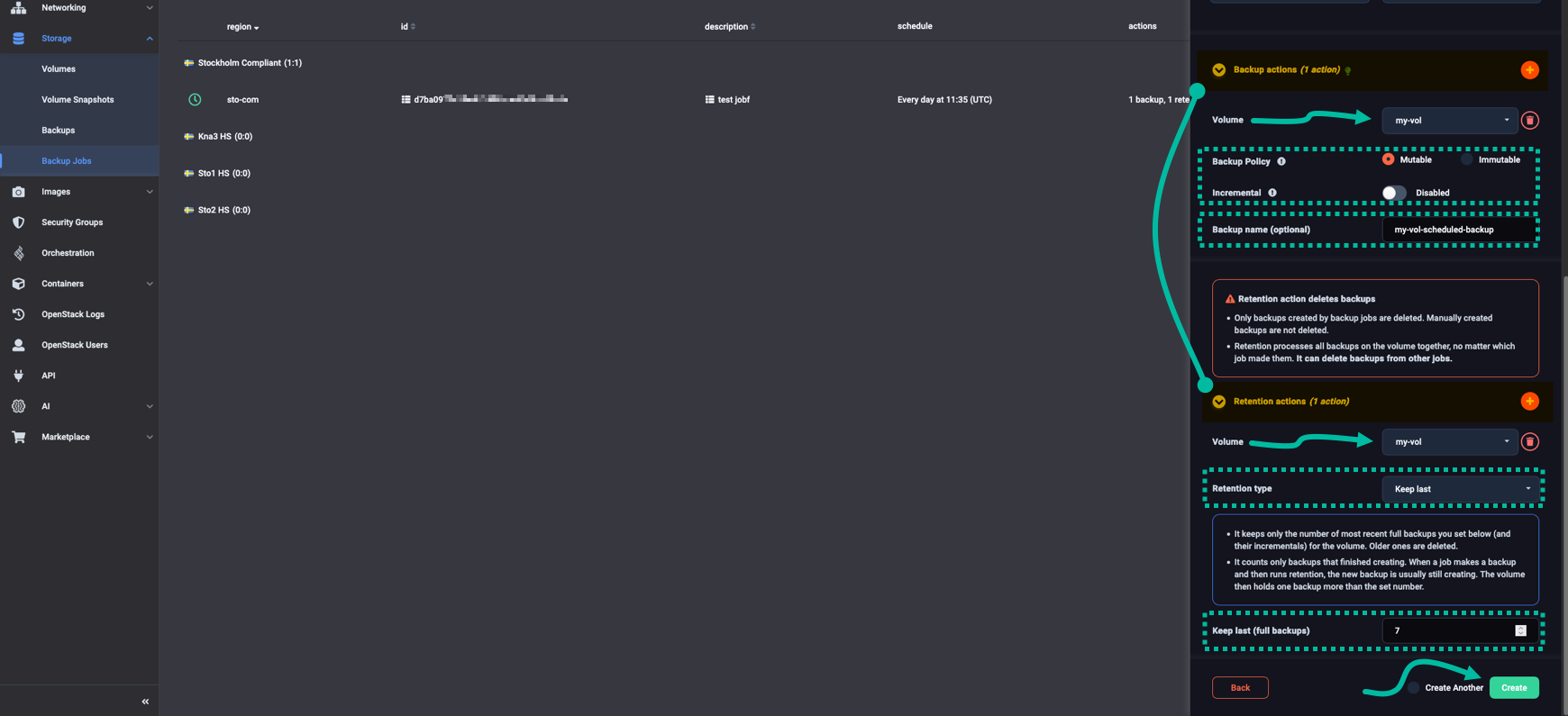
When ready, click Create to instantiate the backup job.
To create a backup job, based on the definition in my-backup-job.json, use the openstack backup job create command:
$ openstack backup job create --client cleura --file my-backup-job.json
+-------------+-------------------------------------------------------------------------------------+
| Field       | Value                                                                               |
+-------------+-------------------------------------------------------------------------------------+
| Job ID      | e7a801531d1440d58b06681df482e9ad                                                    |
| Client ID   | cleura                                                                              |
| User ID     | 9bb3bc2dabeb4180b37ecee0dac20050                                                    |
| Session ID  |                                                                                     |
| Description | Hourly full backup of my-vol-att, runs 20 minutes after the top of the hour         |
| Actions     | [{'action_id': '21e22127c62f4eca9de319645bc7dfbf',                                  |
|             |   'freezer_action': {'action': 'backup',                                            |
|             |                      'backup_name': 'my-vol-att-hourly-backup',                     |
|             |                      'cindernative_backup_container': 'mutable',                    |
|             |                      'cindernative_vol_id': '5faf793f-521b-4bfb-b531-72908bab8bf7', |
|             |                      'container': None,                                             |
|             |                      'incremental': False,                                          |
|             |                      'log_file': None,                                              |
|             |                      'mode': 'cindernative',                                        |
|             |                      'path_to_backup': None,                                        |
|             |                      'priority': None,                                              |
|             |                      'timeout': None},                                              |
|             |   'max_retries': 5,                                                                 |
|             |   'max_retries_interval': 6,                                                        |
|             |   'project_id': 'd42230ea21674515ab9197af89fa5192',                                 |
|             |   'user_id': 'cc19369079c6457fb04a1c9ac1d023d1'}]                                   |
| Start Date  | 2026-09-17T00:20:00                                                                 |
| End Date    | 2026-10-31T23:20:00                                                                 |
| Interval    | 1 hours                                                                             |
| Status      |                                                                                     |
| Result      |                                                                                     |
| Current pid |                                                                                     |
| Event       |                                                                                     |
+-------------+-------------------------------------------------------------------------------------+
Take note of the Job ID field.
Enabling a backup job
Every backup job you create from the Cleura Cloud Management Panel is automatically activated and starts running at its next scheduled date.
Creating a backup job does not automatically activate it.
You can, however, instruct the job to run at its next scheduled date.
For that, use the openstack backup job start command with the job’s ID:
openstack backup job start e7a801531d1440d58b06681df482e9ad
Upon successful execution, this command returns no output.
Listing backup jobs
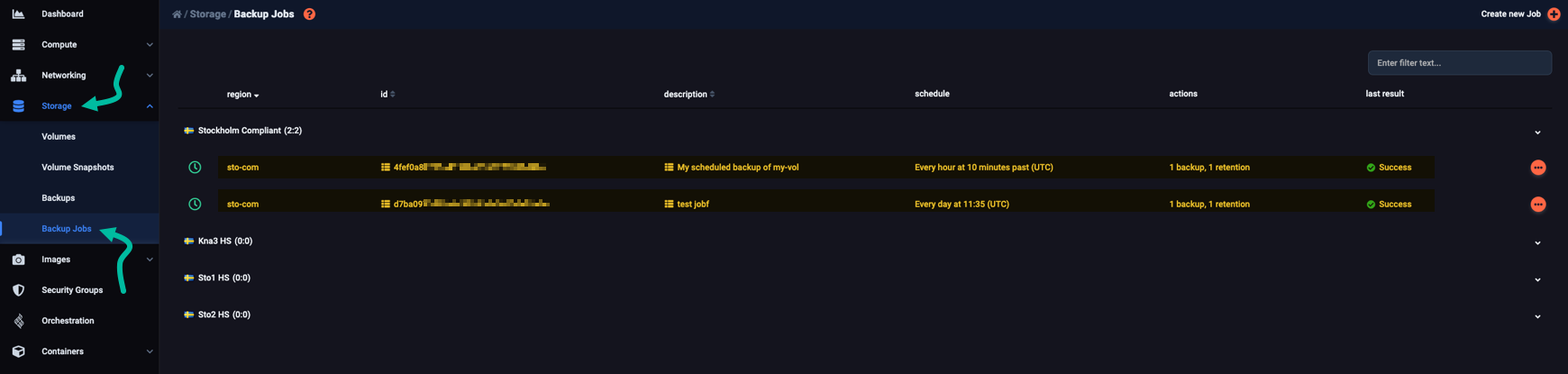
In the Cleura Cloud Management Panel, all existing backup jobs are listed in the main Backup Jobs pane.
Use the openstack backup job list command to see all available backup jobs:
$ openstack backup job list
+-------------------------------+-------------------------------+-----------+---------+-----------+-------+------------+
| Job ID                        | Description                   | # Actions | Result  | Status    | Event | Session ID |
+-------------------------------+-------------------------------+-----------+---------+-----------+-------+------------+
| e7a801531d1440d58b06681df482e | Hourly full backup of my-vol- |         1 | success | scheduled |       |            |
| 9ad                           | att, runs 20 minutes after    |           |         |           |       |            |
|                               | the top of the hour           |           |         |           |       |            |
+-------------------------------+-------------------------------+-----------+---------+-----------+-------+------------+
Viewing backup jobs
To view a backup job’s details, first locate it in the Backup Jobs pane. Then click its row to view all job details.
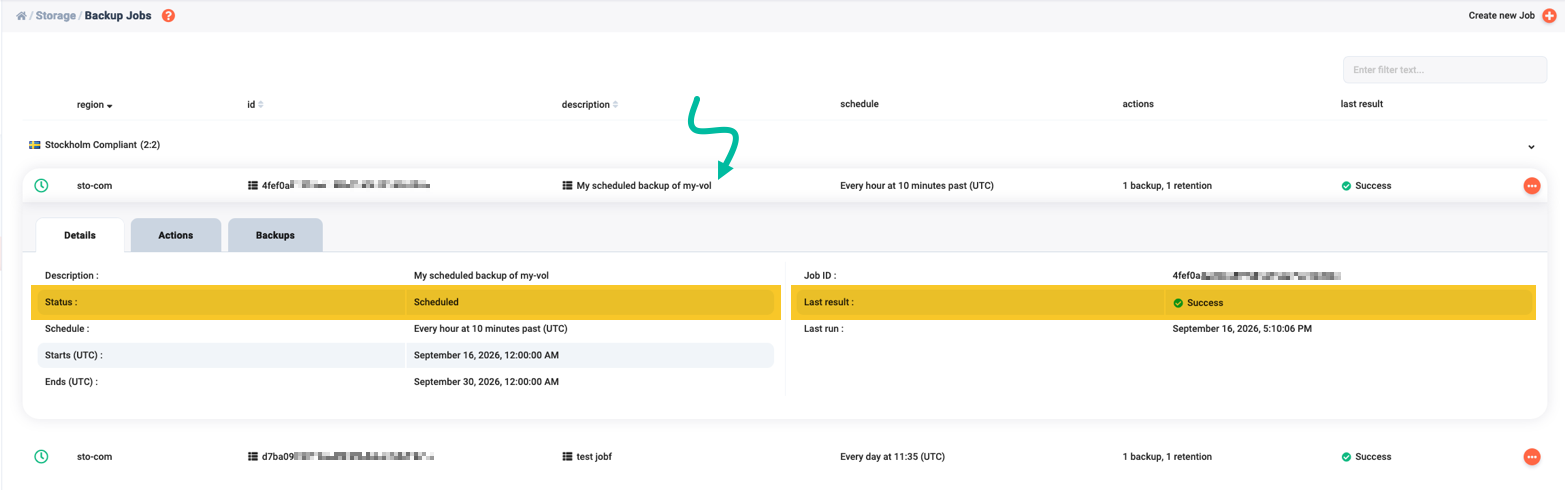
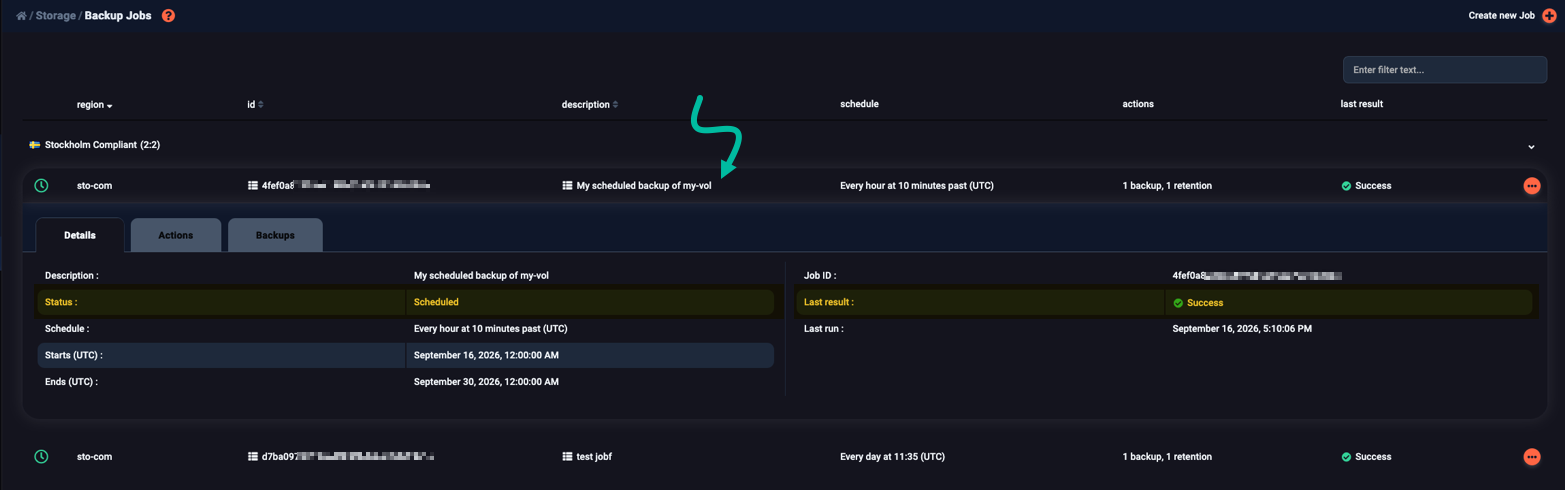
In our example, the Details tab shows the job is active, and the last run was successful. Click the Actions tab for more details on the backup and retention actions.
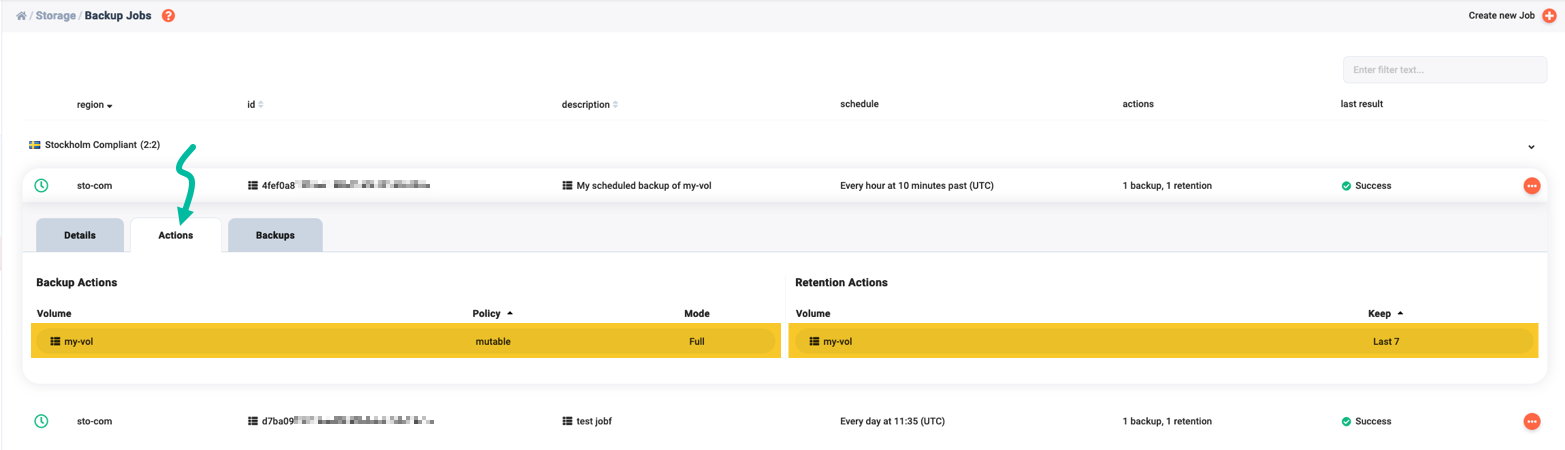
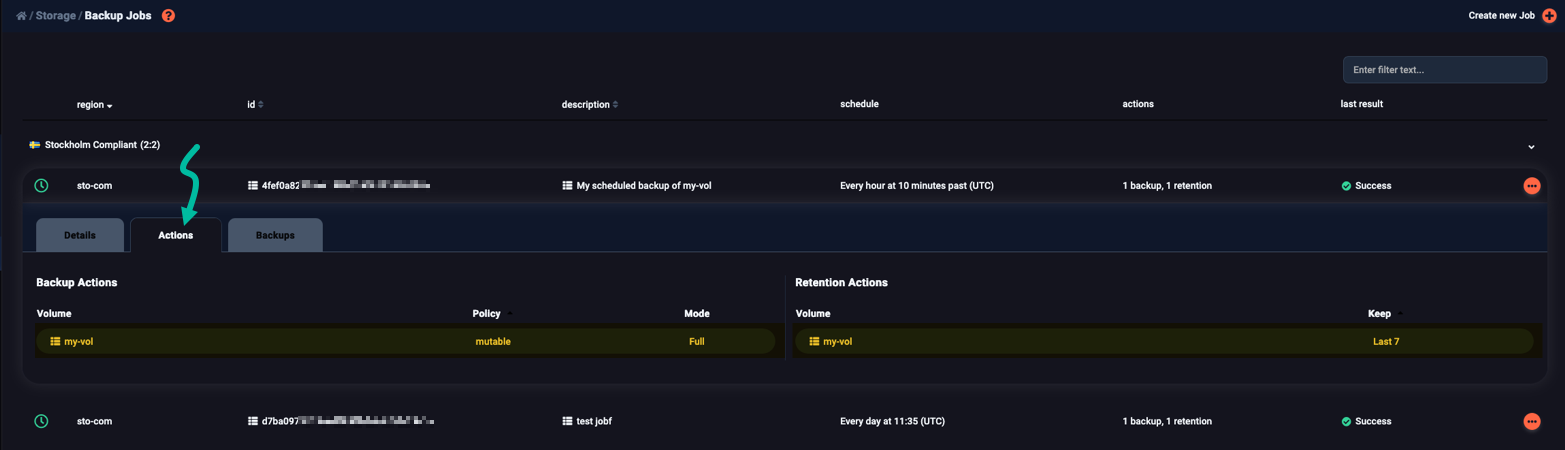
In the example above, the job creates backups of volume my-vol and keeps up to 7 full backups.
To view all the backups the job has created so far, go to the Backups tab.
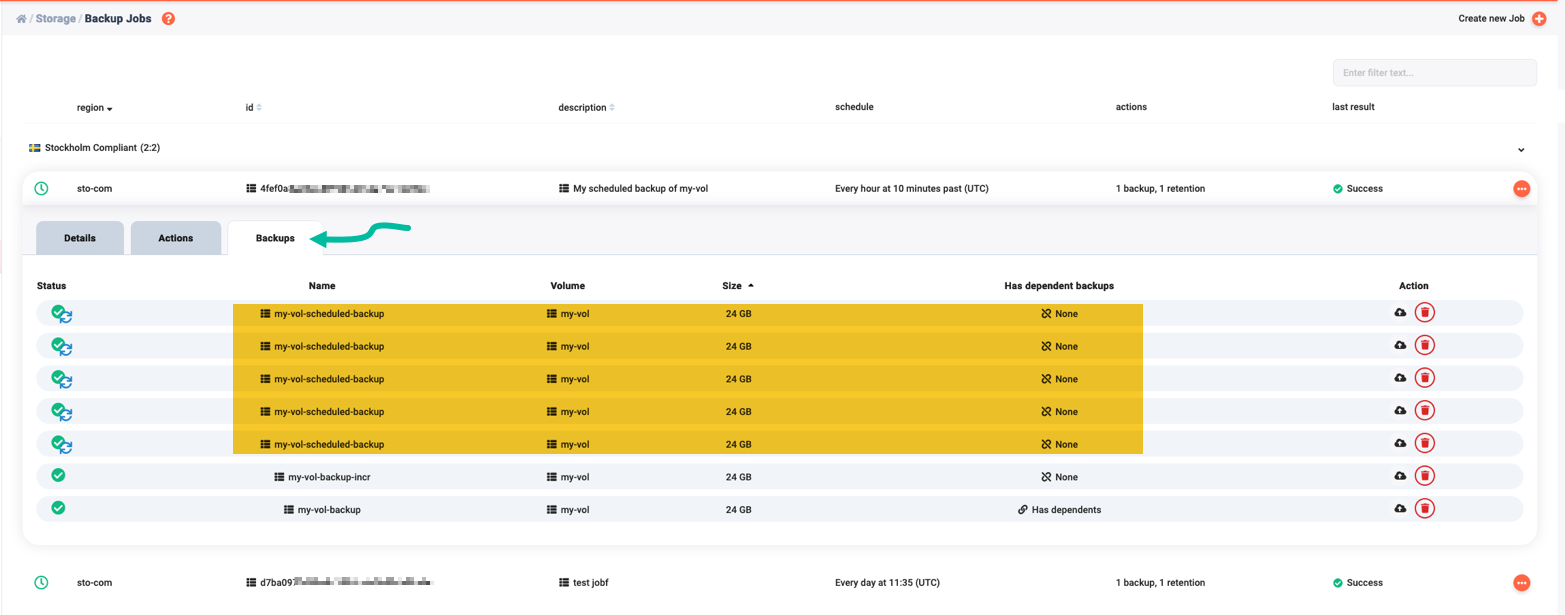
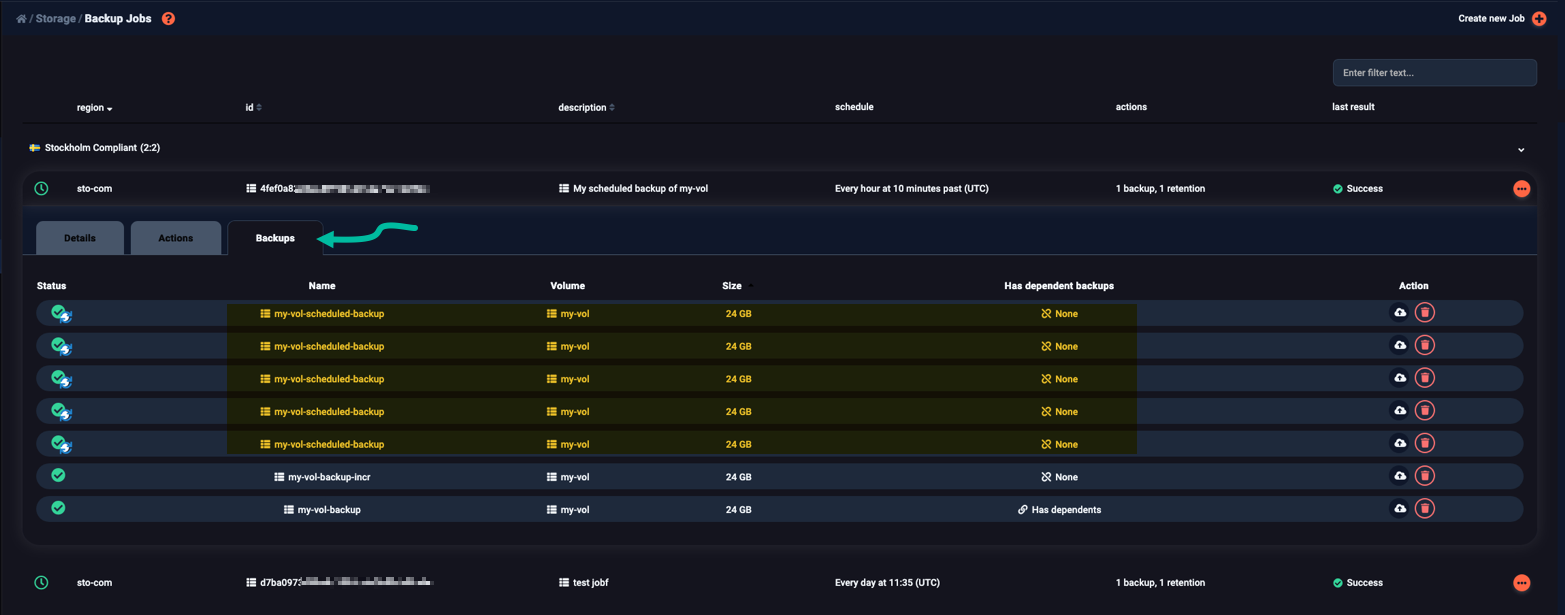
Notice that, in addition to the backups the job has created, you also see one-off backups of the volume the job operates on.
You may view detailed information about a backup job:
$ openstack backup job show e7a801531d1440d58b06681df482e9ad
+-------------+-------------------------------------------------------------------------------------+
| Field       | Value                                                                               |
+-------------+-------------------------------------------------------------------------------------+
| Job ID      | e7a801531d1440d58b06681df482e9ad                                                    |
| Client ID   | cleura                                                                              |
| User ID     | 9bb3bc2dabeb4180b37ecee0dac20050                                                    |
| Session ID  |                                                                                     |
| Description | Hourly full backup of my-vol-att, runs 20 minutes after the top of the hour         |
| Actions     | [{'action_id': '21e22127c62f4eca9de319645bc7dfbf',                                  |
|             |   'freezer_action': {'action': 'backup',                                            |
|             |                      'backup_name': 'my-vol-att-hourly-backup',                     |
|             |                      'cindernative_backup_container': 'mutable',                    |
|             |                      'cindernative_vol_id': '5faf793f-521b-4bfb-b531-72908bab8bf7', |
|             |                      'container': None,                                             |
|             |                      'incremental': False,                                          |
|             |                      'log_file': None,                                              |
|             |                      'mode': 'cindernative',                                        |
|             |                      'path_to_backup': None,                                        |
|             |                      'priority': None,                                              |
|             |                      'timeout': None},                                              |
|             |   'max_retries': 5,                                                                 |
|             |   'max_retries_interval': 6,                                                        |
|             |   'project_id': 'd42230ea21674515ab9197af89fa5192',                                 |
|             |   'user_id': 'cc19369079c6457fb04a1c9ac1d023d1'}]                                   |
| Start Date  | 2026-09-17T00:20:00                                                                 |
| End Date    | 2026-10-31T23:20:00                                                                 |
| Interval    | 1 hours                                                                             |
| Status      | scheduled                                                                           |
| Result      | success                                                                             |
| Current pid |                                                                                     |
| Event       |                                                                                     |
+-------------+-------------------------------------------------------------------------------------+
Alternatively, use the openstack backup job get command:
$ openstack backup job get e7a801531d1440d58b06681df482e9ad
{'client_id': 'cleura',
 'description': 'Hourly full backup of my-vol-att, runs 20 minutes after the '
                'top of the hour',
 'job_actions': [{'action_id': '21e22127c62f4eca9de319645bc7dfbf',
                  'freezer_action': {'action': 'backup',
                                     'backup_name': 'my-vol-att-hourly-backup',
                                     'cindernative_backup_container': 'mutable',
                                     'cindernative_vol_id': '5faf793f-521b-4bfb-b531-72908bab8bf7',
                                     'container': None,
                                     'incremental': False,
                                     'log_file': None,
                                     'mode': 'cindernative',
                                     'path_to_backup': None,
                                     'priority': None,
                                     'timeout': None},
                  'max_retries': 5,
                  'max_retries_interval': 6,
                  'project_id': 'd42230ea21674515ab9197af89fa5192',
                  'user_id': 'cc19369079c6457fb04a1c9ac1d023d1'}],
 'job_id': 'e7a801531d1440d58b06681df482e9ad',
 'job_schedule': {'event': '',
                  'result': 'success',
                  'schedule_end_date': '2026-10-31T23:20:00',
                  'schedule_interval': '1 hours',
                  'schedule_start_date': '2026-09-17T00:20:00',
                  'status': 'scheduled',
                  'time_created': 1789654238,
                  'time_ended': 1789654292,
                  'time_started': 1789654287},
 'project_id': 'd42230ea21674515ab9197af89fa5192',
 'session_id': '',
 'session_tag': 0,
 'user_credentials': {'trust_id': 'ebc87af4c38a4d959c3537059f741286',
                      'trustor_user_id': 'cc19369079c6457fb04a1c9ac1d023d1'},
 'user_id': '9bb3bc2dabeb4180b37ecee0dac20050'}
Modifying a backup job
You can modify a backup job at any time, even while it is running.
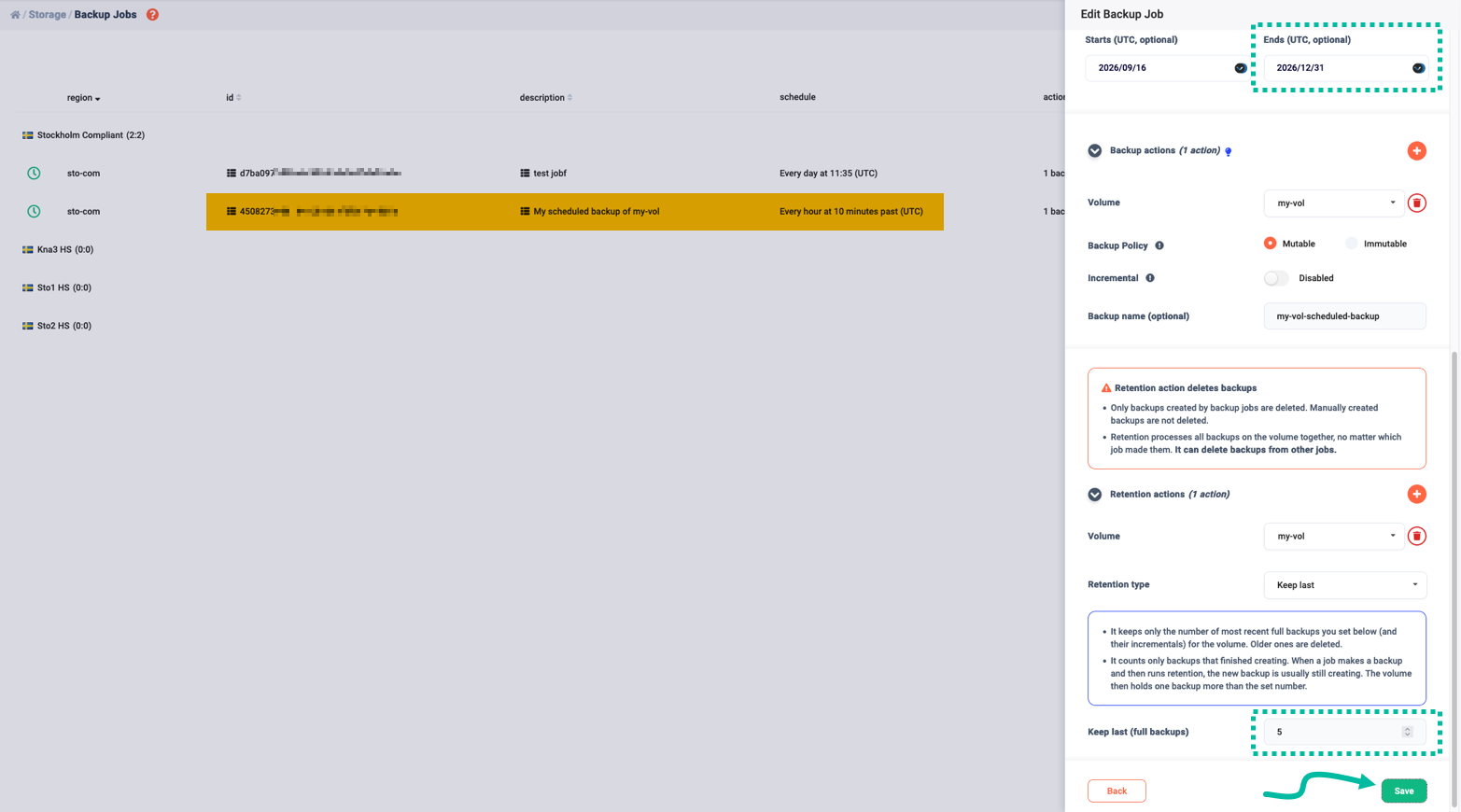
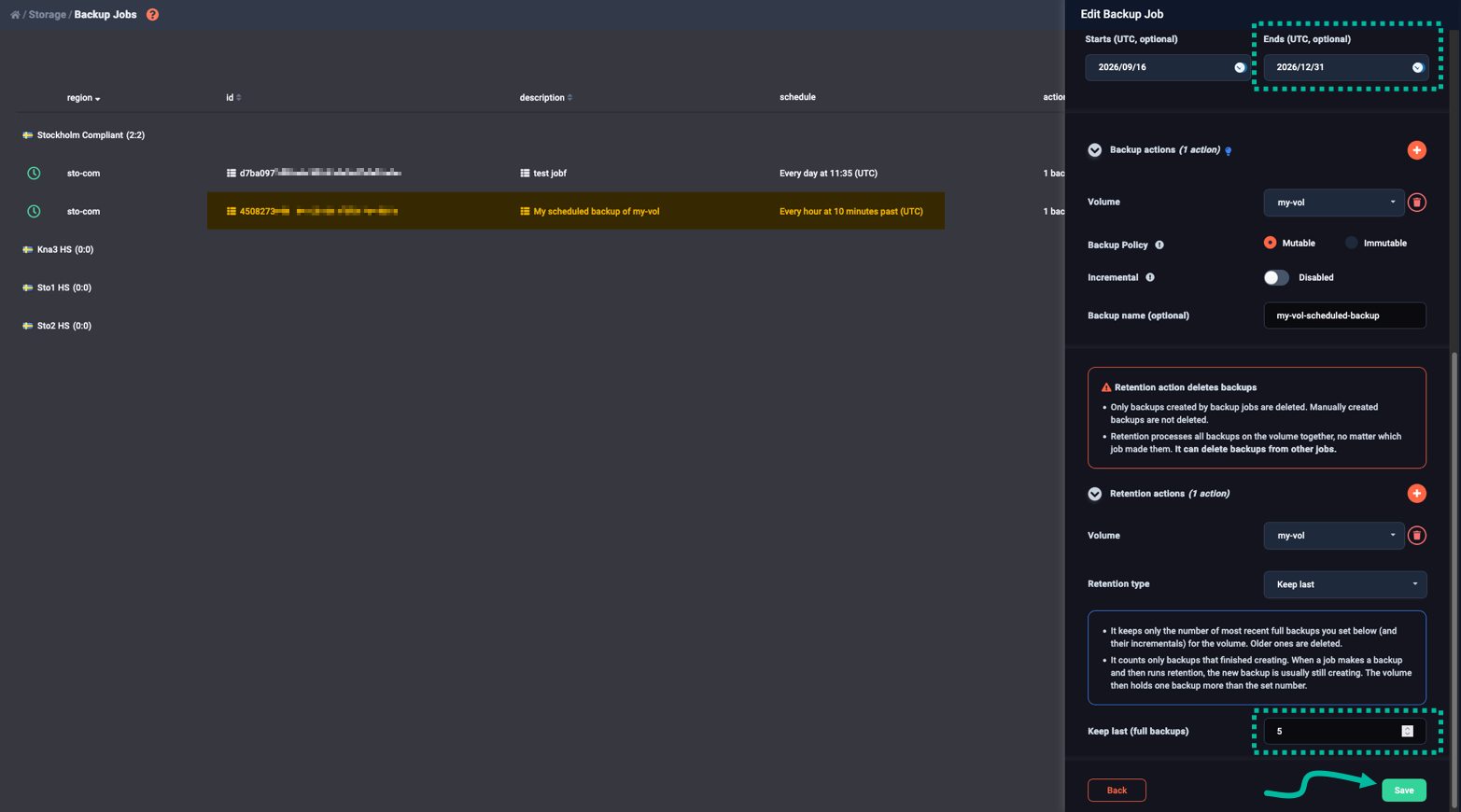
In the Backup Jobs pane, locate the job you wish to modify. Click the icon at the right of the backup job row. From the drop-down menu, select Modify Job.
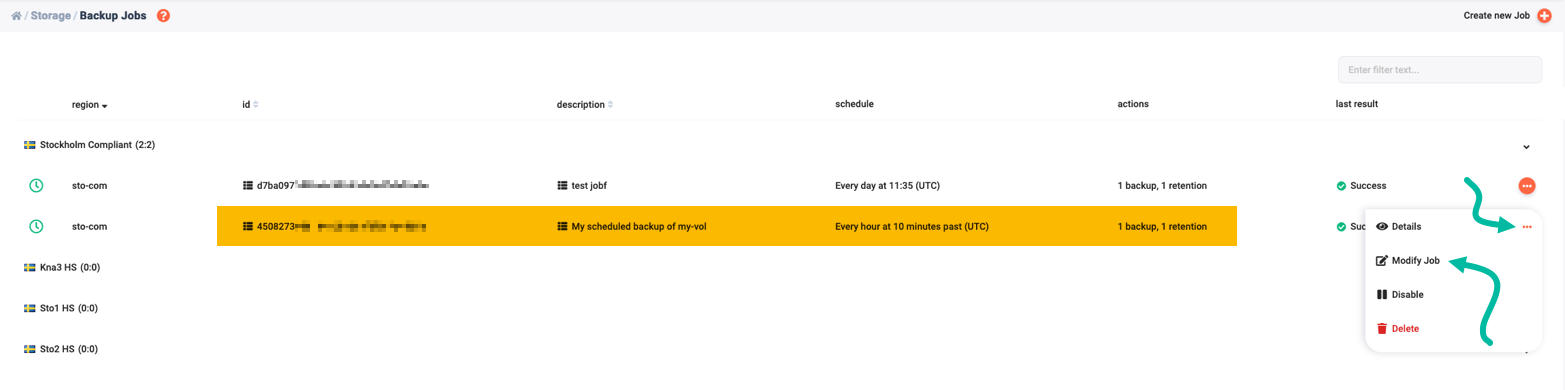
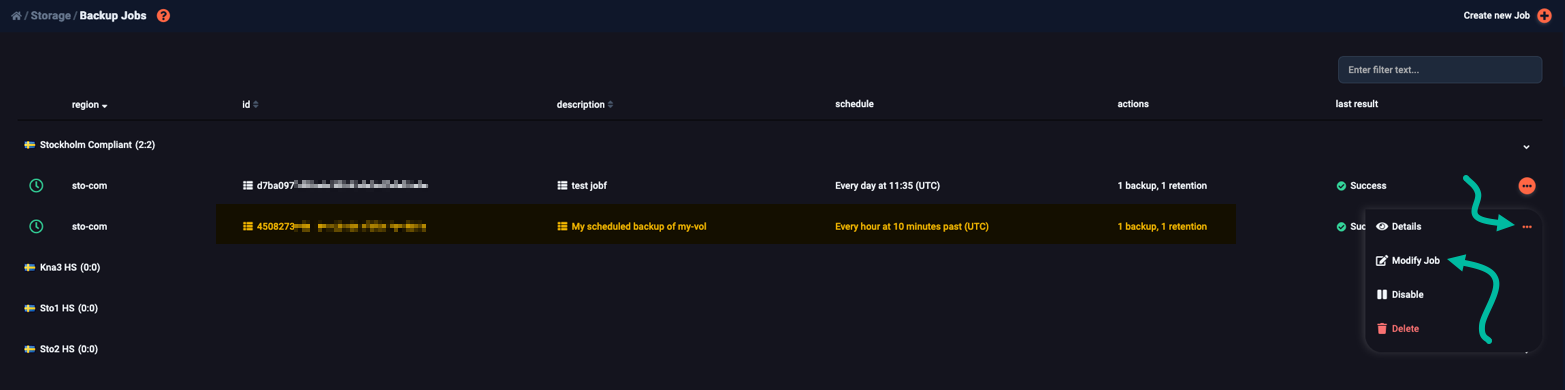
An Edit Backup Job slides over from the right.
There, you can make the changes you want — or none, if you changed your mind.
In the example below, we changed the date the job stops running and the number of full backups of my-vol to keep.
When you are ready, click the Save button.
Let’s say you want to change when the job stops.
First, in the my-backup-job.json file, edit the value of the schedule_end_date field so that the job ends on 31 December 2026.
Then, update the existing backup job like so:
$ openstack backup job update e7a801531d1440d58b06681df482e9ad my-backup-job.json
+-------------+-------------------------------------------------------------------------------------+
| Field       | Value                                                                               |
+-------------+-------------------------------------------------------------------------------------+
| Job ID      | e7a801531d1440d58b06681df482e9ad                                                    |
| Client ID   | cleura                                                                              |
| User ID     | 9bb3bc2dabeb4180b37ecee0dac20050                                                    |
| Session ID  |                                                                                     |
| Description | Hourly full backup of my-vol-att, runs 20 minutes after the top of the hour         |
| Actions     | [{'action_id': 'a5337edd83b94ff596a63861e992b62f',                                  |
|             |   'freezer_action': {'action': 'backup',                                            |
|             |                      'backup_name': 'my-vol-att-hourly-backup',                     |
|             |                      'cindernative_backup_container': 'mutable',                    |
|             |                      'cindernative_vol_id': '5faf793f-521b-4bfb-b531-72908bab8bf7', |
|             |                      'container': None,                                             |
|             |                      'incremental': False,                                          |
|             |                      'log_file': None,                                              |
|             |                      'mode': 'cindernative',                                        |
|             |                      'path_to_backup': None,                                        |
|             |                      'priority': None,                                              |
|             |                      'timeout': None},                                              |
|             |   'max_retries': 5,                                                                 |
|             |   'max_retries_interval': 6,                                                        |
|             |   'project_id': 'd42230ea21674515ab9197af89fa5192',                                 |
|             |   'user_id': 'cc19369079c6457fb04a1c9ac1d023d1'}]                                   |
| Start Date  | 2026-09-17T00:20:00                                                                 |
| End Date    | 2026-12-31T23:20:00                                                                 |
| Interval    | 1 hours                                                                             |
| Status      |                                                                                     |
| Result      |                                                                                     |
| Current pid |                                                                                     |
| Event       |                                                                                     |
+-------------+-------------------------------------------------------------------------------------+
The new job you get after updating an existing one does not start automatically;
you have to start it manually, using the openstack backup job start command:
openstack backup job start e7a801531d1440d58b06681df482e9ad
When this command succeeds, it is silent and produces no output.
Verify that the updated job started with the openstack backup job list command:
$ openstack backup job list
+-------------------------------+-------------------------------+-----------+---------+-----------+-------+------------+
| Job ID                        | Description                   | # Actions | Result  | Status    | Event | Session ID |
+-------------------------------+-------------------------------+-----------+---------+-----------+-------+------------+
| e7a801531d1440d58b06681df482e | Hourly full backup of my-vol- |         1 |         | running   |       |            |
| 9ad                           | att, runs 20 minutes after    |           |         |           |       |            |
|                               | the top of the hour           |           |         |           |       |            |
+-------------------------------+-------------------------------+-----------+---------+-----------+-------+------------+
Deleting a backup job
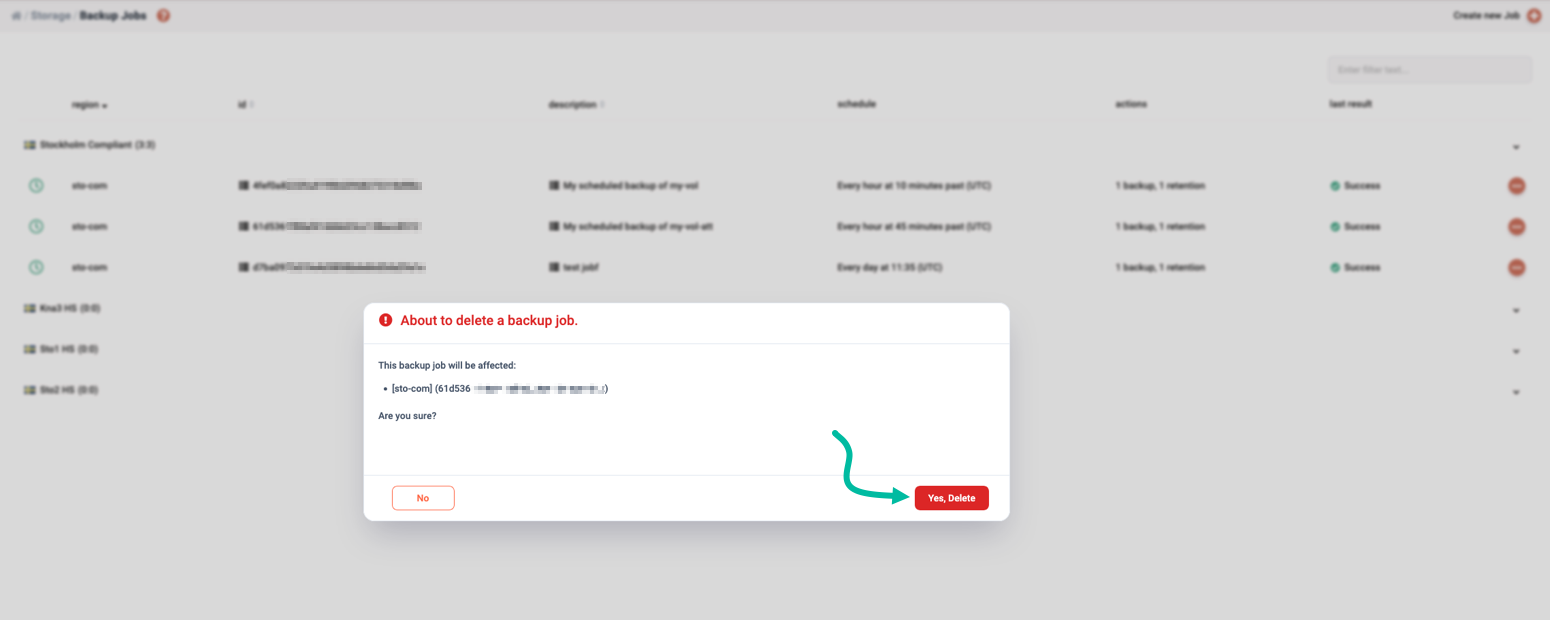
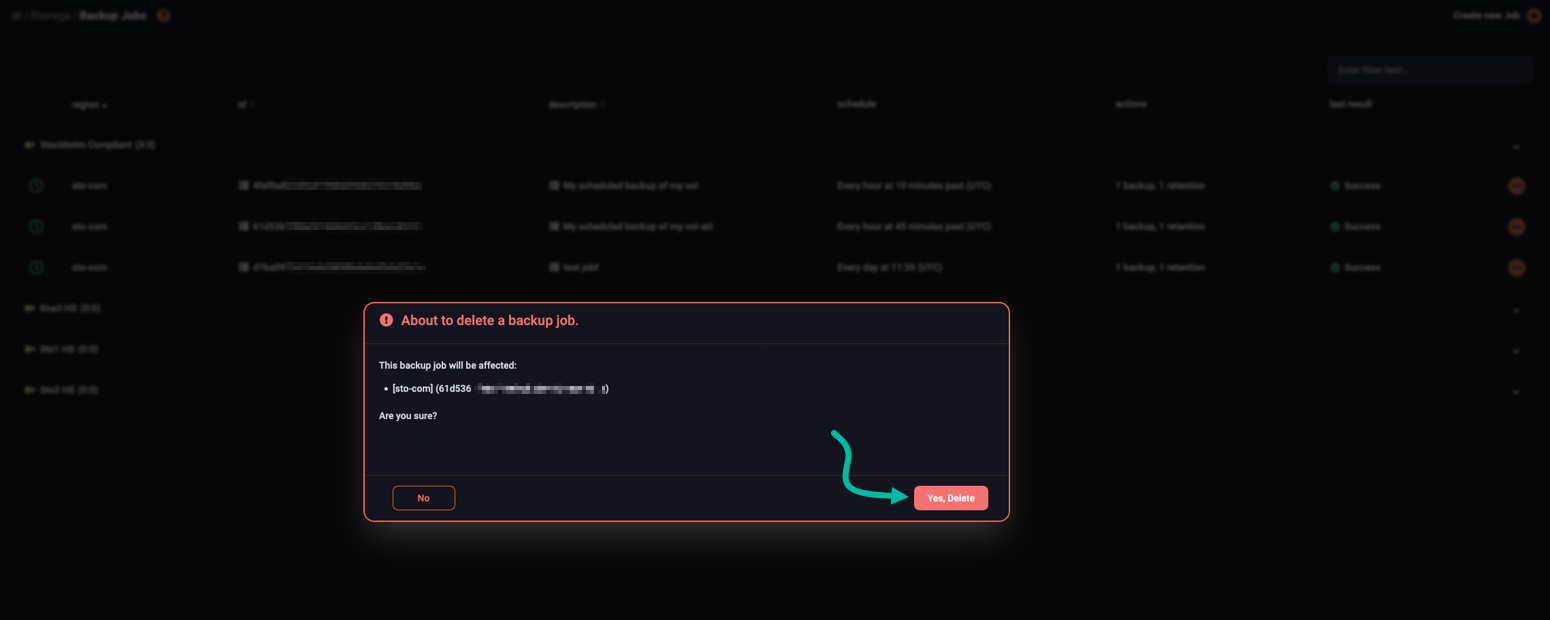
To delete a backup job, first locate it in the main Backup Jobs pane. Then, click the icon at the right of its row. From the drop-down menu that appears, select Delete.
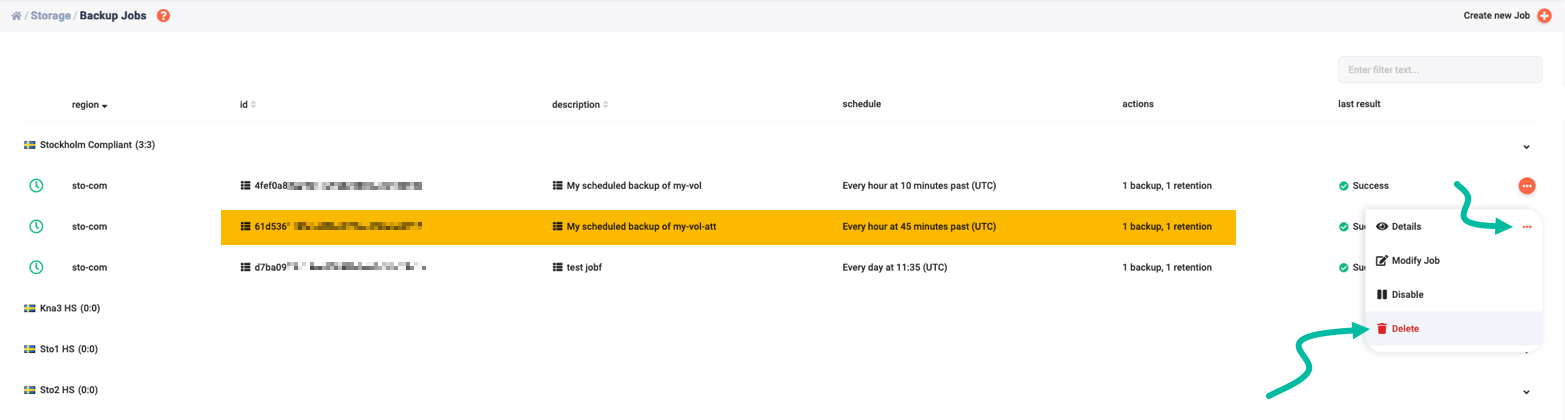
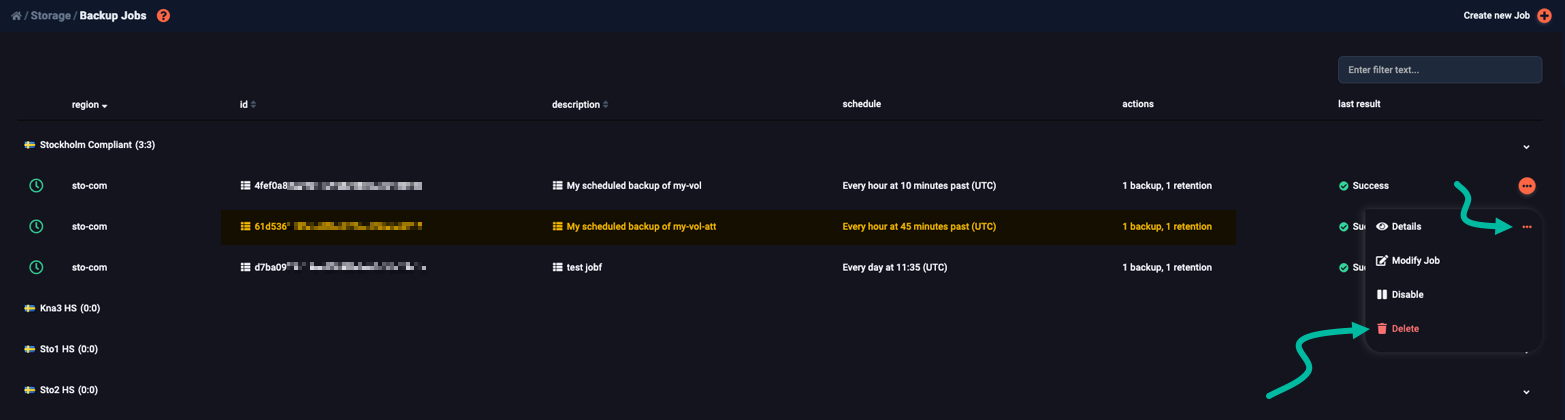
A pop-up window appears, asking whether you want to delete the backup job. If you are sure, click Yes, Delete.
To delete an existing backup job, use the openstack backup job delete command:
openstack backup job delete e7a801531d1440d58b06681df482e9ad
Once again, whenever this command is successful, it is also silent, so you might want to verify if the delete operation succeeded:
$ openstack backup job list
+--------+-------------+-----------+---------+--------+-------+------------+
| Job ID | Description | # Actions | Result  | Status | Event | Session ID |
+--------+-------------+-----------+---------+--------+-------+------------+
|        |             |           |         |        |       |            |
+--------+-------------+-----------+---------+--------+-------+------------+