Restoring volume backups
Using the OpenStack CLI or the Cleura Cloud Management Panel, you may restore Cinder backups to new or existing volumes.
Prerequisites
If you plan to use the OpenStack CLI, enable it first.
Listing available backups
In the Cleura Cloud Management Panel, make sure the left-hand navigation pane is fully visible. Expand the Storage category and click Backups. In the main pane, all available Cinder backups appear.
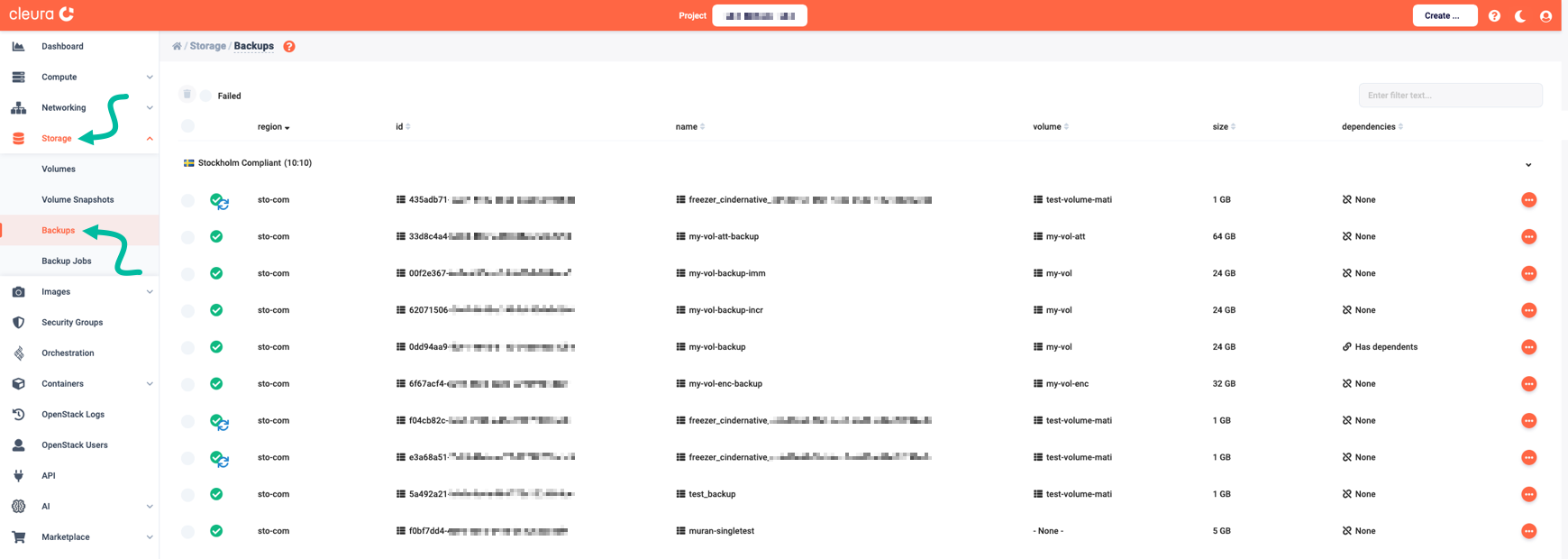
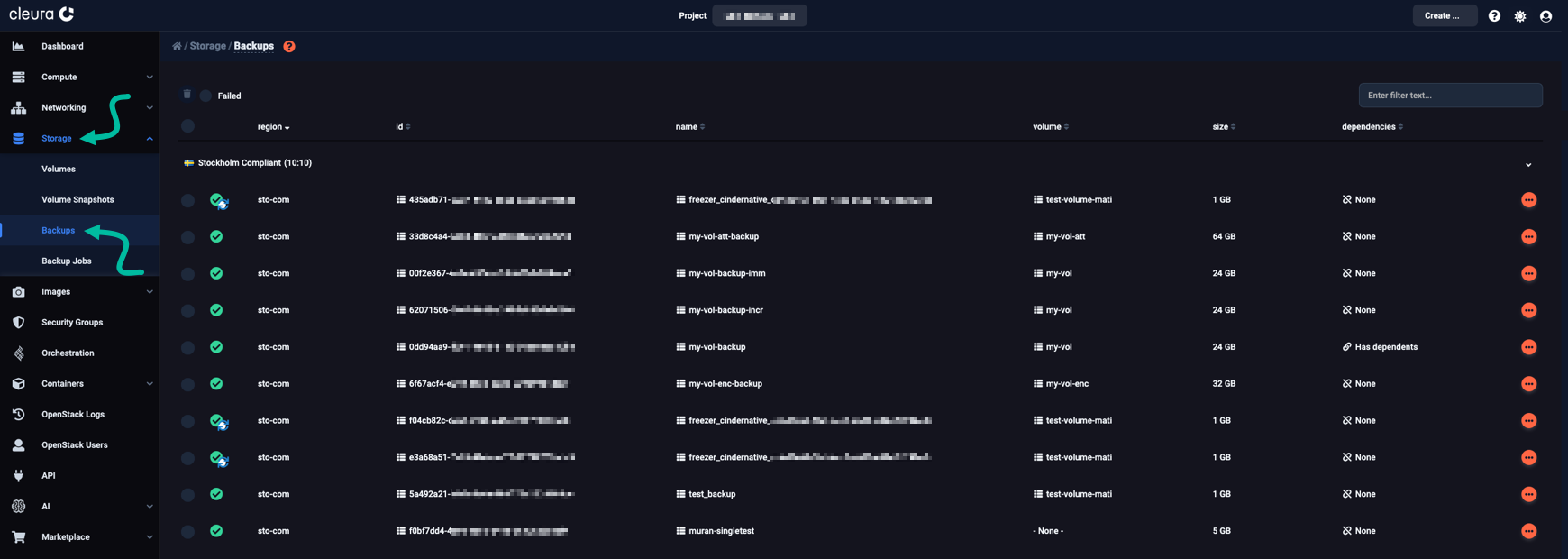
Use the openstack volume backup list command to list all available backups:
$ openstack volume backup list -c ID -c Name -c Description -c Status -c Size -c Incremental
+--------------------------------------+--------------------+------------------------------+-----------+------+-------------+
| ID                                   | Name               | Description                  | Status    | Size | Incremental |
+--------------------------------------+--------------------+------------------------------+-----------+------+-------------+
| 33d8c4a4-b238-465f-a063-84c6fab62e9d | my-vol-att-backup  | My attached volume backup    | available |   64 | False       |
| 00f2e367-4e7e-4364-a2c8-600de989aca5 | my-vol-backup-imm  | My immutable volume backup   | available |   24 | False       |
| 62071506-04e7-4643-a399-fa842de9d246 | my-vol-backup-incr | My incremental volume backup | available |   24 | True        |
| 0dd94aa9-d291-4665-8183-06aceeaa40b8 | my-vol-backup      | My volume backup             | available |   24 | False       |
| 6f67acf4-e040-41c0-802e-939b9964dcef | my-vol-enc-backup  | My encrypted volume backup   | available |   32 | False       |
+--------------------------------------+--------------------+------------------------------+-----------+------+-------------+
Restoring a backup to a new volume
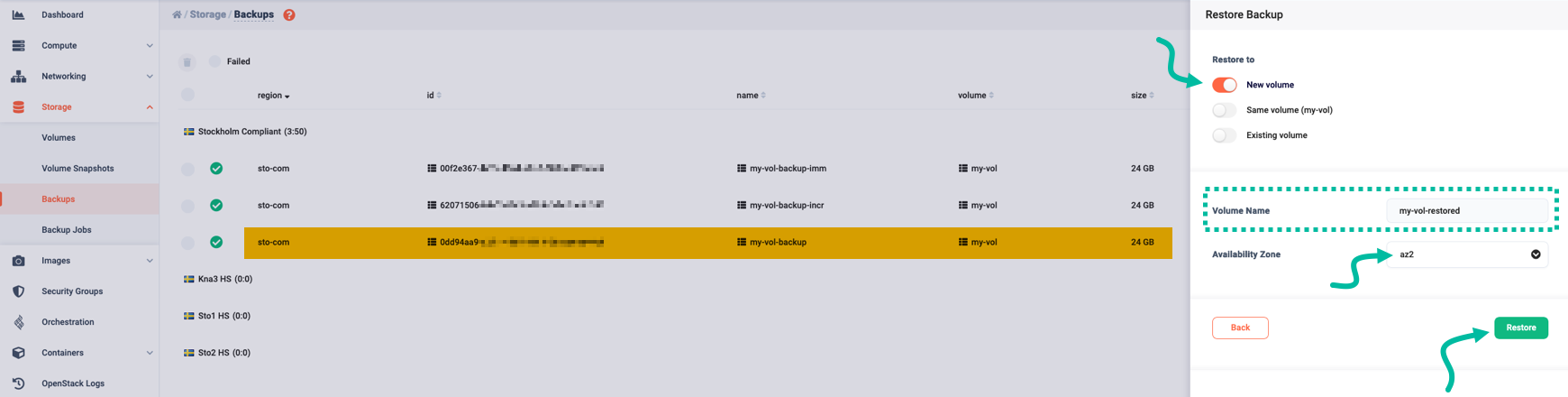
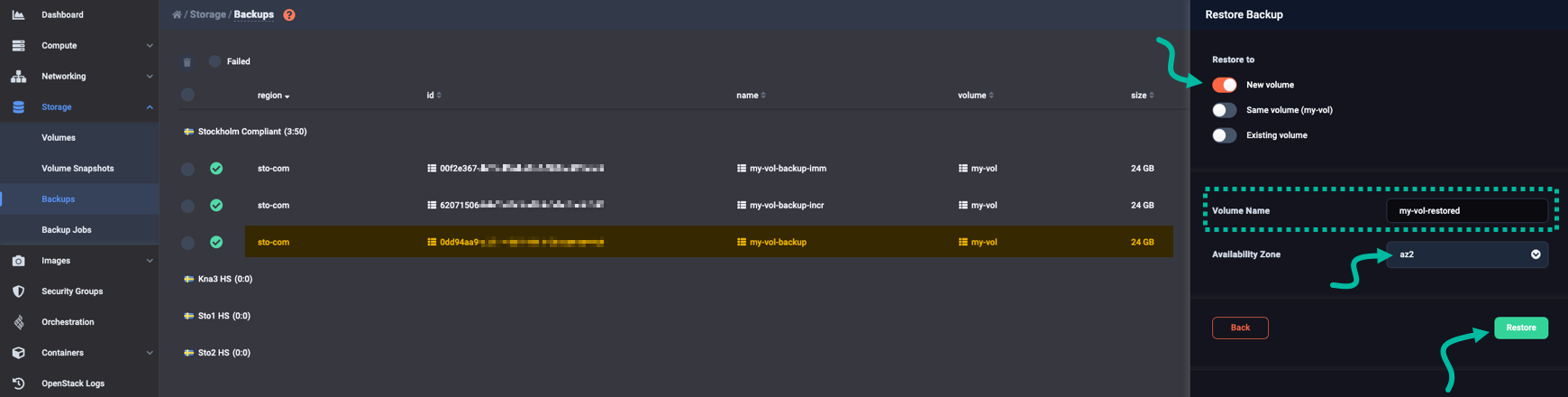
Locate the Cinder backup you want to restore. Click the icon at the right of its row. From the pop-up menu that appears, select Restore Backup.
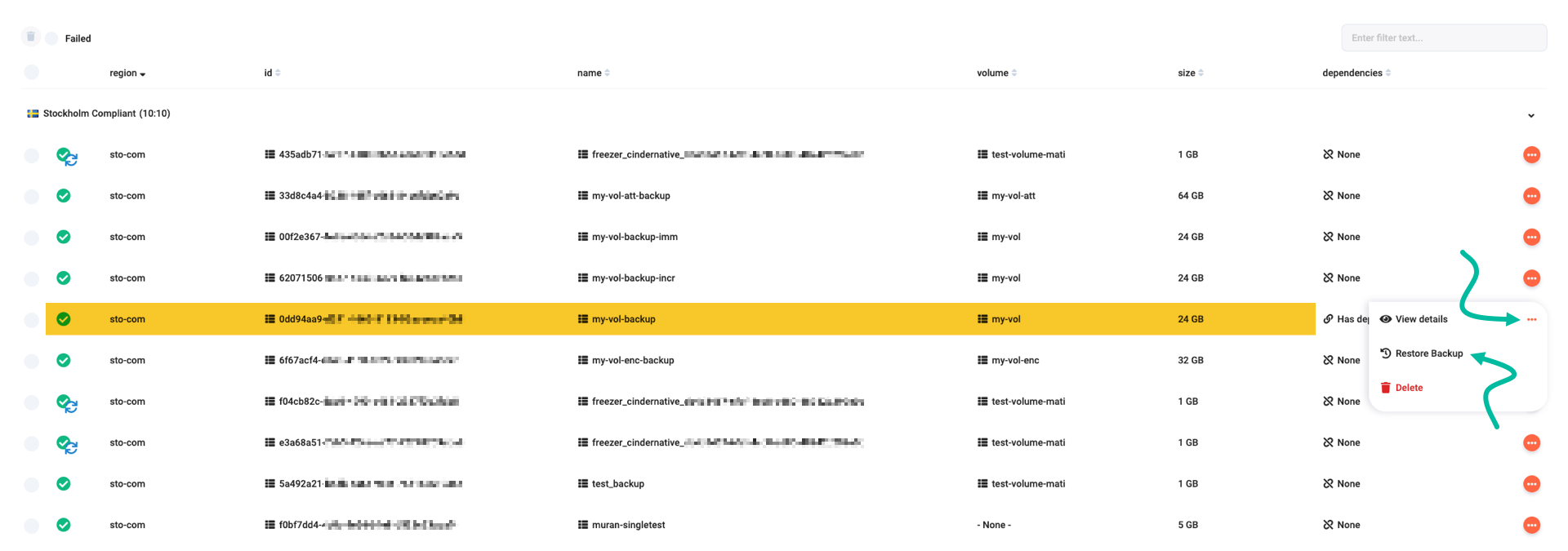
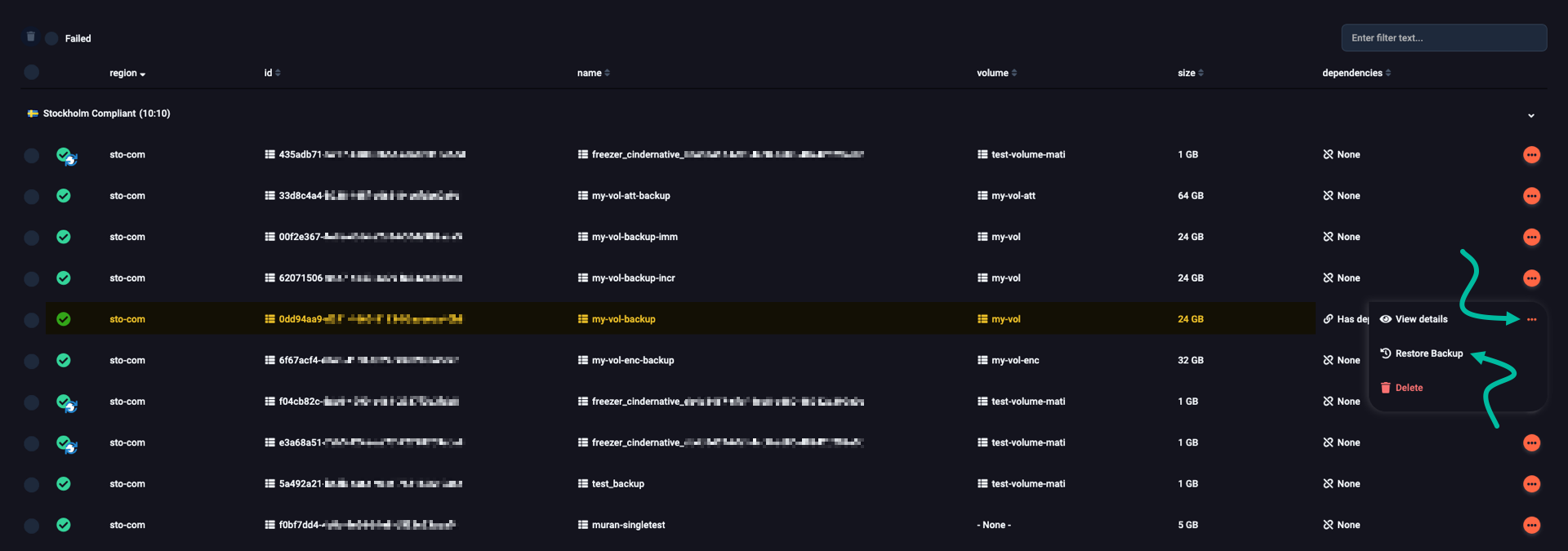
A vertical pane named Restore Backup slides over from the right. In the Restore to list, use the toggle to activate the New volume option. In the Volume Name text field, enter a name for the new volume you are about to restore to. Then, use the drop-down menu below to set the Availability Zone to the zone you want the new volume in. When ready, click Restore to begin restoring.
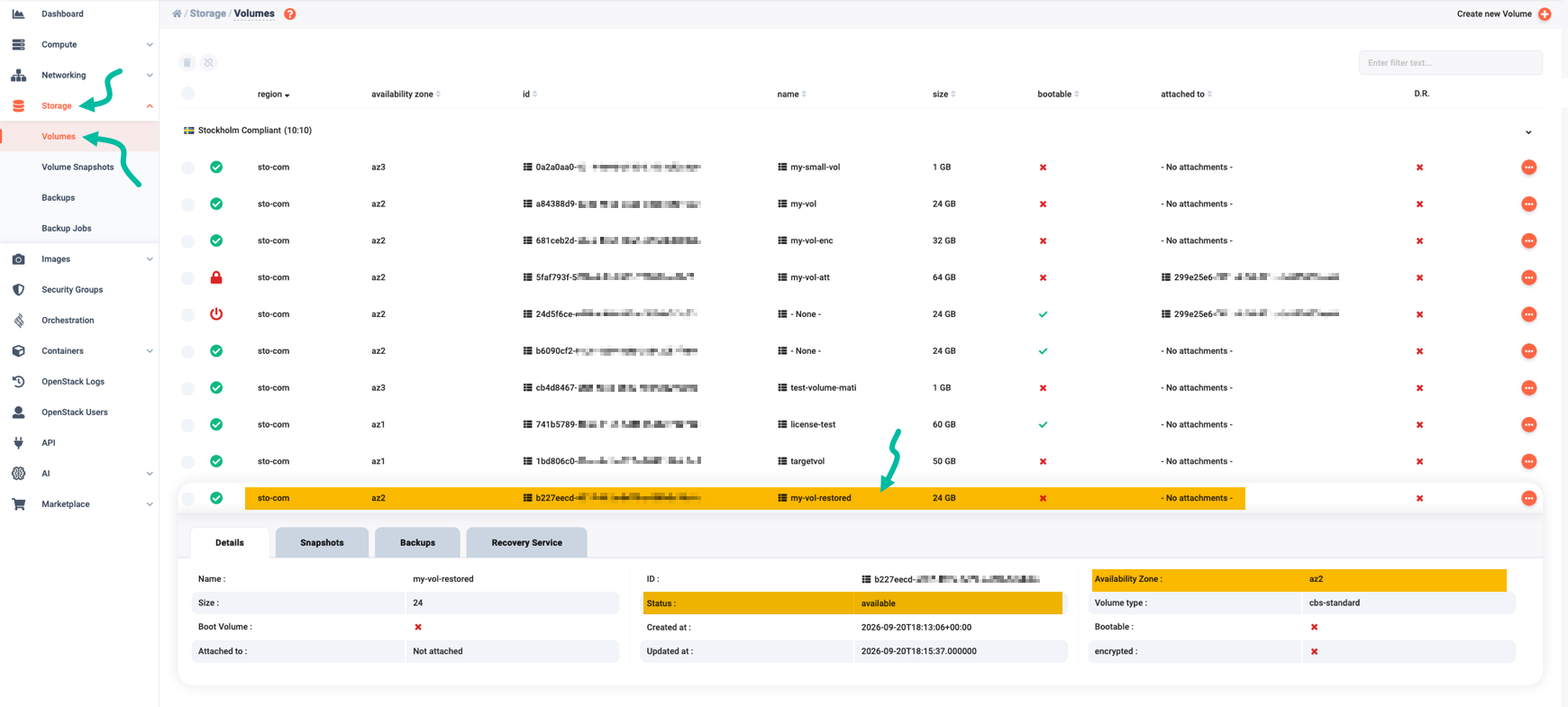
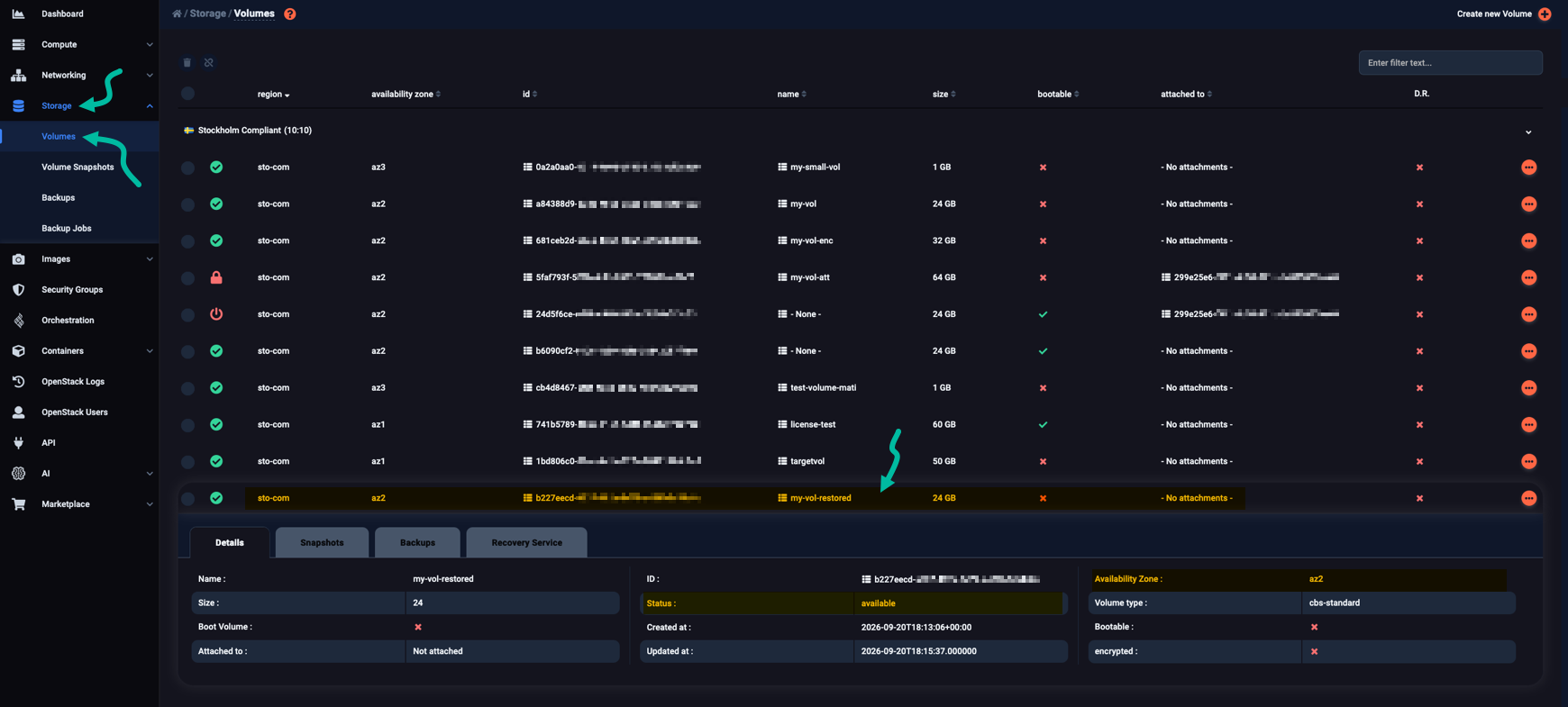
From the vertical navigation pane on the left, select Storage and then Volumes. Click on the new (restore) volume row to bring its details into view. Notice the Status parameter; while it starts as restoring-backup, when the restore process completes, it becomes available. Also, check the Availability Zone parameter; it should match the zone you selected for the restore volume.
To restore a backup to a new volume, use the openstack volume backup restore command like so:
$ openstack volume backup restore my-vol-backup my-vol-restored

+-------------+--------------------------------------+
| Field       | Value                                |
+-------------+--------------------------------------+
| id          | 0dd94aa9-d291-4665-8183-06aceeaa40b8 |
| volume_id   | b1ab96f8-26c4-4847-b7c1-0c20d48fc6e5 |
| volume_name | my-vol-restored                      |
+-------------+--------------------------------------+
While the restoration is progressing, the status field of the new volume is restoring-backup:
$ openstack volume show my-vol-restored -c status
+--------+------------------+
| Field  | Value            |
+--------+------------------+
| status | restoring-backup |
+--------+------------------+
As soon as the restoration completes, status becomes available:
$ openstack volume show my-vol-restored -c status
+--------+-----------+
| Field  | Value     |
+--------+-----------+
| status | available |
+--------+-----------+
Restoring a backup to an existing volume
Loss of existing data
Restoring a backup to the original or an existing volume overwrites all data currently on it.
Locate the Cinder backup you want to restore. Click the icon at the right of its row. From the pop-up menu that appears, select Restore Backup.
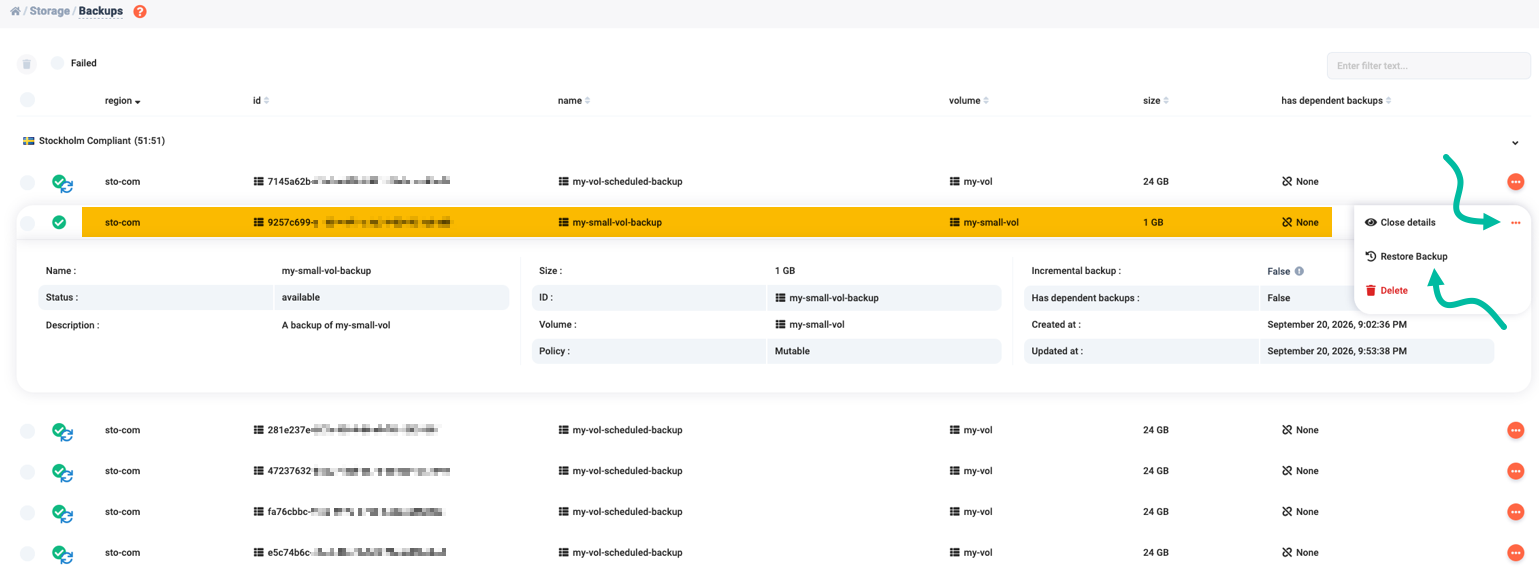
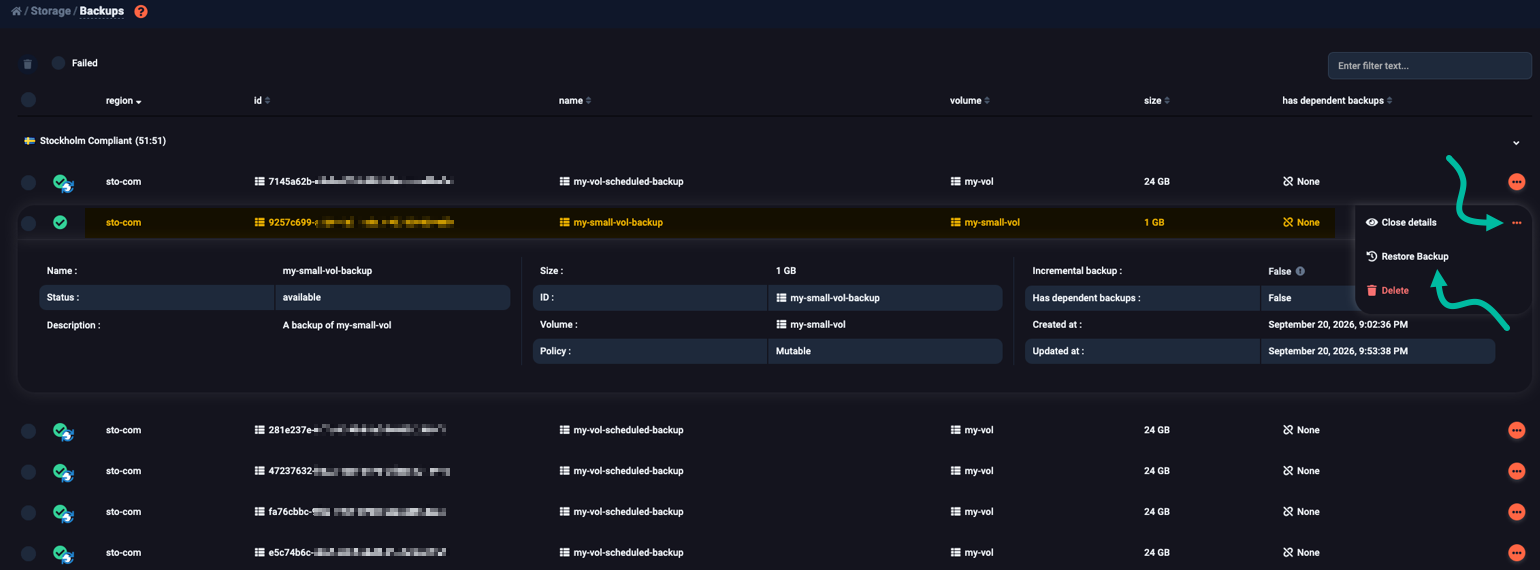
A vertical pane named Restore Backup slides over from the right.
In the Restore to list, use the toggle to activate the Same volume (<volume-name>) option.
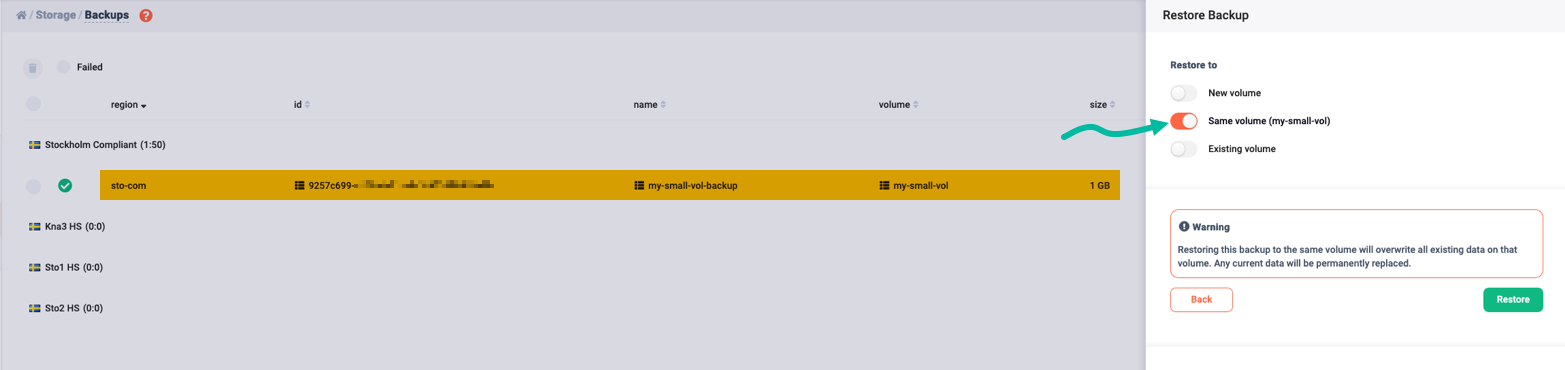
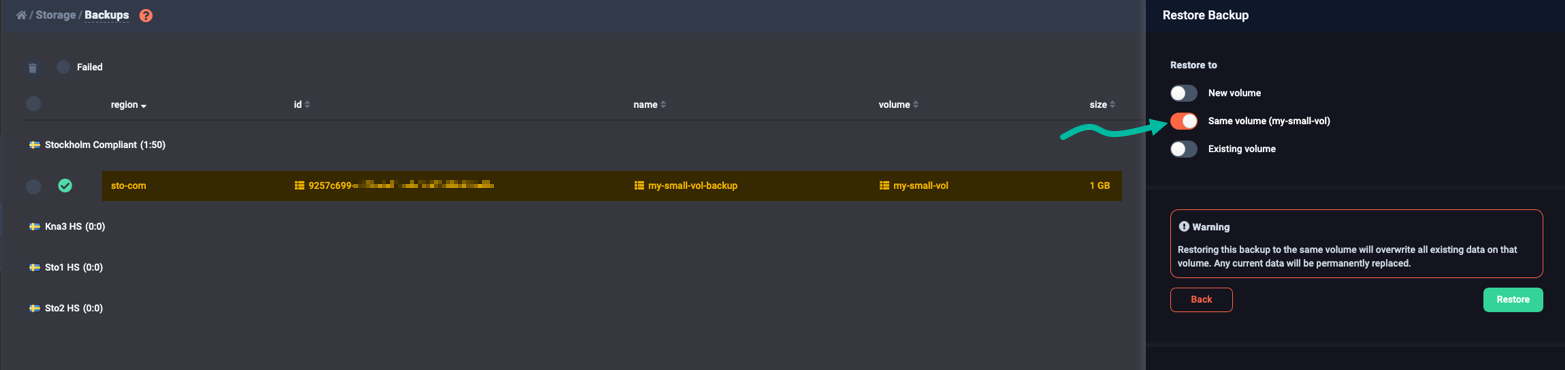
Another option you have is to use the toggle and select Existing volume. In that case, you indicate an existing volume that is at least as large as the original backed-up volume.
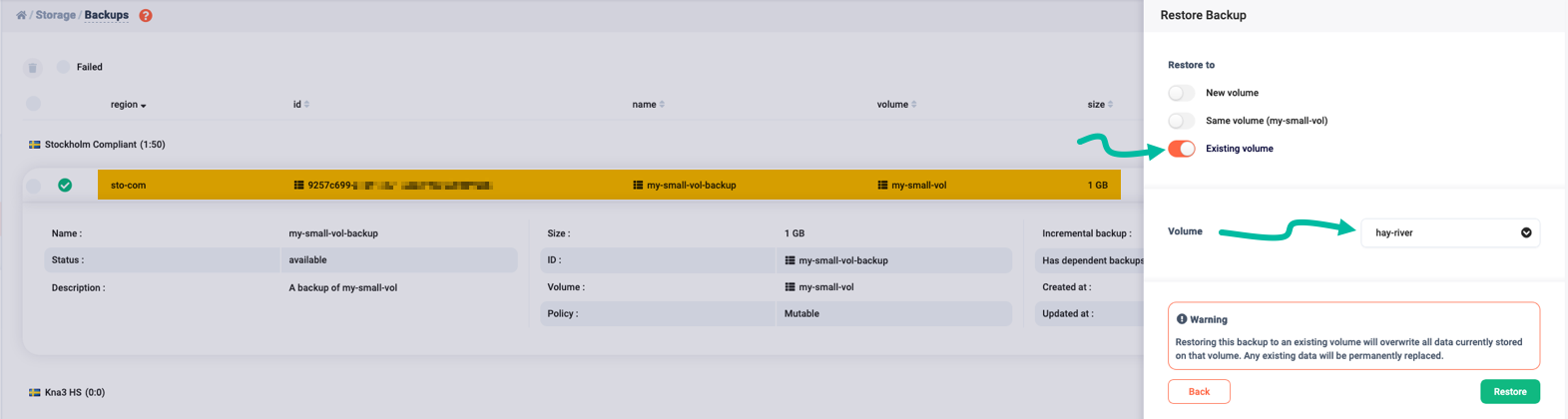
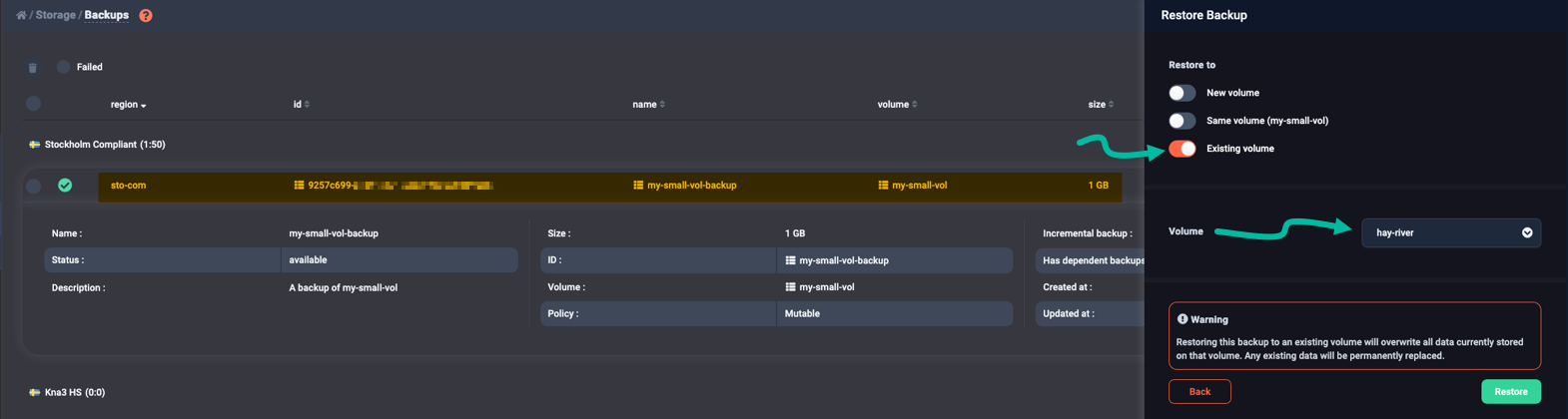
Whatever you select, click Restore when you’re ready. Then go to the Volumes main pane, locate the volume you are restoring to, and click on its row to reveal all relevant details.
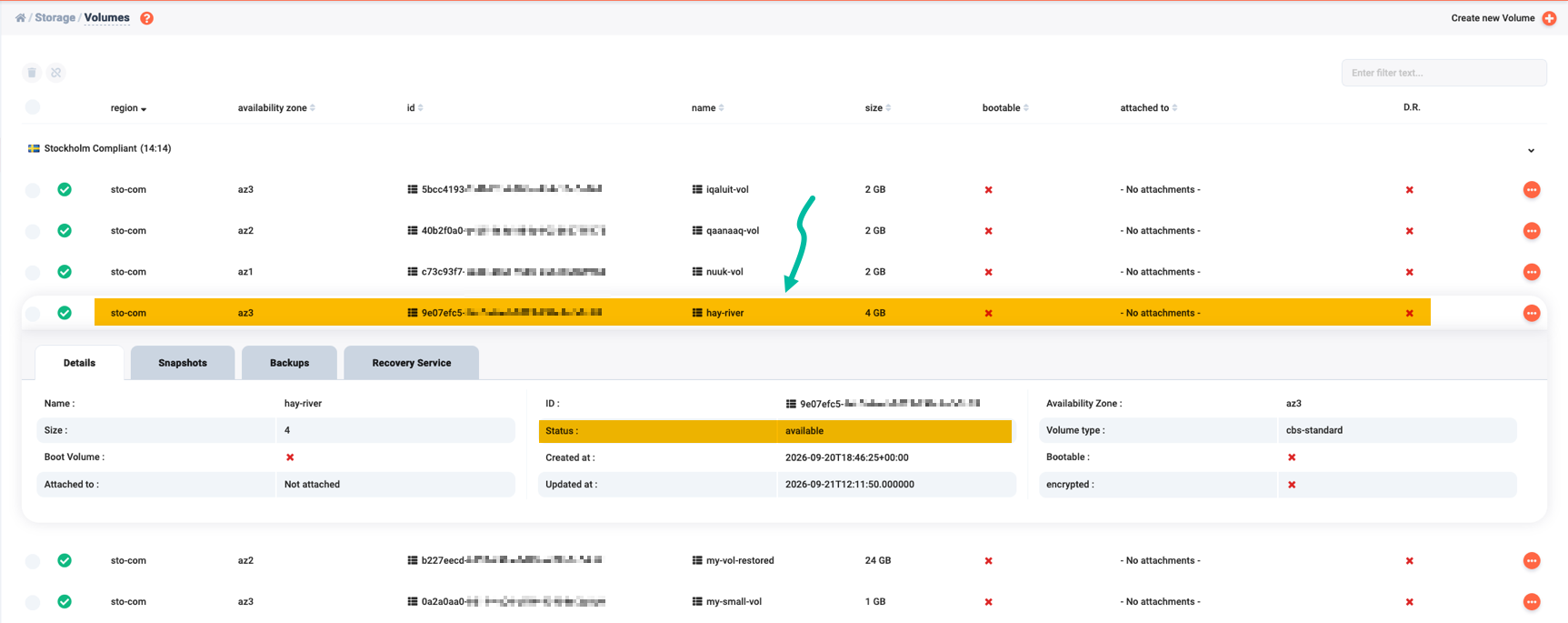
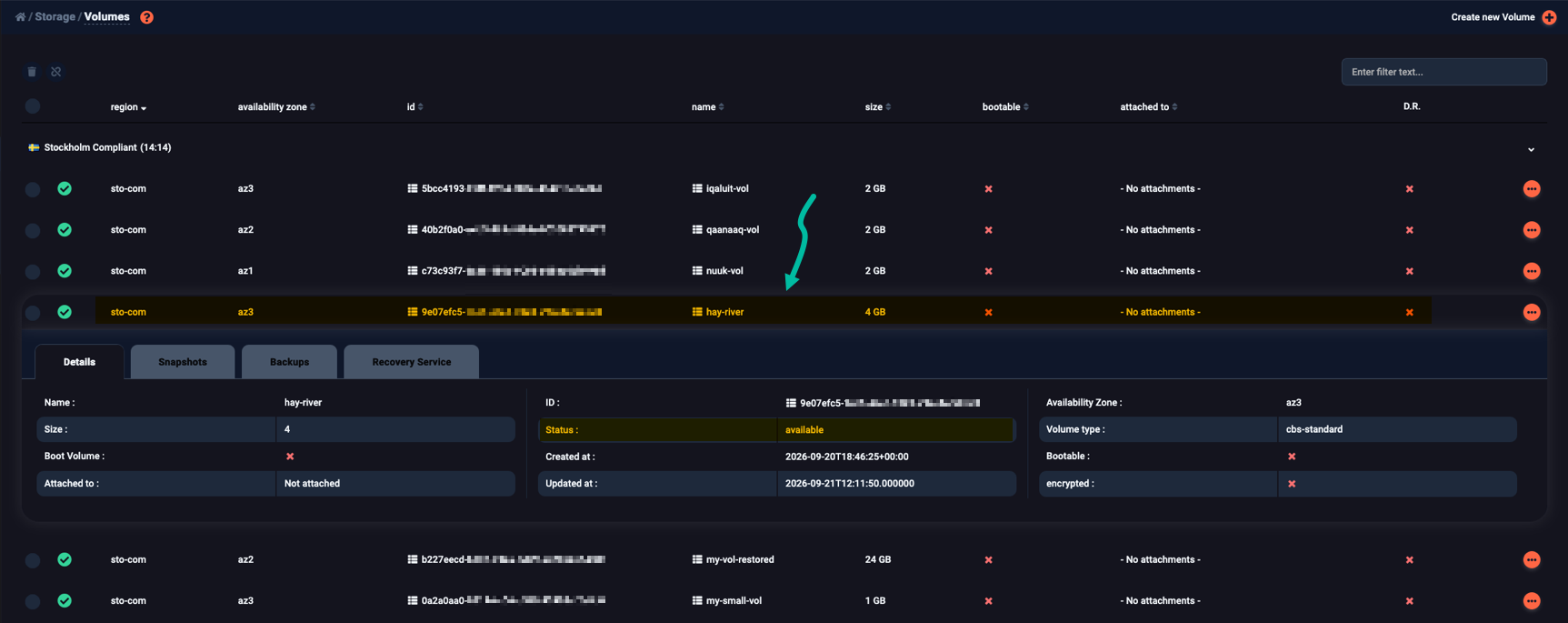
The Status parameter starts as restoring-backup, and when the restore process completes it becomes available.
Assume you want to restore the my-vol-enc-backup backup to the existing my-vol-enc volume.
Make sure the target volume is at least as large as the backup, and use the openstack volume backup restore command with the --force switch:
$ openstack volume backup restore my-vol-enc-backup my-vol-enc --force
+-------------+--------------------------------------+
| Field       | Value                                |
+-------------+--------------------------------------+
| id          | 6f67acf4-e040-41c0-802e-939b9964dcef |
| volume_id   | 681ceb2d-b0c5-4457-88af-e79b3b3009e6 |
| volume_name | my-vol-enc                           |
+-------------+--------------------------------------+
Right after you enter the command above, check the status of my-vol-enc:
$ openstack volume show my-vol-enc -c status
+--------+------------------+
| Field  | Value            |
+--------+------------------+
| status | restoring-backup |
+--------+------------------+
Wait a few minutes and re-check.
As soon as the restoration is complete, the status becomes available:
$ openstack volume show my-vol-enc -c status
+--------+-----------+
| Field  | Value     |
+--------+-----------+
| status | available |
+--------+-----------+