Deleting volume backups
You can delete Cinder volume backups using the OpenStack CLI or the Cleura Cloud Management Panel.
Prerequisites
If you plan to use the OpenStack CLI, enable it first.
Identifying volume backups
Make sure the left-hand side vertical pane is expanded. To view all backups and identify the ones you wish to delete, go to the Storage section and click the Backups subsection. You will see all volume backups listed in the / Storage / Backups central pane. Notice the text field on the upper right-hand side; start typing part of a backup name there, and immediately start filtering backups by name.
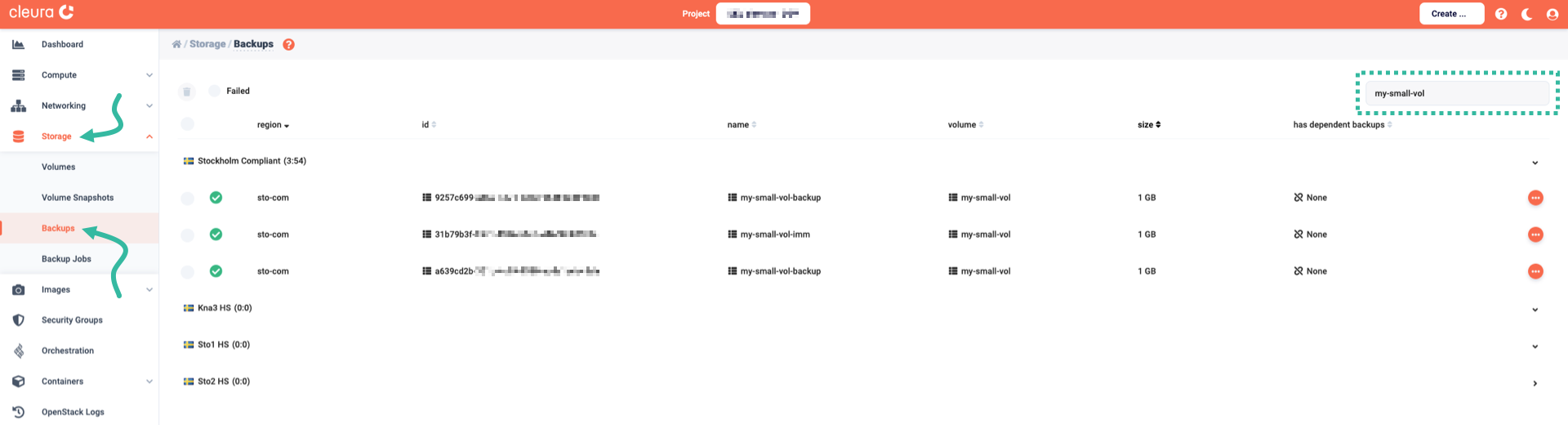
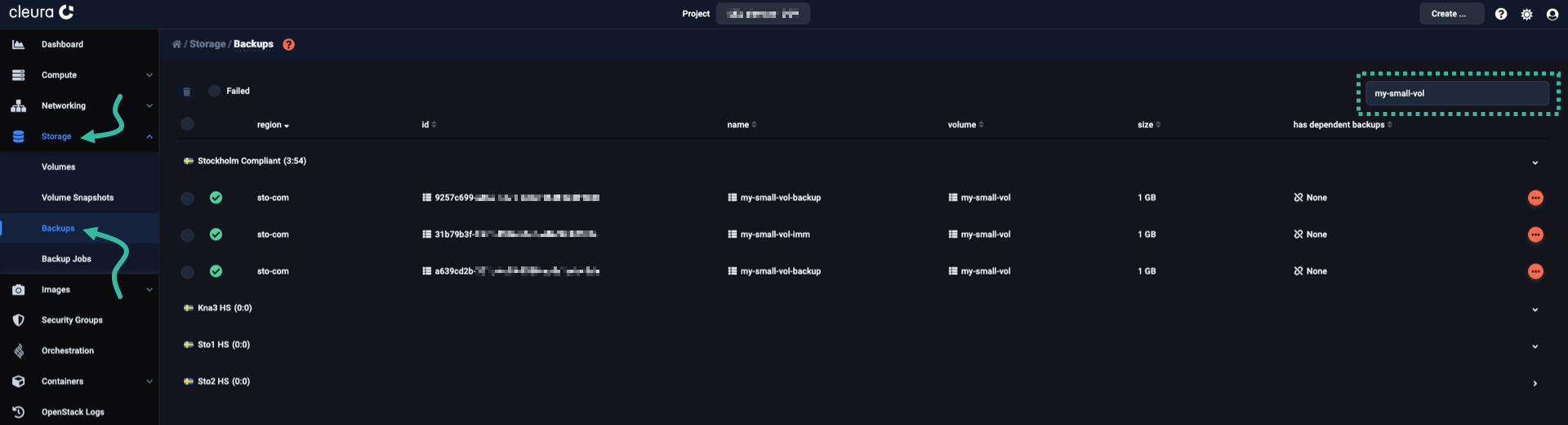
Use the openstack volume backup list command to get a list of the available volume backups.
Example:
$ openstack volume backup list -c ID -c Name -c Status -c Incremental -c 'Created At'
+--------------------------------------+------------------------+-----------+-------------+----------------------------+
| ID                                   | Name                   | Status    | Incremental | Created At                 |
+--------------------------------------+------------------------+-----------+-------------+----------------------------+
| ec7513e3-ab42-4bcf-955a-b9db1963b8c5 | nuuk-vol-backup        | available | False       | 2026-10-02T11:44:39.000000 |
| ab064ec6-6c94-4ef4-b8e9-0a6bd38e51f9 | qaanaaq-vol-backup     | available | False       | 2026-10-02T11:37:12.000000 |
| d0c79471-ee95-4a7a-a526-f67a7e089310 | qaanaaq-vol-backup-inc | available | True        | 2026-10-02T11:38:46.000000 |
| fbdff43e-c271-4bb8-9cae-a72e1034d890 | qaanaaq-vol-backup-imm | available | False       | 2026-10-02T11:40:47.000000 |
+--------------------------------------+------------------------+-----------+-------------+----------------------------+
Deleting a backup
Locate the backup you want to delete. At the right-hand side of its row, click the icon. A drop-down menu appears. Select Delete.
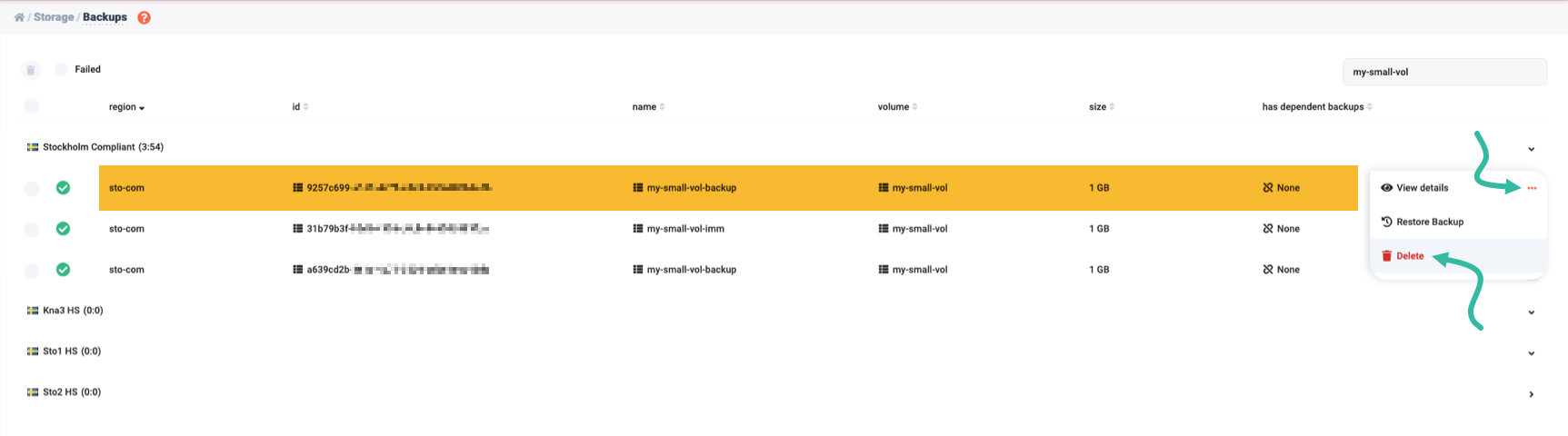
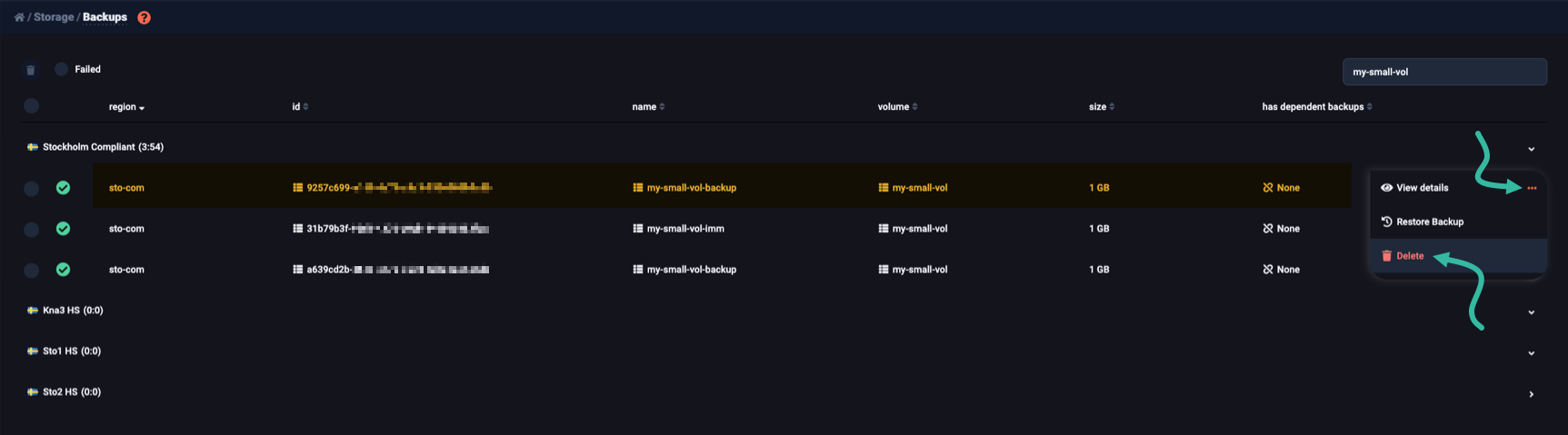
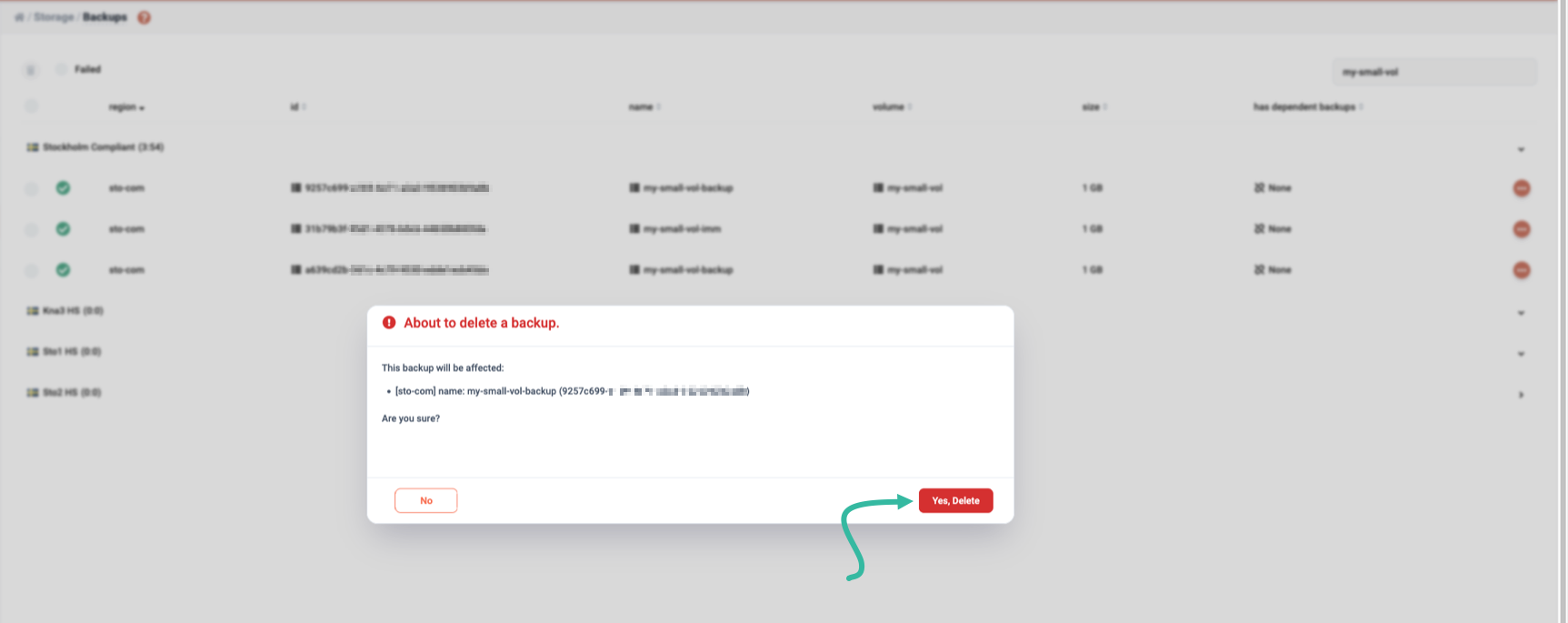
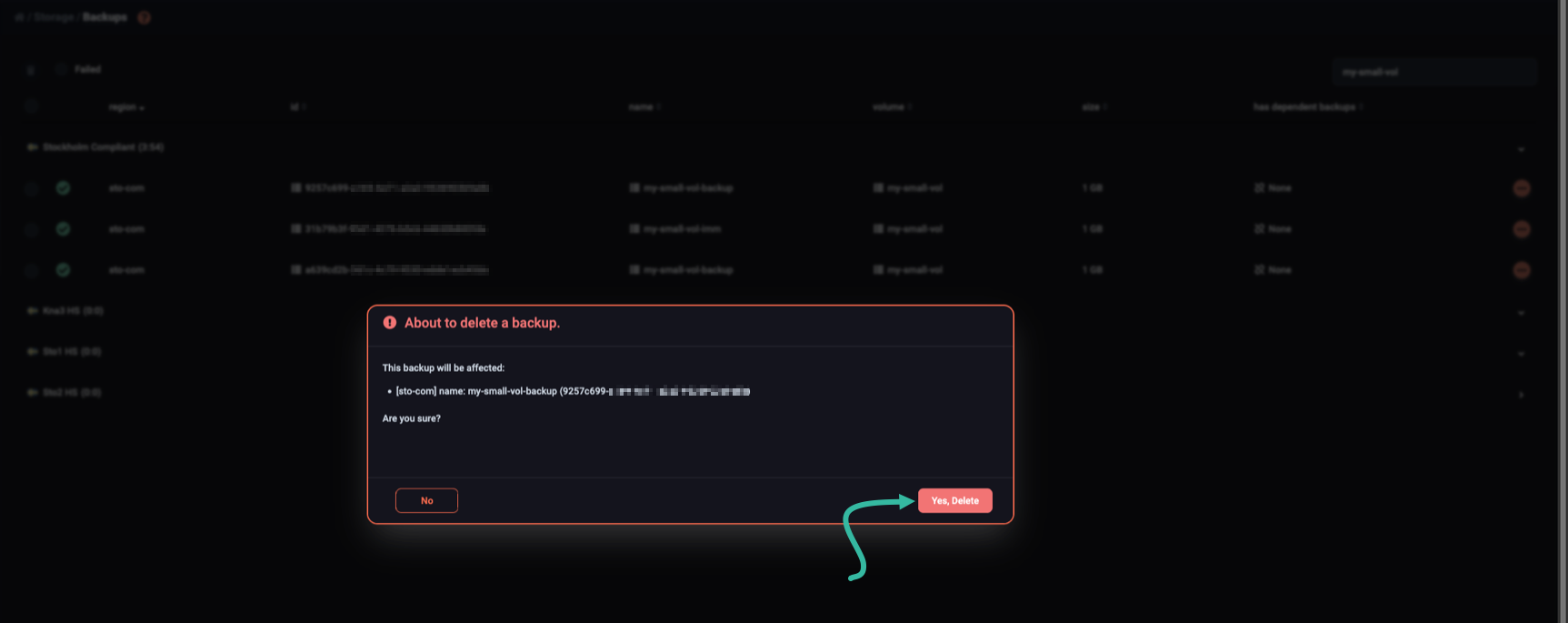
A pop-up appears, asking you if you really want to delete the backup. If you are, click Yes, Delete.
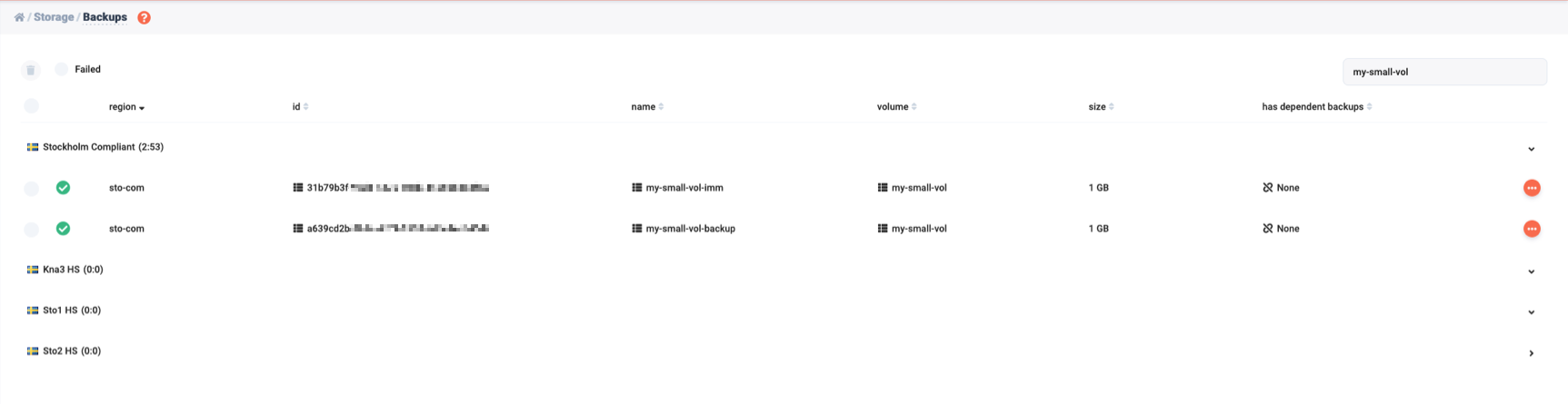
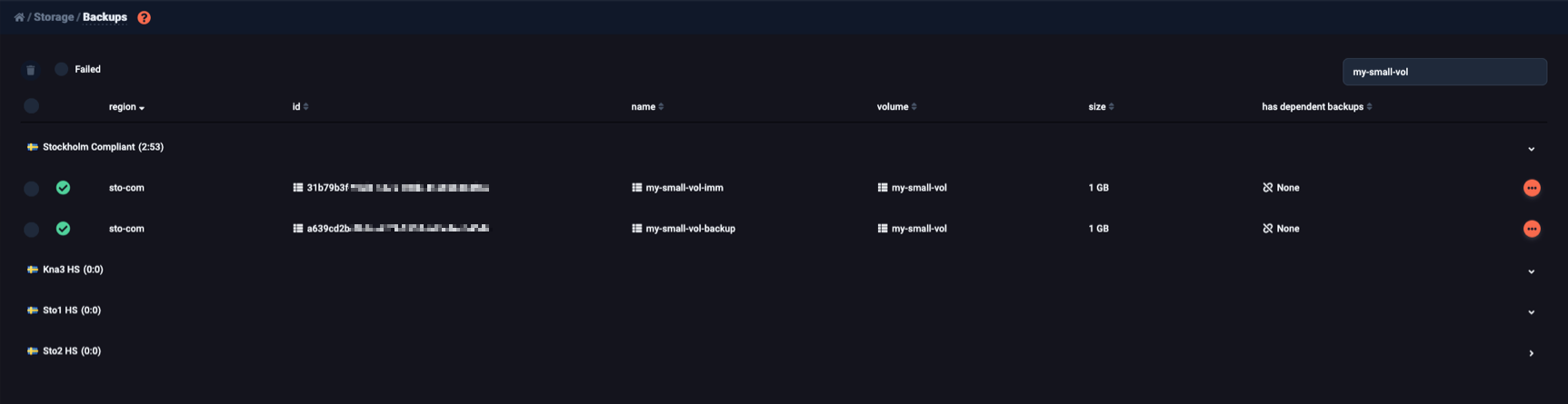
After the backup is deleted, its row disappears from the / Storage / Backups central pane.
You may delete a volume backup by its ID or Name, using the openstack volume backup delete command.
Example:
$ openstack volume backup delete nuuk-vol-backup
If successful, the command returns no output, and the volume backup is gone.
Deleting backups with dependents
If other backups depend on the one you are trying to delete, you cannot delete it.
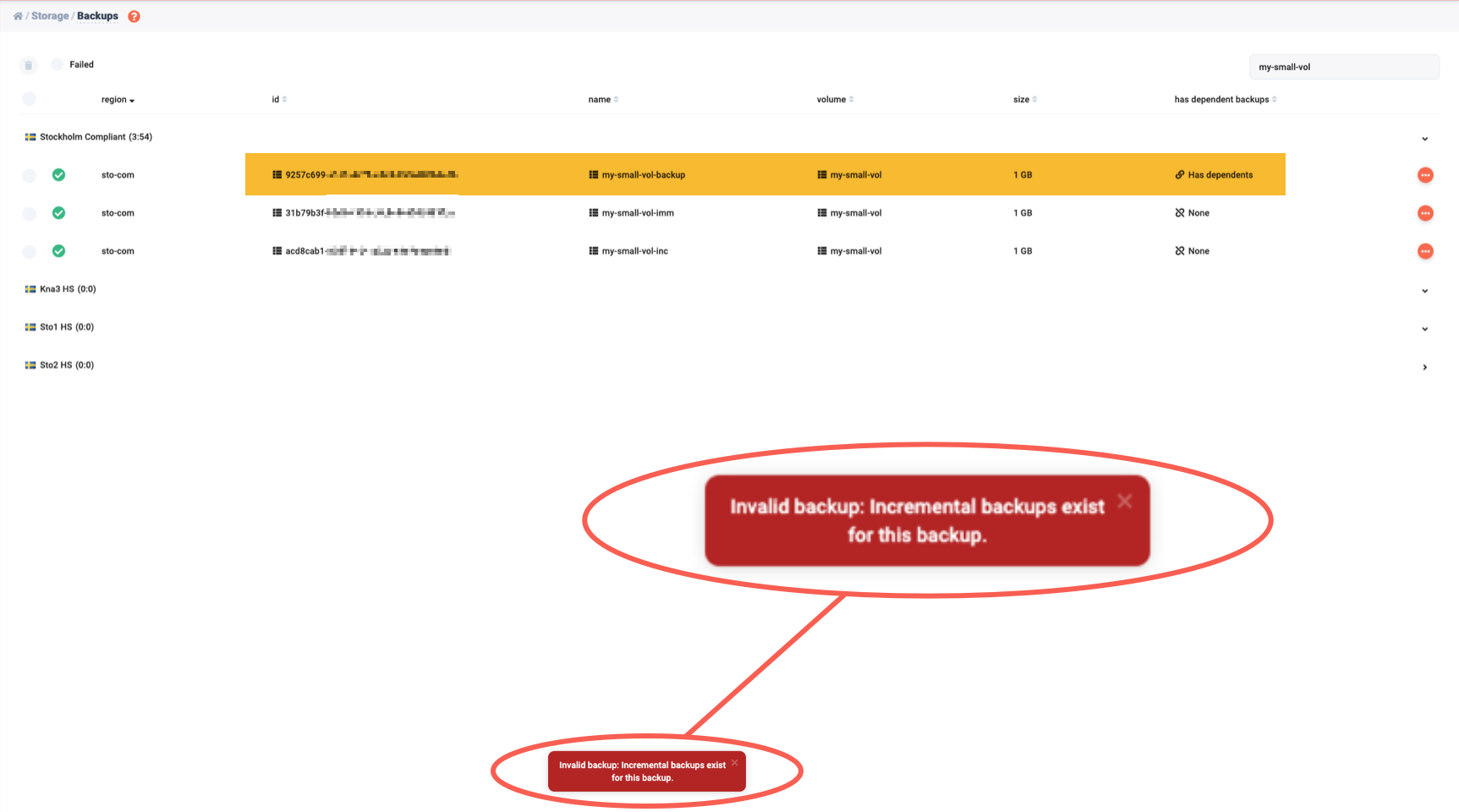
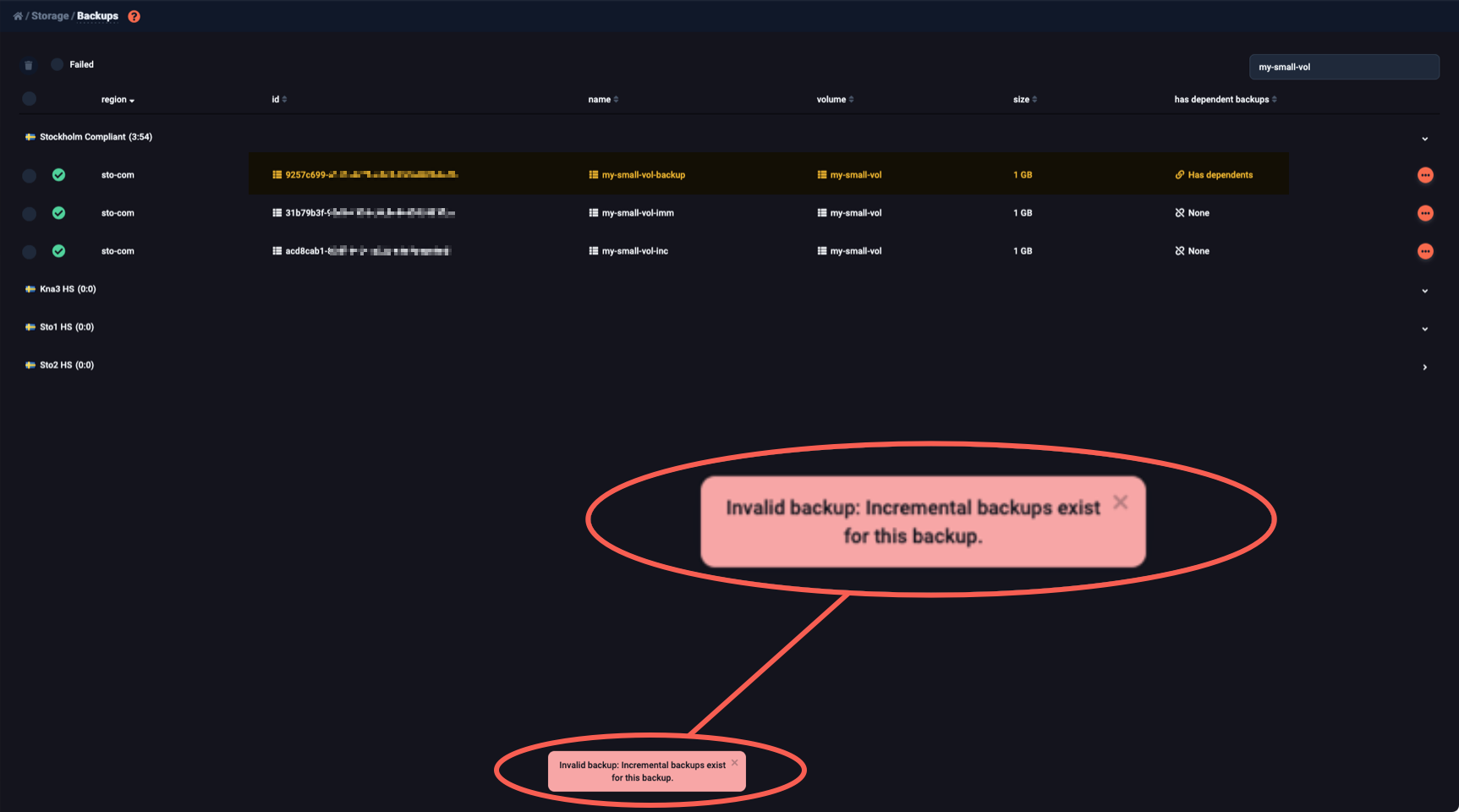
To identify backups that depend on the one you are trying to delete, locate all backups of the same volume. Expand each row and check the Incremental backup field. You want the subset of backups:
- for which that field is True,
- that were created after the one you failed to delete, and
- that precede the next full backup of the same volume (if any).
Delete each backup in that subset, starting with the most recent one. Then delete the backup you originally wanted to delete.
If other backups depend on the one you are trying to delete, the operation fails, and you get an error:
$ openstack volume backup delete my-small-vol-backup
Failed to delete backup with name or ID 'my-small-vol-backup':
  BadRequestException: 400:
  Client Error for url: https://volume.sto-com.cleura.cloud/v3/backups/d9f03f74-...,
  Invalid backup: Incremental backups exist for this backup.
1 of 1 backups failed to delete.
To find and list the backups that depend on my-small-vol-backup, first identify the ID of the volume it backs up:
$ openstack volume backup show my-small-vol-backup -c volume_id
+-----------+--------------------------------------+
| Field     | Value                                |
+-----------+--------------------------------------+
| volume_id | 0a2a0aa0-0219-4c06-b549-93903cf2a8d0 |
+-----------+--------------------------------------+
Then, list all backups of that volume:
$ openstack volume backup list --volume 0a2a0aa0-0219-4c06-b549-93903cf2a8d0 -c ID -c Name -c Incremental -c 'Created At'
+--------------------------------------+-------------------------+-------------+----------------------------+
| ID                                   | Name                    | Incremental | Created At                 |
+--------------------------------------+-------------------------+-------------+----------------------------+
| 52959320-efd5-4c00-8057-50b0c510fae9 | my-small-vol-backup-inc | True        | 2026-10-05T07:36:35.000000 |
| d9f03f74-27ac-4390-981f-be695b4b4aab | my-small-vol-backup     | False       | 2026-10-02T07:52:05.000000 |
+--------------------------------------+-------------------------+-------------+----------------------------+
The Incremental column shows which backups are incremental.
All incremental backups created after my-small-vol-backup, and before the next full backup of the same volume (if any), depend on it.
In the example above, my-small-vol-backup-inc is the only backup that depends on my-small-vol-backup.
Delete the dependent incremental backup first:
$ openstack volume backup delete my-small-vol-backup-inc
Finally, delete the backup you originally could not delete:
$ openstack volume backup delete my-small-vol-backup
Deleting backups in immutable containers
If the backup you are trying to delete is in an immutable container, you will not be allowed to delete it until 30 or 90 days have passed (depending on the immutable container it is in).
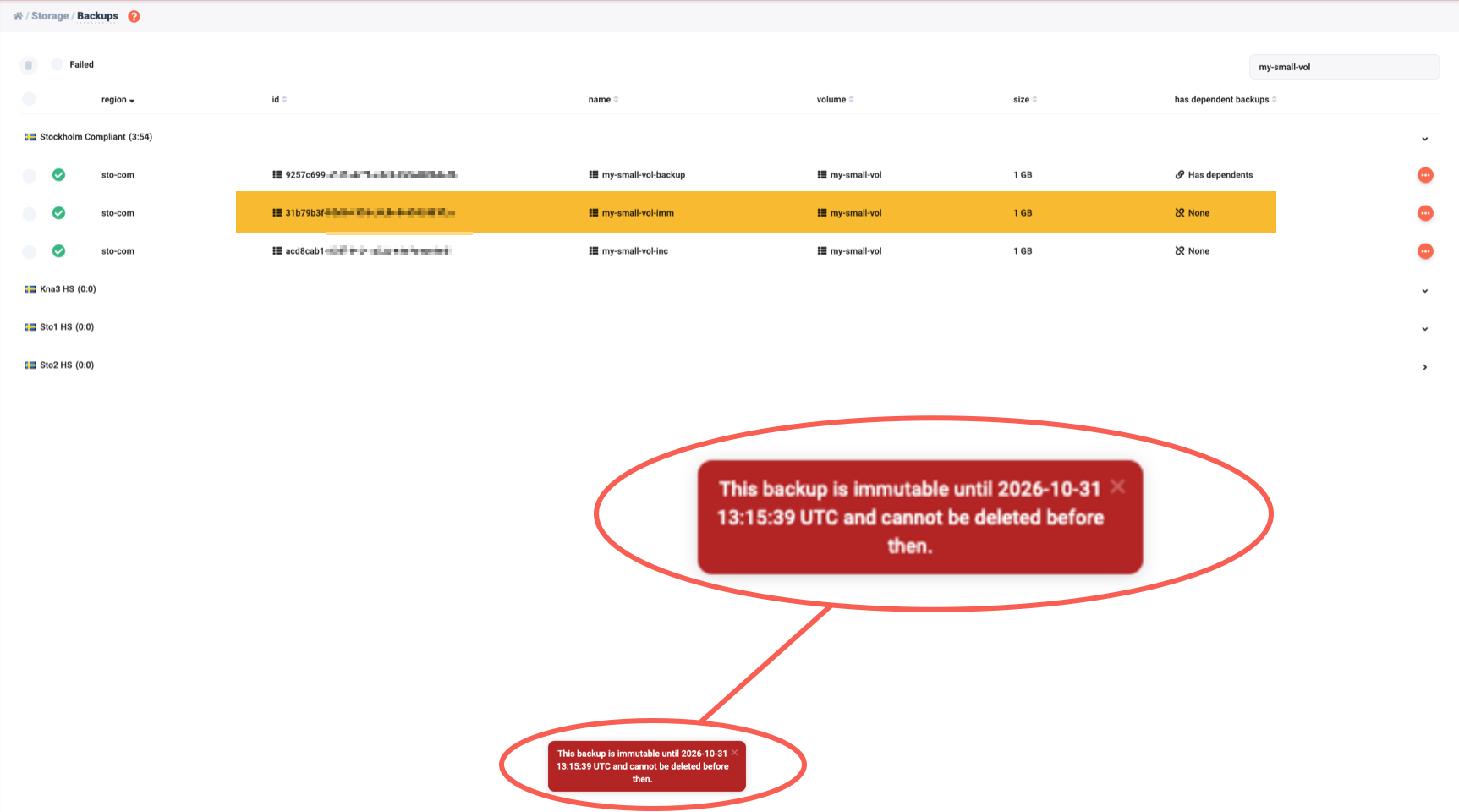
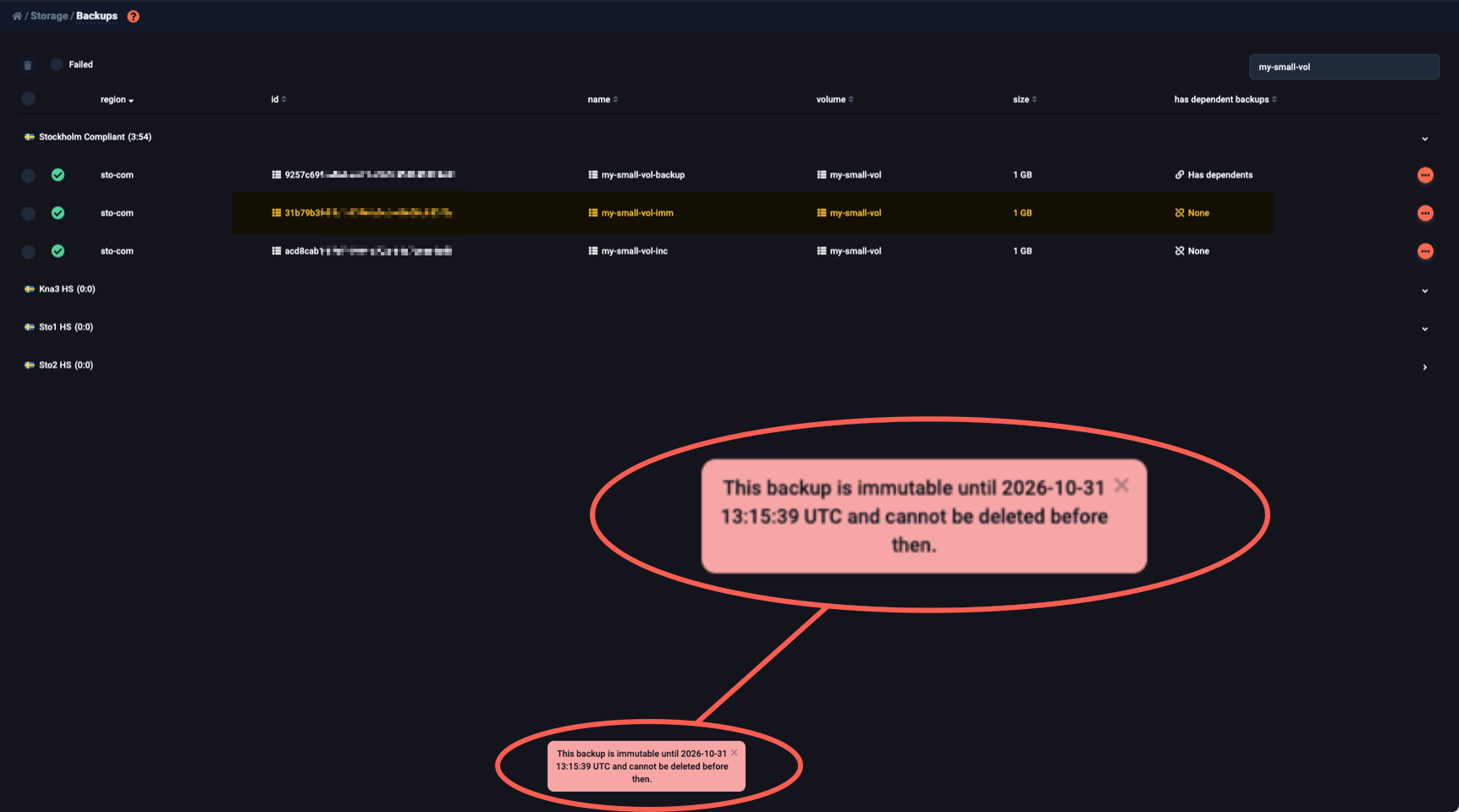
You can use the openstack volume backup delete command to delete backups even in immutable containers.
In that case, keep in mind that you can restore such a deleted backup by raising a support ticket within 30 or 90 days of deletion.