Creating volume backups
Using the OpenStack CLI or the Cleura Cloud Management Panel, you may create full or incremental backups of available or attached Cinder volumes. You can encrypt the volumes you back up.
You can also examine backup characteristics. For example, you might want to see whether a backup is incremental.
Prerequisites
If you plan to use the OpenStack CLI, make sure you enable it.
Identifying the volume
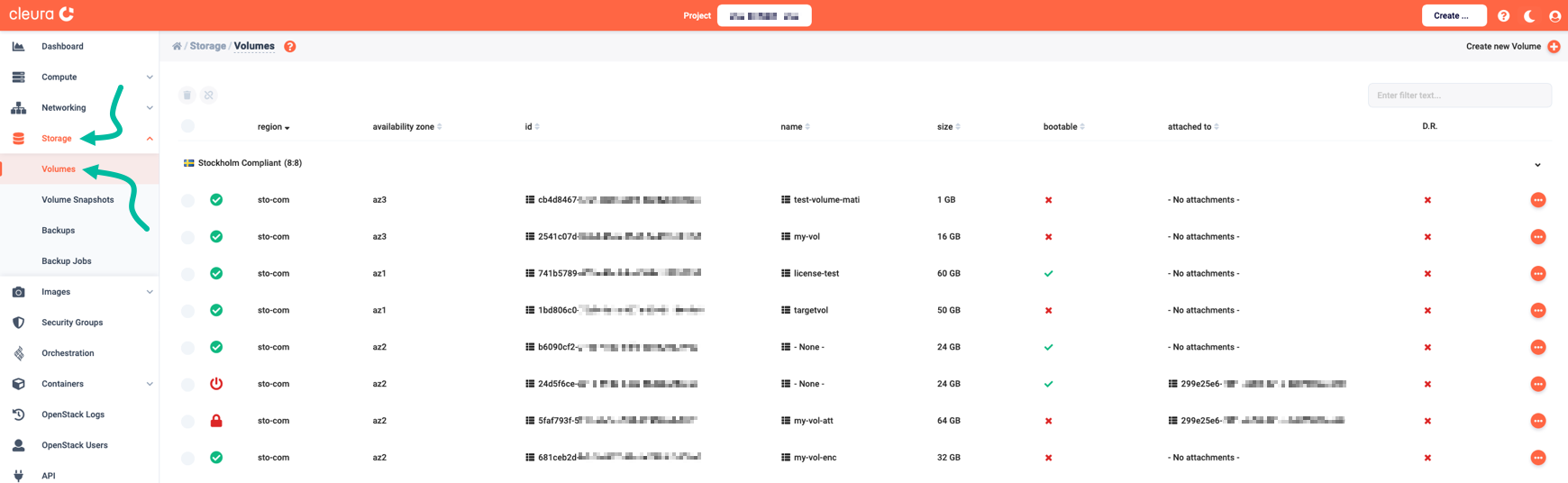
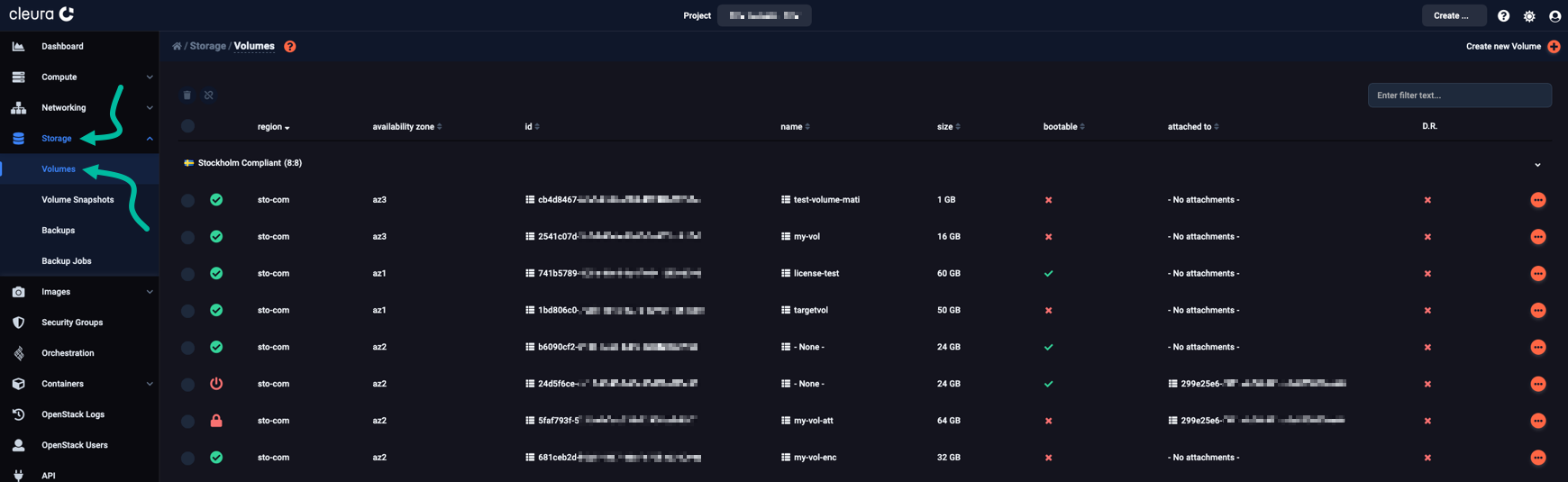
Make sure the left-hand side vertical pane is expanded. To view all volumes and identify the ones you wish to back up, go to the Storage subsection and click Volumes. You will see all volumes listed in the central pane of the Cleura Cloud Management Panel.
Use the openstack volume list command to identify any volumes you may wish to back up:
$ openstack volume list
+--------------------------------------+------------------+-----------+------+---------------------------------+
| ID                                   | Name             | Status    | Size | Attached to                     |
+--------------------------------------+------------------+-----------+------+---------------------------------+
| a84388d9-b3dc-456b-9aab-9da8e9fa1633 | my-vol           | available |   24 |                                 |
| 681ceb2d-b0c5-4457-88af-e79b3b3009e6 | my-vol-enc       | available |   32 |                                 |
| 5faf793f-521b-4bfb-b531-72908bab8bf7 | my-vol-att       | in-use    |   64 | Attached to my-srv on /dev/vdb  |
+--------------------------------------+------------------+-----------+------+---------------------------------+
In the example output above, we have a volume named my-vol, which is available (not attached to an instance).
We also have a volume named my-vol-att, which is in use (attached to an instance).
Finally, we have the volume named my-vol-enc, which is available and encrypted:
$ openstack volume show my-vol-enc -c encrypted
+-----------+-------+
| Field     | Value |
+-----------+-------+
| encrypted | True  |
+-----------+-------+
Creating a full backup
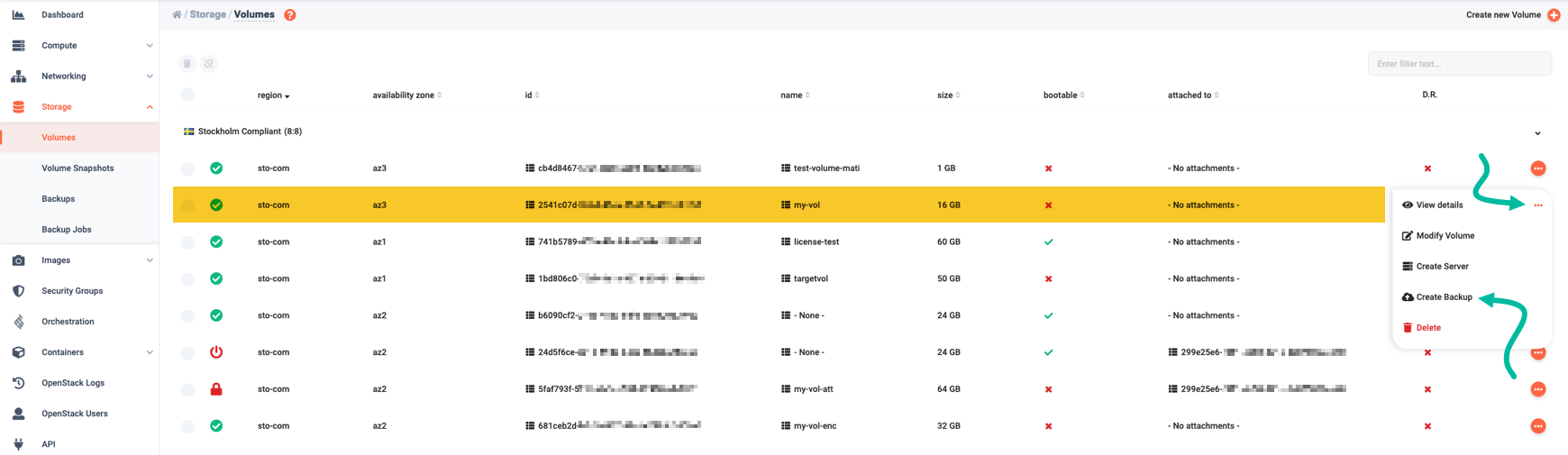
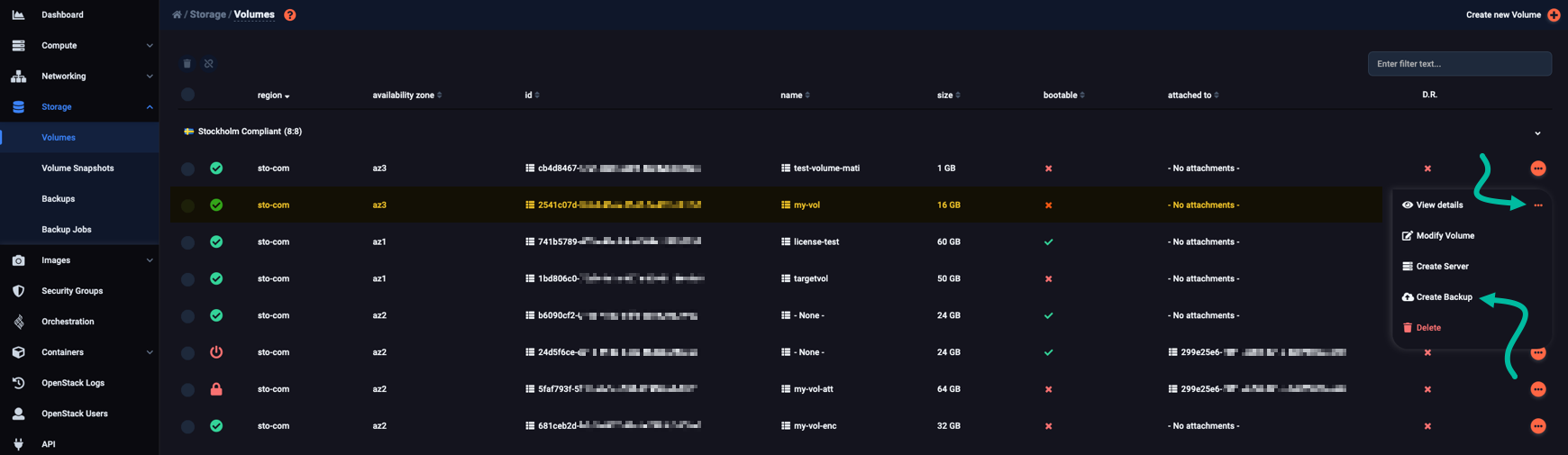
Locate the volume you want to back up. At the right-hand side of its row, click the icon. A drop-down menu appears. Select Create Cinder Backup.
A vertical pane named Cinder Backup slides into view from the right.
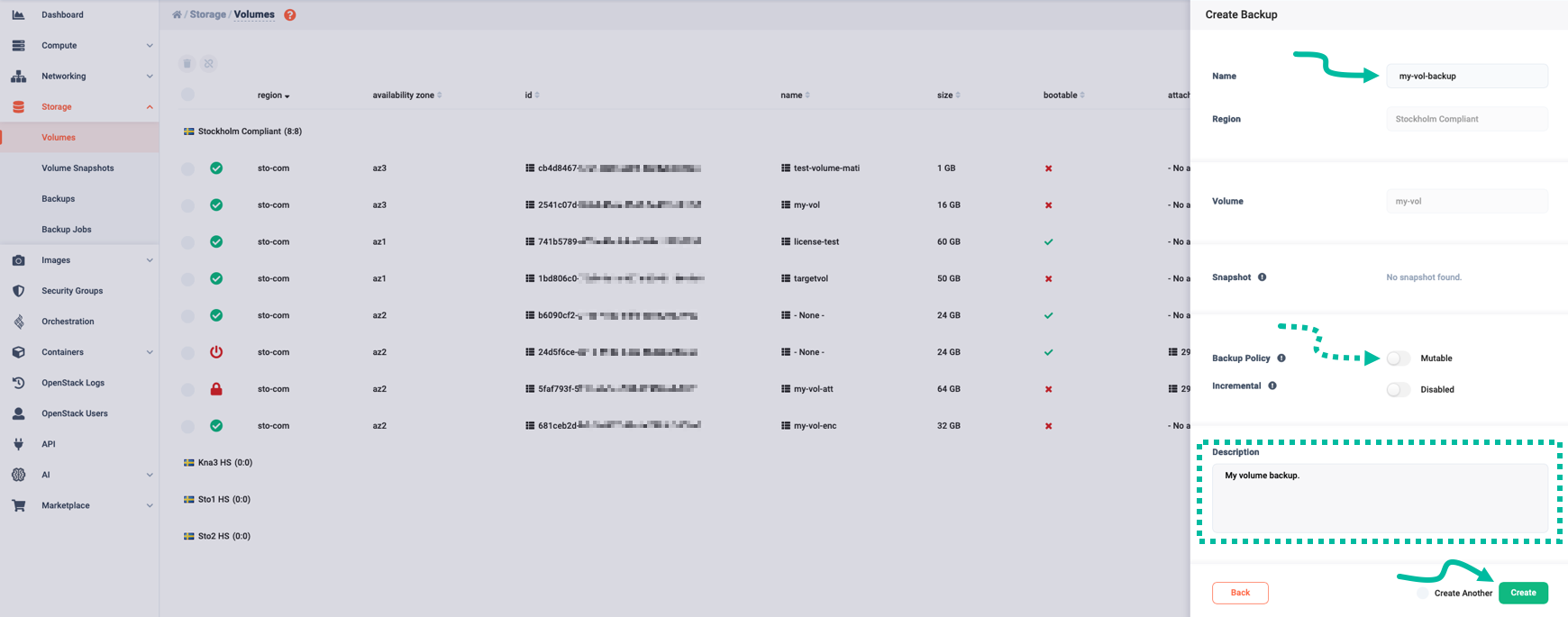
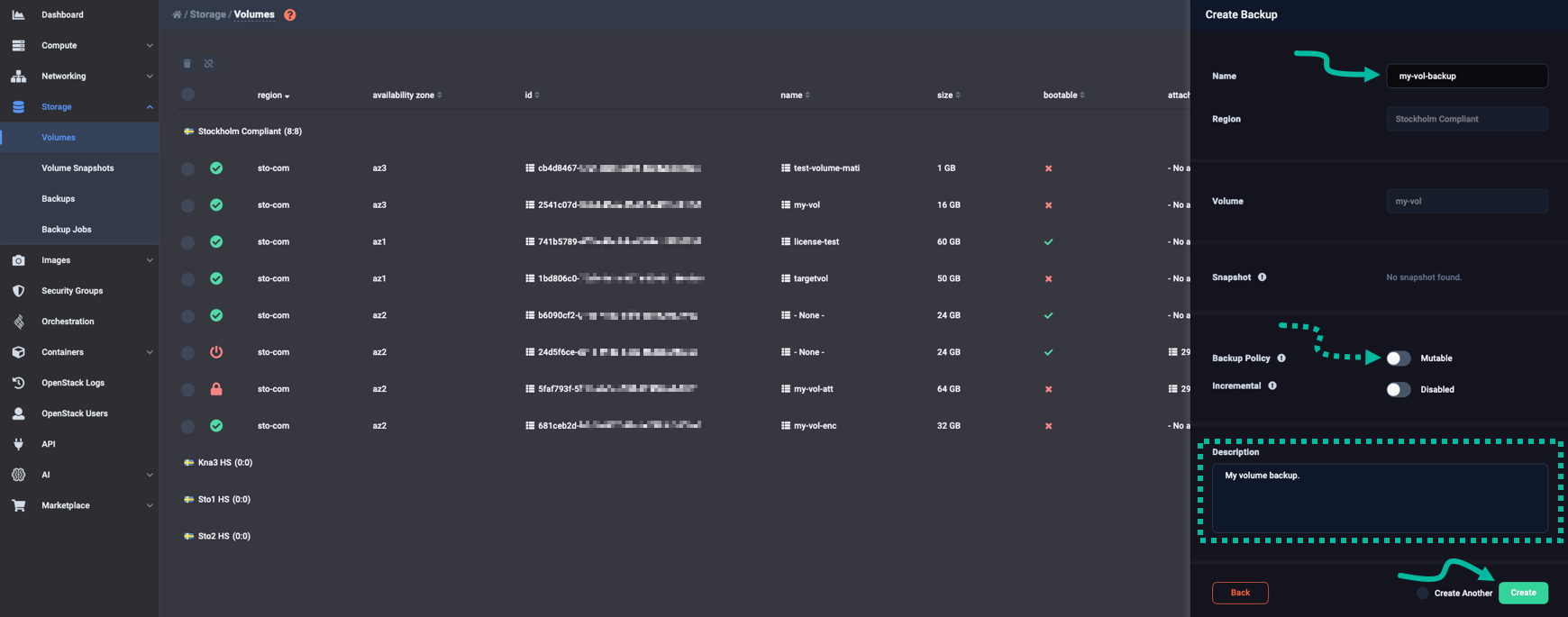
At the top of that pane, type in a name for the backup you are about to create. For a regular backup, leave the Backup Policy toggle as is (Mutable). You may optionally enter a Description for the backup. When you are ready, click Create to start the backup.
While the backup is being created, a icon appears to the left of the volume row.
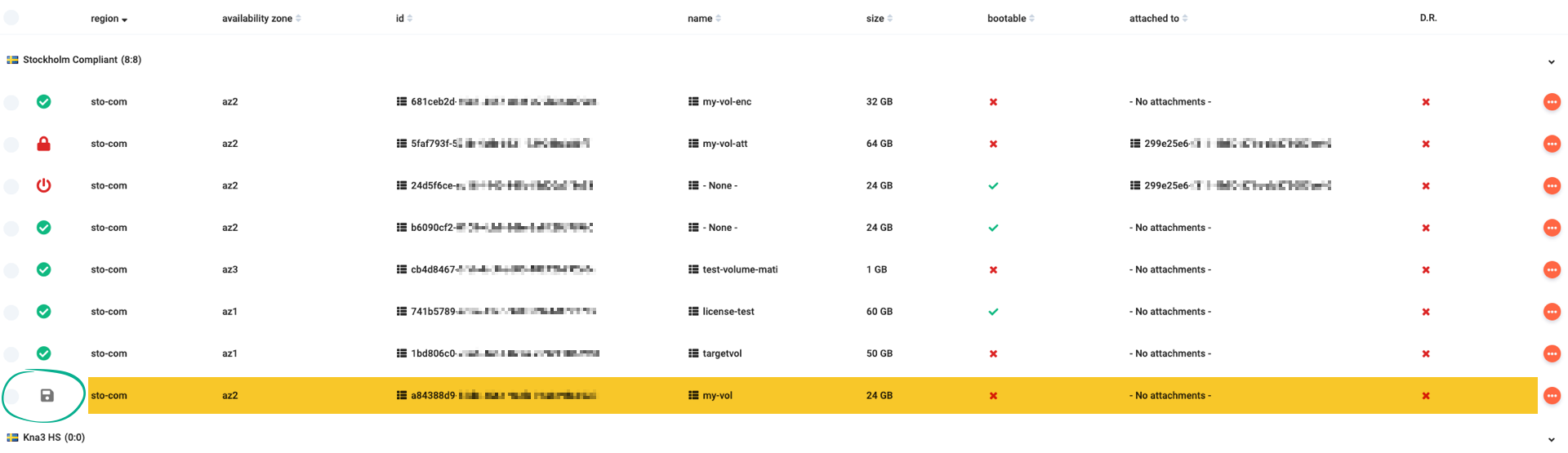
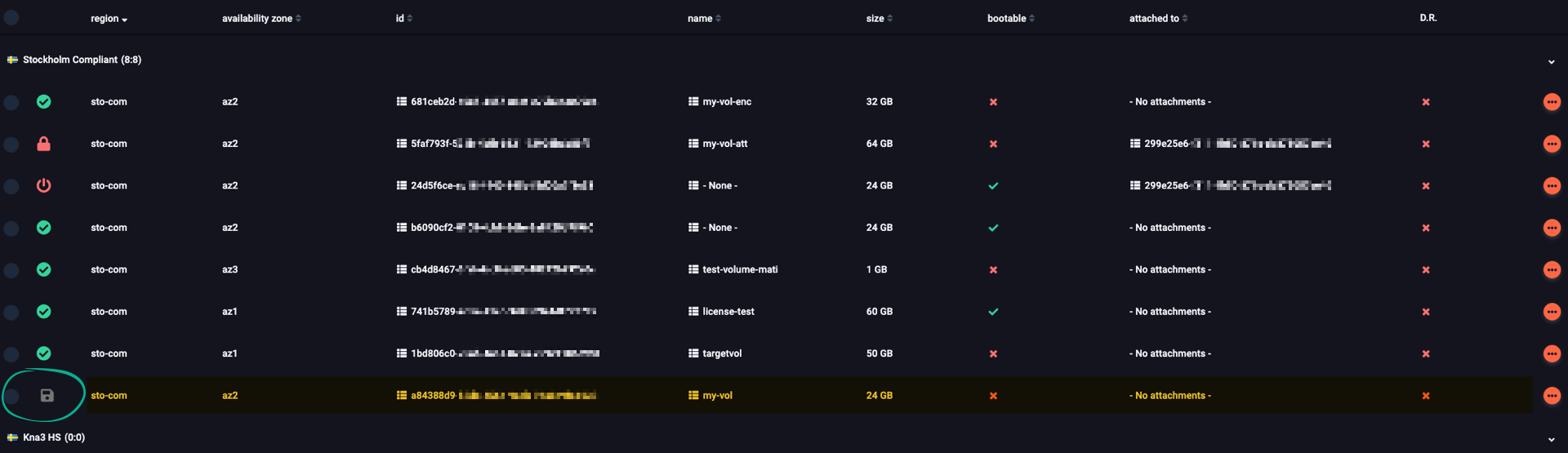
Expand the volume row and go to the Details tab; the value of the Status label is backing-up.
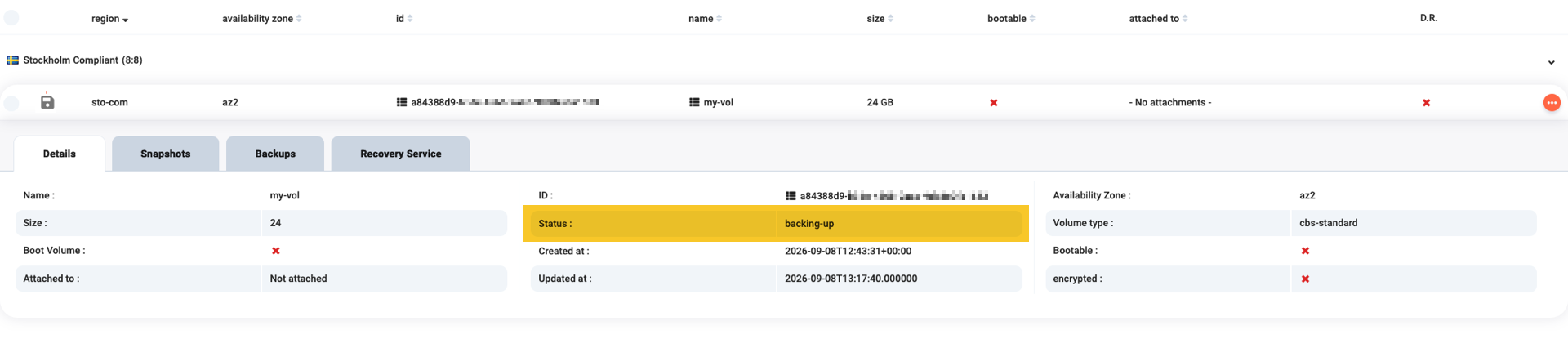
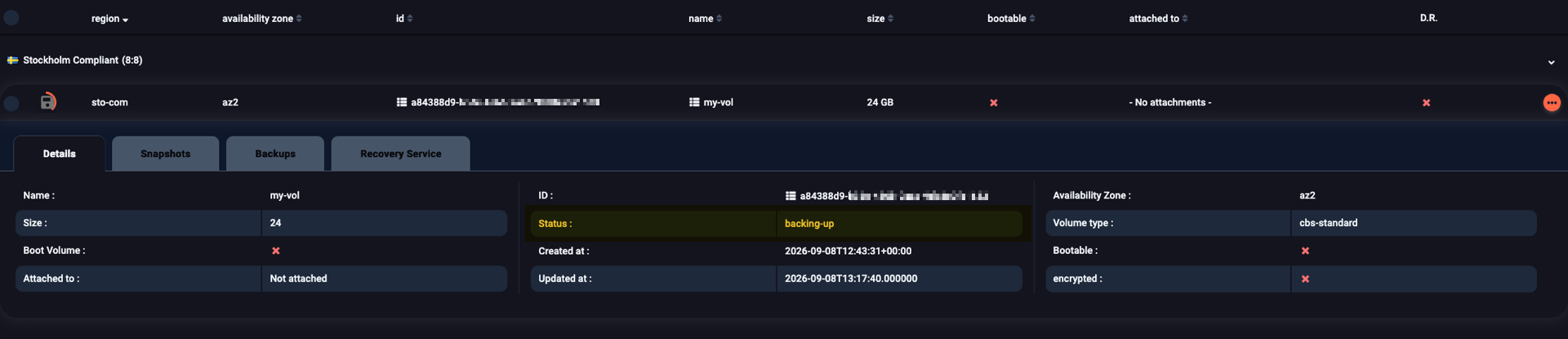
Once the backup completes, the icon disappears. Bring the Backup tab into view and see all related volume backups.


To create a full backup of my-vol, type:
$ openstack volume backup create my-vol
+-----------+--------------------------------------+
| Field     | Value                                |
+-----------+--------------------------------------+
| id        | b2821cde-d08e-411d-9798-61bc63517cc4 |
| name      | None                                 |
| volume_id | 9a7d10ba-c371-4b58-9a44-63cd8cc93639 |
+-----------+--------------------------------------+
The command above does not name the backup or add a description. Whenever you want to name your backup or give it a description, type:
$ openstack volume backup create --name my-vol-backup --description "My volume backup" my-vol
+-----------+--------------------------------------+
| Field     | Value                                |
+-----------+--------------------------------------+
| id        | 0dd94aa9-d291-4665-8183-06aceeaa40b8 |
| name      | my-vol-backup                        |
| volume_id | a84388d9-b3dc-456b-9aab-9da8e9fa1633 |
+-----------+--------------------------------------+
Examining a backup
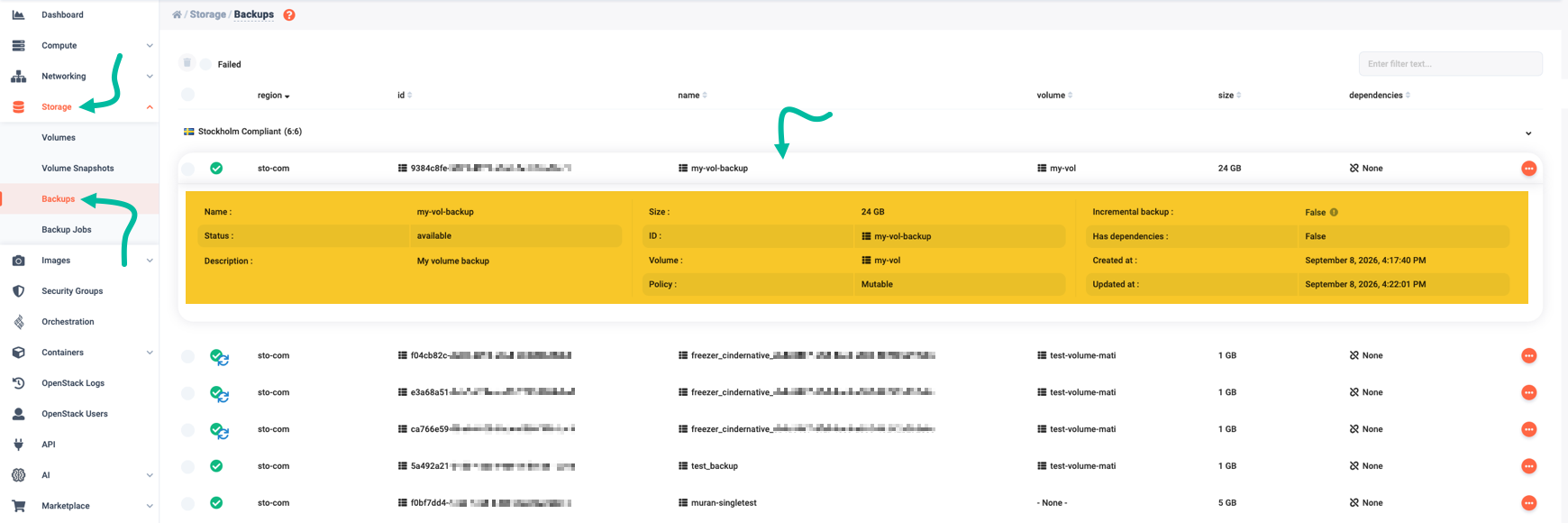
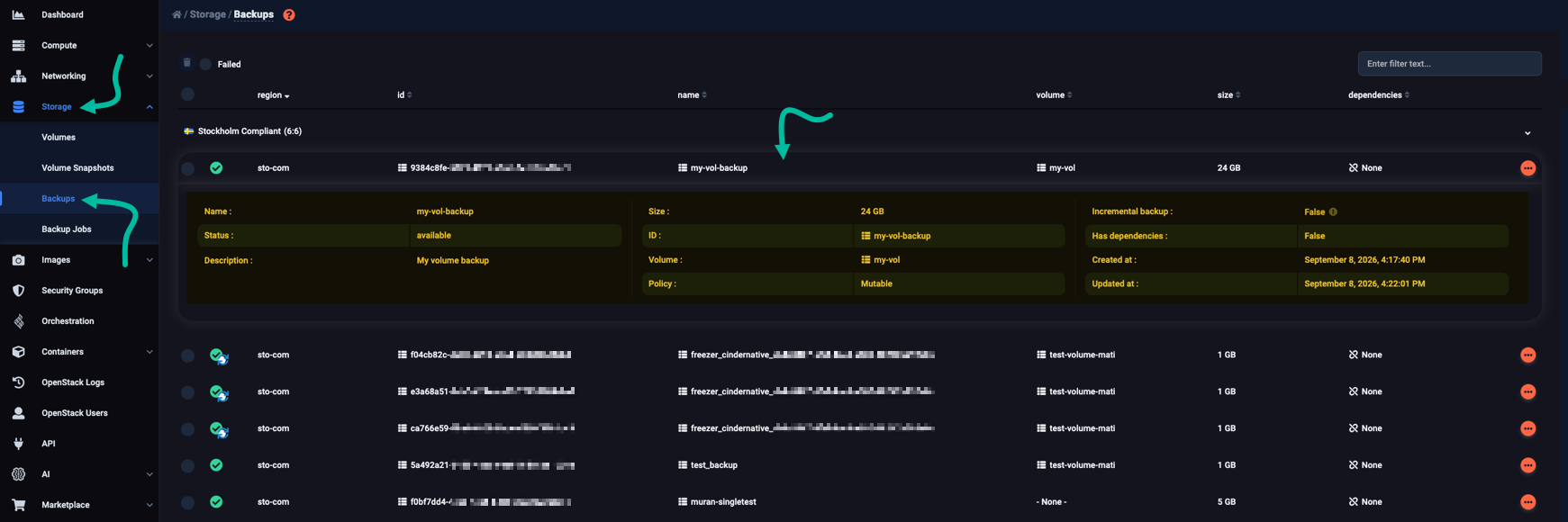
In the left-hand side vertical pane of the Cleura Cloud Management Panel, expand the Storage subcategory. Select Backups, and in the main pane, all existing backups appear. Locate the one you want, click its row, and view all relevant details.
To view details regarding an existing backup, use the openstack volume backup show command:
$ openstack volume backup show my-vol-backup
+-----------------------+--------------------------------------+
| Field                 | Value                                |
+-----------------------+--------------------------------------+
| availability_zone     | backup-local                         |
| container             | mutable                              |
| created_at            | 2026-09-09T09:24:44.000000           |
| data_timestamp        | 2026-09-09T09:24:44.000000           |
| description           | My volume backup                     |
| encryption_key_id     | None                                 |
| fail_reason           | None                                 |
| has_dependent_backups | False                                |
| id                    | 0dd94aa9-d291-4665-8183-06aceeaa40b8 |
| is_incremental        | False                                |
| metadata              | {}                                   |
| name                  | my-vol-backup                        |
| object_count          | 492                                  |
| project_id            | None                                 |
| size                  | 24                                   |
| snapshot_id           | None                                 |
| status                | available                            |
| updated_at            | 2026-09-09T09:29:05.000000           |
| user_id               | None                                 |
| volume_id             | a84388d9-b3dc-456b-9aab-9da8e9fa1633 |
+-----------------------+--------------------------------------+
Creating an incremental backup
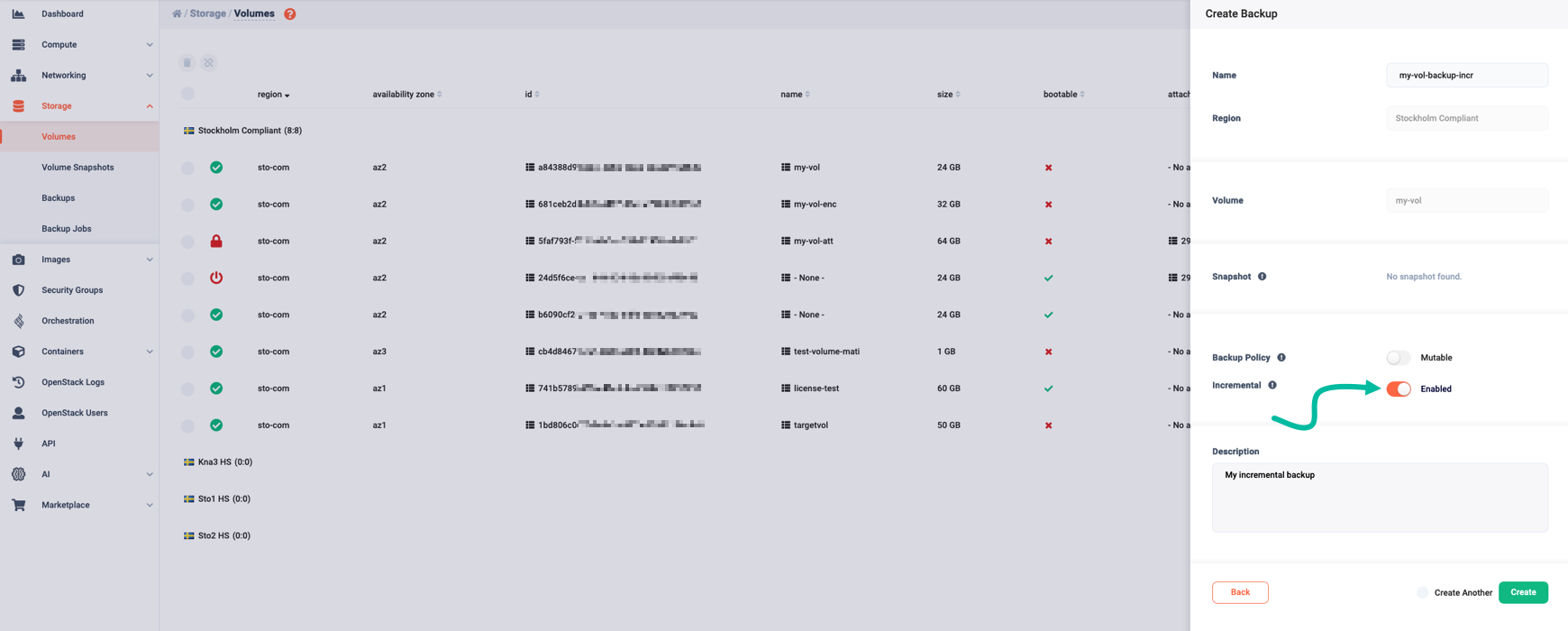
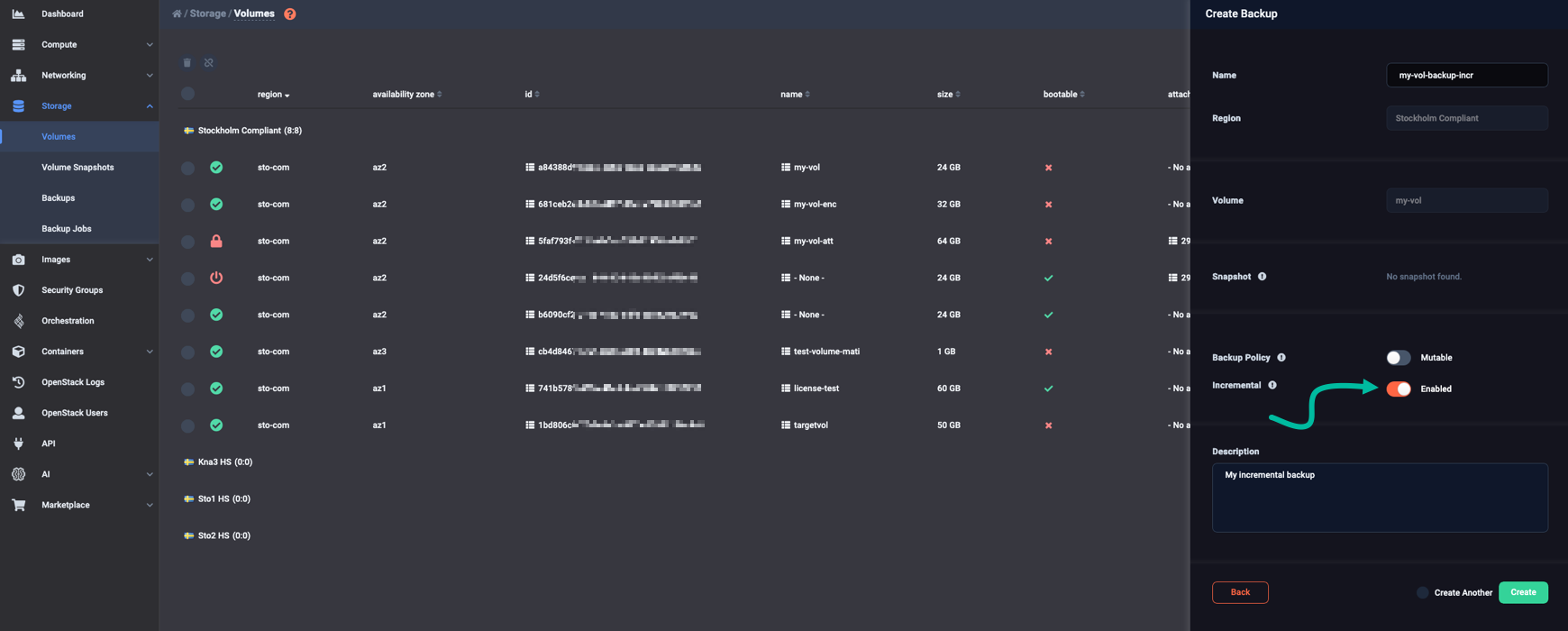
To create an incremental backup, enable this feature in the Create Backup pane.
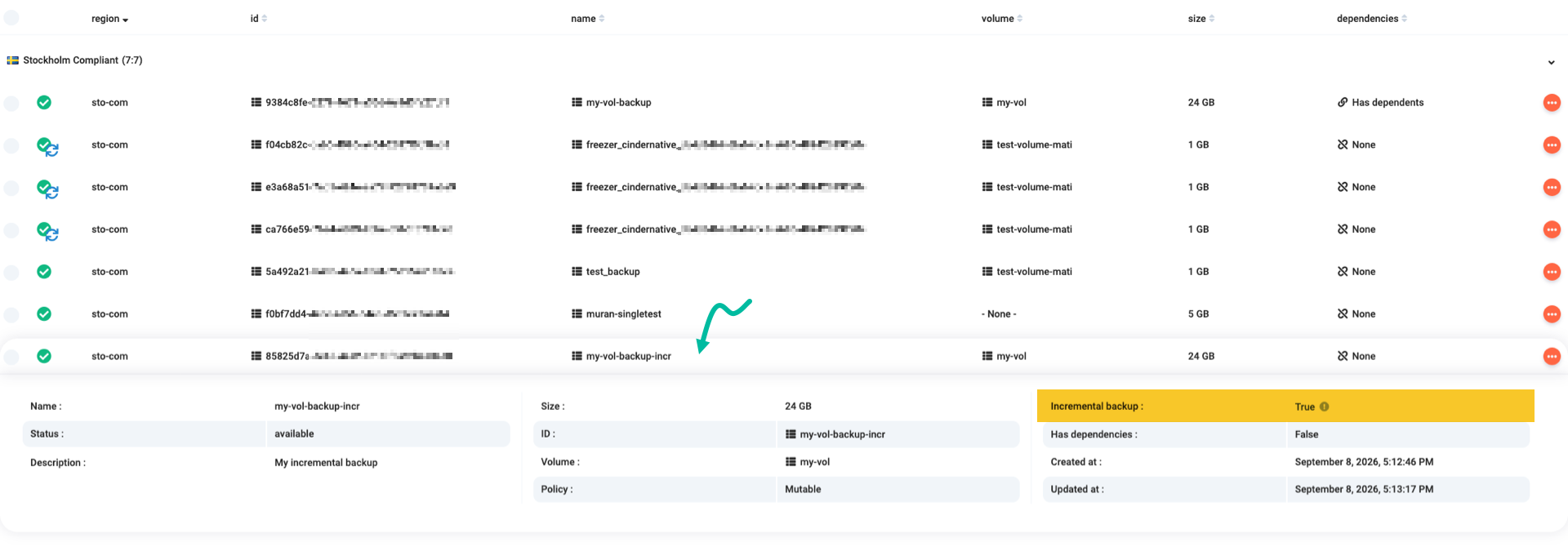
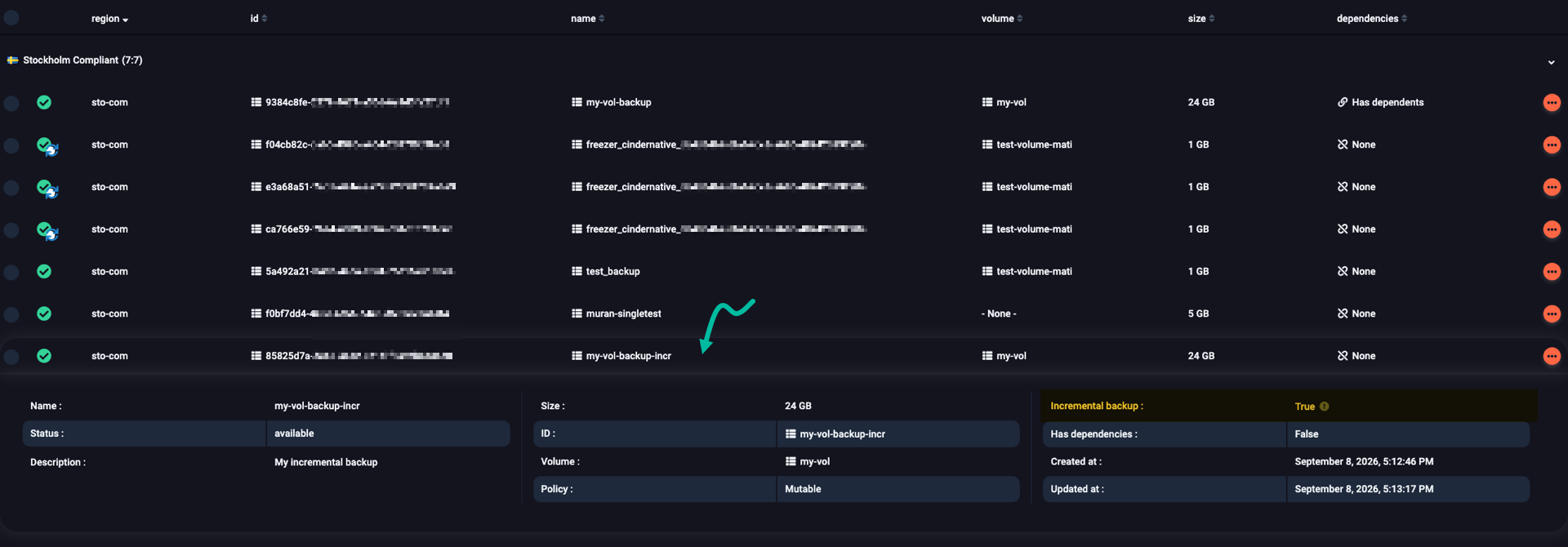
To check whether a backup is incremental, go to the left-hand side vertical pane, click Storage, and then click Backups. Locate your backup, expand its row, and look for the Incremental backup field; it should be set to True.
You can create an incremental backup of an existing volume backup; only the blocks that have changed since the most recent backup will be copied.
For instance, to create an incremental backup of my-vol, type:
$ openstack volume backup create --name my-vol-backup-incr --incremental my-vol
+-----------+--------------------------------------+
| Field     | Value                                |
+-----------+--------------------------------------+
| id        | 62071506-04e7-4643-a399-fa842de9d246 |
| name      | my-vol-backup-incr                   |
| volume_id | a84388d9-b3dc-456b-9aab-9da8e9fa1633 |
+-----------+--------------------------------------+
To check whether a backup is incremental, enter:
$ openstack volume backup show my-vol-backup-incr -c is_incremental
+----------------+-------+
| Field          | Value |
+----------------+-------+
| is_incremental | True  |
+----------------+-------+
Creating backups in immutable containers
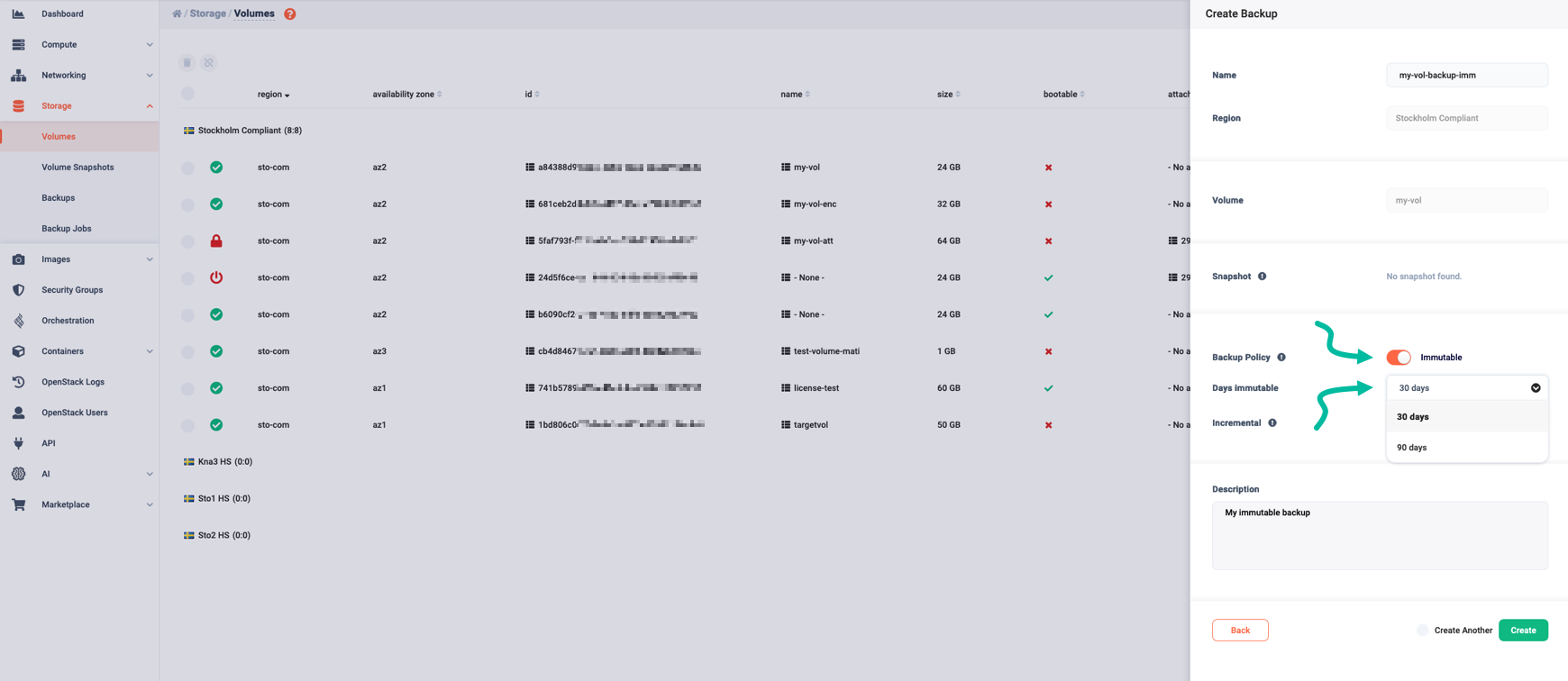
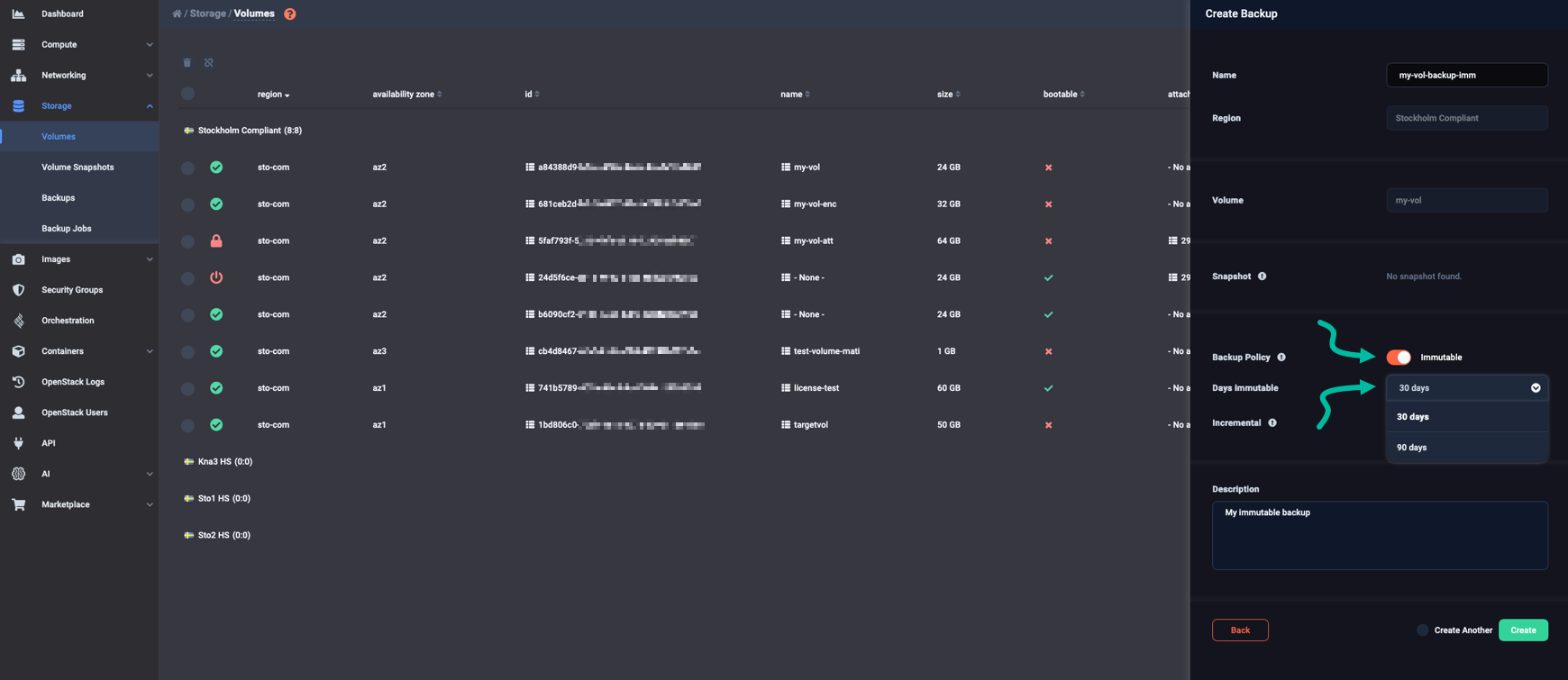
To create a backup in an immutable container, in the Create Backup pane, toggle the Backup Policy to Immutable. Then, from the Days immutable drop-down menu, select either 30 days or 90 days.
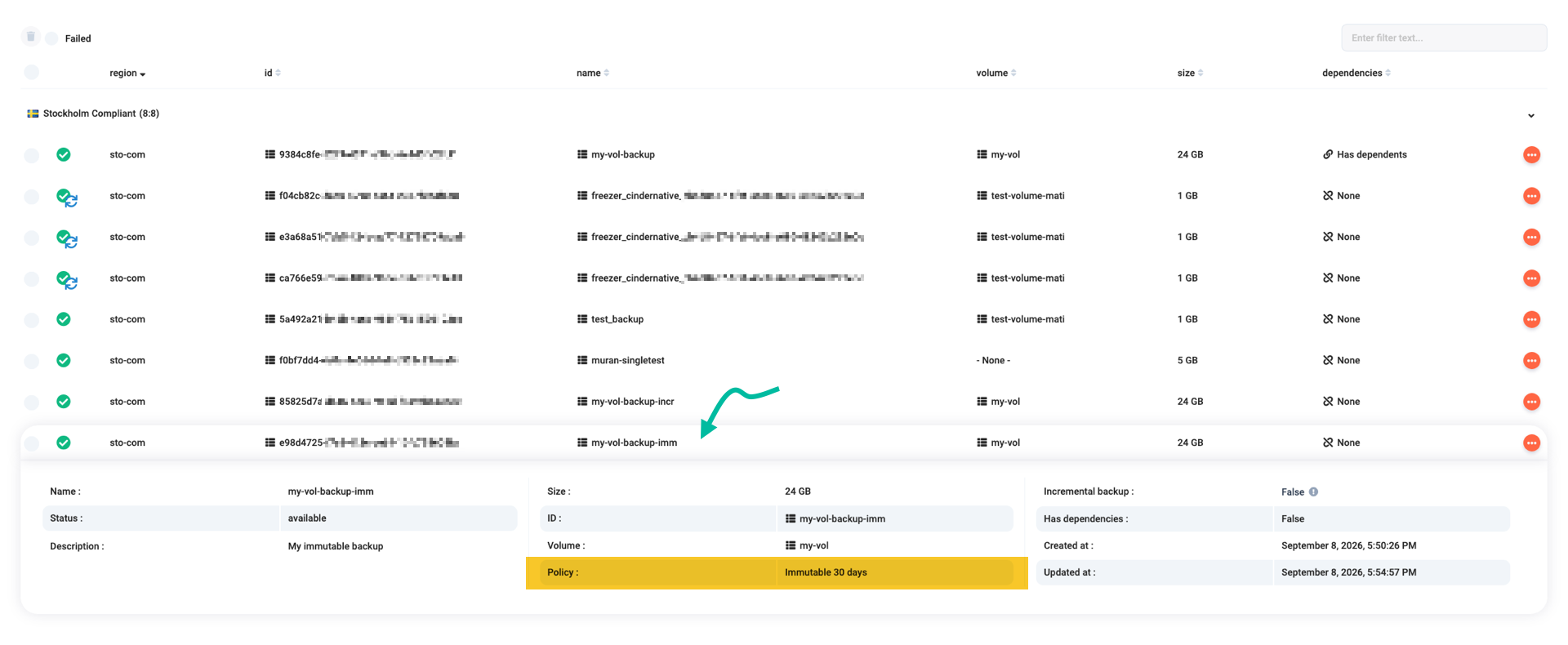
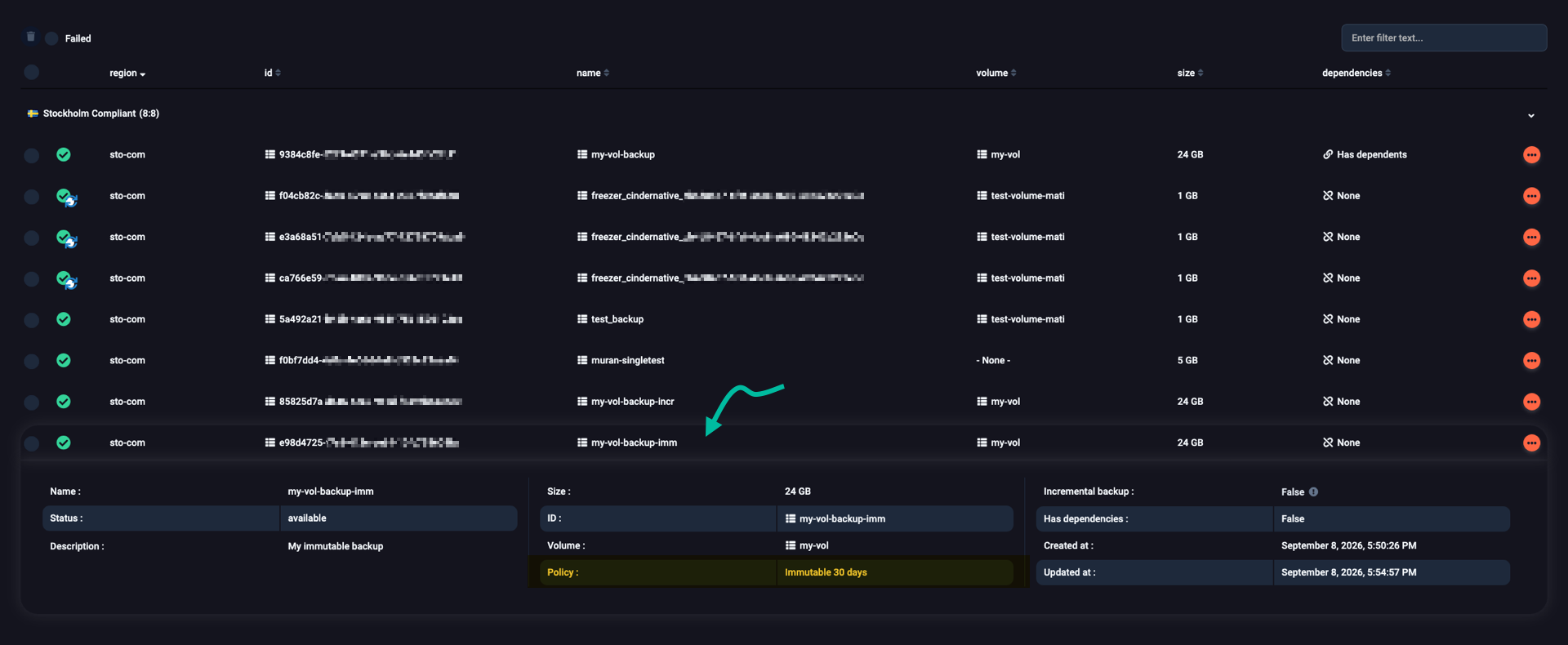
To check whether a backup is in an immutable container, in the vertical pane on the left, click Storage, and then Backups. Locate your backup and expand its row. Look for the Policy field; it should be either Immutable 30 days or Immutable 90 days.
You can create backups in immutable containers by specifying a special container named 30d-immutable or 90d-immutable.
For example, if you want to create a backup of my-vol in an immutable-for-30-days container, issue the following:
$ openstack volume backup create --name my-vol-backup-imm --container 30d-immutable my-vol
+-----------+--------------------------------------+
| Field     | Value                                |
+-----------+--------------------------------------+
| id        | 00f2e367-4e7e-4364-a2c8-600de989aca5 |
| name      | my-vol-backup-imm                    |
| volume_id | a84388d9-b3dc-456b-9aab-9da8e9fa1633 |
+-----------+--------------------------------------+
To verify that your my-vol-backup-imm backup is indeed in the 30d-immutable container, type:
$ openstack volume backup show -c container my-vol-backup-imm
+-----------+---------------+
| Field     | Value         |
+-----------+---------------+
| container | 30d-immutable |
+-----------+---------------+
Although you can delete backups in immutable containers, you may also restore a deleted backup by raising a support ticket within 30 or 90 days of deletion.
Backing up an attached volume
You may create backups of volumes attached to instances. While creating such a backup, you see a related warning and a suggestion; to ensure the backup is consistent, detach the volume first.
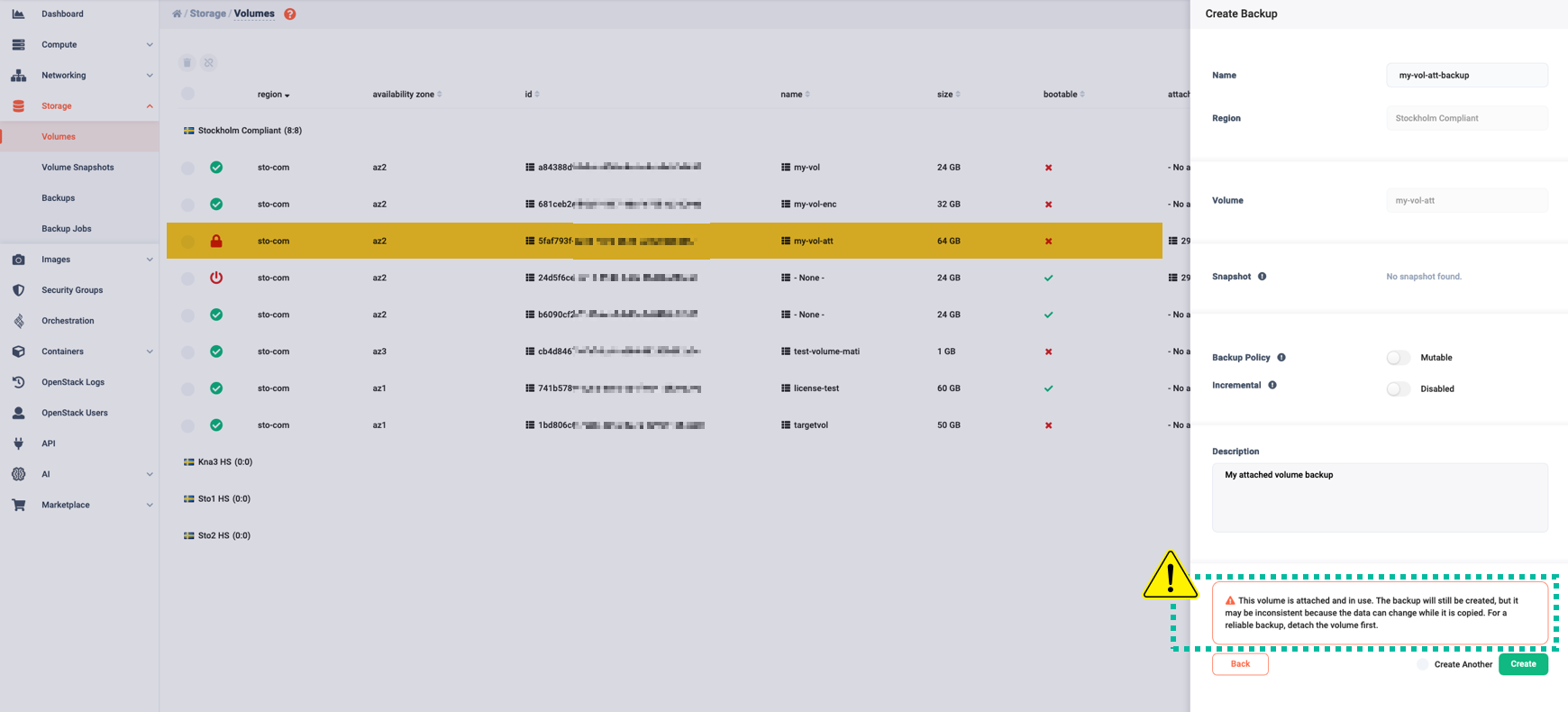
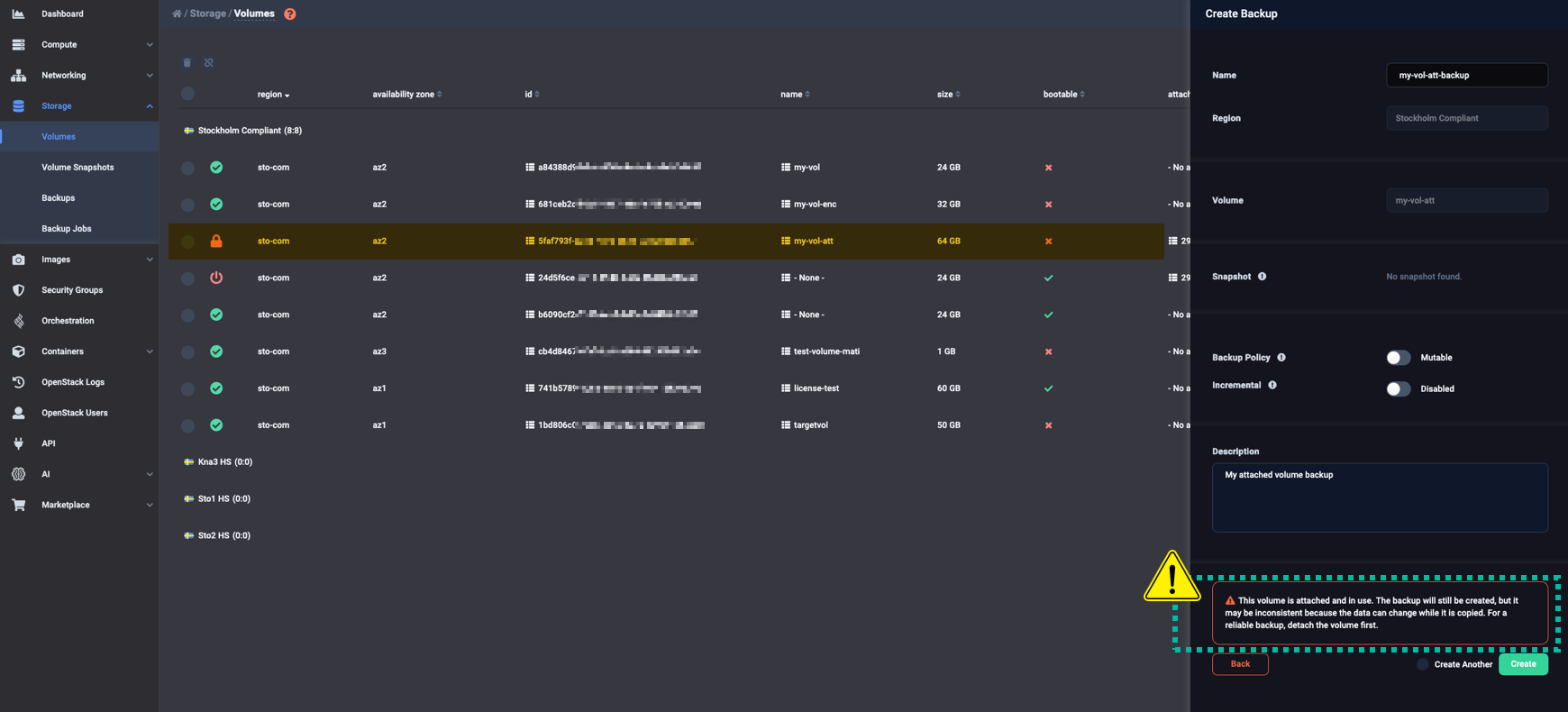
To create a backup of a volume that is attached to a VM, use the openstack volume backup create command with the --force directive:
$ openstack volume backup create --name my-vol-att-backup --force --description "My attached volume backup" my-vol-att
+-----------+--------------------------------------+
| Field     | Value                                |
+-----------+--------------------------------------+
| id        | 33d8c4a4-b238-465f-a063-84c6fab62e9d |
| name      | my-vol-att-backup                    |
| volume_id | 5faf793f-521b-4bfb-b531-72908bab8bf7 |
+-----------+--------------------------------------+
Backing up encrypted volumes
To back up an encrypted volume, follow the same steps as for an unencrypted one.
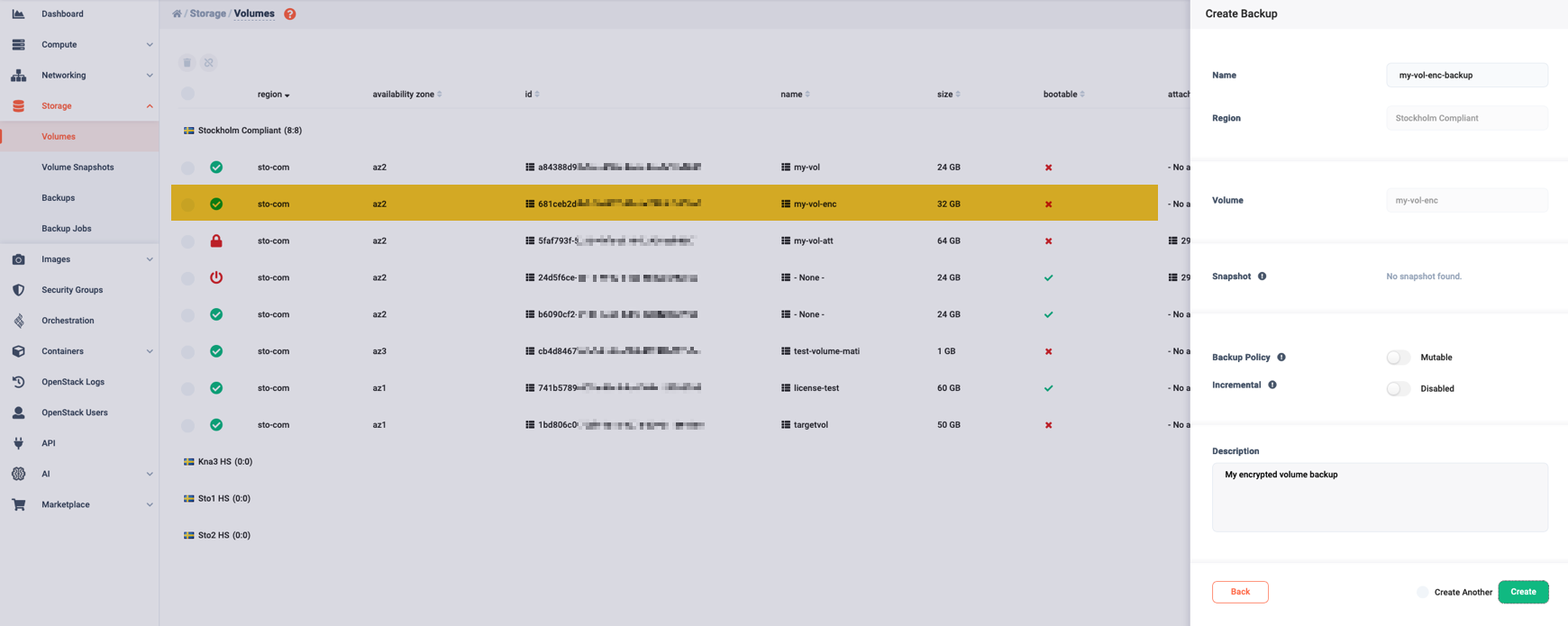
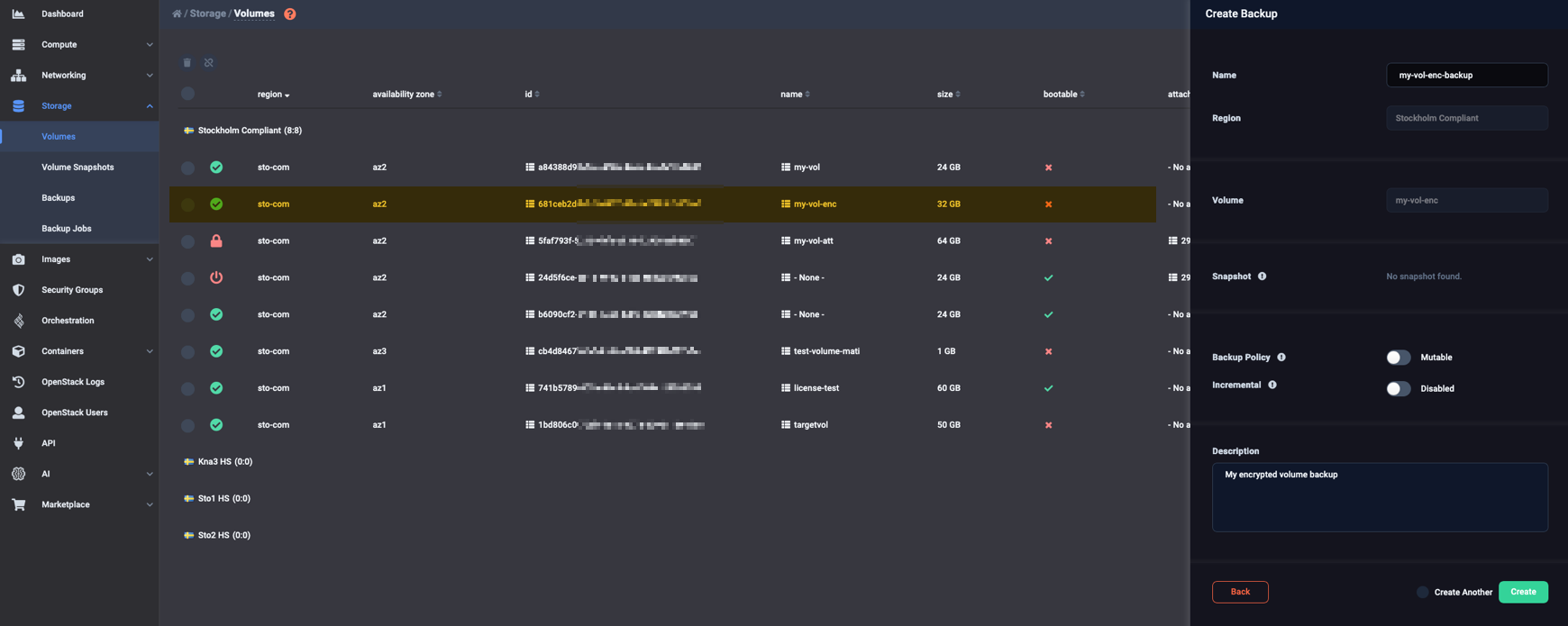
You can back up an encrypted volume the same way you would an unencrypted one.
For example, suppose you want to back up the encrypted volume my-vol-enc.
Then, go ahead and create a backup of it as usual:
$ openstack volume backup create --name my-vol-enc-backup --description "My encrypted volume backup" my-vol-enc
+-----------+--------------------------------------+
| Field     | Value                                |
+-----------+--------------------------------------+
| id        | 964b182a-8bea-405c-ad03-24b00e090931 |
| name      | my-vol-enc-backup                    |
| volume_id | 681ceb2d-b0c5-4457-88af-e79b3b3009e6 |
+-----------+--------------------------------------+
Get the details on the backup of your encrypted volume:
$ openstack volume backup show my-vol-enc-backup
+-----------------------+--------------------------------------+
| Field                 | Value                                |
+-----------------------+--------------------------------------+
| availability_zone     | backup-local                         |
| container             | mutable                              |
| created_at            | 2026-09-09T09:57:47.000000           |
| data_timestamp        | 2026-09-09T09:57:47.000000           |
| description           | My encrypted volume backup           |
| encryption_key_id     | d6f78ff8-48e3-4d7f-bdf1-87a56be4bc27 |
| fail_reason           | None                                 |
| has_dependent_backups | False                                |
| id                    | 964b182a-8bea-405c-ad03-24b00e090931 |
| is_incremental        | False                                |
| metadata              | {}                                   |
| name                  | my-vol-enc-backup                    |
| object_count          | 0                                    |
| project_id            | None                                 |
| size                  | 32                                   |
| snapshot_id           | None                                 |
| status                | creating                             |
| updated_at            | 2026-09-09T09:57:51.000000           |
| user_id               | None                                 |
| volume_id             | 681ceb2d-b0c5-4457-88af-e79b3b3009e6 |
+-----------------------+--------------------------------------+